

Wait! Don’t Go Yet! 👋
Become a Member Today and Unlock Access to All eBooks! 😍
Thousands of eBooks at your fingertips. Read, learn, and grow anytime, anywhere ✨
Become a Member Today and Unlock Access to All eBooks! 😍
Thousands of eBooks at your fingertips. Read, learn, and grow anytime, anywhere ✨

Learn how to interface the DHT11 and DHT22 digital temperature sensors with the Raspberry Pi to get temperature and humidity readings. You’ll learn how to connect the sensors to the Raspberry Pi, include the required libraries, and write a Python script that displays the current temperature and humidity on the shell/terminal.
Before proceeding with this tutorial, please verify the following prerequisites.
The DHT11 and DHT22 sensors are used to measure temperature and relative humidity. These are very popular among makers and electronics hobbyists.
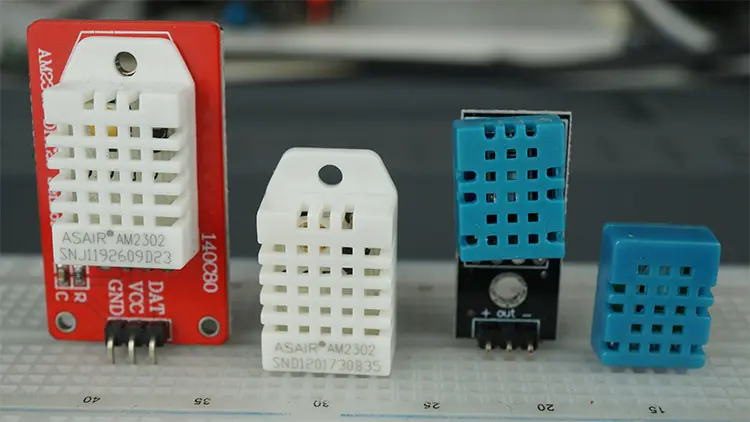
These sensors contain a chip that does analog to digital conversion and spit out a digital signal with the temperature and humidity. This makes them very easy to use with any microcontroller.
Top 6
Raspberry Pi eBooks
From Zero to Professional

The DHT11 and DHT22 are very similar but differ in their specifications. The following table compares some of the most important specifications of the DHT11 and DHT22 temperature and humidity sensors. For a more in-depth analysis of these sensors, please check the sensors’ datasheet.
| DHT11 | DHT22 | |
 |  | |
| Temperature range | 0 to 50 ºC +/-2 ºC | -40 to 80 ºC +/-0.5ºC |
| Humidity range | 20 to 90% +/-5% | 0 to 100% +/-2% |
| Resolution | Humidity: 1% Temperature: 1ºC | Humidity: 0.1% Temperature: 0.1ºC |
| Operating voltage | 3 – 5.5 V DC | 3 – 6 V DC |
| Current supply | 0.5 – 2.5 mA | 1 – 1.5 mA |
| Sampling period | 1 second | 2 seconds |
| Price | $1 to $5 | $4 to $10 |
| Where to buy | Check prices | Check prices |
The DHT22 sensor has a better resolution and a wider temperature and humidity measurement range. However, it is a bit more expensive, and you can only request readings with 2 seconds interval.
The DHT11 has a smaller range, and it’s less accurate. However, you can request sensor readings every second. It’s also a bit cheaper.
Despite their differences, they work similarly, and you can use the same code to read temperature and humidity. You just need to select in the code the sensor type you’re using.
DHT sensors have four pins as shown in the following figure. However, if you get your DHT sensor in a breakout board, it comes with only three pins and with an internal pull-up resistor on pin 2.
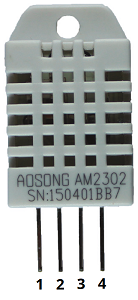
The following table shows the DHT22 and DHT11 pinout. When the sensor is facing you, pin numbering starts at 1 from left to right
| DHT pin | Connect to |
| 1 | 3.3V |
| 2 | Any digital GPIO; also connect a 4.7k Ohm pull-up resistor |
| 3 | Don’t connect |
| 4 | GND |
If you have a DHT11 or DHT22 sensor on a breakout board, it only comes with three pins and has an internal pull-up resistor on the data pin.
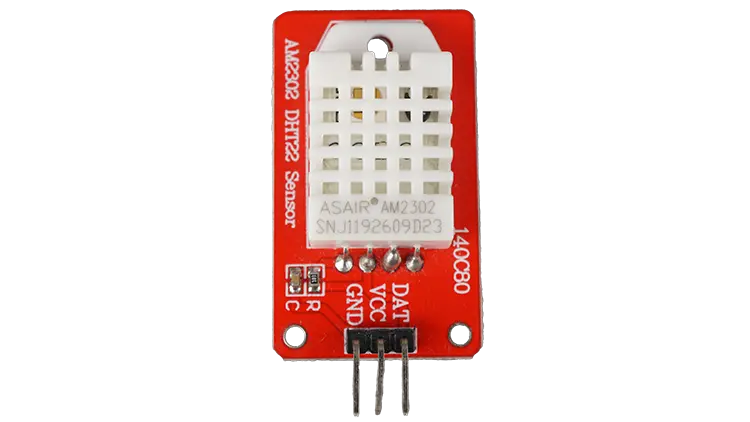
In this case, wiring is even simpler, and you don’t need to wire an external resistor. The DHT breakout boards usually have labels on the pins: GND, VCC, and DATA.
| DHT pin | Connect to |
| GND | GND |
| VCC | 3V3 (OUT) |
| DAT | GPIO 4 (or any other digital pin) |
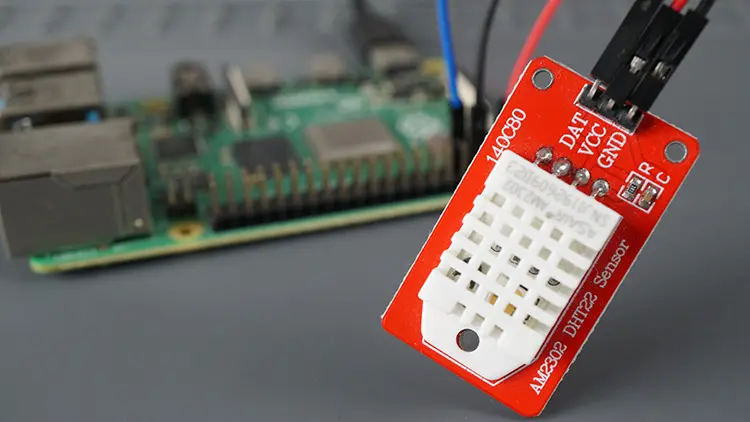
Here’s a list of parts you need to build the circuit (if you don’t have a DHT breakout board, you need a 4.7kOhm resistor):
Wire the DHT22 or DHT11 sensor to the Raspberry Pi as shown in the following schematic diagram. If you have a DHT breakout board, ignore the resistor.
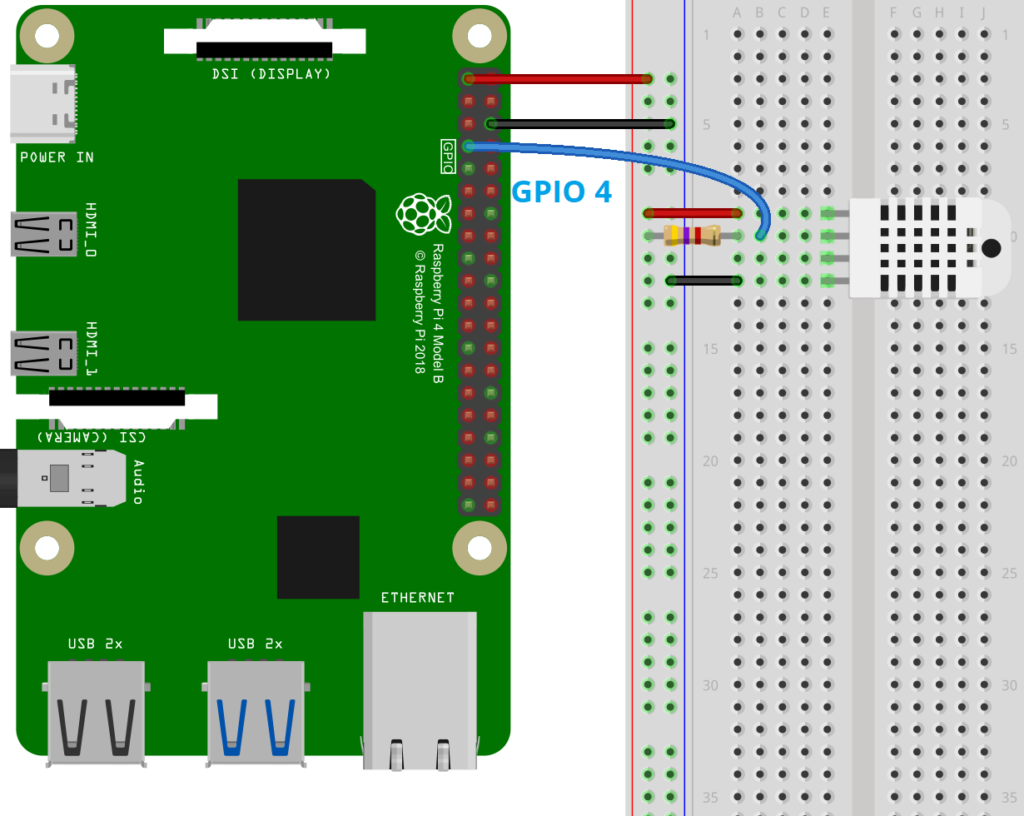
In this example, we’re connecting the DHT data pin to GPIO 4. However, you can use any other suitable digital GPIO. Learn more about the Raspberry Pi GPIOs here.
There are different ways to get temperature and humidity readings from the DHT11 or DHT22 sensors using the Raspberry Pi with Python. We’ll use the Adafruit_CircuitPython_DHT Python library.
First, update and upgrade your Raspberry Pi, if any updates are available. Run the following command:
sudo apt update && sudo apt upgradeIf there’s a need to update, it will ask you if you want to continue. Click Y and Enter to proceed. You may need to wait a few minutes if it needs to update.
We’ll install the DHT library in a virtual environment. Creating a virtual environment will isolate the Python libraries we’re using, in this case, the DHT library, from the rest of the system.
We’ll create our virtual environment in a directory on our Desktop. Enter the following command in a Terminal window to move to the Desktop:
cd ~/DesktopCreate a folder for your project. This is where we’ll create the virtual environment and install the library. We’ll create a folder called dht_test.
mkdir dht_testMove to the newly created folder:
cd ~/Desktop/dht_testCreate a virtual environment for this directory called myenv. This must be the same directory where we’ll install the DHT library. Replace myenv with the desired name for your virtual environment.
python3 -m venv myenvThen, you can run the following command to check that the virtual environment is there.
ls -l
Activate the virtual environment:
source myenv/bin/activateYour prompt should change to indicate that you are now in the virtual environment.

Now that we are in our virtual environment, we can install the library. Run the following command:
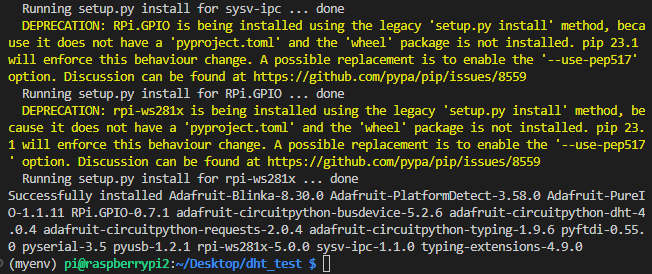
python3 -m pip install adafruit-circuitpython-dhtAfter a few seconds, the library will be installed (ignore any yellow warnings about deprecated packages).
The following script gets temperature and humidity from the DHT sensors and prints the readings on the Python shell. Create a new Python file with a name of your choice, for example, dht_basic.py, and copy the following code.
# Complete Project Details: https://ebokify.com/raspberry-pi-dht11-dht22-python/
# Based on Adafruit_CircuitPython_DHT Library Example

import time
import board
import adafruit_dht

# Sensor data pin is connected to GPIO 4
sensor = adafruit_dht.DHT22(board.D4)
# Uncomment for DHT11
#sensor = adafruit_dht.DHT11(board.D4)

while True:
    try:
        # Print the values to the serial port
        temperature_c = sensor.temperature
        temperature_f = temperature_c * (9 / 5) + 32
        humidity = sensor.humidity
        print("Temp={0:0.1f}ºC, Temp={1:0.1f}ºF, Humidity={2:0.1f}%".format(temperature_c, temperature_f, humidity))

    except RuntimeError as error:
        # Errors happen fairly often, DHT's are hard to read, just keep going
        print(error.args[0])
        time.sleep(2.0)
        continue
    except Exception as error:
        sensor.exit()
        raise error

    time.sleep(3.0)
To create and run Python scripts on the Raspberry Pi, we like to use VS Code with an SSH extension: Programming Raspberry Pi Remotely using VS Code (Remote-SSH).
Continue reading to learn how the code works, or skip to the Demonstration section.
Start by importing the required libraries: the time module to add delays to our code, the board module to interact with the Raspberry Pi GPIOs, and the adafruit_dht to read from the DHT sensor.
import time
import board
import adafruit_dhtOn the following line, we initialize our DHT sensor. We are using a DHT22 connected to GPIO 4 (you can use any other suitable GPIO as long as you change the code on the following line):
sensor = adafruit_dht.DHT22(board.D4)
If you’re using a DHT11, it should be like this:
sensor = adafruit_dht.DHT11(board.D4)From now on, we’ll refer to our DHT sensor as the sensor in our code.
Then, we have a loop that keeps the program running indefinitely, until you stop the program. Inside the loop, we’ll try to read the sensor and display the readings.
while True:
try:Getting the temperature in Celsius degrees and humidity is as easy as using the temperature and humidity properties of the sensor object. So, you can get the temperature like this:
temperature_c = sensor.temperatureBy default, it will get the temperature in Celsius degrees. We add a line to convert it to Fahrenheit degrees.
temperature_f = temperature_c * (9 / 5) + 32We save the humidity value on the humidity variable:
humidity = sensor.humidityAfter getting sensor readings, we’ll display them on the shell using the print() function.
print("Temp={0:0.1f}ºC, Temp={1:0.1f}ºF, Humidity={2:0.1f}%".format(temperature_c, temperature_f, humidity))Formatting the printing output
Temp={0:0.1f}ºC, Temp={1:0.1f}ºF, Humidity={2:0.1f}%: This is the format string that defines how the output will be displayed. The format string contains placeholders indicated by curly braces {} that will be filled in with actual values using the .format() method.
Temp={0:0.1f}ºC indicates the placeholder for the first value (temperature). It specifies how the value will be formatted:
{0}: This specifies the index of the value to be inserted (0 refers to the first value provided to the .format() method).:0.1f: This is a formatting specification that specifies how the value should be displayed. The 0 represents the minimum number of digits, and the .1f means that it will display the value as a floating-point number with one digit after the decimal point.Temp={1:0.1f}ºF: This part of the format string follows the same structure as above but refers to the second value (temperature_f).
Humidity={2:0.1f}%: This part of the format string refers to the third value (humidity).
Finally, .format(temperature_c, temperature_f, humidity) inserts the actual values into the placeholders within the format string. The values provided in the parentheses are inserted into the placeholders according to their respective indexes (0, 1, 2).
If we can’t get valid temperature and humidity readings, we handle the exceptions in the except blocks:
except RuntimeError as error:
    # Errors happen fairly often, DHT's are hard to read, just keep going
    print(error.args[0])
    time.sleep(2.0)
    continue
except Exception as error:
    sensor.exit()
    raise error
We get new temperature readings every three seconds. You can adjust the delay time by changing the argument of the sleep() method.
time.sleep(3)Save your Python file in the same folder as your virtual environment (in our case Desktop/dht_test). Then run it on your Raspberry Pi. Run the following command (make sure you are on the correct path—the same folder as the virtual environment):
python dht-basic.py
The virtual environment must be active to run the script. If the virtual environment is not active, you can rerun the following command to activate myenv.
source myenv/bin/activateYou should get new temperature and humidity readings on the Python Shell or on the Raspberry Pi Terminal every three seconds.
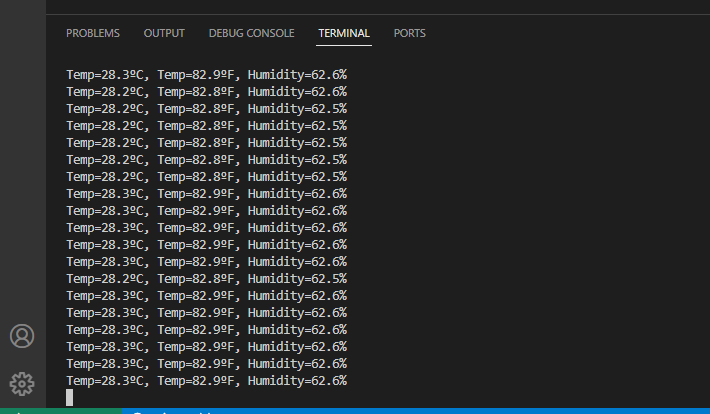
You can stop the execution of the program by pressing CTRL+C.
You may also like reading: Raspberry Pi: BME280 Temperature, Humidity and Pressure Sensor (Python).
In this tutorial, you learned how to interface the DHT11 and DHT22 digital temperature and humidity sensors with the Raspberry Pi and how to write a Python program to get and display readings. This is one of the most basic projects to get you started with the DHT11 or DHT22 sensor.
We hope you found this tutorial useful. If you’re a beginner to the Raspberry Pi, you can get started with the following tutorials:
You can check all our Raspberry Pi projects on the following link:
🚀 Discover the world of electronics and innovation!
✨ Create, program, and experiment with all your creative ideas with ease.
🔥 Don't wait! Browse SpotPear products now and start your amazing project!
