Book Categories:


Wait, don't go!
Become a Member Today and Unlock Access to All eBooks!
Thousands of eBooks at your fingertips. Read, learn, and grow anytime, anywhere.
The Raspberry Pi 4 Model B and most recent versions of the Raspberry Pi have a double row of 40 GPIOs (General Purpose Input/Output Pins) that allow you to connect electronic components like LEDs and sensors. Some pins have specific functions like providing power, I2C, SPI, and UART communication protocols, or PWM. In this guide, we’ll take a look at the Raspberry Pi GPIOs and their functions.
You may like reading: Best Raspberry Pi Getting Started Kits.
The Raspberry Pi 4 Model B board has a double row of 40 GPIO pins. This layout is the same for the Pi 3 Model B and B+, Pi 2 Model B and B+, and Pi 1 Model B+, but slightly different from the Pi 1 Model A and B, which only have the first 26 pins.
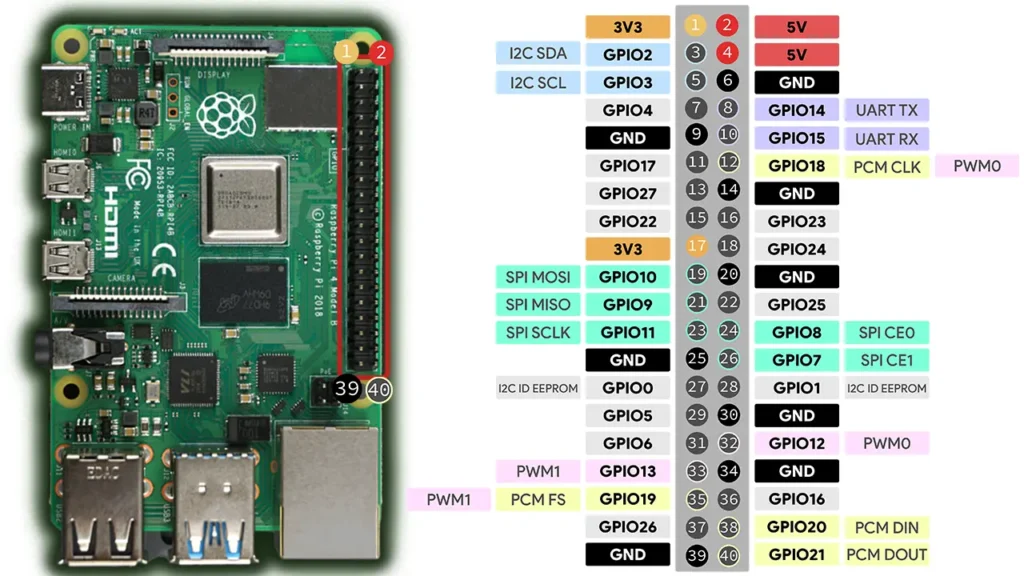
There are several ways to refer to a GPIO pin: its name (which is known as GPIO numbering or Broadcom numbering) or its corresponding pin physical number (which corresponds to the pin’s physical location on the header). For example, GPIO 18 corresponds to pin 12.
The following table shows the Raspberry Pi pinout, it shows all GPIOs, their corresponding physical pin numbers, their Broadcom numbering, and corresponding features.
| Function | Name | Pin no. | Pin no. | Name | Function |
| DC power | 3.3 V | 1 | 2 | 5 V | DC power |
| I2C (SDA) | GPIO 2 | 3 | 4 | 5 V | DC power |
| I2C (SCL) | GPIO 3 | 5 | 6 | GND | |
| GPCLK0 | GPIO 4 | 7 | 8 | GPIO 14 | UART (TXD0) |
| GND | 9 | 10 | GPIO 15 | UART (RXD0) | |
| GPIO 17 | 11 | 12 | GPIO 18 | PCM CLK (I2S) | |
| GPIO 27 | 13 | 14 | GND | ||
| GPIO 22 | 15 | 16 | GPIO 23 | ||
| DC power | 3.3 V | 17 | 18 | GPIO 24 | |
| SPI (MOSI) | GPIO 10 | 19 | 20 | GND | |
| SPI (MISO) | GPIO 9 | 21 | 22 | GPIO 25 | |
| SPI (CLK) | GPIO 11 | 23 | 24 | GPIO 8 | SPI (CE0) |
| GND | 25 | 26 | GPIO 7 | SPI (CE1) | |
| I2C EEPROM | GPIO 0 | 27 | 28 | GPIO 1 | I2C EEPROM |
| GPIO 5 | 29 | 30 | GND | ||
| GPIO 6 | 31 | 32 | GPIO 12 | PWM0 | |
| PWM1 | GPIO 13 | 33 | 34 | GND | |
| PCM FS (I2S) | GPIO 19 | 35 | 36 | GPIO 16 | |
| GPIO 26 | 37 | 38 | GPIO 20 | PCM DIN (I2S) | |
| GND | 39 | 40 | GPIO 21 | PCM Dout (I2S) |

Note: the Raspberry Pi 1 Model B Rev. 1 was the very first Raspberry Pi board released and has a slightly different pinout from all the other boards. This pinout doesn’t apply to that board.
The Raspberry Pi GPIOs provide the following peripheral interface options:
The Raspberry Pi doesn’t have an analog-to-digital converter (ADC) interface to read analog sensors. However, you can use an external analog-to-digital converter like the MCP3008 to read analog signals with the Raspberry Pi.
Important: The Raspberry Pi GPIOs support voltages only up to 3.3V. If you attach a higher voltage, you may permanently damage your Raspberry Pi.
The Raspberry Pi comes with two 3.3V pins (pins number 1 and 17) and two 5V pins (pins 2 and 4).
Additionally, there are eight GND pins (pins number: 6, 9, 14, 20, 25, 30, 34, and 39).
Out of the 40 Raspberry Pi GPIOs, 11 are power or GND pins. Besides that, there are two reserved pins (pins 27 and 28) for I2C communication with an EEPROM (learn more about this). So, this left us with 16 GPIOs that you can use to connect peripherals. These GPIOs can be used either as inputs or outputs. Additionally, some of them support specific communication protocols.
Learn more about digital inputs and outputs with the Raspberry Pi:
I²C means Inter-Integrated Circuit, and it is a synchronous, multi-master, multi-slave communication protocol. It allows you to establish communication with other microcontroller devices, sensors, or displays, for example. You can connect multiple I2C devices to the same pins as long as they have a unique I2C address.
The Raspberry Pi I2C pins are GPIO 2 and GPIO 3:
If you want to use I2C, you need to enable the I2C communication interface first.
SPI stands for Serial Peripheral Interface, and it is a synchronous serial data protocol used by microcontrollers to communicate with one or more peripherals. This communication protocol allows you to connect multiple peripherals to the same bus interface, as long as each is connected to a different chip select pin.
For example, your Raspberry Pi board can communicate with a sensor that supports SPI, another Raspberry Pi, or a different microcontroller board. These are the Raspberry Pi SPI pins:
The UART pins can be used for Serial communication. The Raspberry Pi Serial (UART) pins are:
PWM stands for Pulse Width Modulation, and it is used to control motors, define varying levels of LED brightness, define the color of RGB LEDs, and much more.
The Raspberry Pi has 4 hardware PWM pins: GPIO 12, GPIO 13, GPIO 18, and GPIO 19.
You can have software PWM on all pins.
Learn how to generate PWM signals with the Raspberry Pi:
The Raspberry Pi doesn’t have any ADC pins—it doesn’t include an analog-to-digital converter. So, you need to convert the analog signal to a digital signal using an analog-to-digital converter like the MCP3008 chip.
Being able to read analog signals is useful to read varying voltage levels from a potentiometer or sensors, for example.
Learn how to read analog signals with the Raspberry Pi with the following tutorial:
The Raspberry Pi supports one-wire on all GPIOs, but the default is GPIO4.
The Raspberry Pi comes with PCM (pulse-code Modulation) pins for digital audio output. These are the PCM pins:
Pins 27 and 28 (GPIO 0 and GPIO 1) are reserved for connecting a HAT ID EEPROM. Do not use these pins unless you’re using an I2C ID EEPROM. Leave unconnected if you’re not using an I2C EEPROM.
We hope you’ve found this guide about the Raspberry Pi GPIOs useful.
One of the easiest ways to control the Raspberry Pi GPIOs is using Python and the gpiozero library. We’ll create some tutorials about how to use the GPIOs soon. So, stay tuned.
You may also like:
You can check all our Raspberry Pi projects on the following link:
Thanks for reading.








