Book Categories:


Wait, don't go!
Become a Member Today and Unlock Access to All eBooks!
Thousands of eBooks at your fingertips. Read, learn, and grow anytime, anywhere.
Become a Member Today and Unlock Access to All eBooks!
Thousands of eBooks at your fingertips. Read, learn, and grow anytime, anywhere.
Learn how to interface the BME280 sensor with the Raspberry Pi to get temperature, humidity, and pressure readings. You’ll learn how to connect the sensor to the Raspberry Pi board and write a Python script that gets sensor data and displays it on the terminal.
Before proceeding with this tutorial, please verify the following prerequisites.
The BME280 sensor module reads barometric pressure, temperature, and humidity. Because pressure changes with altitude, you can also estimate altitude. There are several versions of this sensor module. We’re using the module illustrated in the figure below.
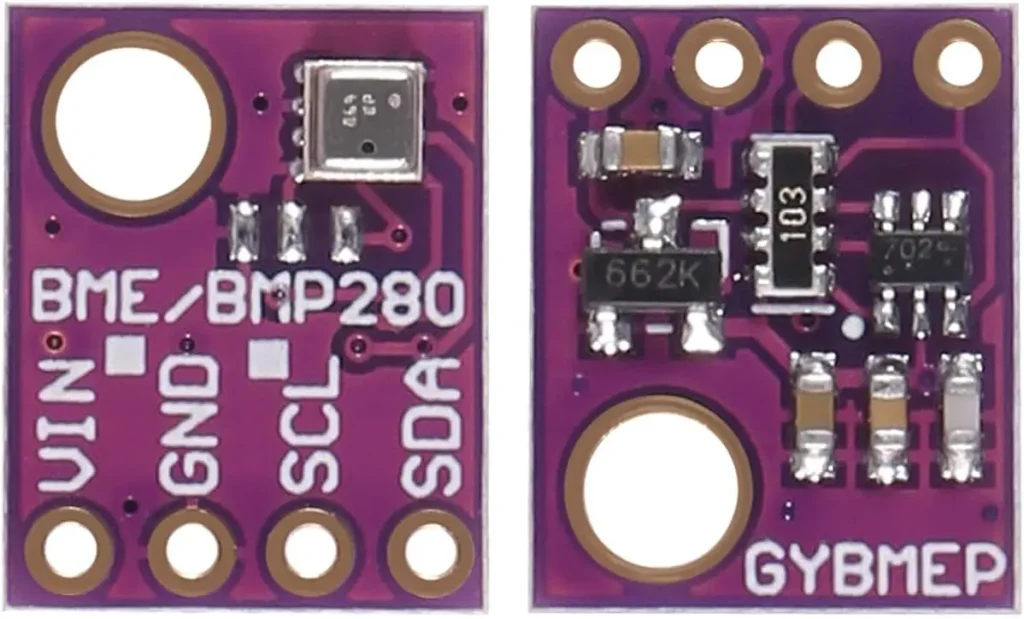
This sensor communicates using I2C communication protocol, so the wiring is very simple. You can use the default Raspberry Pi I2C pins as shown in the following table:
| BME280 | Raspberry Pi |
| Vin | 3.3V |
| GND | GND |
| SCL | GPIO 3 |
| SDA | GPIO 2 |
Top 6
Raspberry Pi eBooks
From Zero to Professional

Learn more about the Raspberry Pi GPIOs: Raspberry Pi Pinout Guide: How to use the Raspberry Pi GPIOs?
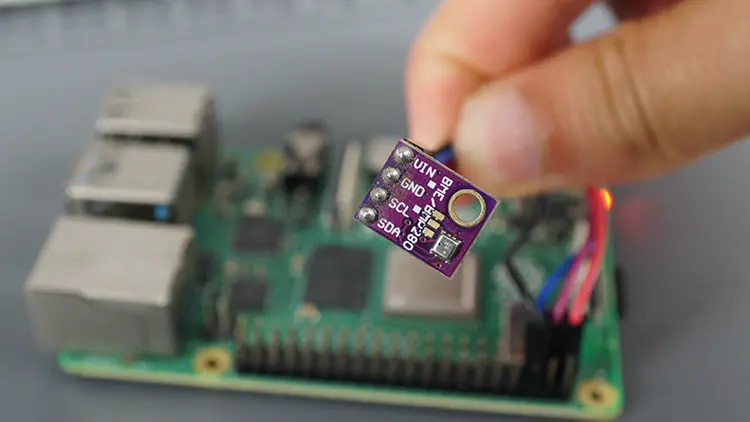
Here’s a list of parts you need to build the circuit:
I2C communication is not enabled by default. You need to enable it manually. Open a terminal window on your Raspberry Pi and type the following command:
sudo raspi-config
The following menu will open. Select Interface Options.
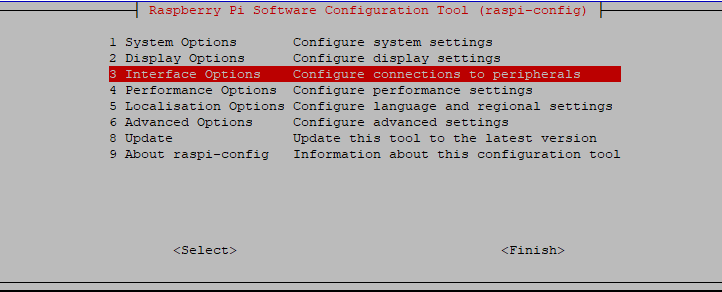
Then, select the I2C option.
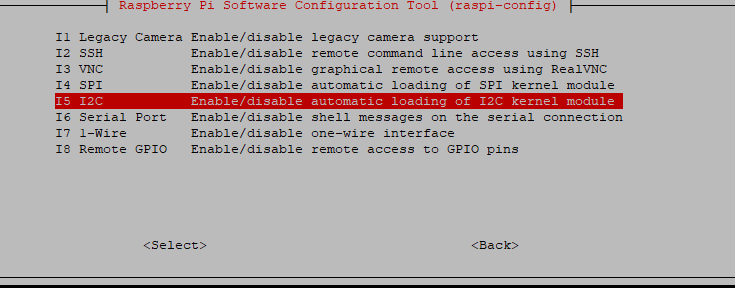
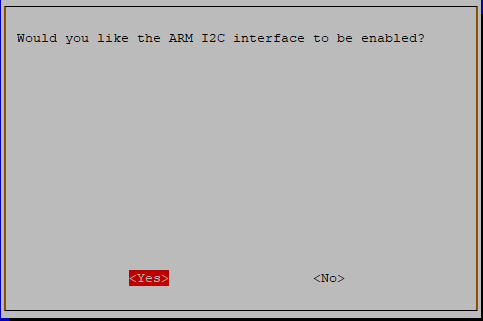
Finally, enable I2C by selecting Yes.
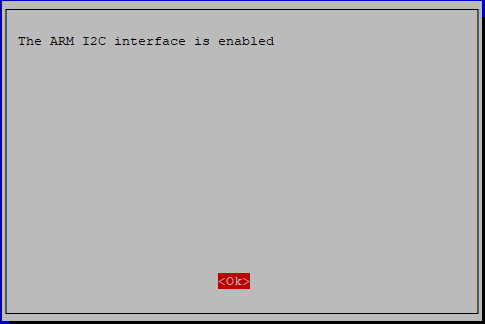
I2C should be successfully enabled.
After enabling I2C, reboot your Raspberry Pi by running the following command:
sudo reboot
Wire the BME280 to the Raspberry Pi default I2C pins.
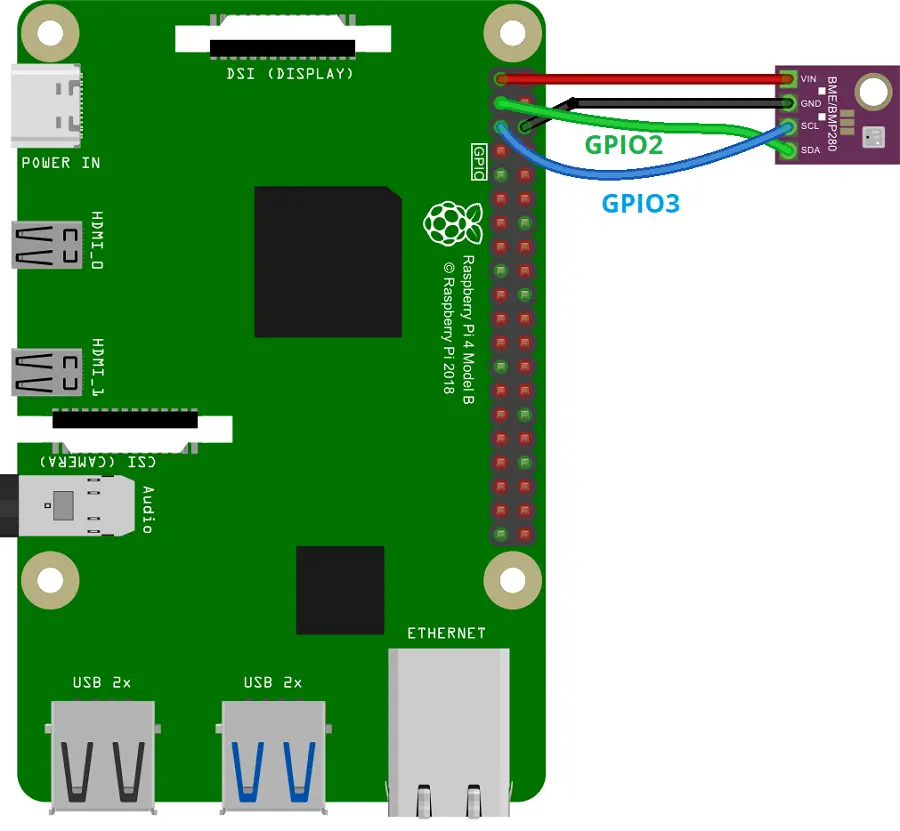
| BME280 | Raspberry Pi |
| Vin | 3.3V |
| GND | GND |
| SCL | GPIO 3 |
| SDA | GPIO 2 |
With the sensor connected to the Raspberry Pi, let’s check if the sensor is connected properly by searching for its I2C address.
Open a Terminal window on your Raspberry Pi and run the following command:
sudo i2cdetect -y 1
It should show your sensor I2C address:
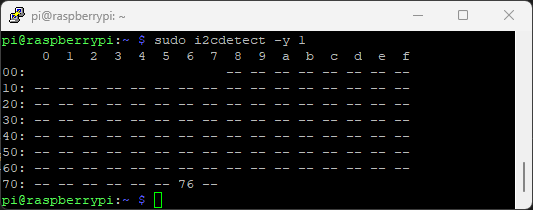
There are several libraries compatible with the Raspberry Pi to read from the BME280 sensor. We’ll be using the RPi.BME280 library. This library is available to install through PIP (a package manager for Python packages).
First, install or upgrade pip by running the following command:
sudo pip install --upgrade pip
Then, run the following command to install the library using pip:
sudo pip install RPI.BME280
The following script gets temperature, humidity, and pressure from the BME280 sensor and prints the readings on the Python shell. Create a new Python file with a name of your choice, for example, bme280_basic.py, and copy the following code.
import time
import smbus2
import bme280

# BME280 sensor address (default address)
address = 0x76

# Initialize I2C bus
bus = smbus2.SMBus(1)

# Load calibration parameters
calibration_params = bme280.load_calibration_params(bus, address)

def celsius_to_fahrenheit(celsius):
    return (celsius * 9/5) + 32

while True:
    try:
        # Read sensor data
        data = bme280.sample(bus, address, calibration_params)

        # Extract temperature, pressure, and humidity
        temperature_celsius = data.temperature
        pressure = data.pressure
        humidity = data.humidity

        # Convert temperature to Fahrenheit
        temperature_fahrenheit = celsius_to_fahrenheit(temperature_celsius)

        # Print the readings
        print("Temperature: {:.2f} °C, {:.2f} °F".format(temperature_celsius, temperature_fahrenheit))
        print("Pressure: {:.2f} hPa".format(pressure))
        print("Humidity: {:.2f} %".format(humidity))

        # Wait for a few seconds before the next reading
        time.sleep(2)

    except KeyboardInterrupt:
        print('Program stopped')
        break
    except Exception as e:
        print('An unexpected error occurred:', str(e))
breakContinue reading to learn how the code works, or skip to the Demonstration section.
First, we import the required libraries: time, smbus2, and bme280. The time module lets us add delays in our code, smbus2 helps us communicate with I2C devices like the BME280 sensor, and bme280 provides functions to easily interact with the sensor.
import time
import smbus2
import bme280We set the default address of the BME280 sensor to 0x76. This is the address that the sensor communicates with over the I2C bus (check this previous section).
# BME280 sensor address (default address)
address = 0x76
We then initialize the I2C bus using the smbus2.SMBus(1) command.
# Initialize I2C bus
bus = smbus2.SMBus(1)
Then, we initialize the sensor by setting the I2C bus and its I2C address.
# Load calibration parameters
calibration_params = bme280.load_calibration_params(bus, address)We define a function called celsius_to_fahrenheit(celsius) which converts temperature from Celsius to Fahrenheit. Then, we can call this function later on in our code to convert the temperature.
def celsius_to_fahrenheit(celsius):
return (celsius * 9/5) + 32We enter an infinite loop using while True to repeatedly read and display sensor data.
while True:We use the bme280.sample(bus, address, calibration_params) function to read sensor data.
data = bme280.sample(bus, address, calibration_params)We extract the temperature, pressure, and humidity from the data returned by the sensor and save each reading in a variable: temperature_celsius, pressure, and humidity.
# Extract temperature, pressure, and humidity
temperature_celsius = data.temperature
pressure = data.pressure
humidity = data.humidity
We convert the temperature from Celsius to Fahrenheit using the function we created previously and save it in the temperature_fahrenheit variable.
# Convert temperature to Fahrenheit
temperature_fahrenheit = celsius_to_fahrenheit(temperature_celsius)
Finally, we print the readings formatted with two decimal places:
# Print the readings
print("Temperature: {:.2f} °C, {:.2f} °F".format(temperature_celsius, temperature_fahrenheit))
print("Pressure: {:.2f} hPa".format(pressure))
print("Humidity: {:.2f} %".format(humidity))
New readings are printed every two seconds. You can adjust the time between each sample by adding a different number to the sleep() method.
time.sleep(2)We use exception handling to catch keyboard interrupts (when the user presses Ctrl+C) and other exceptions. If this happens, we print an error message and use the break command to get out of the loop.
except KeyboardInterrupt:
    print('Program stopped')
    break
except Exception as e:
    print('An unexpected error occurred:', str(e))
breakSave your Python file. Then run it on your Raspberry Pi. Run the following command on the directory of your Python file:
python bme280_basic.py
You should get new temperature, humidity, and pressure readings on the Python Shell or on the Raspberry Pi Terminal every three seconds.
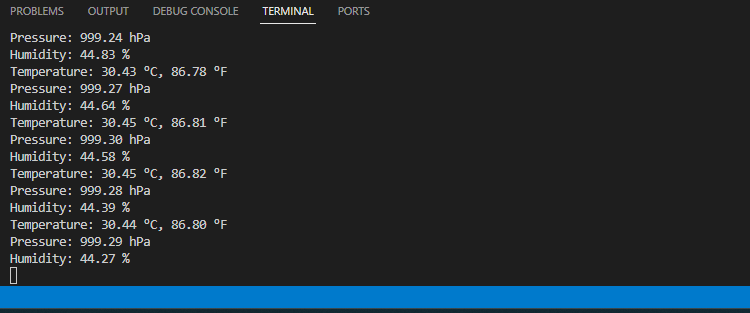
You can stop the execution of the program by pressing CTRL+C.
In this tutorial, you learned how to interface the BME280 temperature, humidity, and pressure sensor with the Raspberry Pi and how to write a Python program to get and display readings. This is one of the simplest examples to get you started using the BME280 sensor.
We hope you found this tutorial useful. If you’re a beginner to the Raspberry Pi, you can get started with the following tutorials:
You can check all our Raspberry Pi projects on the following link:
🚀 Discover the world of electronics and innovation!
✨ Create, program, and experiment with all your creative ideas with ease.
🔥 Don't wait! Browse SpotPear products now and start your amazing project!








