Book Categories:


Wait, don't go!
Become a Member Today and Unlock Access to All eBooks!
Thousands of eBooks at your fingertips. Read, learn, and grow anytime, anywhere.
Become a Member Today and Unlock Access to All eBooks!
Thousands of eBooks at your fingertips. Read, learn, and grow anytime, anywhere.
Learn how to interface the Raspberry Pi with the DS18B20 temperature sensor and how to get temperature readings using a Python program.
Before proceeding with this tutorial, please verify the following prerequisites.
The DS18B20 temperature sensor is a one-wire digital temperature sensor. This means that it just requires one data line (and GND) to communicate with your ESP32.
It can be powered by an external power supply, or it can derive power from the data line (called “parasite mode”), which eliminates the need for an external power supply.
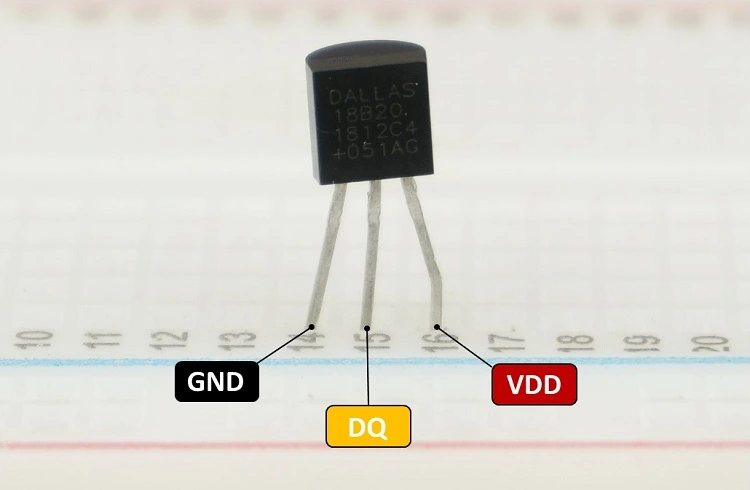
Each DS18B20 temperature sensor has a unique 64-bit serial code. This allows you to wire multiple sensors to the same data wire. So, you can get the temperature from multiple sensors using just one GPIO.
Top 6
Raspberry Pi eBooks
From Zero to Professional

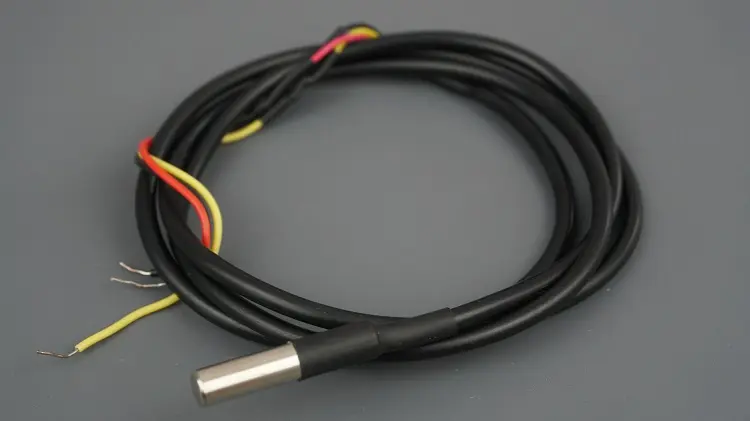
The DS18B20 temperature sensor is also available in a waterproof version.
Here’s a summary of the most relevant specs of the DS18B20 temperature sensor:
For more information, consult the DS18B20 datasheet.
To follow this tutorial, you need the following parts:
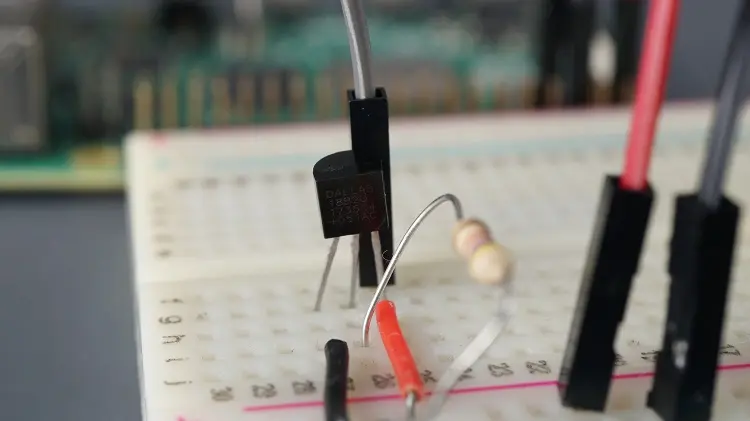
The DS18B20 temperature sensor comes with three pins: GND, data, and VCC. The DS18B20 temperature sensor can be powered through the VDD pin (normal mode), or it can derive its power from the data line (parasite mode). You can choose either mode. We prefer using the normal mode.
If you’re using the waterproof version, you can identify each pin by its color:
The DS18B20 temperature sensor communicates using the one-wire communication protocol. The Raspberry Pi supports one-wire on any GPIO pin, but the default is GPIO 4. So, we’ll wire the data pin of the sensor to GPIO 4. If you need to use another GPIO, see one of the following sections to learn how to enable the one-wire bus on a different pin.
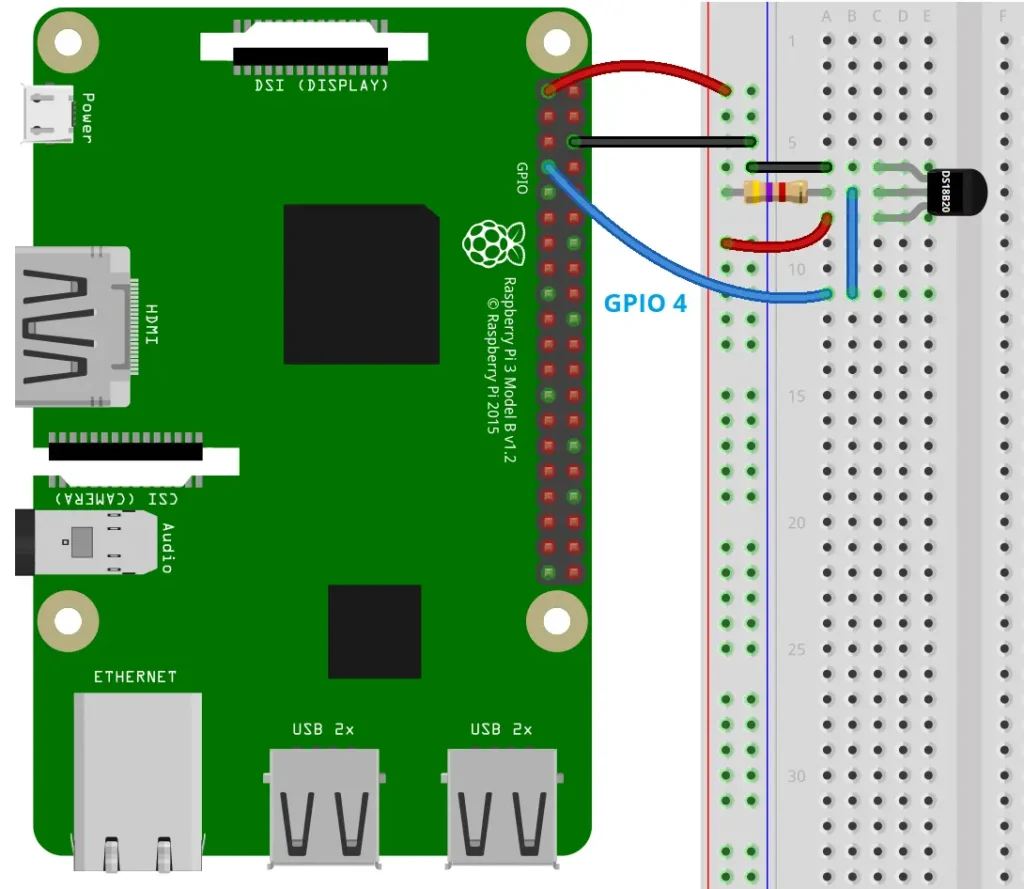
| DS18B20 | Raspberry Pi Pico |
| GND | GND |
| Data (DQ) | Default one-wire pin in GPIO 4 You also need to connect a 4.7KOhm resistor between the data line and VCC |
| VDD | 3V3(OUT) |
To enable the one-wire interface, open a Terminal window on your Raspberry Pi (for example, via SSH), type the following command, and press Enter.
sudo raspi-config
The following menu will open. Select Interface Options:
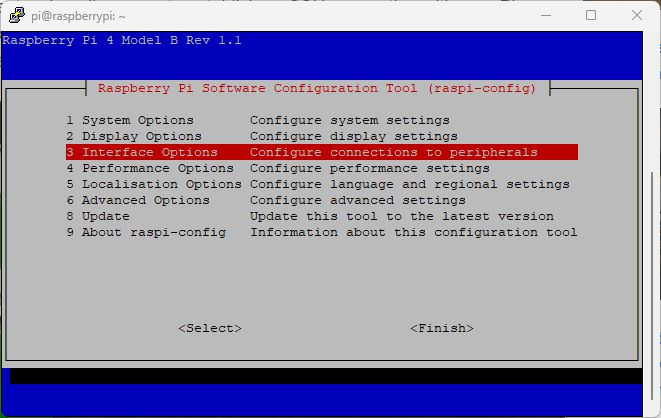
Select 1-wire.
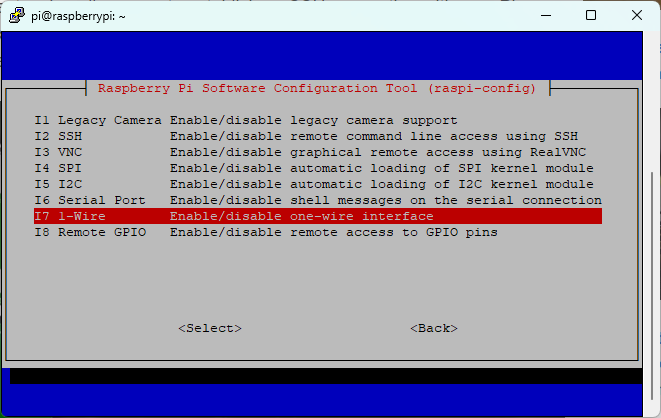
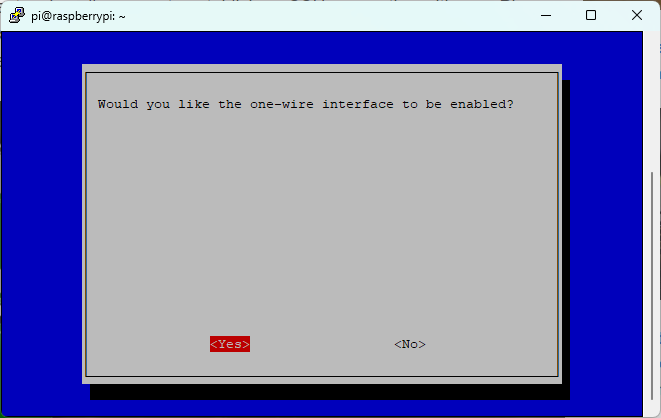
And enable it.
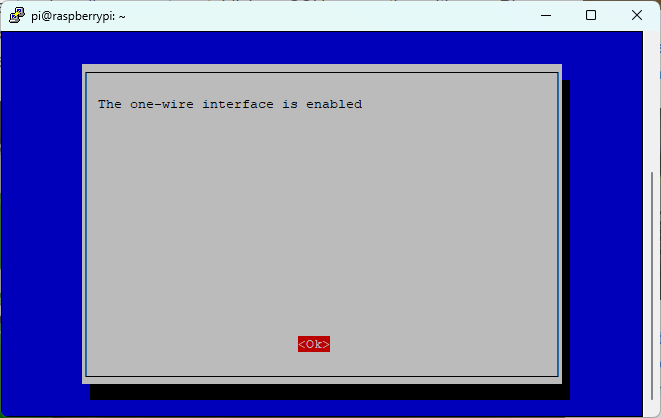
Finally, select Finish, and then reboot the Raspberry Pi.
The default one-wire GPIO for the Raspberry Pi is GPIO 4. If you want to enable the one-wire bus on a different pin, you need to run the following commands.
Open and edit the config.txt file using:
sudo nano /boot/config.txt
Add the following line at the end of the file, in which x is the GPIO you want to use for one-wire:
dtoverlay=w1-gpio,gpiopin=x
For example, if you want to enable one-wire on GPIO22, it would be as follows:
dtoverlay=w1-gpio,gpiopin=22
Press CTRL-X, then press Y and Enter to save the changes.
Reboot your Raspberry Pi with:
sudo reboot
With the sensor wired to your Raspberry Pi, let’s just test that it can find the sensor and report the readings before writing the Python code.
Run the following commands in a terminal window:
This command loads the w1-gpio kernel module, which is responsible for enabling the GPIO pin for one-wire communication:
sudo modprobe w1-gpio
Then, the following line loads the w1-therm kernel module, which adds support for DS18B20-specific features, such as reading temperature data from the sensor.
sudo modprobe w1-therm
Then, change the current working directory to /sys/bus/w1/devices/. This directory exposes information about connected one-wire devices, including the DS18B20 sensor (if it can find the sensor).
cd /sys/bus/w1/devices/
Finally, list the contents of the devices folder that should show one or more directories, each representing a one-wire device.
ls
In the case of the DS18B20 temperature sensor, you’ll see a folder like 28-xxxxxxxxxxxx, where xxxxxxxxxxxx is the unique address of your DS18B20 sensor.
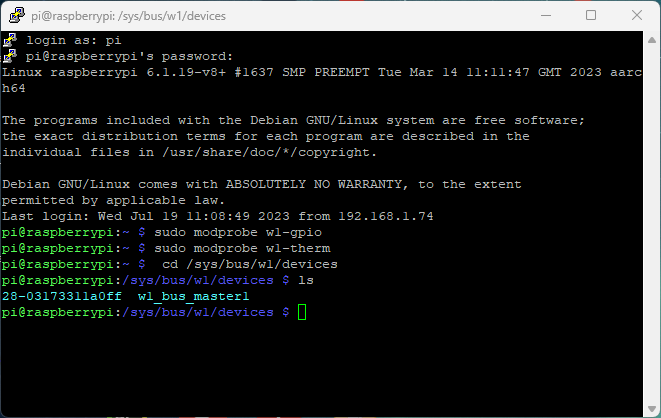
Navigate to the directory representing the DS18B20 sensor. For example, in my case, it’s as follows (use the directory of your sensor):
cd 28-03173311a0ff
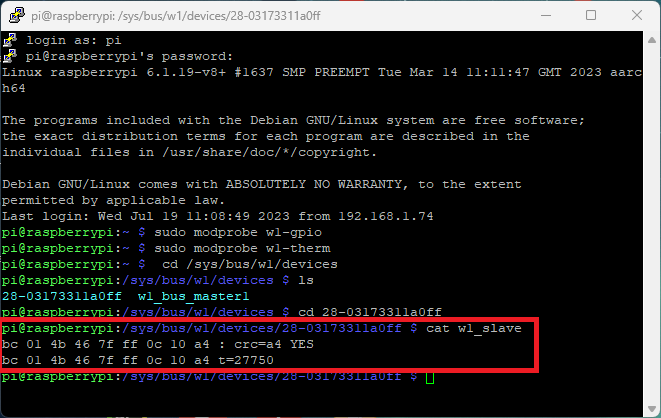
After navigating to the directory representing the DS18B20 sensor, you can use the cat command to read the contents of the w1_slave file. This file contains the raw temperature data in a specific format.
cat w1_slave
The contents of the w1_slave file will look something as shown in the next screenshot (first line contains the status of the reading: YES means a valid reading, and the second line shows the temperature (you need to divide by 1000 to get it in degrees Celsius).
If everything went smoothly until now, you are ready to write the Python program to get the readings.
The following script prints temperature readings in the shell from the DS18B20 temperature sensor. The readings are printed both in Celsius and Fahrenheit degrees.
Create a new Python file called temp-ds18b20.py and copy the following code.
# Complete Project Details: https://ebokify.com/raspberry-pi-ds18b20-python/

# Based on the Adafruit example: https://github.com/adafruit/Adafruit_Learning_System_Guides/blob/main/Raspberry_Pi_DS18B20_Temperature_Sensing/code.py

import os
import glob
import time

os.system('modprobe w1-gpio')
os.system('modprobe w1-therm')

base_dir = '/sys/bus/w1/devices/'
device_folder = glob.glob(base_dir + '28*')[0]
device_file = device_folder + '/w1_slave'

def read_temp_raw():
    f = open(device_file, 'r')
    lines = f.readlines()
    f.close()
    return lines

def read_temp():
    lines = read_temp_raw()
    while lines[0].strip()[-3:] != 'YES':
        time.sleep(0.2)
        lines = read_temp_raw()
    equals_pos = lines[1].find('t=')
    if equals_pos != -1:
        temp_string = lines[1][equals_pos+2:]
        temp_c = float(temp_string) / 1000.0
        temp_f = temp_c * 9.0 / 5.0 + 32.0
        return temp_c, temp_f
while True:
	print(read_temp())
time.sleep(1)In this code, we’ll basically reproduce the previous steps on the Python script to get the readings, and we’ll display them on the Python shell.
Start by importing the required libraries:
import os
import glob
import time
The os library allows you to interact with the operating system, and in this code, it’s used to execute system commands (os.system) to load the required kernel modules for 1one-wire communication with the DS18B20 sensor (similar to what we did on the Terminal before).
The glob library helps find files or directories that match a specific pattern, and it’s used here to locate the directory representing the DS18B20 sensor based on its unique address prefix.
The time library is used to introduce delays in the code to give enough time for the sensor to get valid readings.
Next, load the following kernel modules (w1-gpio and w1-therm) to interface with the DS18B20 sensor via one-wire communication protocol. These commands use the os.system function to execute shell commands within Python
os.system('modprobe w1-gpio')
os.system('modprobe w1-therm')
The following lines set up paths and filenames for reading the temperature data:
base_dir = '/sys/bus/w1/devices/'
device_folder = glob.glob(base_dir + '28*')[0]
device_file = device_folder + '/w1_slave'
base_dir represents the directory where the one-wire devices are located under the /sys filesystem.device_folder is obtained using the glob.glob function, which searches for directories matching the pattern ’28*’. The DS18B20 sensors typically have a unique address starting with 28. This ensures that the code finds the correct folder representing the DS18B20 sensor connected to the Raspberry Pi.device_file represents the path to the w1_slave file that contains the raw temperature data.The function read_temp_raw() gets the temperature readings from the w1_slave file (that’s the place where those are stored). This function opens the w1_slave file, reads its contents line by line, and then returns a list containing the lines.
def read_temp_raw():
    f = open(device_file, 'r')
    lines = f.readlines()
    f.close()
    return lines
Finally, the read_temp() function reads the temperature data.
def read_temp():
    lines = read_temp_raw()
    while lines[0].strip()[-3:] != 'YES':
        time.sleep(0.2)
        lines = read_temp_raw()
        equals_pos = lines[1].find('t=')
    if equals_pos != -1:
        temp_string = lines[1][equals_pos+2:]
        temp_c = float(temp_string) / 1000.0
        temp_f = temp_c * 9.0 / 5.0 + 32.0
        return temp_c, temp_f
First, it checks if it can find a “YES” in the first line, as we’ve seen previously. If the data is not valid, it waits for 0.2 seconds and retries until a valid reading is obtained.
while lines[0].strip()[-3:] != 'YES':
    time.sleep(0.2)
    lines = read_temp_raw()
    equals_pos = lines[1].find('t=')
The function then extracts the temperature value from the second line after t= and converts it to Celsius (temp_c) and Fahrenheit (temp_f). It returns both temperature values. As we’ve seen previously, we need to divide by 1000 to get the temperature in Celsius degrees. Then, we just need to convert that value to Fahrenheit.
temp_c = float(temp_string) / 1000.0
temp_f = temp_c * 9.0 / 5.0 + 32.0
return temp_c, temp_f
Finally, we have a loop (while True) that calls the read_temp() function to get the temperature in Celsius and Fahrenheit, then prints the values with two decimal places. The loop runs indefinitely, with a one-second delay between each temperature reading.
while True:
    temperature_celsius, temperature_fahrenheit = read_temp()
    print(f'Temperature: {temperature_celsius:.2f} °C')
    print(f'Temperature: {temperature_fahrenheit:.2f} °F')
    print('')
time.sleep(1)Save your Python file. Then run it on your Raspberry Pi. Run the following command on the directory of your project file (use the name of your file):
python temp_ds18b20.py
After running the script, new temperature readings will be published in the Python shell every second. Touch the sensor to see the temperature increase. It will display the readings both in Celsius and Fahrenheit degrees.
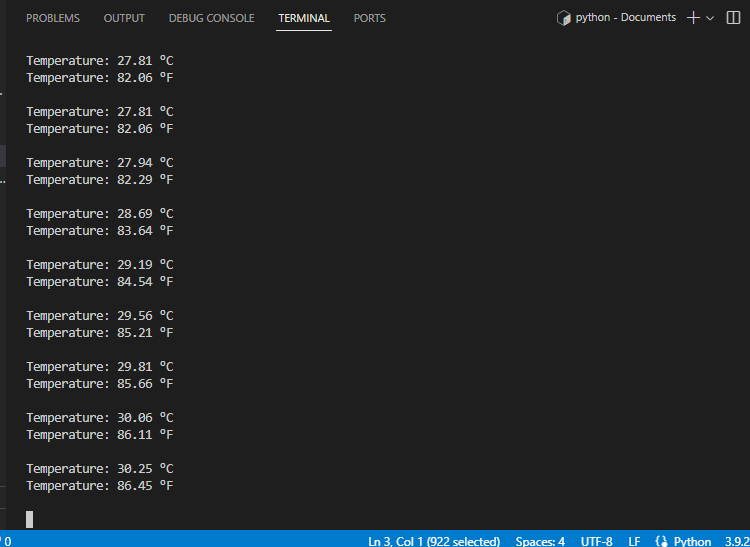
In this tutorial, you learned how to get temperature readings from the DS18B20 and print the results on the Python shell.
We hope you found this tutorial useful. We have tutorials for other popular sensors:
You can check all our Raspberry Pi projects on the following link:
🚀 Discover the world of electronics and innovation!
✨ Create, program, and experiment with all your creative ideas with ease.
🔥 Don't wait! Browse SpotPear products now and start your amazing project!








