Book Categories:


Wait, don't go!
Become a Member Today and Unlock Access to All eBooks!
Thousands of eBooks at your fingertips. Read, learn, and grow anytime, anywhere.
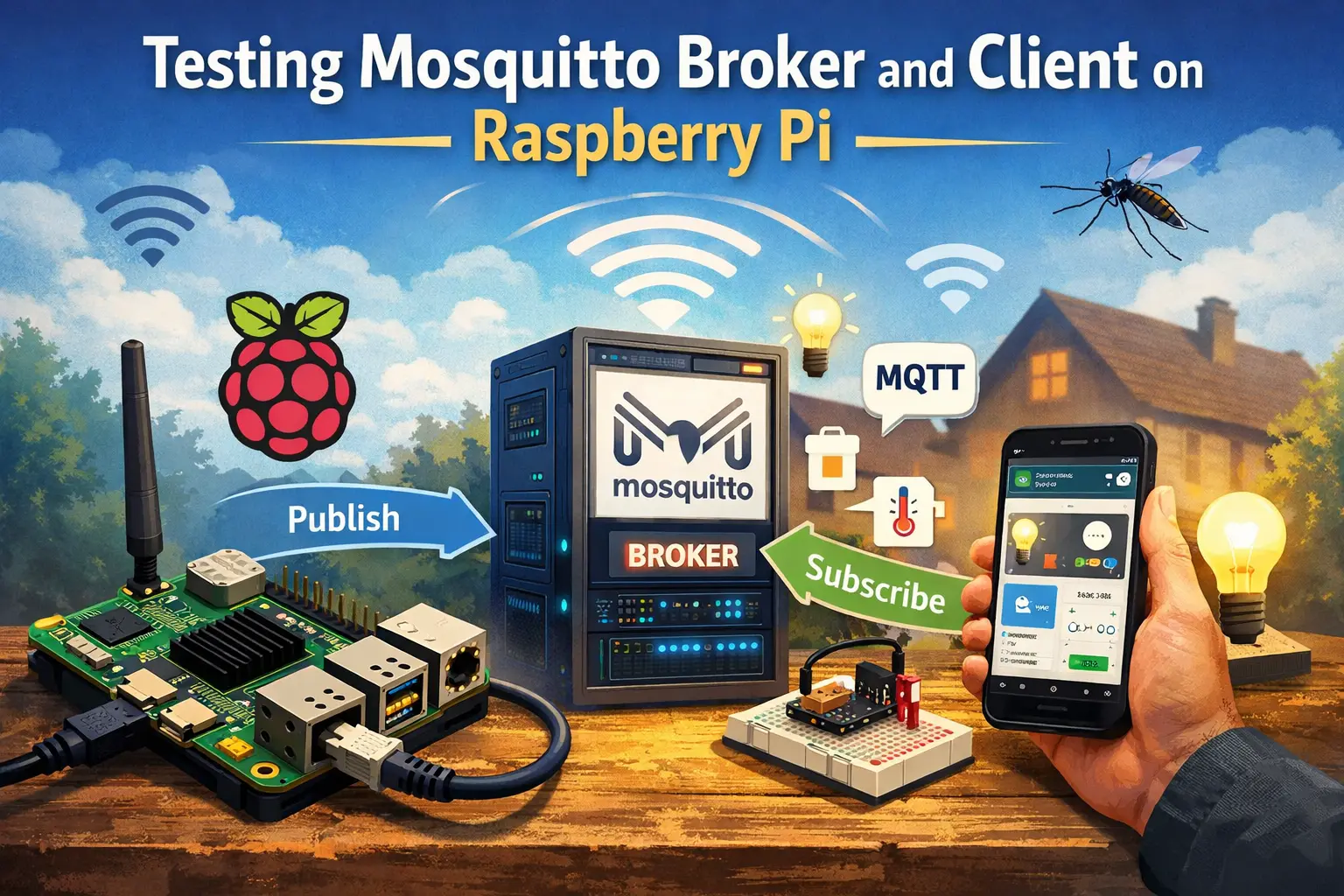
In this tutorial, you’re going to test the Mosquitto MQTT Broker and MQTT Client on a Raspberry Pi. You’ll subscribe the MQTT client to an MQTT topic and publish sample messages.
Recommended resources:
After installing MQTT Broker, I recommend installing an MQTT Client to test the Broker installation and publish sample messages.
Run the following command to install MQTT Mosquitto Client:
sudo apt install -y mosquitto mosquitto-clientsRun Mosquitto in the background as a daemon:
mosquitto -d
To subscribe to an MQTT topic with Mosquitto Client, open a terminal Window #1 and enter the command:
mosquitto_sub -d -t testTopic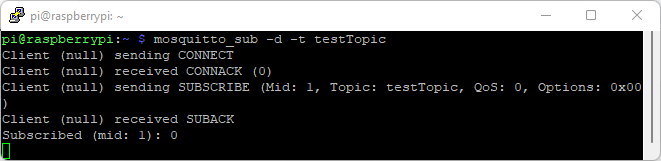
You’re now subscribed to a topic called testTopic.
If you have enabled username and password on your broker, you need to run the command as follows:
mosquitto_sub -d -t testTopic -u user -P passReplace user with your username and pass with your password. For example, my username is ahmed, and the password is pass1245, so I need to run the command as follows:
mosquitto_sub -d -t testTopic -u ahmed -P pass1245To publish a sample message to testTopic, open a terminal Window #2 and run the following command:
mosquitto_pub -d -t testTopic -m "Hello world!"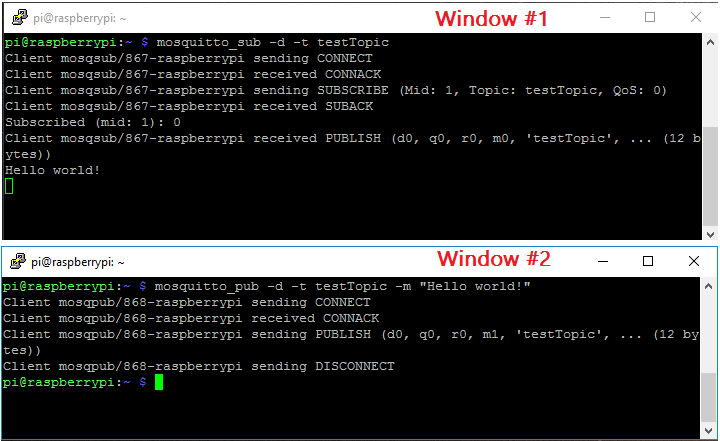
The message “Hello World!” is received in Window #1 as illustrated in the figure above.
If you have enabled username and password on your broker, you need to run the command as follows:
mosquitto_pub -d -t testTopic -m "Hello world!" -u user -P passReplace user with your username and pass with your password.
Having Window #1 still subscribed to topic testTopic, open a new terminal Window #3 and run this command to subscribe to testTopic topic:
mosquitto_sub -d -t testTopicIf you have enabled username and password on your broker, you need to run the command as follows:
mosquitto_sub -d -t testTopic -u user -P passReplace user with your username and pass with your password.
On Window #2 publish the “Hello World!” message:
mosquitto_pub -d -t testTopic -m "Hello world!"If you have enabled username and password on your broker, you need to run the command as follows:
mosquitto_pub -d -t testTopic -m "Hello world!" -u user -P pass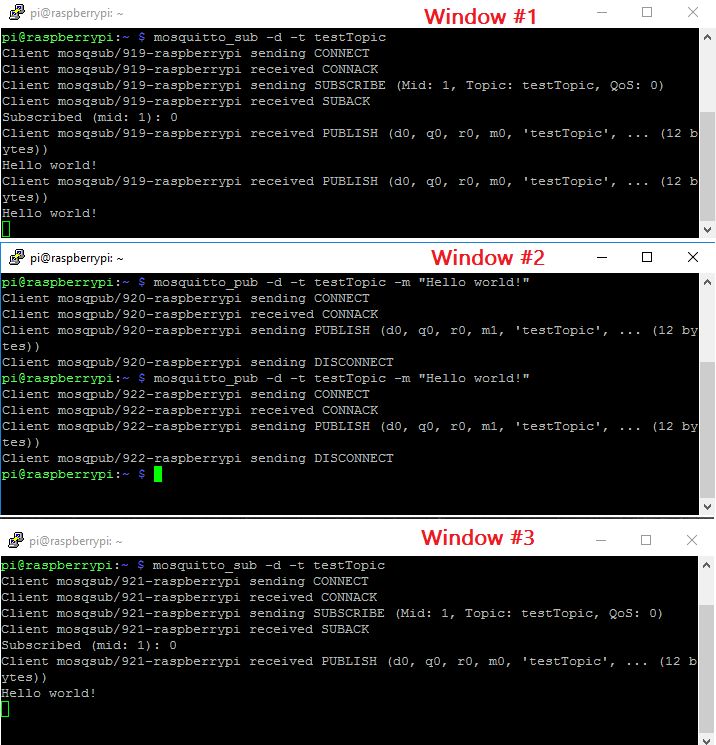
Since two clients are subscribed to testTopic topic, they will both receive the “Hello world!” message.
This simple example shows how MQTT works and how your devices (for example: ESP8266 or ESP32, etc.) can be subscribed to the same topic to receive messages, or a device can publish messages to multiple devices.
In this tutorial, you checked that your Mosquitto Broker installed on the Raspberry Pi is running properly.
Do you have any questions? Leave a comment down below!