

Wait! Don’t Go Yet! 👋
Become a Member Today and Unlock Access to All eBooks! 😍
Thousands of eBooks at your fingertips. Read, learn, and grow anytime, anywhere ✨
Become a Member Today and Unlock Access to All eBooks! 😍
Thousands of eBooks at your fingertips. Read, learn, and grow anytime, anywhere ✨
In this tutorial, you’re going to test the Mosquitto MQTT Broker and MQTT Client on a Raspberry Pi. You’ll subscribe the MQTT client to an MQTT topic and publish sample messages.
Recommended resources:
After installing MQTT Broker, I recommend installing an MQTT Client to test the Broker installation and publish sample messages.
Run the following command to install MQTT Mosquitto Client:
sudo apt install -y mosquitto mosquitto-clientsRun Mosquitto in the background as a daemon:
mosquitto -dTo subscribe to an MQTT topic with Mosquitto Client, open a terminal Window #1 and enter the command:
mosquitto_sub -d -t testTopic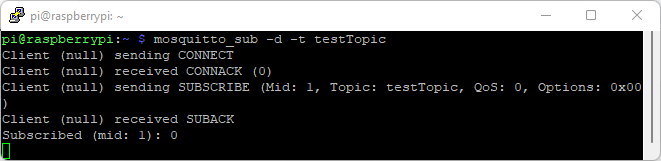
You’re now subscribed to a topic called testTopic.
If you have enabled username and password on your broker, you need to run the command as follows:
mosquitto_sub -d -t testTopic -u user -P passReplace user with your username and pass with your password. For example, my username is ahmed, and the password is pass1245, so I need to run the command as follows:
mosquitto_sub -d -t testTopic -u ahmed -P pass1245To publish a sample message to testTopic, open a terminal Window #2 and run the following command:
mosquitto_pub -d -t testTopic -m "Hello world!"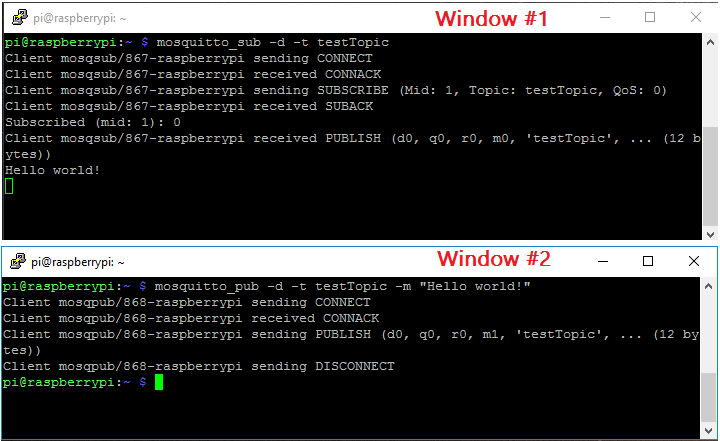
The message “Hello World!” is received in Window #1 as illustrated in the figure above.
If you have enabled username and password on your broker, you need to run the command as follows:
mosquitto_pub -d -t testTopic -m "Hello world!" -u user -P passReplace user with your username and pass with your password.
Having Window #1 still subscribed to topic testTopic, open a new terminal Window #3 and run this command to subscribe to testTopic topic:
mosquitto_sub -d -t testTopicIf you have enabled username and password on your broker, you need to run the command as follows:
mosquitto_sub -d -t testTopic -u user -P passReplace user with your username and pass with your password.
On Window #2 publish the “Hello World!” message:
mosquitto_pub -d -t testTopic -m "Hello world!"If you have enabled username and password on your broker, you need to run the command as follows:
mosquitto_pub -d -t testTopic -m "Hello world!" -u user -P pass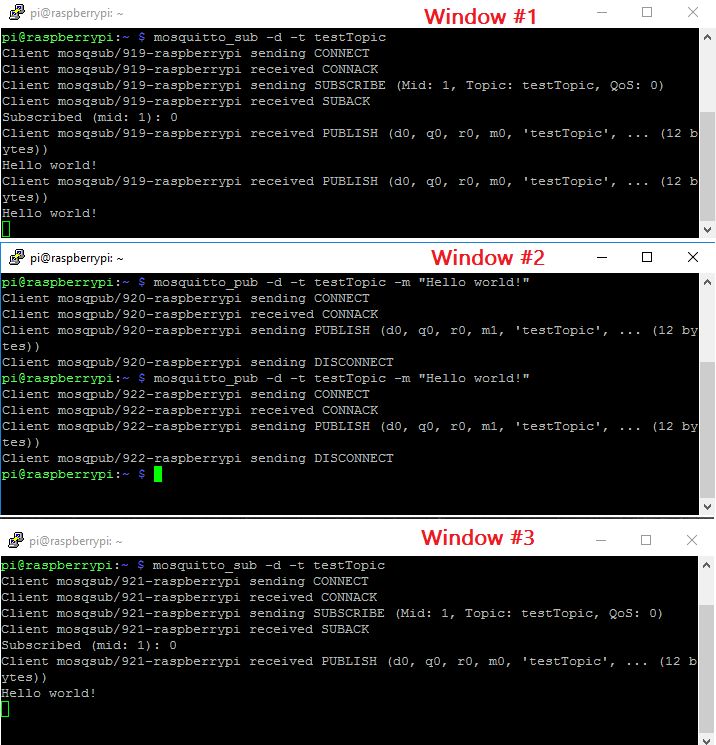
Since two clients are subscribed to testTopic topic, they will both receive the “Hello world!” message.
This simple example shows how MQTT works and how your devices (for example: ESP8266 or ESP32, etc.) can be subscribed to the same topic to receive messages, or a device can publish messages to multiple devices.
In this tutorial, you checked that your Mosquitto Broker installed on the Raspberry Pi is running properly.
Do you have any questions? Leave a comment down below!