Book Categories:


Wait, don't go!
Become a Member Today and Unlock Access to All eBooks!
Thousands of eBooks at your fingertips. Read, learn, and grow anytime, anywhere.
In this guide, you’ll learn how to send an email from your Raspberry Pi using a Python Script and SMTP servers. The example we’ll show can also be run on any other machine that runs Python.
You may also like reading: Raspberry Pi: Motion Detection with Email Notifications (Python).
Before proceeding with this tutorial, please verify the following prerequisites.
SMTP means Simple Mail Transfer Protocol, and it is an Internet standard for email transmission. You can easily send emails using a Python Script on your Raspberry Pi using the smtplib library. This library defines an SMTP client session object that can be used to send emails. Learn more here.
To send emails using a Python script on your Raspberry Pi, you need a sender email, and you’ll need to know your email SMTP server settings. Below you’ll find the settings for the most popular email providers.

If you’re using a Gmail account, these are the SMTP Server details:
For Outlook accounts, these are the SMTP Server settings:
For Live or Hotmail accounts, these are the SMTP Server settings:
If you’re using another email provider, you need to search for its SMTP Server settings—you’ll easily find them with a quick Google search.
We recommend creating a new email account to send the emails to your main personal email address. Do not use your main personal email to send emails via a Python script. If something goes wrong in your code or if, by mistake, you make too many requests, you can be banned or have your account temporarily disabled.
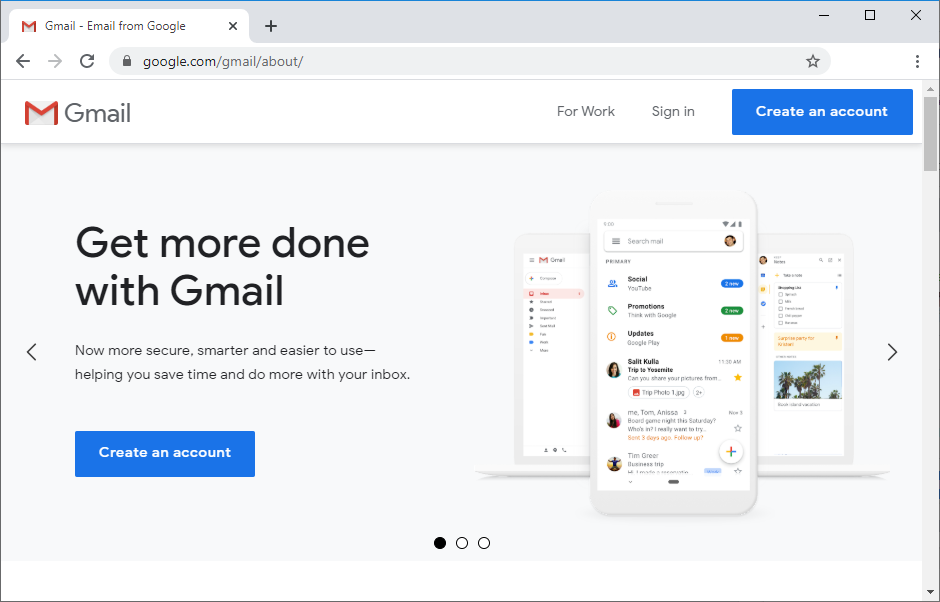
We’ll use a newly created Gmail.com account to send the emails, but you can use any other email provider. The receiver's email can be your personal email without any problem.
Create a new email account for sending emails with the ESP32/ESP8266. If you want to use a Gmail account, go to this link to create a new one.
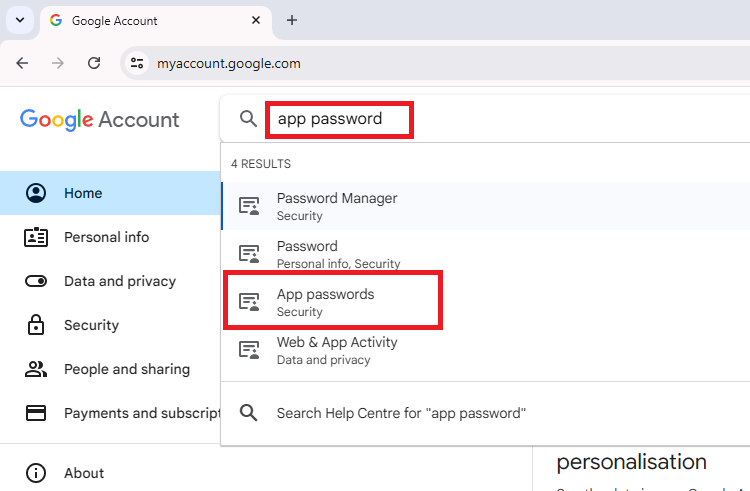
You need to create an app password so that the RPi is able to send emails using your Gmail account. An App Password is a 16-digit passcode that gives a less secure app or device permission to access your Google Account. Learn more about sign-in with app passwords here.
An app password can only be used with accounts that have 2-step verification turned on.
After enabling 2-step verification, you can create an app password.
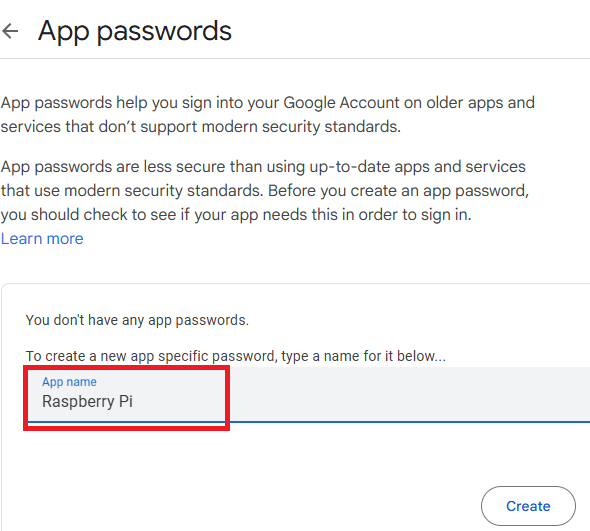
It will pop-up a window with a password that you’ll use with the Raspberry Pi to send emails. Save that password (even though it says you won’t need to remember it) because you’ll need it later.
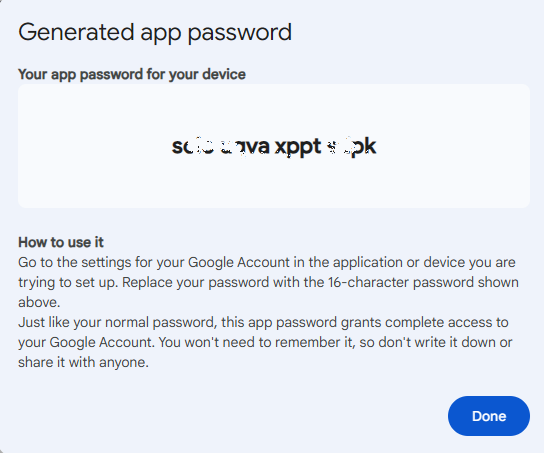
Now, you should have an app password that you can use on your Python script to send emails.
If you’re using another email provider, check how to create an app password. You should be able to find the instructions with a quick Google search “your_email_provider + create app password”.
Create a new Python file called send_email.py and copy the following code.
You need to insert your sender email details and the recipient email.
# Complete Project Details: https://ebokify.com/raspberry-pi-send-email-python-smtp-server/

import smtplib
from email.message import EmailMessage

#Set the sender email and password and recipient emaiç
from_email_addr ="REPLACE_WITH_THE_SENDER_EMAIL"
from_email_pass ="REPLACE_WITH_THE_SENDER_EMAIL_APP_PASSWORD"
to_email_addr ="REPLACE_WITH_THE_RECIPIENT_EMAIL"

# Create a message object
msg = EmailMessage()

# Set the email body
body ="Hello from Raspberry Pi"
msg.set_content(body)

# Set sender and recipient
msg['From'] = from_email_addr
msg['To'] = to_email_addr

# Set your email subject
msg['Subject'] = 'TEST EMAIL'

# Connecting to server and sending email
# Edit the following line with your provider's SMTP server details
server = smtplib.SMTP('smtp.gmail.com', 587)

# Comment out the next line if your email provider doesn't use TLS
server.starttls()
# Login to the SMTP server
server.login(from_email_addr, from_email_pass)

# Send the message
server.send_message(msg)

print('Email sent')

#Disconnect from the Server
server.quit()Continue reading to learn how the code works and what changes you need to make to the script to make it work for you.
You start by importing the libraries you need for SMTP and email-related functions: smtplib and the EmailMessage class from the email.message module.
import smtplib
from email.message import EmailMessage
Next, you create variables for the email address to send from, that email’s app password, and an email address to send to. We suggest you create a second email to send the notifications to your everyday email, because you will be giving less secure apps access to the account you send from.
#Set the sender email and password and recipient emaiç
from_email_addr ="REPLACE_WITH_THE_SENDER_EMAIL"
from_email_pass ="REPLACE_WITH_THE_SENDER_EMAIL_APP_PASSWORD"
to_email_addr ="REPLACE_WITH_THE_RECIPIENT_EMAIL"
Create an EmailMessage() object called msg that will handle the email message properties.
# Create a message object
msg = EmailMessage()
Set the email body on the following lines. You can change it to whatever text you want.
# Set the email body
body ="Hello from Raspberry Pi"
msg.set_content(body)
Then, we set the sender and recipient in the email message properties.
msg['From'] = from_email_addr
msg['To'] = to_email_addr
The following line sets the email subject; you can change it to whatever you want.
msg['Subject'] = 'TEST EMAIL'Then, you establish communication with an SMTP server. Pass the provider’s SMTP server address as a string as the first argument to smtplib.SMTP(), and the port as an int as the second argument.
server = smtplib.SMTP('smtp.gmail.com', 587)In this script, we’re using a Gmail SMTP server and port. If you use another email provider, make sure to change those values.
The server.starttls() function is necessary for email providers that use TLS to encrypt messages (which are practically all email providers). If your email provider doesn’t use TLS, you can remove or comment out that line.
server.starttls()Next, the script logs into the sending email account and sends the email.
# Send the message
server.send_message(msg)
Finally, we stop the communication with the server.
server.quit()Save your Python file. Then run it on your Raspberry Pi. Run the following command in the directory of your project file (use the name of your file):
python send_email.pyAfter running the script, you should receive an email from the Raspberry Pi in your email account.
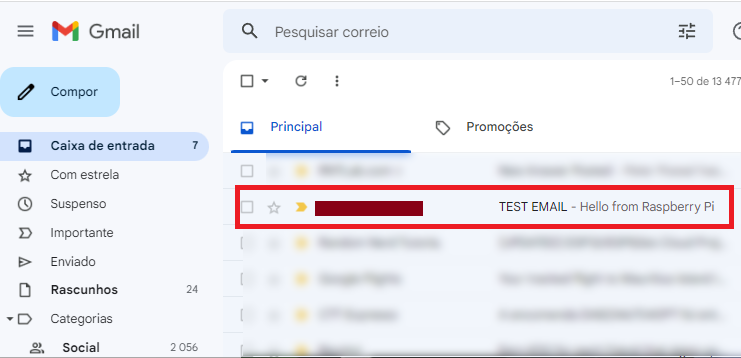
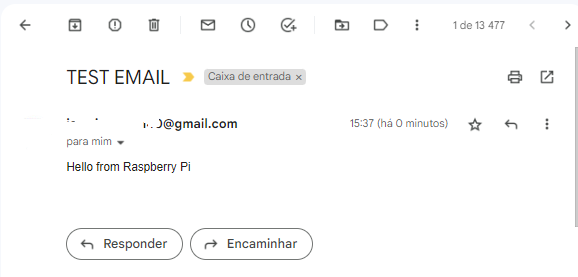
In this tutorial, you learned how to send an email with the Raspberry Pi using a Python script. This example is also compatible with other boards/machines that support Python 3.
You might also like taking a look at the following tutorial that shows how to send email notifications when motion is detected:
Do you want to learn more about Raspberry Pi? Take a look at our projects:








