

Wait! Don’t Go Yet! 👋
Become a Member Today and Unlock Access to All eBooks! 😍
Thousands of eBooks at your fingertips. Read, learn, and grow anytime, anywhere ✨
Become a Member Today and Unlock Access to All eBooks! 😍
Thousands of eBooks at your fingertips. Read, learn, and grow anytime, anywhere ✨
This guide is an introduction to the Picamera2 Python library for the Raspberry Pi board. It covers how to install Picamera2, take photos, and record video to an .mp4 file. This guide is compatible with the Raspberry Pi Camera V2 and V3.
Before proceeding, make sure you check the following prerequisites:
Picamera2 is a Python library for interacting with the Raspberry Pi’s camera. It is based on the libcamera camera stack, and it is maintained by the Raspberry Pi Foundation. It’s no longer recommended to use the older PiCamera library with the latest Raspberry Pi OS versions.
The Picamera2 library is supported on all Raspberry Pi models from the Pi Zero to the RPi 5.
Having an SSH connection established with your Raspberry Pi, update and upgrade your Raspberry Pi, if any updates are available. Run the following command:
sudo apt update && sudo apt upgrade -yTop 6
Raspberry Pi eBooks
From Zero to Professional

Run the next command to install the Picamera2 library in your Raspberry Pi.
sudo apt install -y python3-picamera2It is strongly recommended to install and update Picamera2 using the apt command described earlier, which will avoid compatibility problems. I’ve encountered many compilation issues while trying to install the Picamera2 library with the pip command on a virtual environment.
The Raspberry Pi camera is a small and low-cost camera module compatible with the Raspberry Pi boards. Even though it can be good enough for most projects, some USB cameras will provide better image quality. For this guide, we’ll be using the Raspberry Pi Camera V2 module shown in the following picture:
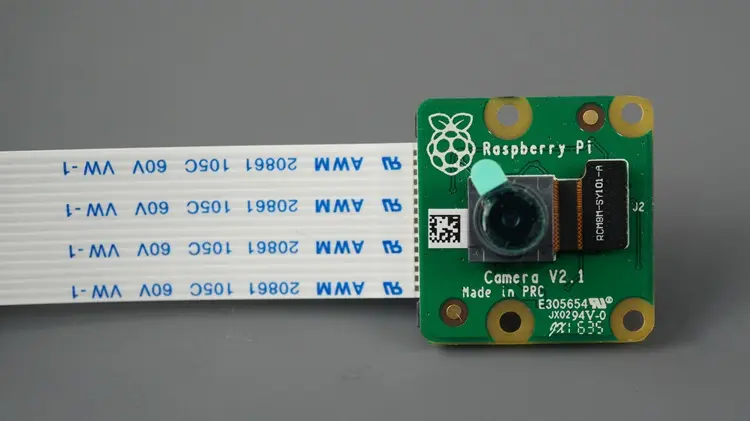
This guide also works with the Raspberry Pi Camera V3, and the camera is compatible with all Raspberry Pi models.
If you are running the latest version of Raspberry Pi OS, the official Raspberry Pi cameras will be detected and enabled automatically.
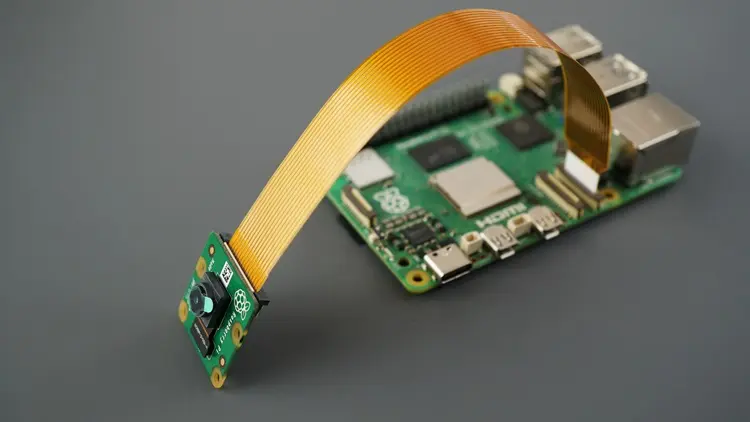
Connecting the Raspberry Pi Camera Module is very straightforward. With the Pi shutdown, connect the camera to the Pi CSI port as shown in the following figure.
Taking a photo with the Raspberry Pi camera is simple thanks to the Picamera2 Python library. Create a new file called take_photo.py:
nano take_photo.pyCopy the following code to your newly created file:
# Ebokify
# Complete project details at https://ebokify.com/raspberry-pi-picamera2-python/

from picamera2 import Picamera2, Preview
import time

picam2 = Picamera2()

camera_config = picam2.create_preview_configuration()
picam2.configure(camera_config)

picam2.start_preview(Preview.QTGL)
picam2.start()

time.sleep(2)

picam2.capture_file("test_photo.jpg")
Press Ctrl+X to save your file, type Y, and Enter.
Let’s take a quick look at how the code works.
Start by importing the required libraries.
from picamera2 import Picamera2, Preview
import time
Create a Picamera2() object called picam2.
picam2 = Picamera2()Then, generate a camera configuration suitable for preview and configure the camera system with that preview configuration.
camera_config = picam2.create_preview_configuration()
picam2.configure(camera_config)
Start the preview window.
picam2.start_preview(Preview.QTGL)Finally, start the camera, wait for two seconds, and take a picture. It will be stored with the filename test_photo.jpg.
picam2.start()

time.sleep(2)

picam2.capture_file("test_photo.jpg")Run your script to take a photo by running the following command on your project directory:
python take_photo.py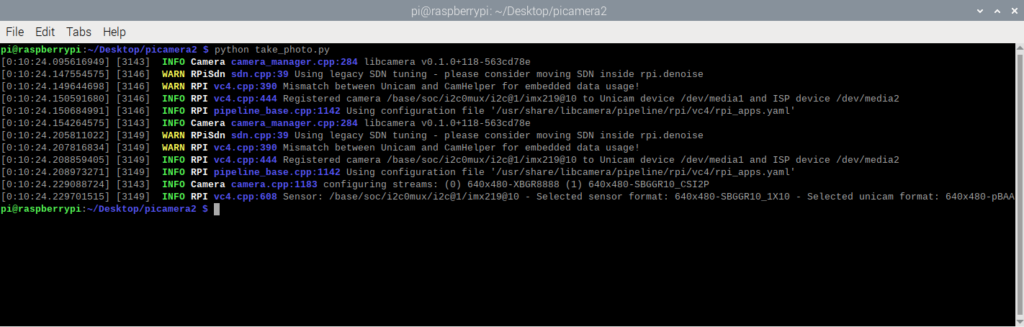
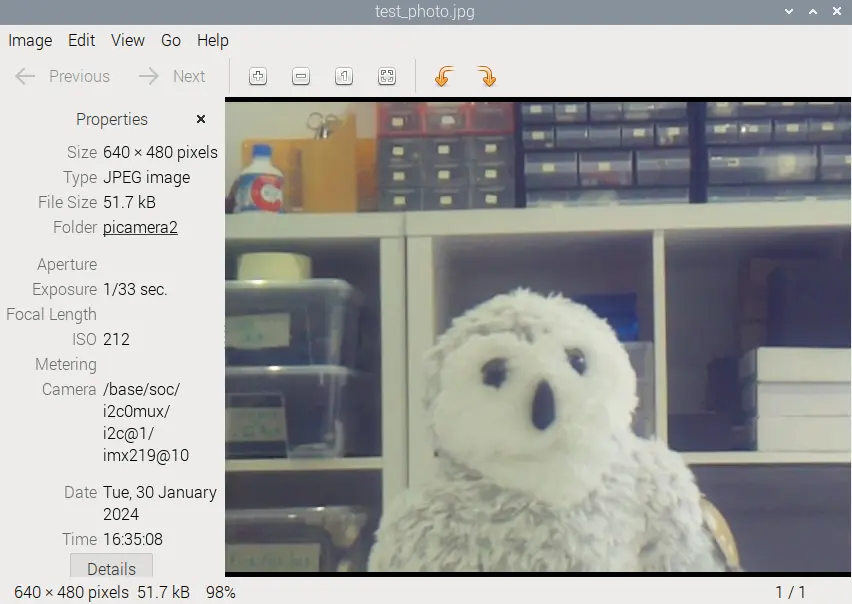
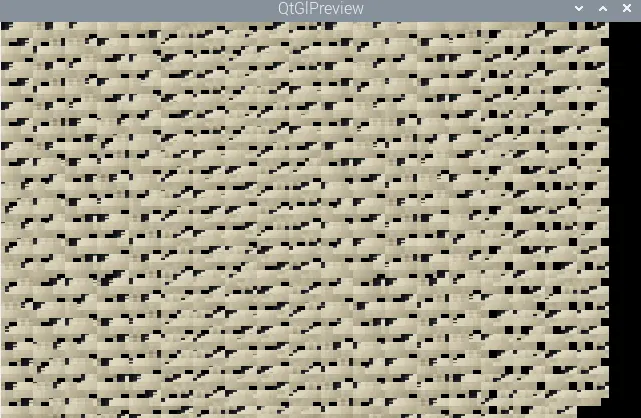
It takes a photo with the Raspberry Pi Camera and saves it with the test_photo.jpg name. The image file will be saved in the same folder as the Python script.
You can access your Raspberry Pi Desktop remotely and open the image file to take a look at the picture.
The next Python script also uses the PiCamera package to capture video to an .mp4 file. Create a new file called record_video.py:
nano capture_video.pyCopy the following code to your newly created file:
# Ebokify
# Complete project details at https://ebokify.com/raspberry-pi-picamera2-python/

from picamera2 import Picamera2

picam2 = Picamera2()

picam2.start_and_record_video("test_video.mp4", duration=5)
Press Ctrl+X to save your file, type Y, and Enter.
Let’s take a quick look at the script.
Start by importing the required libraries.
from picamera2 import Picamera2Create a Picamera2() object.
picam2 = Picamera2()The next command records video for 5 seconds with the Raspberry Pi Camera and saves it with the test_video.mp4 name. You can modify the script to change the file name and extend the video recording duration.
picam2.start_and_record_video("test_video.mp4", duration=5)Run the script to record a video. You can use the following command:
python3 capture_video.py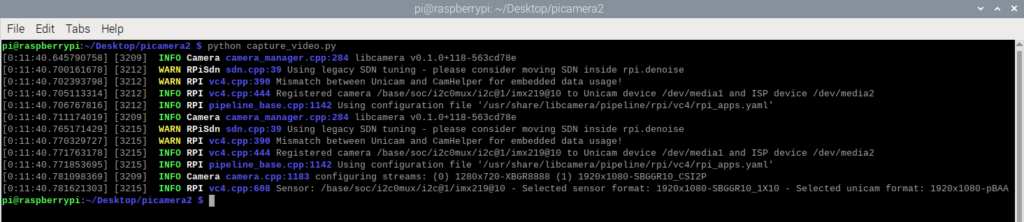
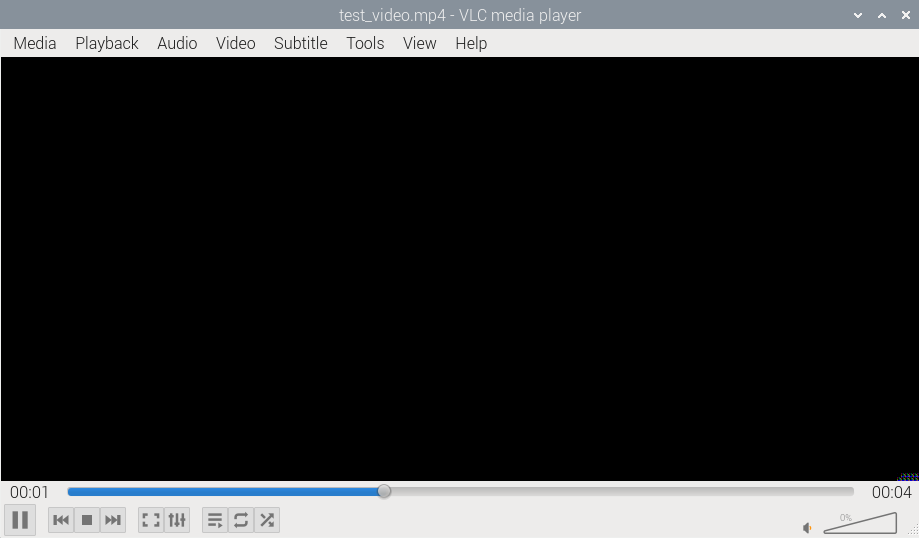
It will capture a 5-second video with the Raspberry Pi Camera and will save it with the test_video.mp4 name.
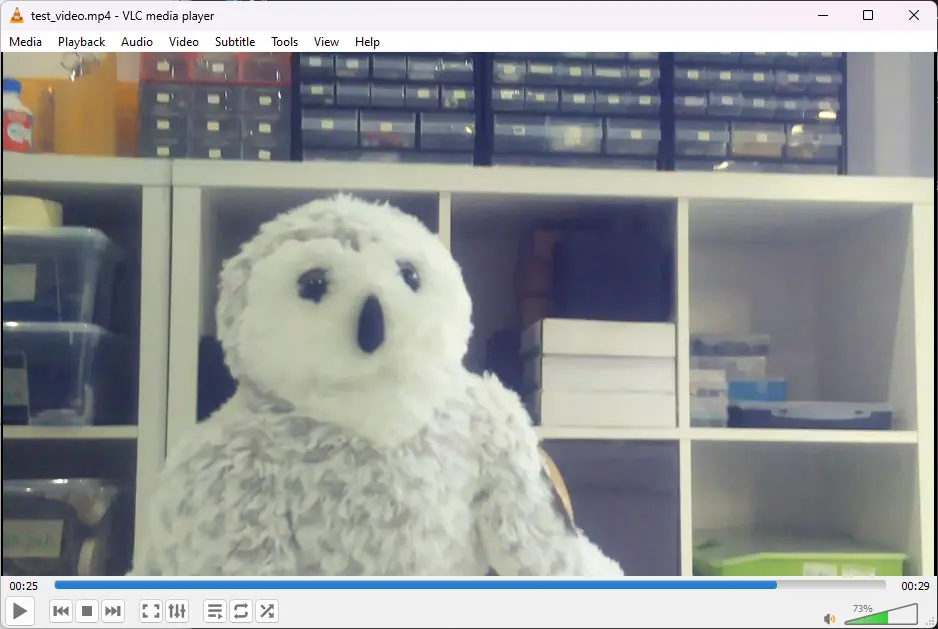
You can access your Raspberry Pi Desktop remotely and open the video file with the VLC player to watch it.
Related content: Transfer Files to and from Raspberry Pi using FileZilla FTP (Windows PC)
This post was a quick introduction guide to the Raspberry Pi Camera with the Picamera2 Python library. You learned how to take photos and record video into a file.
We have other Raspberry Pi Projects that you may find useful:
We hope you’ve found this post useful.
Thanks for reading!
🚀 Discover the world of electronics and innovation!
✨ Create, program, and experiment with all your creative ideas with ease.
🔥 Don't wait! Browse SpotPear products now and start your amazing project!
