

Wait! Don’t Go Yet! 👋
Become a Member Today and Unlock Access to All eBooks! 😍
Thousands of eBooks at your fingertips. Read, learn, and grow anytime, anywhere ✨
Become a Member Today and Unlock Access to All eBooks! 😍
Thousands of eBooks at your fingertips. Read, learn, and grow anytime, anywhere ✨
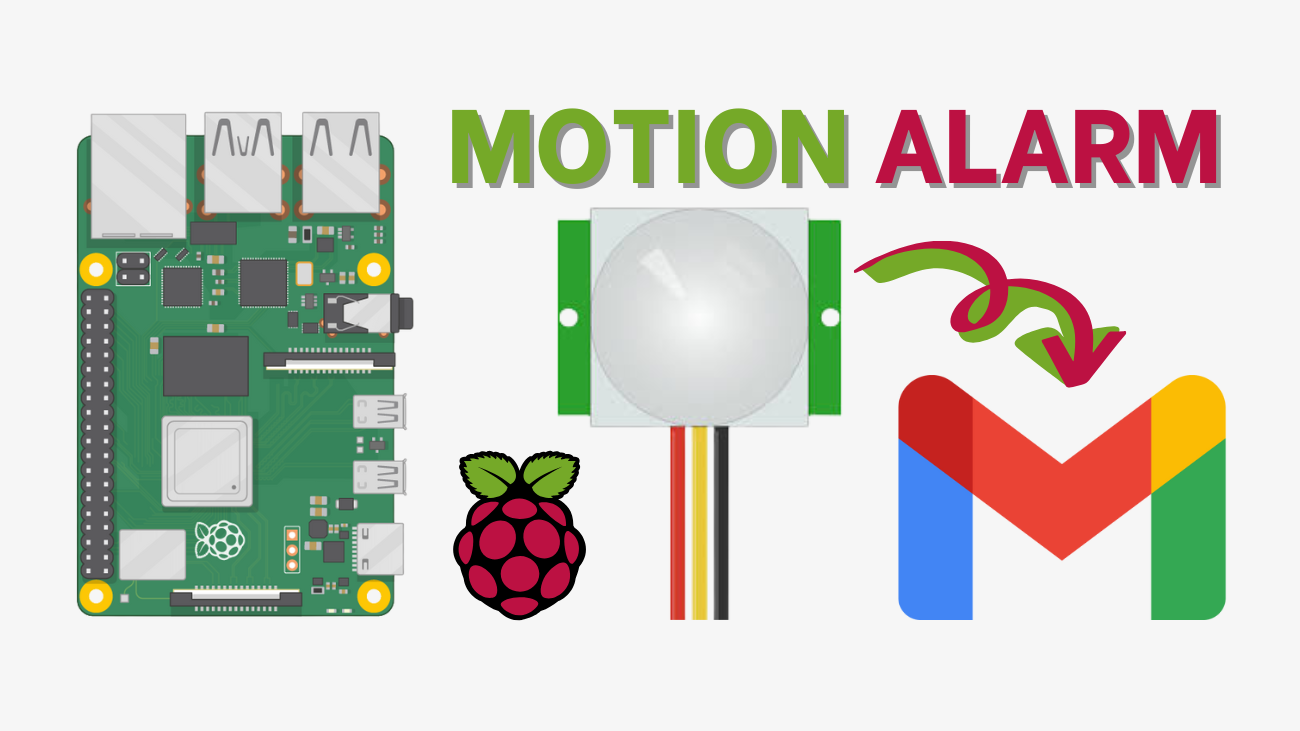
In this project, you’ll learn how to send email notifications with the Raspberry Pi when it detects motion. We’ll program the Raspberry Pi using Python, and to read from the PIR motion sensor, we’ll use the gpiozero interface.
Before proceeding with this tutorial, please verify the following prerequisites.
We also have tutorials about how to send emails and how to use a PIR motion sensor that you might want to follow first:
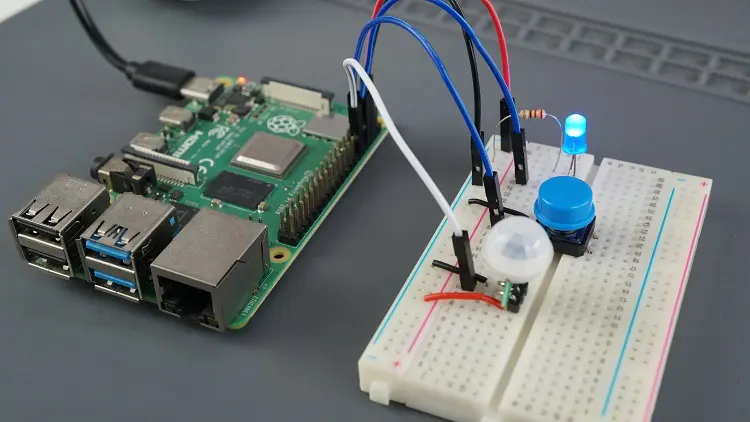
In this project, we’ll create a motion detector with email notifications. The project has the following features:
Top 6
Raspberry Pi eBooks
From Zero to Professional

We recommend creating a new email account to send the emails to your main personal email address. Do not use your main personal email to send emails via a Python script. If something goes wrong in your code or if, by mistake, you make too many requests, you can be banned or have your account temporarily disabled.
We’ll use a newly created Gmail.com account to send the emails, but you can use any other email provider. The receiver's email can be your personal email without any problem.
Create a new email account for sending emails using a Python script. If you want to use a Gmail account, go to this link to create a new one.
You need to create an app password so that new devices can send emails using your Gmail account. An App Password is a 16-digit passcode that gives a less secure app or device permission to access your Google Account. Learn more about sign-in with app passwords here.
An app password can only be used with accounts that have 2-step verification turned on.
After enabling 2-step verification, you can create an app password.
If you don’t find this option, use the search tool on that page and search for App passwords.
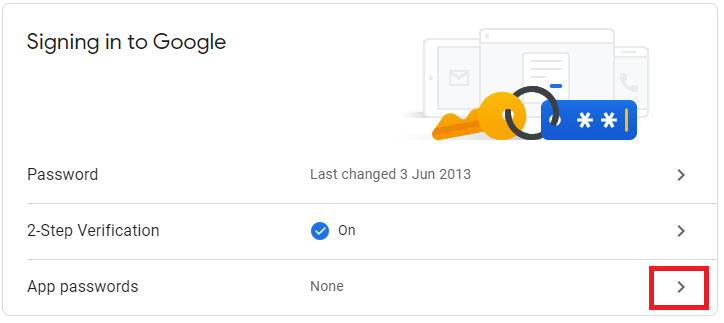
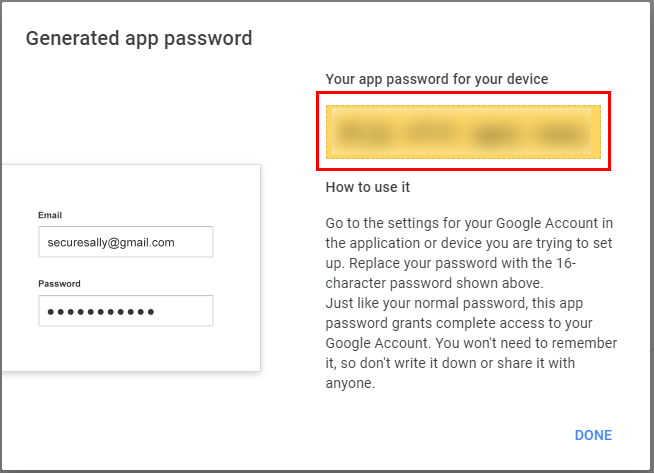
Now, you should have an app password that you can use on your Python script to send emails.
If you’re using another email provider, check how to create an app password. You should be able to find the instructions with a quick Google search “your_email_provider + create app password”.
For this project, we’ll use the following components.
We’ll connect the LED to GPIO 14, the button to GPIO 4 and the PIR motion sensor to GPIO 18.
| Component | Raspberry Pi |
| LED | GPIO 14 |
| Button | GPIO 4 |
| PIR Motion Sensor | GPIO 18 |
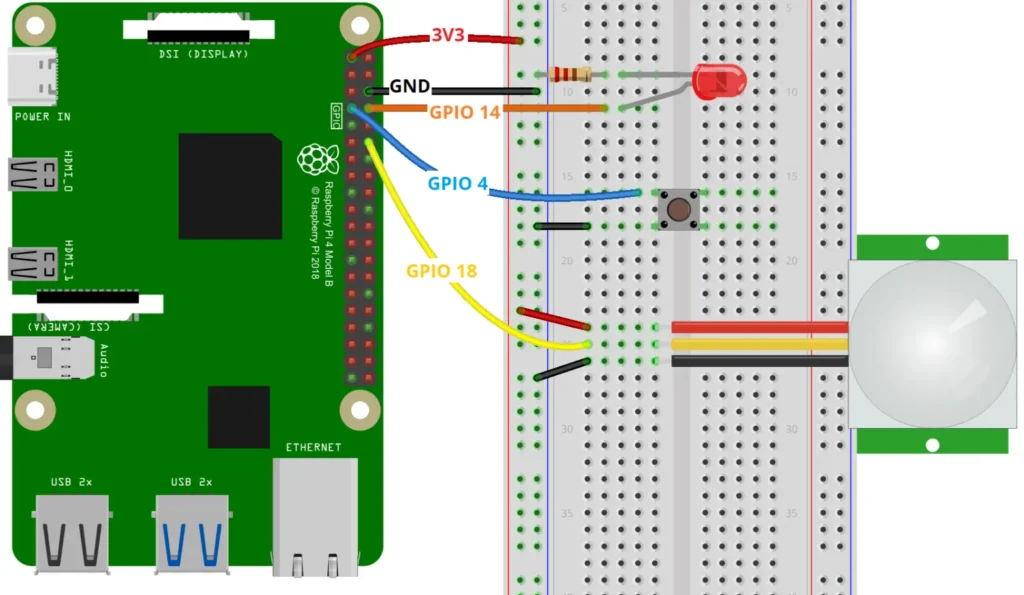
Create a new Python file called motion_email_notifications.py and copy the following code.
You need to insert your sender email details and the recipient email.
# Complete Project Details: https://ebokify.com/raspberry-pi-motion-email-python/

#import necessary libraries
from gpiozero import LED, Button, MotionSensor
import smtplib
from email.message import EmailMessage
from signal import pause
from time import sleep

#create objects to refer to the LED, the button, and the PIR sensor
led_status = LED(14)
button = Button(4)
pir = MotionSensor(18)

#replace the next three lines with your credentials
from_email_addr = "REPLACE_WITH_SENDER_EMAIL_ADDRESS"
from_email_password = "REPLACE_WITH_SENDER_APP_PASSWORD"
to_email_addr = "REPLACE_WIH_RECIPIENT_EMAIL_ADDRESS"
email_subject = "[WARNING!] Intruder Alert!"
email_body = "Motion was detected in your room!"

#control variables
motion_sensor_status = False
email_sent = False

#arm or disarm the PIR sensor
def arm_motion_sensor():
    global email_sent
    global motion_sensor_status

    if motion_sensor_status == True:
       motion_sensor_status = False
       led_status.off()
       print("Motion Sensor OFF")
    else:
        motion_sensor_status = True
        email_sent = False
        led_status.on()
        print("Motion Sensor ON")

#send email when motion is detected and the PIR sensor is armed
def send_email():
    global email_sent
    global motion_sensor_status

    if(motion_sensor_status == True and email_sent == False):
        print("Motion Detected")
        #create a message object
        msg = EmailMessage()
        #set the email body
        msg.set_content(email_body)
        #set sender and recipient
        msg['From'] = from_email_addr
        msg['To'] = to_email_addr
        #set your email subject
        msg['Subject'] = email_subject
        #connect to server and send email
        #edit this line with your provider's SMTP server details
        server = smtplib.SMTP('smtp.gmail.com', 587)
        #comment out this line if your provider doesn't use TLS
        server.starttls()
        server.login(from_email_addr, from_email_password)
        server.send_message(msg)
        server.quit()
        email_sent = True
        print('Email sent')
        sleep(5)
        email_sent = False

#assign a function that runs when the button is pressed
button.when_pressed = arm_motion_sensor

#assign a function that runs when motion is detected
pir.when_motion = send_email

pause()Continue reading to learn how the code works and what changes you need to make to the script to make it work for you.
You start by importing the LED, Button, and MotionSensor components from the gpiozero library.
from gpiozero import LED, Button, MotionSensorThen, import the libraries for SMTP and email-related functions.
import smtplib
from email.message import EmailMessage
You also import the pause and sleep methods to add timers to the code.
from signal import pause
from time import sleepAfter importing the required libraries, we create gpiozero objects to refer to our electronic components. The LED is connected to GPIO 14, the Button to GPIO 4, and the MotionSensor to GPIO18. If you’re using different GPIOs, adjust the code accordingly.
#create objects to refer to the LED, the button, and the PIR sensor
led_status = LED(14)
button = Button(4)
pir = MotionSensor(18)
If you want to learn in more detail how to use those components, check the tutorials below:
Next, you create variables for the email address to send from, that email’s app password (it’s the APP PASSWORD, not the email password, see these instructions), and an email address to send to. As we’ve mentioned previously, we recommend using an email account that is not your primary account to send the emails.
#replace the next three lines with your credentials
from_email_addr = "REPLACE_WITH_SENDER_EMAIL_ADDRESS"
from_email_password = "REPLACE_WITH_SENDER_APP_PASSWORD"
to_email_addr = "REPLACE_WIH_RECIPIENT_EMAIL_ADDRESS"The email_subject and email_body variables, as the names suggest, save the email subject and body. You can change the content to whatever message is suitable for your project.
email_subject = "[WARNING!] Intruder Alert!"
email_body = "Motion was detected in your room!"We create two control variables. The motion_sensor_status to know whether the motion sensor should be activated or not (we’ll change it with the press of a button). By default, it’s set to False.
motion_sensor_status = FalseThe email_sent variable controls whether a notification email was sent a few seconds before.
email_sent = FalseThe arm_motion_sensor() function arms and disarms the motion sensor when you press the pushbutton. It also turns on and the off the LED so that you have a visual indication of whether the motion sensor is activated or not.
#arm or disarm the PIR sensor
def arm_motion_sensor():
    global email_sent
    global motion_sensor_status

    if motion_sensor_status == True:
       motion_sensor_status = False
       led_status.off()
       print("Motion Sensor OFF")
    else:
        motion_sensor_status = True
        email_sent = False
        led_status.on()
print("Motion Sensor ON")The send_email() function sends an email when the sensor detects motion, as long as the sensor is armed and the email_sent variable is equal to False.
#send email when motion is detected and the PIR sensor is armed
def send_email():
    global email_sent
    global motion_sensor_status

    if(motion_sensor_status == True and email_sent == False):
        print("Motion Detected")
        #create a message object
        msg = EmailMessage()
        #set the email body
        msg.set_content(email_body)
        #set sender and recipient
        msg['From'] = from_email_addr
        msg['To'] = to_email_addr
        #set your email subject
        msg['Subject'] = email_subject
        #connect to server and send email
        #edit this line with your provider's SMTP server details
        server = smtplib.SMTP('smtp.gmail.com', 587)
        #comment out this line if your provider doesn't use TLS
        server.starttls()
        server.login(from_email_addr, from_email_password)
        server.send_message(msg)
        server.quit()
        email_sent = True
        print('Email sent')
        sleep(5)
        email_sent = False
For more details about how to set up and send an email using a Python script, check this tutorial:
Last, assign functions to events: the arm_motion_sensor() function is called when the pushbutton is pressed, and the send_email() function is called when motion is detected.
#assign a function that runs when the button is pressed
button.when_pressed = arm_motion_sensor

#assign a function that runs when motion is detected
pir.when_motion = send_email
The pause() function at the end of the code keeps the script running for events to be detected.
pause()Save your Python file. Then run it on your Raspberry Pi. Run the following command in the directory of your project file (use the name of your file):
python motion_email_notifications.pyAfter running the script, press the pushbutton to arm the motion sensor. The LED will light up.
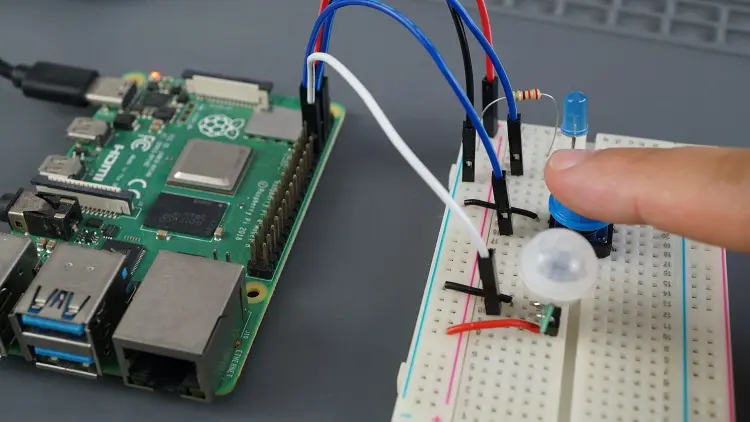
Then, you can test the sensor by moving your hand in front of it.

After a few seconds, you should receive a new message on your email account.
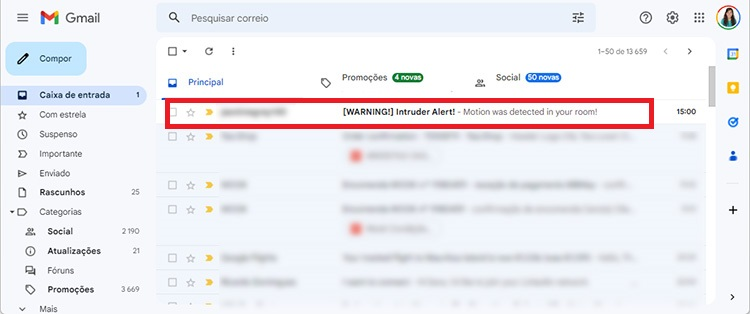
In this project, you learned how to use a PIR motion sensor to send an email notification when motion is detected. You can trigger any other events when motion is detected besides sending an email or you can send other types of notifications like WhatsApp messages or SMS (you’ll need to use other services).
For example, you can add a piezo buzzer to your alarm circuit so that when motion is detected not only is an email sent but an alarm is also sounded—the gpiozero library comes with a component for piezzo buzzer.
You can also use a relay and a photoresistor to make a security nightlight that turns on only when movement is detected in the dark—the gpiozero library also comes with a component for a light sensor.
We hope you’ve found this tutorial useful. If you want to learn more about how to control electronics using the Raspberry Pi, check the following tutorials:
🚀 Discover the world of electronics and innovation!
✨ Create, program, and experiment with all your creative ideas with ease.
🔥 Don't wait! Browse SpotPear products now and start your amazing project!
