

Wait! Don’t Go Yet! 👋
Become a Member Today and Unlock Access to All eBooks! 😍
Thousands of eBooks at your fingertips. Read, learn, and grow anytime, anywhere ✨
Become a Member Today and Unlock Access to All eBooks! 😍
Thousands of eBooks at your fingertips. Read, learn, and grow anytime, anywhere ✨
In this guide, you’ll learn how to set the Raspberry Pi GPIOs as digital outputs and control them using a Python program. As an example, we’ll show you how to control an LED connected to one of the Raspberry Pi GPIOs using the gpiozero interface.
Before proceeding with this tutorial, please verify the following prerequisites.
GPIO stands for General Purpose Input Output pins, and those allow you to connect and control electronic hardware, like LEDs, motors, and sensors to your Raspberry Pi.
This means they can be used to both read and send information, allowing your Pi to interact
with the outside world.
Most models of Raspberry Pi boards have a double row of 40 GPIO pins. The layout of the pins is usually the same for most Raspberry Pi models.
In this tutorial, we’ll take a look at how we can set the Raspberry Pi GPIOs as outputs to control an LED or any other actuator that can be controlled with high (3V3) and low (0V) signals.
Top 6
Raspberry Pi eBooks
From Zero to Professional

There are two different ways to refer to a GPIO pin: its name (which is known as GPIO numbering or Broadcom numbering) or its corresponding pin physical number (which corresponds to the pin’s physical location on the header).
For example, GPIO 25 corresponds to pin 22 (see the picture below). Throughout this tutorial, we’ll refer to GPIO pins by their GPIO numbering (Broadcom numbering).
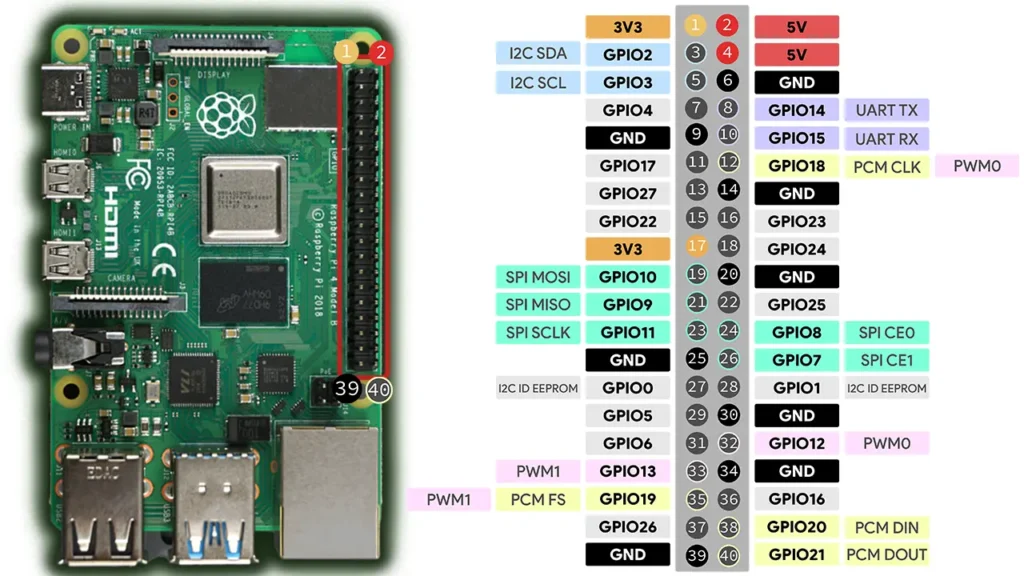
To learn more about the Raspberry Pi GPIOs, check this guide: Raspberry Pi Pinout Guide: How to use the Raspberry Pi GPIOs?
GPIO pins can be set to HIGH, which outputs 3.3V and turns a component on, or LOW,
which outputs 0V and turns the component off.
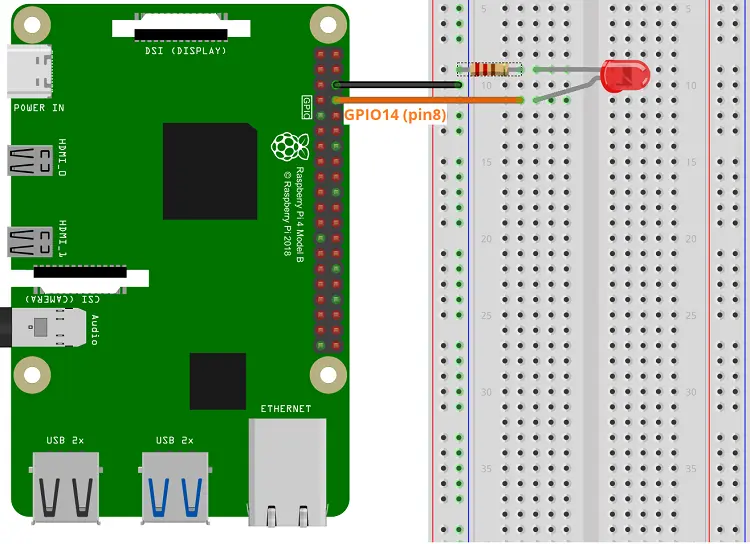
Wire an LED to one of the Raspberry Pi GPIOs. We’ll connect one LED to GPIO 14 (pin 8). You can use any other pins, except GPIO 0 and GPIO 1.
Here’s a list of components you need:
The gpiozero library provides a collection of interfaces for everyday components like LEDs, buttons, potentiometers, sensors, and much more. So, instead of setting the GPIO properties to control an LED, the gpiozero provides an LED interface with methods that are useful to control LEDs. Instead, you can also use the DigitalOutputDevice interface which can be used to control digital outputs in general (including LEDs). Let’s see how it works.
The gpiozero library should already be installed if you’re running Raspberry Pi OS — if not, you can run the following command:
python3 -m pip gpiozero
Create a new Python file on your Raspberry Pi called blinking_led.py and copy the following code.
# Complete Project Details: https://ebokify.com/projects-raspberry-pi/

from gpiozero import LED
from time import sleep

led = LED(14)

# blinking an LED forever
while True:
  #set the led ON for one second
  led.on()
  sleep(1)
  #set the led ON for one second
  led.off()
sleep(1)Continue reading to learn how the code works.
First, you import the LED component from the gpiozero library to control the GPIO that the LED is connected to. Then, you also need to import the sleep() function from the time module to create delays in the code.
from gpiozero import LED
from time import sleep
Instead of the LED component, you can use the DigitalOutputDevice component, which works exactly the same.
from gpiozero import DigitalOutputDeviceNext, you create an LED object called led that refers to GPIO 14, which is the GPIO that the LED is connected to. Change the number if you’re using another GPIO.
led = LED(14)When you create and use this LED object, your program knows that GPIO 14 is an output that can be set to HIGH or LOW. After this declaration, you can use led to refer to your GPIO 14. You can use this LED object to control other components than LEDs, as long as they can be controlled with HIGH (3.3V) and LOW (0V) signals.
Note: if you want to use the DigitalOutputDevice component instead, the declaration would be as follows:
led = DigitalOutputDevice(14)Then, to keep the LED blinking forever, we create a while loop that is always True—the code will be running forever unless you stop the program. The lines after the loop declaration are indented, telling Python that this is the content of the loop to be run as long as the while condition is met.
# blinking an LED forever
while True:
  #set the led ON for one second
  led.on()
  sleep(1)
  #set the led ON for one second
  led.off()
sleep(1)The LED object has two methods that you can use to turn a GPIO on and off—the on() and off() methods. You can use them as follows:
led.on()led.off()The led.on() instruction turns GPIO 14 on, and the led.off() turns GPIO 14 off. There is a pause of one second between each LED state using the sleep() function, creating the blinking effect. The sleep() function accepts as an argument the time in seconds.
sleep(1)1) To control a Raspberry Pi Digital Output, you can use the LED or the DigitalOutputDevice interface of the gpiozero library. You need to import it first, like this:
from gpiozero import LEDor like this:
from gpiozero import DigitalOutputDevice2) Define the GPIO that you want to control. Using the LED interface:
led = LED(GPIO_NUMBER_OF_YOUR_CHOICE)Or if you use the DigitalOutputDevice interface:
led = DigitalOutputDevice(GPIO_NUMBER_OF_YOUR_CHOICE)3) Then, use the on() and off() methods to turn the GPIO on and off.
led.on()led.off()Save your Python file. Then run it on your Raspberry Pi. Run the following command in the directory of your project file (use the name of your file):
python blinking_led.pyThe LED connected to GPIO 14 should be blinking.
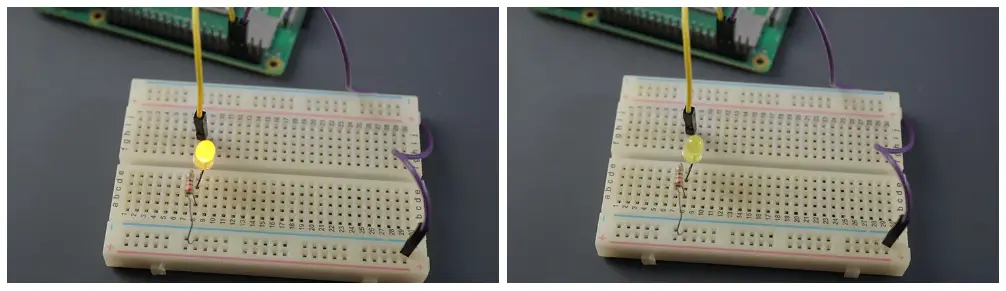
You can stop the execution of the program by pressing CTRL+C.
The LED and DigitalOutputDevice interfaces provide other useful additional methods.
The toggle() method reverses the current state of the GPIO. Here’s an alternative script to blink an LED using the toggle() method.
# Complete Project Details: https://ebokify.com/projects-raspberry-pi/

from gpiozero import LED
from time import sleep

led = LED(14)

# blinking an LED forever
while True:
  led.toggle()
sleep(1)The blink() method blinks an LED on and off. You can set the on and off times, as well as how many times the LED will blink. Here’s a script blinking an LED using the blink() method.
# Complete Project Details: https://ebokify.com/projects-raspberry-pi/

from gpiozero import LED
from signal import pause

led = LED(14)

# blinking an LED forever
led.blink()
pause()
You can pass the following parameters to the blink() method:
blink(on_time=1, off_time=1, n=None, background=True)In this tutorial, you learned how to set the Raspberry Pi GPIOs as digital outputs and set them on and off using the LED or the DigitalOutputDevice interfaces of the gpiozero library. We’ve also seen three different ways to blink an LED using different methods.
We hope you found this tutorial useful. If you’re a beginner to the Raspberry Pi, you can get started with the following tutorials:
You can check all our Raspberry Pi projects on the following link:
Thanks for reading.
🚀 Discover the world of electronics and innovation!
✨ Create, program, and experiment with all your creative ideas with ease.
🔥 Don't wait! Browse SpotPear products now and start your amazing project!
