

Wait! Don’t Go Yet! 👋
Become a Member Today and Unlock Access to All eBooks! 😍
Thousands of eBooks at your fingertips. Read, learn, and grow anytime, anywhere ✨
Become a Member Today and Unlock Access to All eBooks! 😍
Thousands of eBooks at your fingertips. Read, learn, and grow anytime, anywhere ✨
This tutorial shows how to install the Mosquitto Broker for MQTT communication on a Raspberry Pi board.
You can also run the Mosquitto MQTT broker in the cloud. Running the MQTT Mosquitto Broker in the cloud allows you to connect several ESP32/ESP8266 boards and other IoT devices from anywhere using different networks as long as they have an Internet connection. Check the tutorial below:
MQTT stands for Message Queuing Telemetry Transport. MQTT is a simple messaging protocol, designed for constrained devices with low bandwidth. So, it’s the perfect solution to exchange data between multiple IoT devices.
MQTT communication works as a publish and subscribe system. Devices publish messages on a specific topic. All devices that are subscribed to that topic receive the message.
The MQTT broker is responsible for receiving all messages, filtering the messages, deciding who is interested in them, and then publishing the message to all subscribed clients.
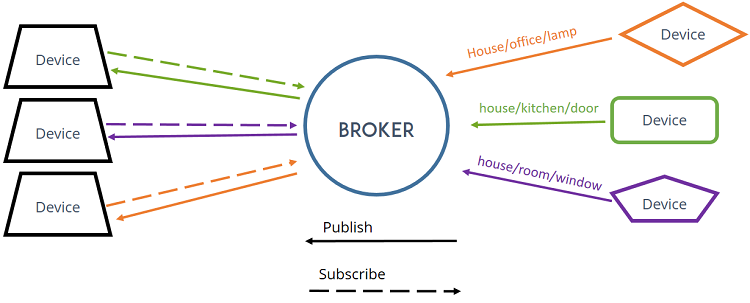
There are several brokers you can use. In home automation projects, we use the Mosquitto Broker installed on a Raspberry Pi.

Top 6
Raspberry Pi eBooks
From Zero to Professional

You can also install the Mosquitto broker on your PC (which is not as convenient as using a Raspberry Pi board, because you have to keep your computer running all the time to keep the MQTT connection between your devices alive).
For a more detailed explanation of MQTT communication, check out this article: What is MQTT and How It Works
Before continuing with this tutorial
rry Pi board prepared with Raspberry Pi OS, you can continue with this tutorial.
Let’s install the Mosquitto Broker.
1) Open a new Raspberry Pi terminal window. If you’re running your Raspberry Pi headless, check this tutorial to learn how to establish an SSH connection between your computer and the Raspberry Pi.
2) Run the following command to upgrade and update your system:
sudo apt update && sudo apt upgrade3) Press Y and Enter. It will take some time to update and upgrade (in my case, it took approximately 10 minutes).
4) To install the Mosquitto Broker and Mosquitto Clients, enter the next command:
sudo apt install -y mosquitto mosquitto-clients5) To make Mosquitto auto-start when the Raspberry Pi boots, you need to run the following command (this means that the Mosquitto broker will automatically start when the Raspberry Pi starts):
sudo systemctl enable mosquitto.service6) Now, test the installation by running the following command:
mosquitto -vThis returns the Mosquitto version that is currently running on your Raspberry Pi. It will be 2.0.21 or above.
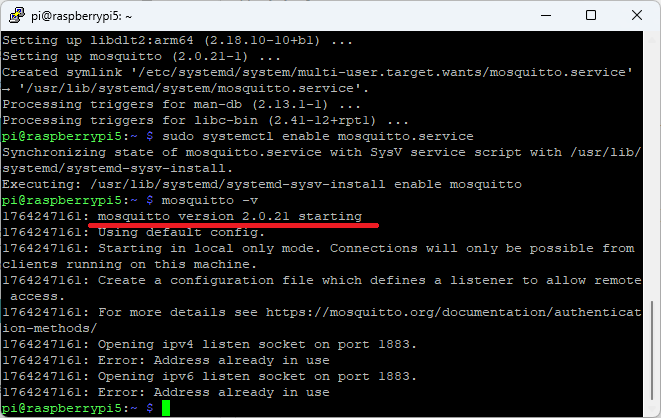
It will prompt the following message: “Starting in local only mode. Connections will only be possible from clients running on this machine. Create a configuration file which defines a listener to allow remote access.”
This means that by default, you can’t communicate with the Mosquitto broker from another device (other than your Raspberry Pi). This is applicable for Mosquitto version 2. More information about this topic can be found in the Mosquitto documentation.
“In Mosquitto 2.0 and up, you must choose your authentication options explicitly before clients can connect. In earlier versions, the default is to allow clients to connect without authentication.“
To enable remote access so that we can communicate with other IoT devices, we need to edit/create a configuration file.
In this tutorial, we’ll cover:
Choose the section that is more suitable for your scenario. We also recommend taking a look at the documentation for more details.
1) Run the following command to open the mosquitto.conf file.
sudo nano /etc/mosquitto/mosquitto.conf2) Move to the end of the file using the arrow keys and paste the following two lines:
listener 1883allow_anonymous true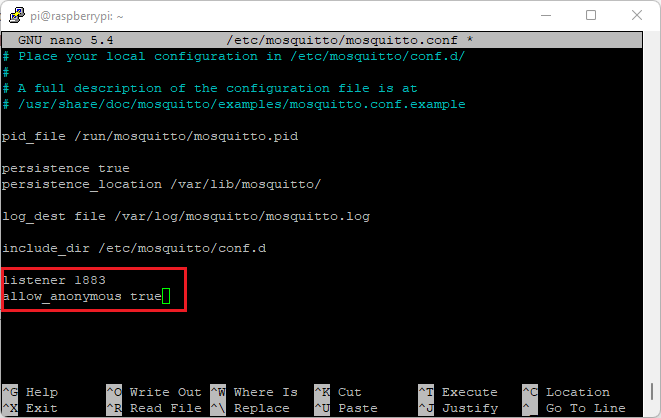
3) Then, press CTRL-X to exit and save the file. Press Y and Enter.
4) Restart Mosquitto for the changes to take effect.
sudo systemctl restart mosquittoYou can add a user/password authentication to your MQTT broker.
1) Run the following command, but replace YOUR_USERNAME with the username you want to use:
sudo mosquitto_passwd -c /etc/mosquitto/passwd YOUR_USERNAMEI’ll be using the MQTT user sara, so I run the command as follows:
sudo mosquitto_passwd -c /etc/mosquitto/passwd saraWhen you run the preceding command with the desired username, you’ll be asked to enter a password. No characters will be displayed while you enter the password. Enter the password and memorize the user/pass combination; you’ll need it later in your projects to make a connection with the broker.
This previous command creates a password file called passwd in the /etc/mosquitto directory.
Make the password file is readable and writable by the Mosquitto program:
sudo chmod 0700 /etc/mosquitto/passwdNow, we need to edit the Mosquitto configuration file so that it only allows authentication with the username and password we’ve defined.
2) Run the following command to edit the configuration file:
sudo nano /etc/mosquitto/mosquitto.conf3) Add the following line at the top of the file (make sure it is at the top of the file; otherwise, it won’t work):
per_listener_settings true4) Add the following three lines to allow connection for authenticated users and tell Mosquitto where the username/password file is located.
allow_anonymous false
listener 1883
password_file /etc/mosquitto/passwd
5) Uncomment the following line (remove the #)
pid_file /run/mosquitto/mosquitto.pidYour configuration file will look as follows (the new lines are in bold):
# Place your local configuration in /etc/mosquitto/conf.d/
#
# A full description of the configuration file is at
# /usr/share/doc/mosquitto/examples/mosquitto.conf.example

per_listener_settings true

pid_file /run/mosquitto/mosquitto.pid

persistence true
persistence_location /var/lib/mosquitto/

log_dest file /var/log/mosquitto/mosquitto.log

include_dir /etc/mosquitto/conf.d
allow_anonymous false
listener 1883
password_file /etc/mosquitto/passwd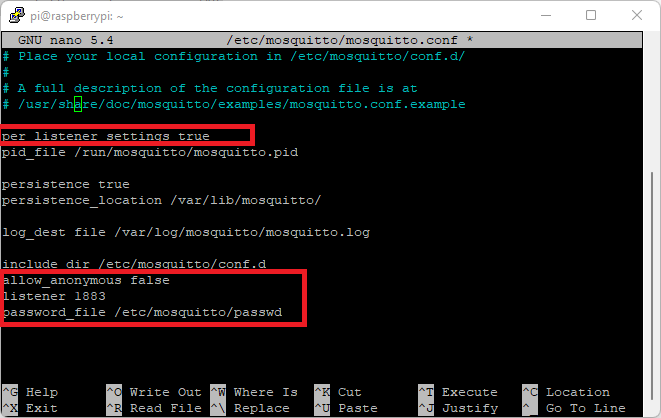
6) Press CTRL-X, then Y, and finally press Enter to exit and save the changes.
7) Update the ownership and permissions of the Mosquitto user so it can read and access the password file. Run the following two commands.
sudo chown mosquitto:mosquitto /etc/mosquitto/passwdsudo chmod 600 /etc/mosquitto/passwd8) Restart Mosquitto for the changes to take effect.
sudo systemctl restart mosquitto9) Wait a few seconds. Then, check if Mosquitto is actually running. You can run the following command:
sudo systemctl status mosquitto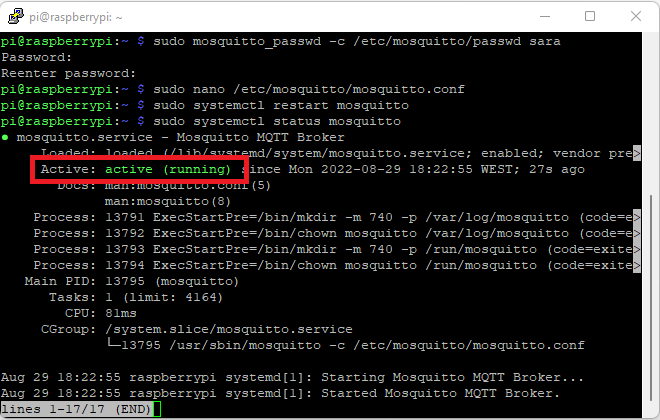
Now, you have authentication with username and password enabled. Remember that every time you want to communicate with the broker, you’ll need to provide the username and password.
To add more users to an existing password file, or to change the password for an existing user, leave out the -c argument:
mosquitto_passwd <password file> <username>For example, if I want to change the password for the sara user and take into account that the password file we created was called passwd, the command will be as follows:
sudo mosquitto_passwd /etc/mosquitto/passwd saraTo use Mosquitto broker later in your projects, you’ll need to know the Raspberry Pi IP address. To retrieve your Raspberry Pi IP address, type the next command in your Pi Terminal window:
hostname -I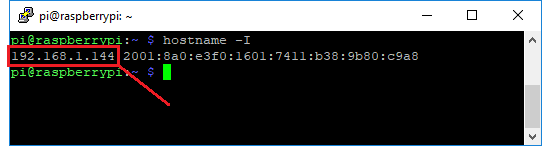
In our case, the Raspberry Pi IP address is 192.168.1.144. Save your Raspberry Pi IP address because you’ll need it in future projects.
After installing the Mosquitto broker, you should test your installation. You can follow the next tutorial:
An MQTT broker is essential if you want to use the MQTT protocol in IoT projects. The MQTT broker receives all MQTT messages and forwards them to all subscribed clients. In this tutorial, you’ve learned how to install the Mosquitto broker on a Raspberry Pi.
Like home automation? Learn more about Node-RED, Raspberry Pi, ESP32, and ESP8266 with our eBook: SMART HOME with Raspberry Pi, ESP32, and ESP8266.
Do you have any questions? Leave a comment down below!
🚀 Discover the world of electronics and innovation!
✨ Create, program, and experiment with all your creative ideas with ease.
🔥 Don't wait! Browse SpotPear products now and start your amazing project!
