Book Categories:


Wait, don't go!
Become a Member Today and Unlock Access to All eBooks!
Thousands of eBooks at your fingertips. Read, learn, and grow anytime, anywhere.
Become a Member Today and Unlock Access to All eBooks!
Thousands of eBooks at your fingertips. Read, learn, and grow anytime, anywhere.
In this post, you’ll configure the WiFi on your Raspberry Pi. If it’s your first time using the RPi, first make sure you read my Getting Started with Raspberry Pi guide.
Setting up your WiFi via the command line is the best method, since you don’t necessarily need access to the GUI (Graphical User Interface); everything you need is already right there (in your command line).
Boot your Raspberry Pi with the WiFi adapter plugged in. You can access your command line using one of the following methods:
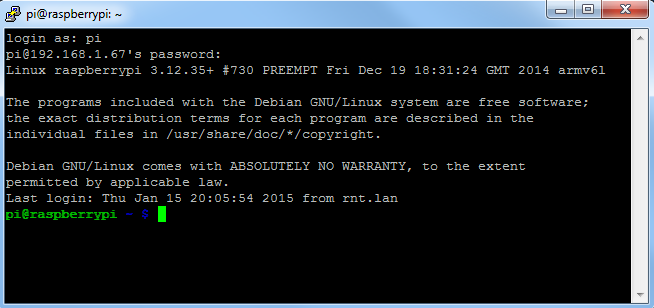
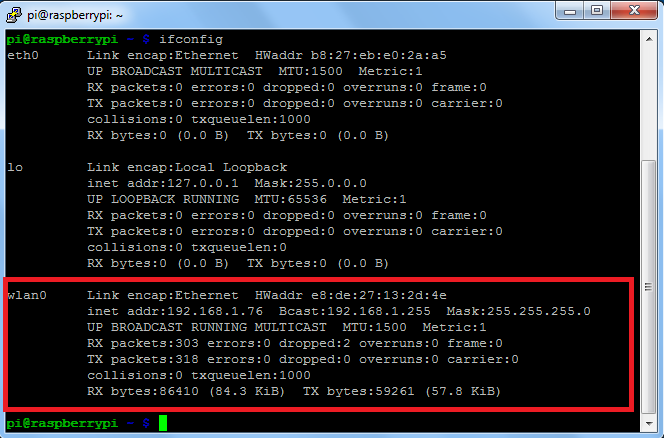
There are several ways to check if your WiFi adapter has been recognized. You can type:
ifconfig
And your wireless adapter, named as wlan0, should appear as shown in the Figure below.
Top 6
Raspberry Pi eBooks
From Zero to Professional

If you don’t see your WiFi adapter listed, you might have to install drivers for your particular WiFi adapter. I’m using the TL-WN725N, and by default, Raspbian doesn’t support my WiFi adapter. So I’ve followed this thread to install my drivers.
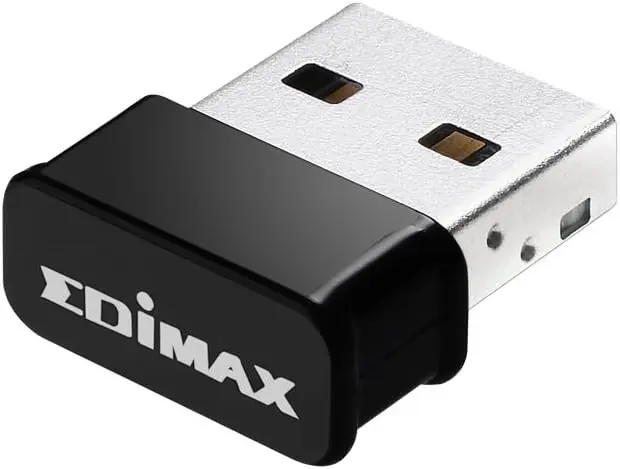
If you don’t have a WiFi adapter yet, I highly recommend purchasing the Edimax EW 7811UN. This is a good option, because Raspbian comes with its drivers installed out of the box, which ensures that your RPi recognizes that WiFi adapter.
Type the following command to open your configuration file:
sudo nano /etc/wpa_supplicant/wpa_supplicant.conf
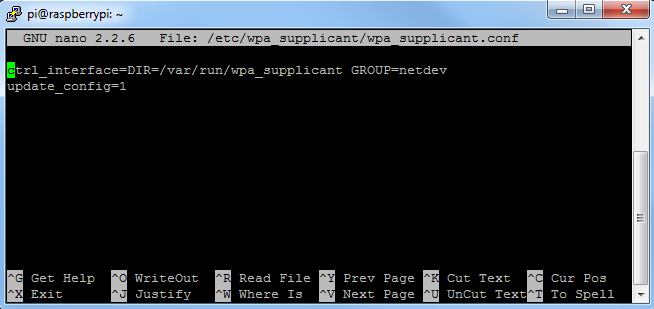
Go to the bottom of your configuration file wpa_supplicant.conf, and add your network details as shown below. Replace “YOUR-SSID” and “YOUR-SSID-PASSWORD” with the details of your WiFi connection.
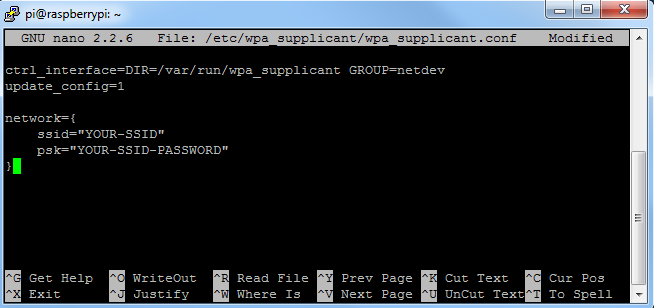
Now save your file by pressing Ctrl+x then y, then finally press Enter.
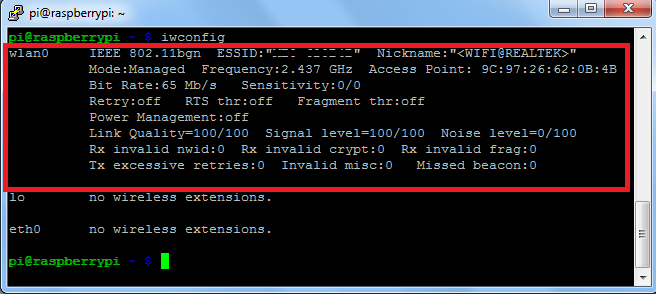
You can check the status of the wireless connection using ifconfig (to see if wlan0 has acquired an IP address) and iwconfig to check which network the wireless adapter is using.
Thanks for reading. If you like this post, you might like my next ones, so please support me by subscribing to my blog and my Facebook Page.
🚀 Discover the world of electronics and innovation!
✨ Create, program, and experiment with all your creative ideas with ease.
🔥 Don't wait! Browse SpotPear products now and start your amazing project!








