

Wait! Don’t Go Yet! 👋
Become a Member Today and Unlock Access to All eBooks! 😍
Thousands of eBooks at your fingertips. Read, learn, and grow anytime, anywhere ✨
Become a Member Today and Unlock Access to All eBooks! 😍
Thousands of eBooks at your fingertips. Read, learn, and grow anytime, anywhere ✨
This article is an introduction to the Raspberry Pi. Learn what a Raspberry Pi is and what you can use it for. Explore its features, set it up, and install the operating system.
The Raspberry Pi is a small computer board about the size of a credit card. It was developed in the United Kingdom by the Raspberry Pi Foundation to promote basic computer science teaching in schools. Since its first general sale in 2012, more than 46 million Raspberry Pi boards have been sold by February 2022.
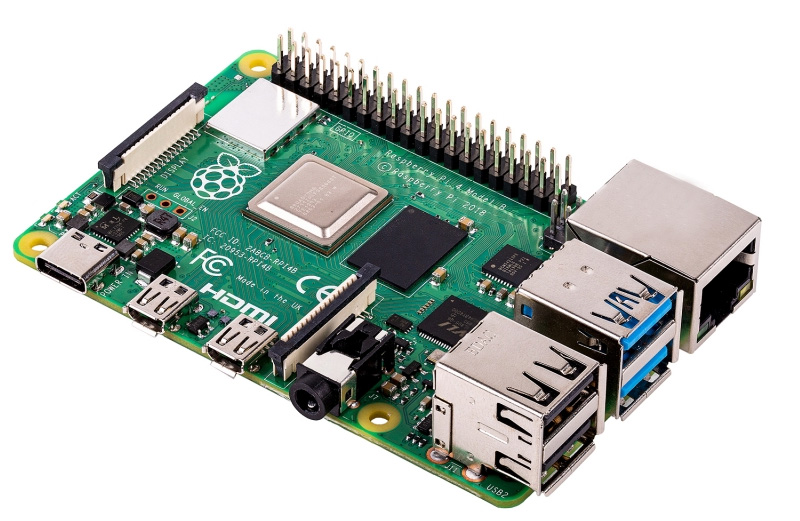
The Raspberry Pi has become tremendously popular among kids and electronics hobbyists, experienced makers, tinkerers, and even computer scientists.
The Raspberry Pi is a hackable and compact device. So, it’s the perfect solution for tinkerers!
Note: The Raspberry Pi board used to cost around 35$. However, increasing demand, supply chain constraints, and a shortage of chips caused the Raspberry Pi price to skyrocket to more than $150. Additionally, in many cases, you may need to wait a lot to get one.
In some way, you can look at the Raspberry Pi like a normal computer; it has a processor, RAM, USB ports to plug a keyboard and a mouse, an HDMI port to plug a TV or monitor, and you can even connect it to the internet.
Top 6
Raspberry Pi eBooks
From Zero to Professional

You can do most things you do with a regular computer, like web browsing, document editing, playing games, coding, and much more. The figure below shows the Raspberry Pi 3 set up as a desktop computer.
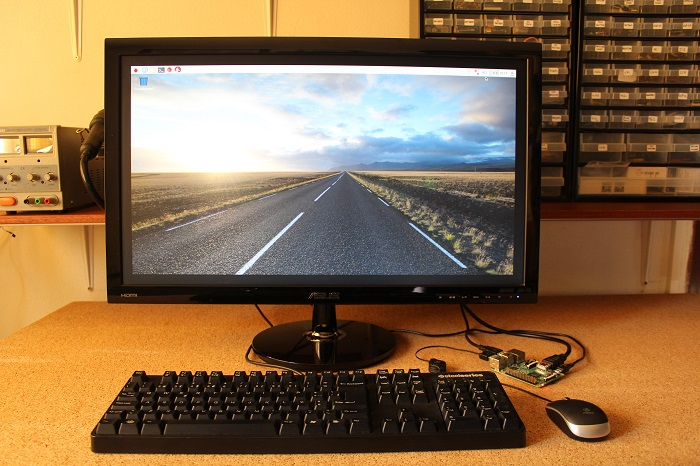
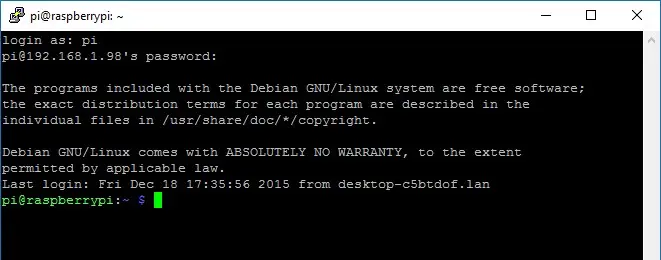
However, you don’t even need those accessories (mouse, keyboard, and monitor) if you don’t want to set it up as a Desktop computer. It can run headless, and you can control it remotely using Linux commands via a Terminal after establishing an SSH connection, for example.
The Raspberry Pi board has one special feature that normal computers don’t: General Purpose Input Output (GPIOs) Pins. These GPIOs let you interact with the real world, allowing you to build great electronics projects. Inputs can read data from sensors. Output signals can be sent to actuators to turn something on and off.
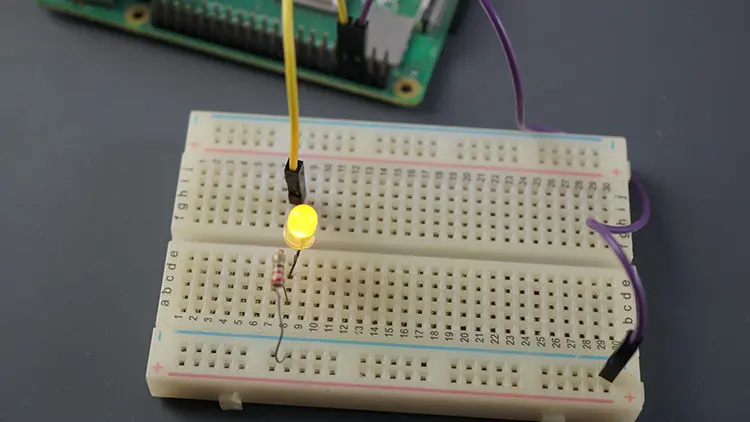
There are no limits to what you can do with your Raspberry Pi. Here are just some examples:
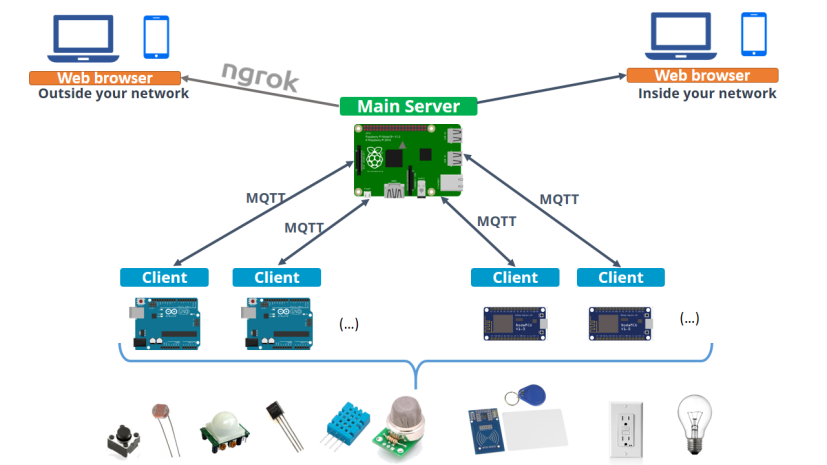
You can also read our article dedicated to Raspberry Pi uses: 11 Clever Uses for Your Raspberry Pi
There are different releases of the Raspberry Pi board. Here’s a list of the most relevant:
If you don’t have a Raspberry Pi board yet, we recommend getting a Raspberry Pi 5 (preferable), Raspberry Pi 4, or a Raspberry Pi 3 B+.
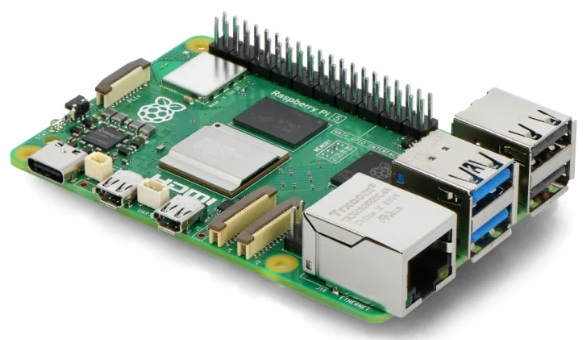
| Architecture | ARM v8-A 64-bit |
| SoC | Broadcom BCM2712 |
| CPU | 2.4 GHz 64-bit quad-core ARM Cortex-A76 |
| RAM | 4GB or 8GB LPDDR4X-4267 SDRAM (depending on the model) |
| Wireless LAN | Dual-band 802.11ac Wi-Fi |
| Bluetooth | Bluetooth 5.0 and BLE |
| Supports PoE | Yes (requires separate PoE HAT) |
| GPIOs | 40 |
| Ports | 2x micro HDMI 3.5 mm analog audio-video jack 2x USB 3.0, and 2x USB 2.0 Gigabit Ethernet |
| Camera Interfaces | 2 × 4-lane MIPI camera/display transceivers |
| Display Interfaces | 2 × 4-lane MIPI camera/display transceivers |
| Where to Buy? | Get a Raspberry Pi Official Raspberry Pi Website |
The figure below shows the Raspberry Pi 5 Model B annotated—most models are similar despite some small differences in the available ports.
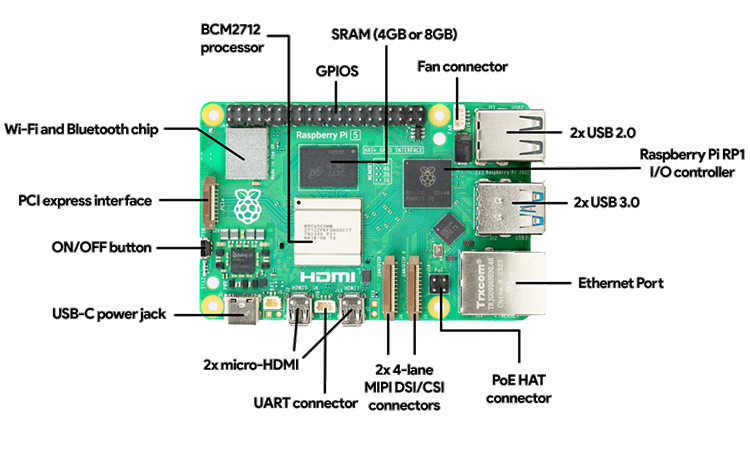
Here’s a glance at some of the components of the Raspberry Pi:
When you buy a Raspberry Pi board, you only get a bare electronic board that doesn’t do much on its own. You need several accessories to get started.
There are a lot of accessories for the Raspberry Pi, but you need at least a microSD card and a power supply. Without these accessories, your Raspberry Pi is useless.
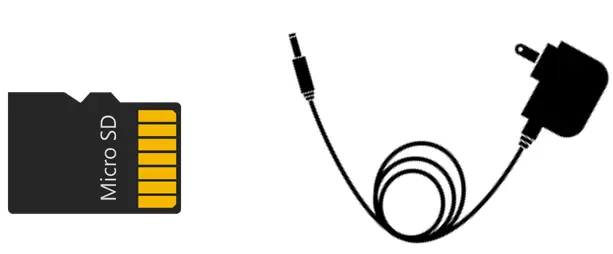
* You can get an expansion board that lets you add a SATA hard disk drive (HDD) or solid-state drive (SSD).
There are also useful accessories you may consider getting, like an HDMI cable to connect a monitor and a Raspberry Pi case to protect your board. A spare mouse and keyboard can also be useful to set your Raspberry Pi as a desktop computer.
If this is your first time around the Raspberry Pi, you may consider getting a Raspberry Pi starter kit that comes with the essential accessories to get started. You can also read our article about the Best Raspberry Pi 4 Starter Kits.
There are several operating systems suitable for the Pi. The official distribution for the Raspberry Pi is Raspberry Pi OS, and that’s the one we recommend you install.
1) Start by connecting the microSD card to your computer.
2) Go to the Raspberry Pi Software page.
3) Select and download the Raspberry Pi Imager (a tool to flash the OS on the microSD card) for your computer’s operating system.
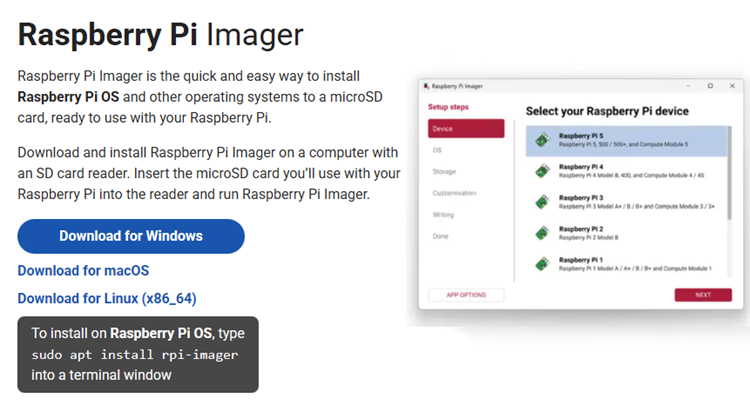
4) Click on the downloaded file to install the Raspberry Pi Imager.
5) When the installation is complete, the Raspberry Pi Imager will open.
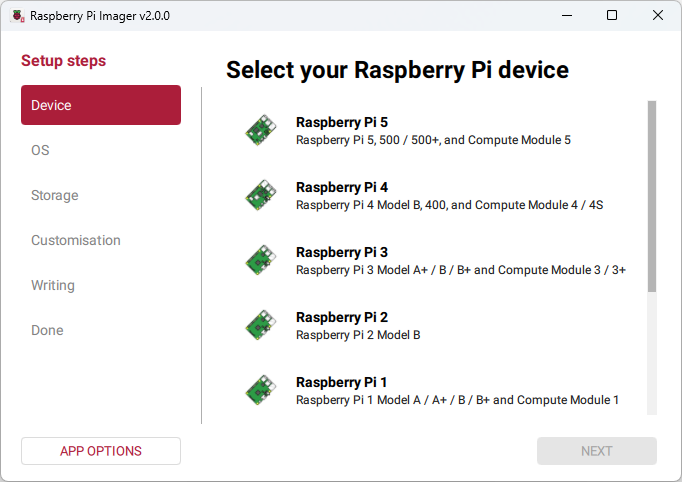
6) Select the Raspberry Pi board you’re using.
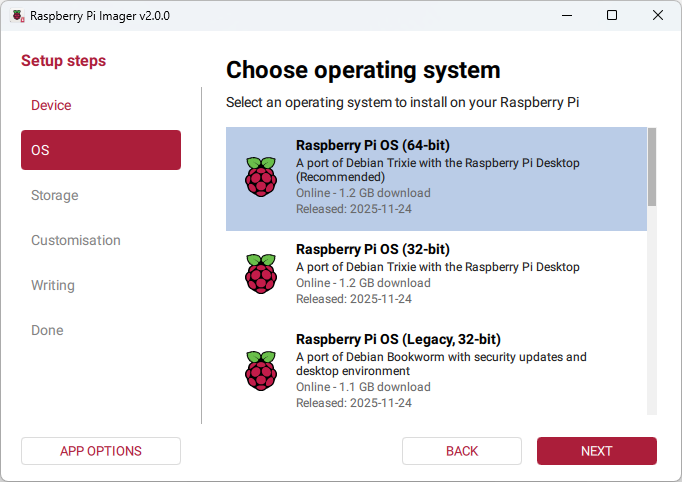
7) Then, select the Operating System. For beginners, and for most scenarios, we recommend the Raspberry Pi OS (64-bit).
8) Choose the microSD card where you want to install the OS.
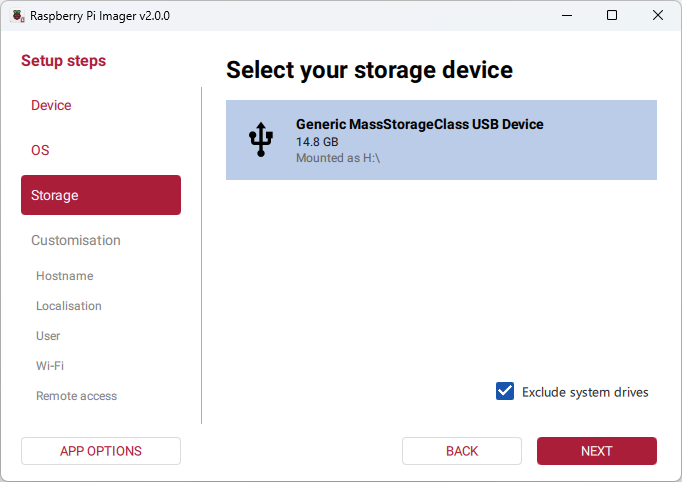
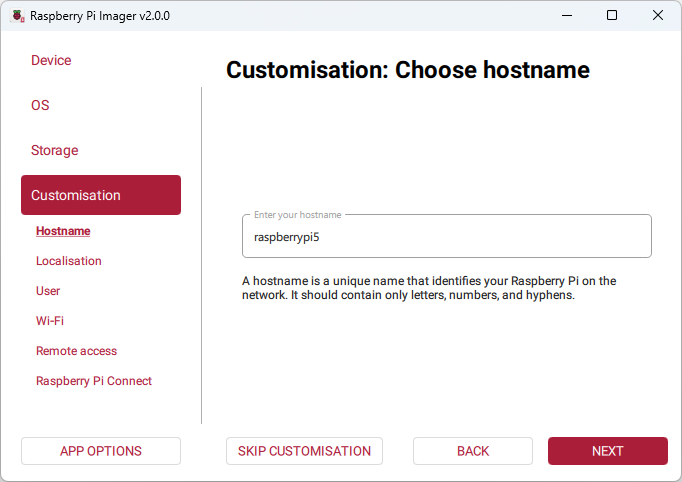
9) Next, choose a hostname for your board. It’s the name you’ll use to connect to your board via SSH later. We’re giving it the name raspberrypi5.
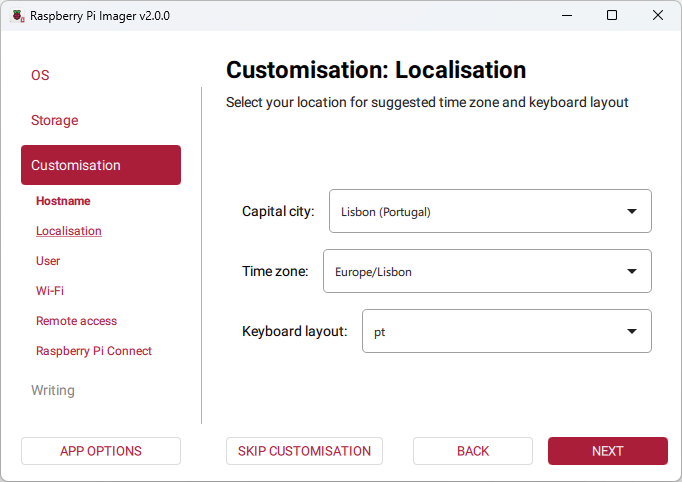
10) Set your location, time zone, and keyboard layout.
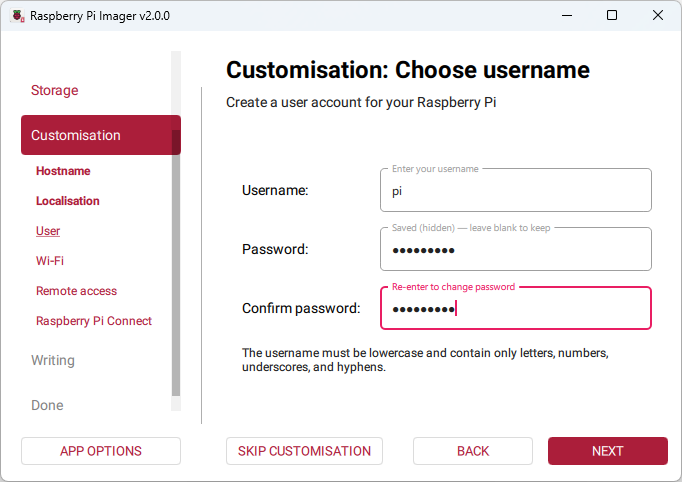
11) Then, you need to create a username and password to access your Raspberry Pi later on. Make sure you memorize or save this.
12) Set up Wi-Fi with your local network credentials. Don’t make any mistakes here. Otherwise, your Pi won’t be able to connect to your network, and you won’t be able to connect to the Pi via SSH.
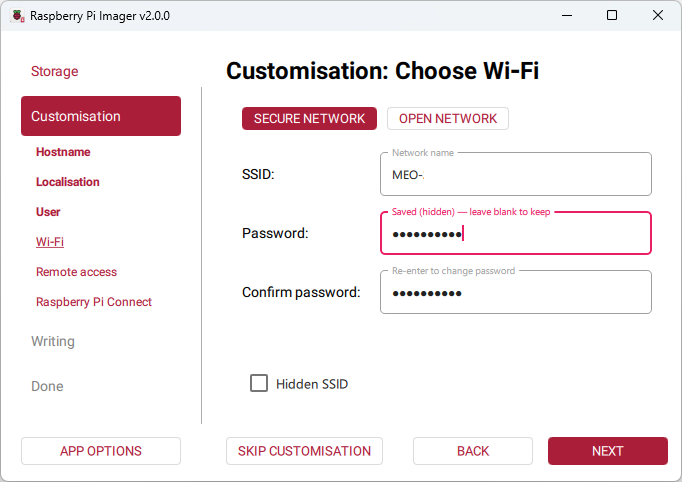
13) Enable SSH with password authentication.
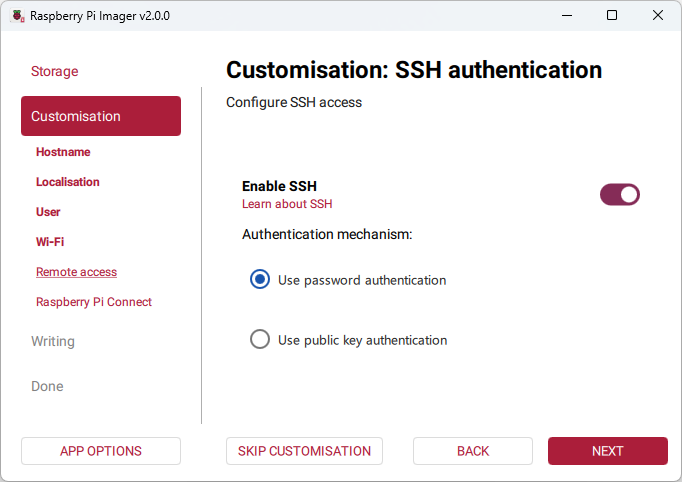
14) The following step is optional. You can set up Raspberry Pi Connect or not. For more information about Raspberry Pi Connect, click here.
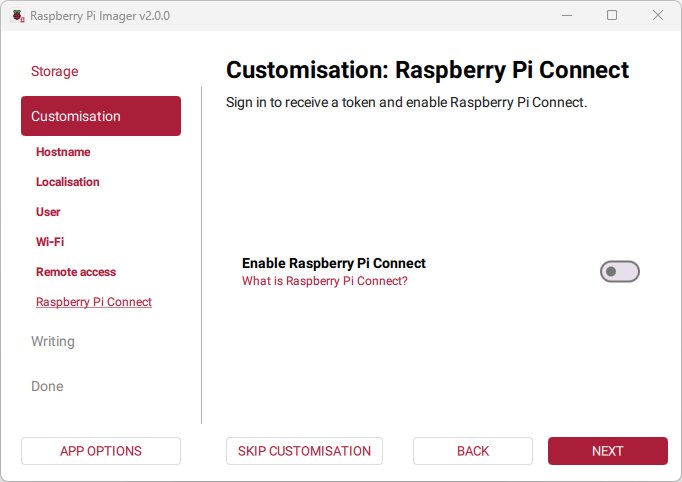
15) Finally, click Next. You’ll be given an overview of your setup. Click Write to start the process.
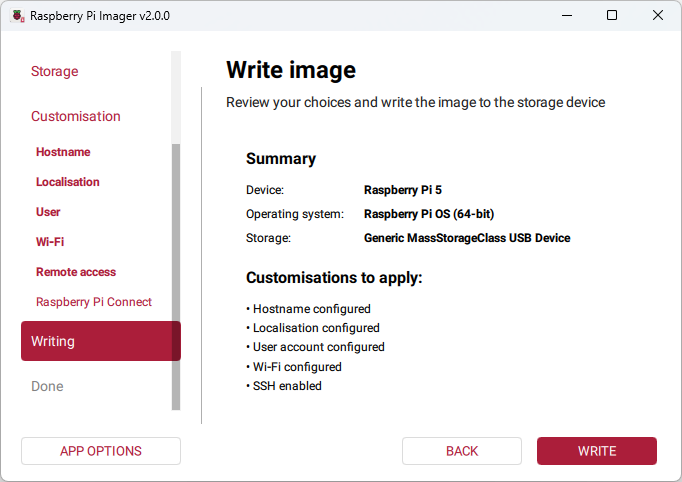
16) After a few minutes, the process will be completed.
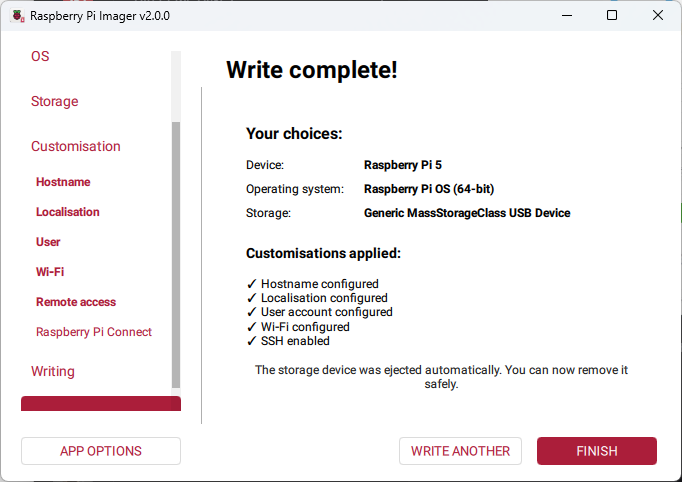
17) When the installation is complete. It will eject the microSD card safely.
18) Now, remove the card from your computer and insert it into your Pi. Then, apply power to the Raspberry Pi.
If you’re running the Raspberry Pi headless, you can establish an SSH connection with your Pi to install software, run programs, create folders and files, etc.
The following figure shows the Raspberry Pi GPIOs pinout that you can use for future reference.
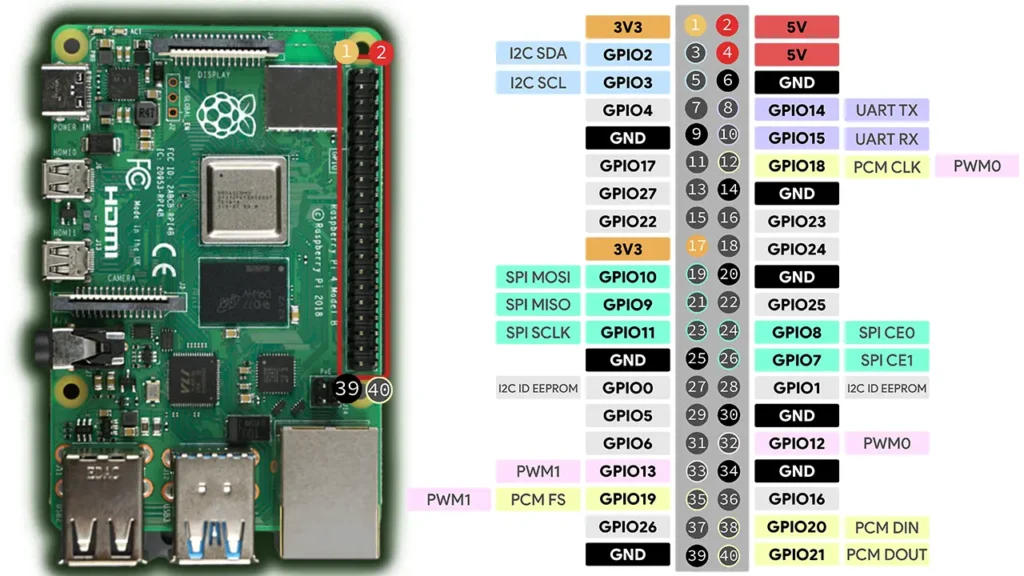
This pinout is the same for Raspberry Pi 5, Raspberry Pi 4, Raspberry Pi 3, Raspberry Pi 2 Model B, Raspberry Pi 1 Model A+, Raspberry Pi Model B+, Raspberry Pi Zero, and Raspberry Pi Zero W. Raspberry Pi 1 Model A and the Raspberry Pi 1 Model B Rev.2 only have the first 26 pins.
For a more detailed description of the Raspberry Pi Pinout, we recommend that you read the following article:
Learn more about physical computing with the Raspberry Pi with our beginner-friendly tutorials:
We hope you’ve found this getting started guide useful. If you don’t have a Raspberry Pi yet, you’re missing out on some cool projects. So, check the best Raspberry Pi kit for you here.
You may also like other related getting started guides:
Check all our Raspberry Pi Projects and Tutorials here!
Thanks for reading.
🚀 Discover the world of electronics and innovation!
✨ Create, program, and experiment with all your creative ideas with ease.
🔥 Don't wait! Browse SpotPear products now and start your amazing project!
