Book Categories:


Wait, don't go!
Become a Member Today and Unlock Access to All eBooks!
Thousands of eBooks at your fingertips. Read, learn, and grow anytime, anywhere.
Become a Member Today and Unlock Access to All eBooks!
Thousands of eBooks at your fingertips. Read, learn, and grow anytime, anywhere.
![ESP32 IR Receiver: How To Detect IR Remote Signals [Arduino IDE]](https://ebokify.com/wp-content/uploads/2026/01/ESP32-IR-Receiver-How-To-Detect-IR-Remote-Signals-Arduino-IDE-1.webp "ESP32 IR Receiver: How To Detect IR Remote Signals [Arduino IDE] 1")
Infrared (IR) communication is widely used in remote controls for TVs, audio systems, fans, and other electronics. With the ESP32, you can read signals from these remotes using an IR receiver. This opens the door to controlling devices, triggering actions, or even building your own custom smart remote system.
In this guide, I’ll show you how to connect an IR sensor to your ESP32 to build an ESP32 IR Receiver!
To follow along with this tutorial, you’ll need the following components:
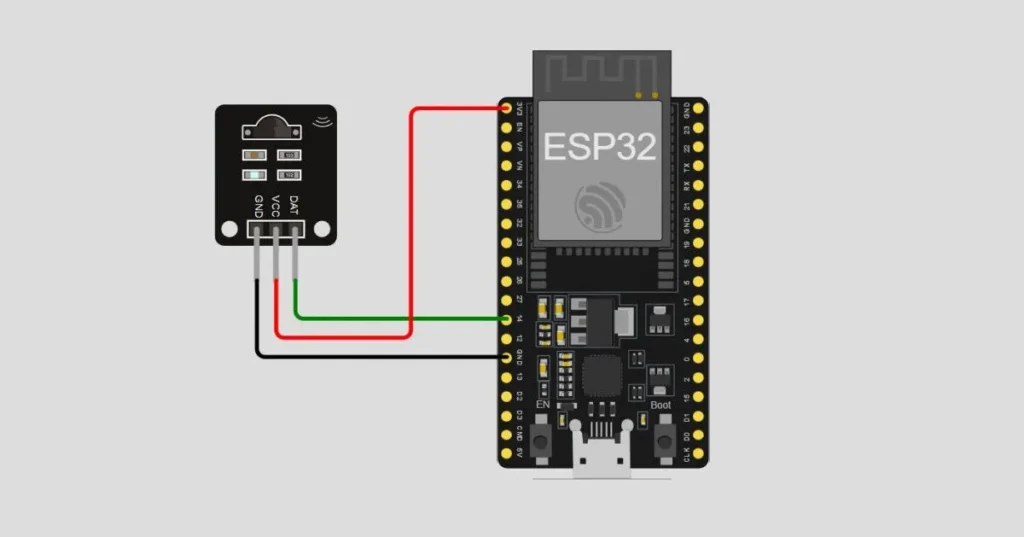
| IR Sensor Pin | ESP32 Pin |
| GND (G) | GND |
| VCC (R) | 3.3V |
| DAT/Signal (Y) | Any GPIO Pin (e.g., GPIO 14) |
Top 6
ESP32 eBooks
From Zero to Professional

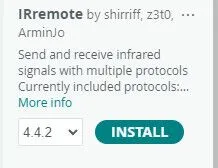
To decode signals from the remote, we’ll need the IRremote library by Armin Joachimsmeyer.
In the Arduino IDE, open the Library Manager by selecting Sketch > Include Library > Manage Libraries… Then, search for IRremote (by Armin Joachimsmeyer) and install the library.
To deal with specific button presses on the infrared remote, we need to identify the buttons with their specific ID. We can then use the ID of a button to perform a specific action in the code.
Use the following sketch to receive commands from the IR remote and print the HEX ID of a button.
#include <IRremote.h>

#define IR_PIN 14

void setup() {
  Serial.begin(115200);
  IrReceiver.begin(IR_PIN, ENABLE_LED_FEEDBACK);
  Serial.println("IR Receiver Ready");
}

void loop() {
  if (IrReceiver.decode()) {
    Serial.print("Received code: ");
    Serial.println(IrReceiver.decodedIRData.command, HEX); // Print the HEX ID
    IrReceiver.resume(); // Receive the next value
  }
}
After uploading the sketch to your ESP32, open the Serial Monitor at 115200 baud. Point your IR remote at the sensor and press some buttons. You should see the decoded IR codes (IDs) printed in hexadecimal.

Now that you know the IR codes you need from your remote, you can modify the sketch to trigger specific behaviour when a button is pressed.
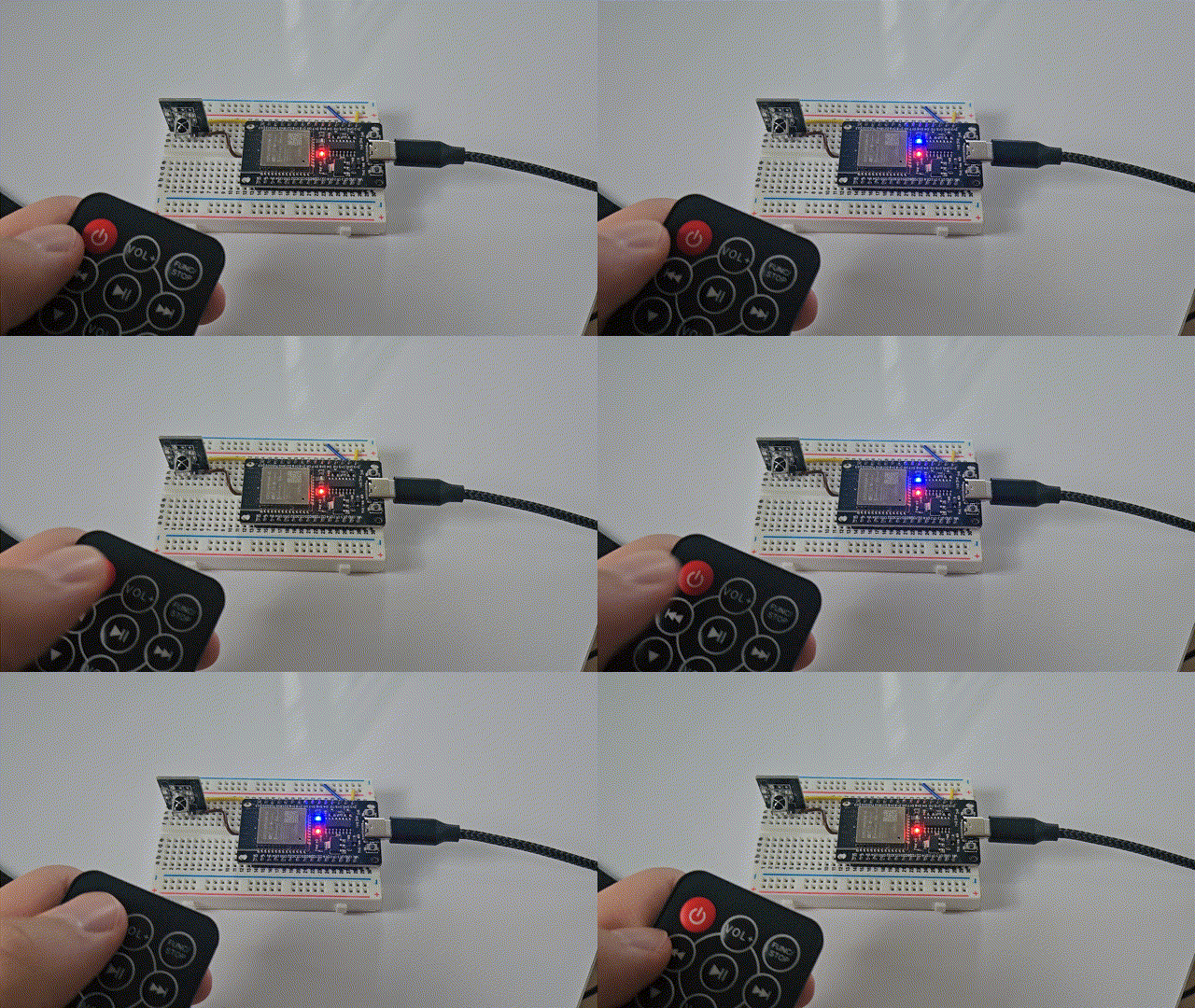
In the following, we will toggle the built-in LED of the ESP32 when the power button (46) on the remote is pressed.
#include <Arduino.h>
#include <IRremote.h>

#define IR_RECEIVE_PIN 23
#define LED_PIN 2

bool LED = false;

void setup() {
  Serial.begin(115200);
  pinMode(LED_PIN, OUTPUT);
  IrReceiver.begin(IR_RECEIVE_PIN, DISABLE_LED_FEEDBACK);
  Serial.println("IR Receiver Ready");
}

void loop() {
  if (IrReceiver.decode()) {
    uint8_t command = IrReceiver.decodedIRData.command;
    switch (command) {
      case 0x45: // Example button code
        Serial.println("Power button pressed!");
        digitalWrite(LED_PIN, LED);
        LED = !LED;
        break;
      case 0x46:
        Serial.println("Another button was pressed!");
        break;
      // Add more cases as needed
    }
    IrReceiver.resume();
  }
}
Here’s the result:
Top 6
Arduino eBooks
From Zero to Professional

Using an IR sensor with your ESP32 is a great way to repurpose old remote controls and add wireless input to your electronics projects. With just a few components, you can decode IR signals and trigger any behaviour you want with the ESP32!
Also, check out how to build a full Universal IR Remote to control devices like TV, fans, and a lot more!
Let us know what creative uses you come up with!
Thanks for reading!
Links marked with an asterisk (*) are affiliate links which means we may receive a commission for purchases made through these links at no extra cost to you. Read more on our Affiliate Disclosure Page.
🚀 Discover the world of electronics and innovation!
✨ Create, program, and experiment with all your creative ideas with ease.
🔥 Don't wait! Browse SpotPear products now and start your amazing project!