

Wait! Don’t Go Yet! 👋
Become a Member Today and Unlock Access to All eBooks! 😍
Thousands of eBooks at your fingertips. Read, learn, and grow anytime, anywhere ✨
Become a Member Today and Unlock Access to All eBooks! 😍
Thousands of eBooks at your fingertips. Read, learn, and grow anytime, anywhere ✨
In this tutorial, you’ll learn how to build an email alert system on location change with a Raspberry Pi. In summary, you’ll send GPS data to your email address using the Raspberry Pi and the NEO-6M GPS module. This project can be extended to act as a GPS tracker that would log the coordinates into a file that you can access later.
Having a device that notifies you via email when there is a change in the location of an object sounds great. You can do that and much more if you learn how to use the NEO-6M GPS module with the Raspberry Pi.
Here’s what you’re going to achieve with this tutorial:
Here’s what Emmanuel says about this project: “I personally decided to write this tutorial after spending about three days trying to connect a component that could talk to the Raspberry Pi 3 via UART to work.”
Here’s a complete list of the components you need for this project:
Top 6
Raspberry Pi eBooks
From Zero to Professional

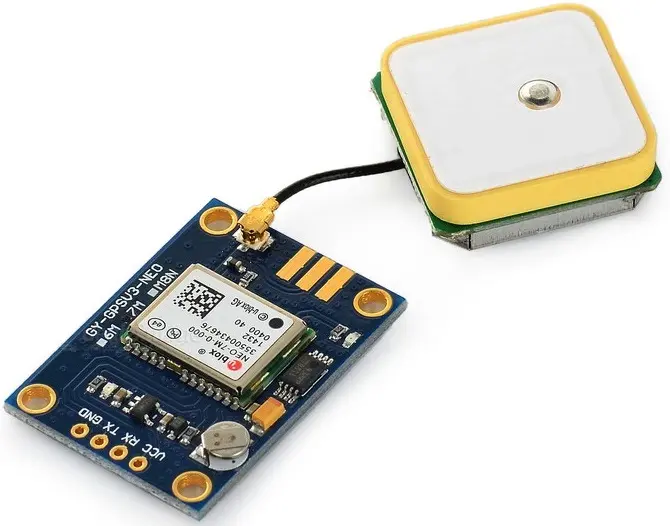
The NEO-6M GPS module, shown in the figure below, can be a bit tricky to use as it communicates with the Raspberry Pi via UART. So, you need to follow some steps to enable UART communication.
In this tutorial, we’re assuming you know how to setup your Raspberry Pi and access it via SSH using putty. We also assume you are using the Raspbian Jessie operating system, but it should also work on Raspbian Stretch.
The SoC used on the Raspberry Pi has two built-in UARTs: PL011 and another one, which we can refer to as the mini UART. According to Raspberry Pi’s official website, the two UARTS were implemented using different hardware blocks, and thus, they have different characteristics. However, both operate on the 3.3v logic level.
In the Raspberry Pi 3 and Pi Zero (Raspberry Pi boards with Wireless and Bluetooth modules), the PL011 UART is connected to the Bluetooth module, while the mini UART is used for the Linux console output. This makes the PL011 unavailable for serial communication with external components.
To solve this, you need to install an overlay, which is available in the current version of Raspbian, and transfer Linux console output to the PL011. Why can’t we use the mini UART? I will define the PL011 as the best of the two UARTs due to its implementation level.
So to dive in: the first thing you should do before starting any Raspberry Pi project is update the Pi. For that, enter the following command:
pi@raspberrypi:~ $ sudo apt update && sudo apt upgrade
Then, you need to edit the config.txt file. Run this next command:
pi@raspberrypi:~ $ sudo nano /boot/config.txt
At the bottom of the text file, add the following lines to disable the Bluetooth and allow an increase in core frequency (each parameter should be in a different line).
dtparam=spi=on
dtoverlay=pi3-disable-bt
force_turbo=1
core_freq=250
enable_uart=1
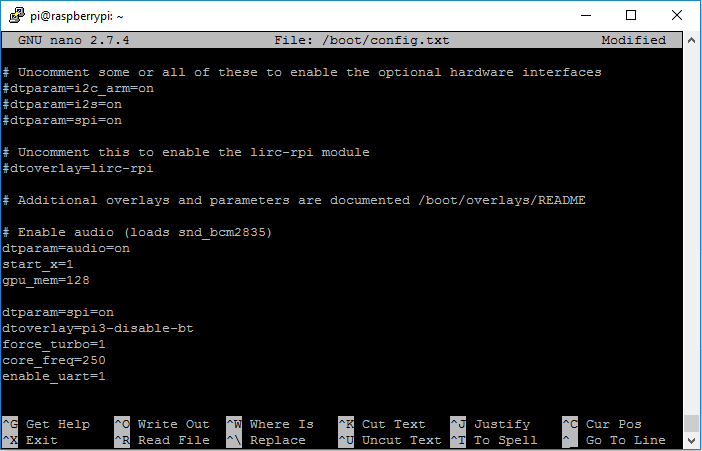
Ensure there are no typos. Press CTRL+X, followed by Y, and press Enter to save.
The next thing you need to do is edit the cmdline.txt file:
pi@raspberrypi:~ $ sudo nano /boot/cmdline.txt
Replace the content in that file with the following (make sure everything is kept in the same line):
dwc_otg.lpm_enable=0 console=tty1 root=/dev/mmcblk0p2 rootfstype=ext4 elevator=deadline fsck.repair=yes rootwait quiet splash plymouth.ignore-serial-consoles
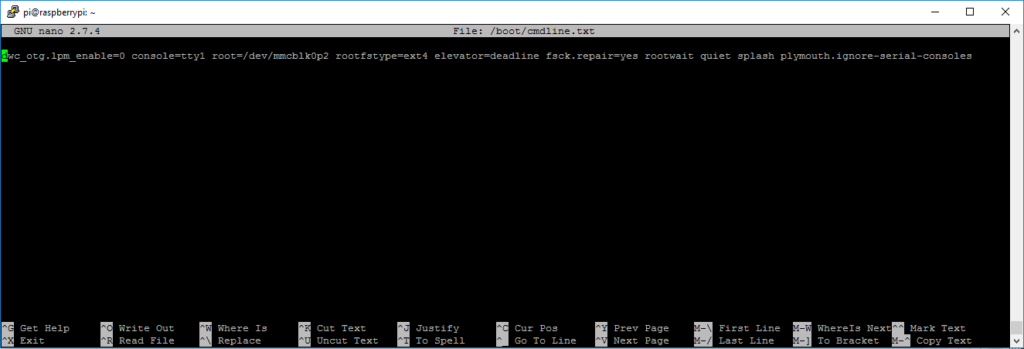
Press CTRL+X, followed by Y, and to save, press Enter.
Next, you need to disable the RPi serial getty service on the mini UART by entering the following commands:
pi@raspberrypi:~ $ sudo systemctl stop serial-getty@ttyS0.service
pi@raspberrypi:~ $ sudo systemctl disable serial-getty@ttyS0.service
Note: if you want to enable the serial getty service and start it later, you need to run the following commands (DO NOT RUN the next commands now):
pi@raspberrypi:~ $ sudo systemctl enable serial-getty@ttyS0.service
pi@raspberrypi:~ $ sudo systemctl start serial-getty@ttyS0.service
Reboot the system with:
pi@raspberrypi:~ $ sudo reboot
Wait for the Pi to come back on and establish an SSH communication.
The final step is to enable the ttyAMA0, which is the PL011 UART, using the command;
pi@raspberrypi:~ $ sudo systemctl enable serial-getty@ttyAMA0.service
With the Raspberry Pi UART setup done, you’re ready to build your circuit. Just follow the next schematic diagram.
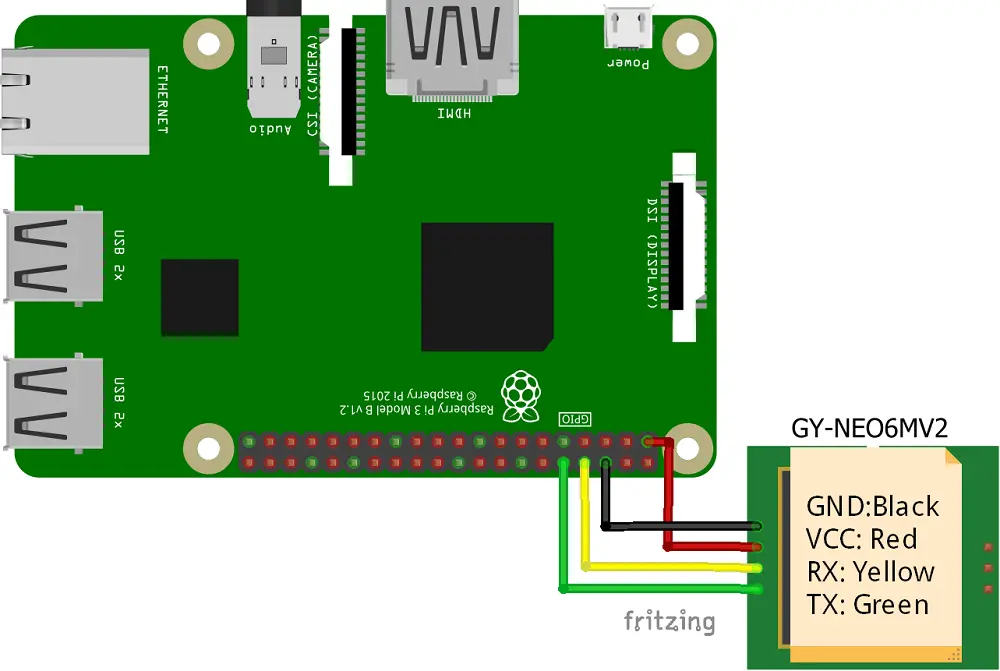
At this stage, it is important to test your GPS module and see if the UART setup works as desired. Power up the system and run the following command:
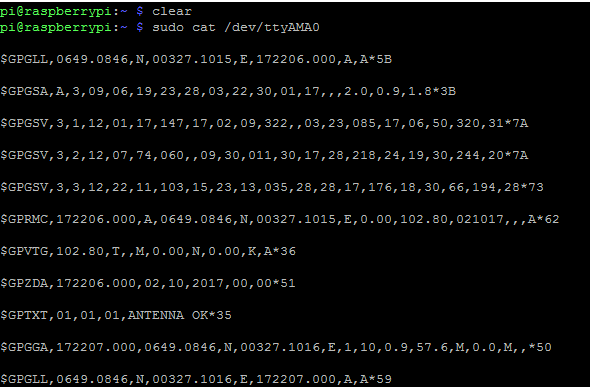
pi@raspberrypi:~ $ sudo cat /dev/ttyAMA0
You should see a bunch of NMEA data streaming as seen in the image below. This shows that the UART setup is up and running, as well as your GPS.
With the Raspberry Pi setup complete and the components connected, the next step is writing the script that collects the NMEA data from the GPS module. Then, you need to parse it to extract latitude and longitude, and then convert it into a Google Maps link before sending it via email.
Before writing the script, you need to download the Python library we’re using to parse the NMEA data. You also need to setup your Gmail account (or other email account) to allow access by less secure apps.
To parse the GPS information, we’ll be using the pynmea2 Python library. You can install it on the Raspberry Pi with the following:
pi@raspberrypi:~ $ sudo apt install python-pip
pi@raspberrypi:~ $ sudo pip install pynmea2
More information on how this works can be found on pynmea2 GitHub page.
If you’re using Raspbian Lite, you might also need to install pyserial:
pi@raspberrypi:~ $ sudo pip install pyserial
In your email account, you need to allow login by less secure apps. Here’s how it works on Gmail:
Note: G Suite users have this setting hidden if their administrator has locked less secure app account access.
With this done, you are ready for the script. It's well commented so that you understand the purpose of each section, but you can still post any comments below.
Create a new Python file called email_alert_location_change.py by entering the following command:
pi@raspberrypi:~ $ sudo nano email_alert_location_change.py
Copy the following code to the newly created file.
#
# Author: Emmanuel Odunlade
# Complete Project Details https://ebokify.com
#

import time
import serial
import string
import pynmea2
import smtplib
from email.MIMEMultipart import MIMEMultipart
from email.MIMEText import MIMEText

#setting up mail information
fromaddr = "REPLACE_WITH_YOUR_EMAIL_ADDRESS"
pword = "REPLACE_WITH_YOUR_EMAIL_S_PASSWORD"
toaddr = "REPLACE_WITH_YOUR_TO_EMAIL_ADDRESS"
msg = MIMEMultipart()
msg['From'] = fromaddr
msg['To'] = toaddr
msg['Subject'] = "Location change alert"

#setup the serial port to which GPS is connected to
port = "/dev/ttyAMA0"
ser = serial.Serial(port, baudrate=9600, timeout=0.5)
dataout  = pynmea2.NMEAStreamReader()

while True:
    newdata = ser.readline()
    print ("getting new lat")
    if newdata[0:6] == '$GPGGA':
        newmsg = pynmea2.parse(newdata)
        newlat = newmsg.latitude
        print(newlat)
        newlong = newmsg.longitude
        print(newlong)
        lat  = str(newlat)
        lon = str(newlong)
        content = "http://maps.google.com/maps?q=" + lat + "," + lon
        Email = content
        msg.attach(MIMEText(Email, 'plain'))
        try:
            server = smtplib.SMTP('smtp.gmail.com', 587)
            server.starttls()
            server.login(fromaddr, pword)
            text = msg.as_string()
            server.sendmail(fromaddr, toaddr, text)
            server.quit()
            print ("mail sent!")
        except:
            print("error, couldnt send mail, be sure to enable non secure apps login on sender's email")

        time.sleep(3)
Note: you need to edit the code with your own email information.
Press CTRL+X, followed by Y, and press Enter to save.
Finally, run your script:
pi@raspberrypi:~ $ sudo python email_alert_location_change.py
This script sends the GPS coordinates via email every three seconds.

The idea is that you edit this code to suit your own project.
Note: for your Raspberry Pi to send emails, it needs an internet connection. You can connect your Raspberry Pi to your smartphone as long as it has a data connection and the ability to act as a hotspot. If you’re not able to do this, you can log the data into a file and access it later.
In this project, we’ve shown you how to send GPS location data to your email every three seconds. You can edit it with a little bit of Python knowledge to report the location whenever there is a change.
This could open up a whole lot of possibilities, from gaming to tracking valuables, etc.
We hope you’ve found this tutorial useful.
Thanks for reading.
🚀 Discover the world of electronics and innovation!
✨ Create, program, and experiment with all your creative ideas with ease.
🔥 Don't wait! Browse SpotPear products now and start your amazing project!
