Book Categories:


Wait, don't go!
Become a Member Today and Unlock Access to All eBooks!
Thousands of eBooks at your fingertips. Read, learn, and grow anytime, anywhere.
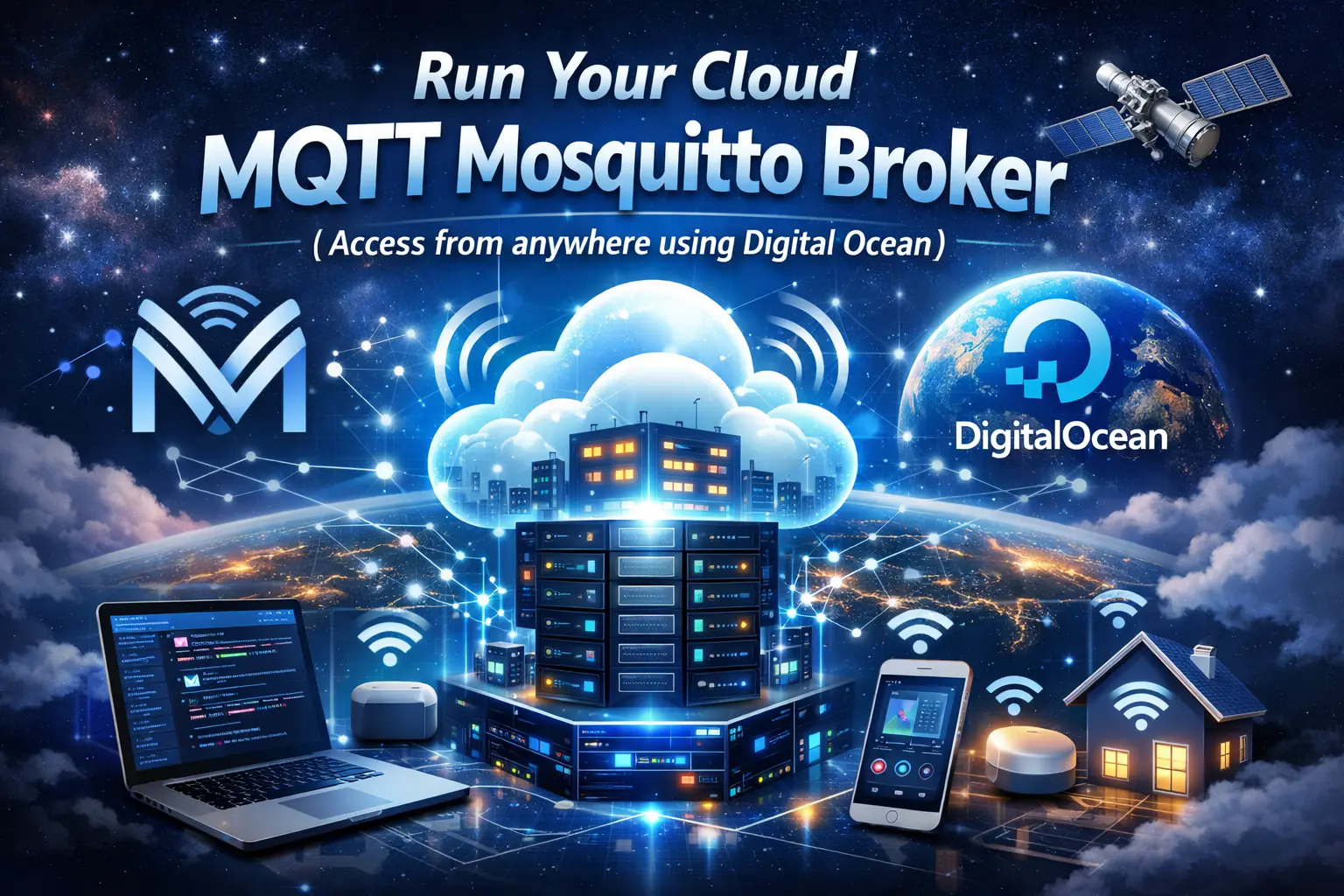
Learn how to install Mosquitto Broker for MQTT communication on a Linux Ubuntu VM (Virtual Machine) using Digital Ocean. Running an MQTT Mosquitto Broker in the cloud enables you to connect multiple ESP32/ESP8266 boards and other IoT devices from anywhere, regardless of the network used, as long as they have an Internet connection. We’ll also cover how to connect your ESP boards to the cloud MQTT broker using Arduino IDE.
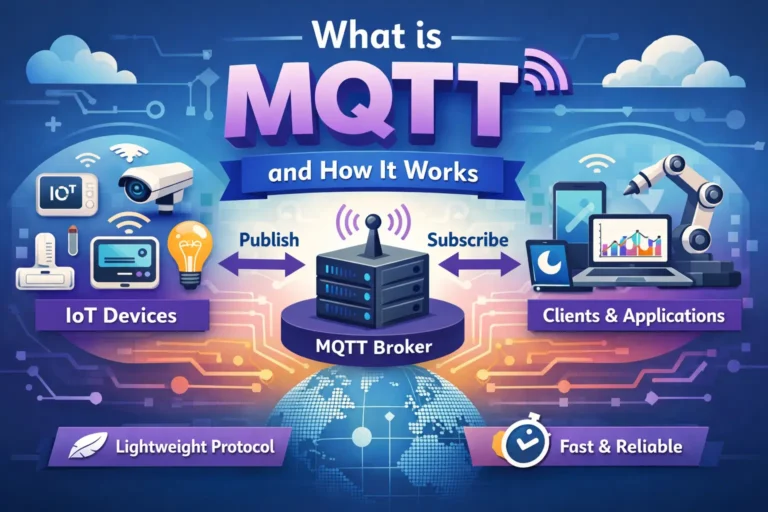
MQTT stands for Message Queuing Telemetry Transport. It is a lightweight publish-and-subscribe system where you can publish and receive messages as a client. It is widely used in the home automation and IoT fields.
To learn more about MQTT, read our complete guide: What is MQTT and how it works.
An MQTT broker is primarily responsible for receiving MQTT messages, filtering them, determining who is interested in each message, and publishing them to all subscribed clients.
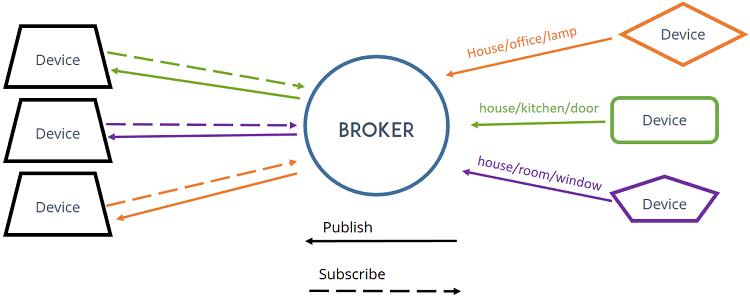
There are several brokers you can use. In our Home Automation projects and tutorials, we use the popular Mosquitto MQTT Broker. It is easy to install, configure, and use.
In this tutorial, we’ll show you how to install Mosquitto MQTT broker on the cloud—a Linux Ubuntu VM (virtual machine) running on Digital Ocean hosting service.
What’s the advantage of using a Cloud MQTT broker, and how does it work?
Using a Cloud MQTT broker allows several IoT devices (like ESP32 and ESP8266 boards) to communicate with each other using MQTT, even if they are on different networks (different locations connected to different routers). Here’s an overview.
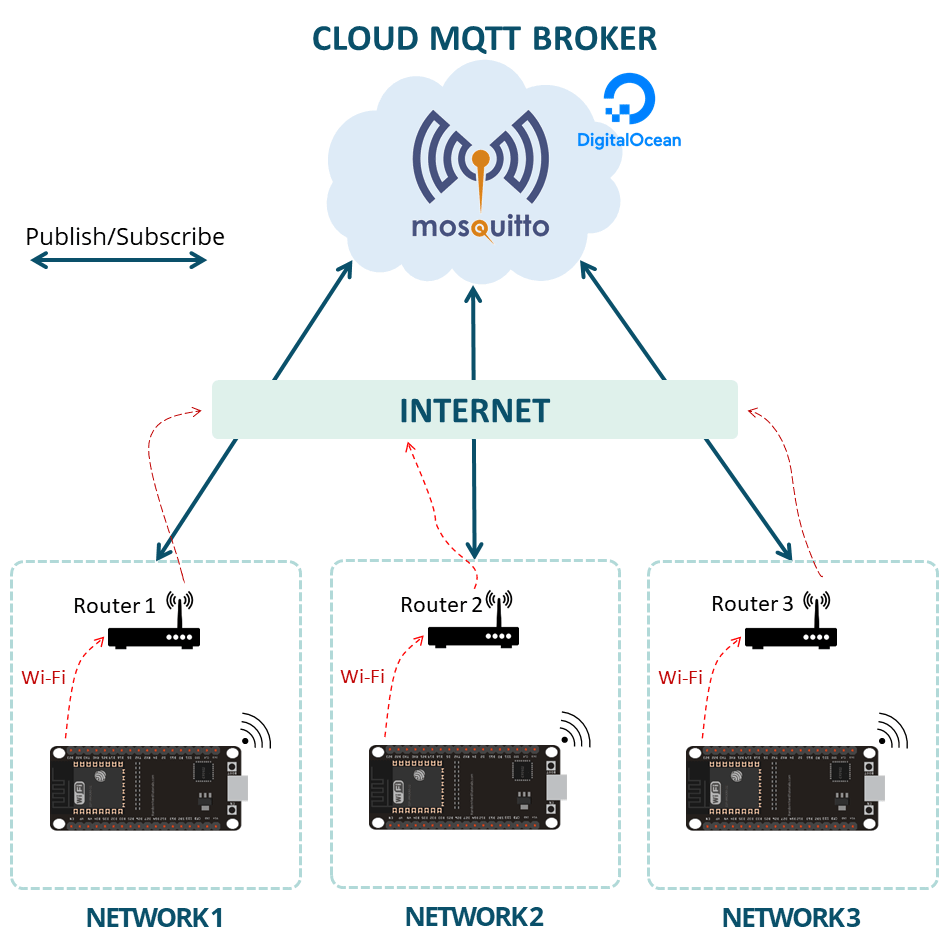
The following diagram shows an example of a possible application:
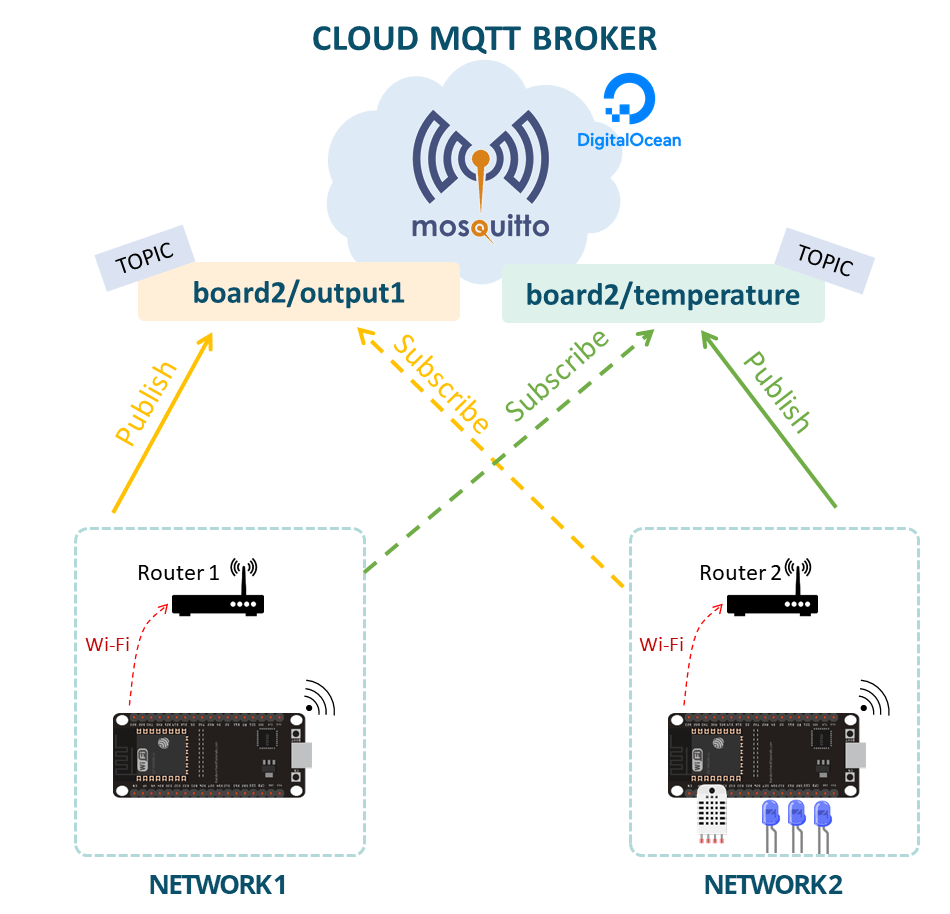
board2/output1). The message can indicate whether ESP32 #2 should turn an output on or off. So, ESP32 #1 can control the ESP32 #2 outputs.You can also install Node-RED on the same cloud (Digital Ocean hosting account) to control and monitor your boards from anywhere in the world using your computer or your smartphone. You can follow this tutorial: Access Node-RED Dashboard from Anywhere using Digital Ocean
To run your Cloud MQTT Mosquitto Broker, you need to use a hosting service that allows you to have access to the command line and install any software that you need. I recommend using Digital Ocean that offers an Ubuntu server that you can manage through a command line.
I’ve been using it since 2015, and I personally recommend it, but you can use any other hosting service. Any hosting service that offers a Linux Ubuntu VM with full console access should work.
If you don’t have a hosting account, I recommend signing up for Digital Ocean. When you sign up for Digital Ocean, you can try it for 60 days (they give you free credits to test the platform).
If you like our projects, you might consider signing up for the recommended hosting service, because you’ll be supporting our work.
Note: You can also run Mosquitto MQTT Broker in your local network using a Raspberry Pi board. However, the purpose of this tutorial is to run an MQTT broker in the cloud to communicate with boards (or other IoT devices) across different networks.
To create a Digital Ocean Account, go to Digital Ocean and sign up using one of the available options.
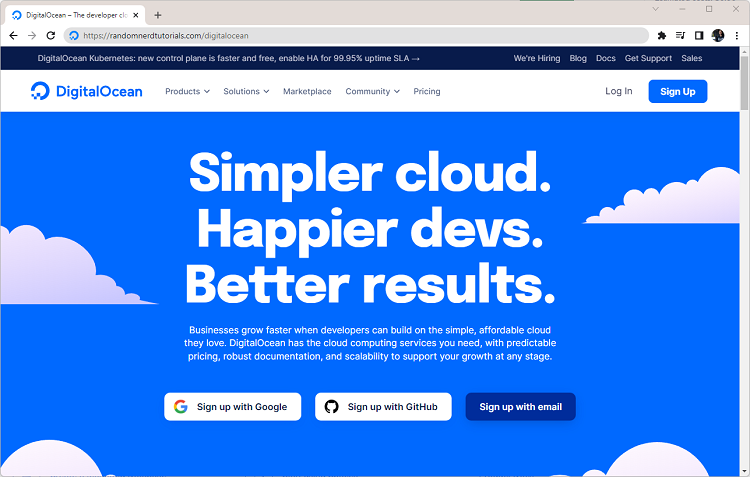
Create your account, and you’ll receive a $200 credit that you can use for 60 days to test the platform. You might need to enter a valid credit card, but you can cancel your account anytime if you’re no longer interested in using the service after the free 60-day trial.
Confirm your account and login. On the Project tab, click on your name. You should see a similar Dashboard.
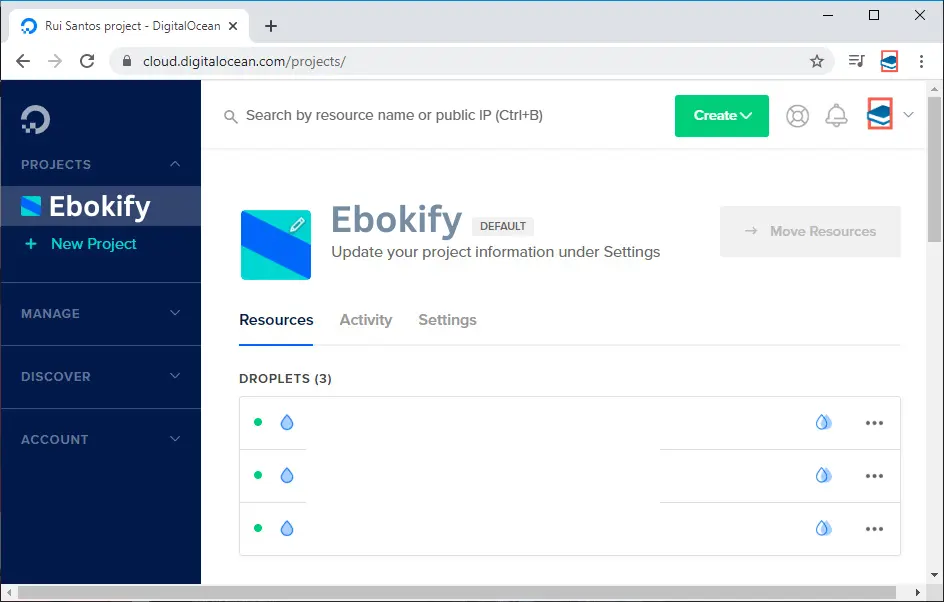
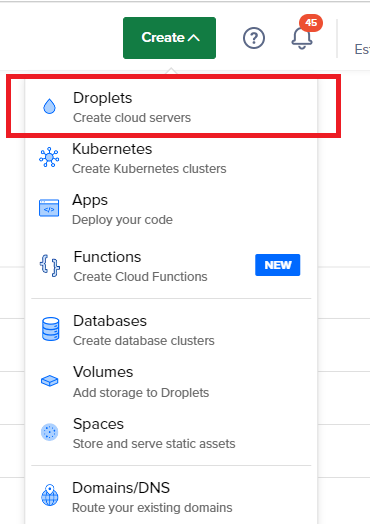
To create a new VM, press the “Create” button on the top right corner and select the “Droplets” option. Digital Ocean calls Droplets its VMs.
Important: if you’re already running a Droplet with Node-RED installed, you can skip these next steps (creating a Droplet). You can run both Node-RED and Mosquitto MQTT broker on the same server.
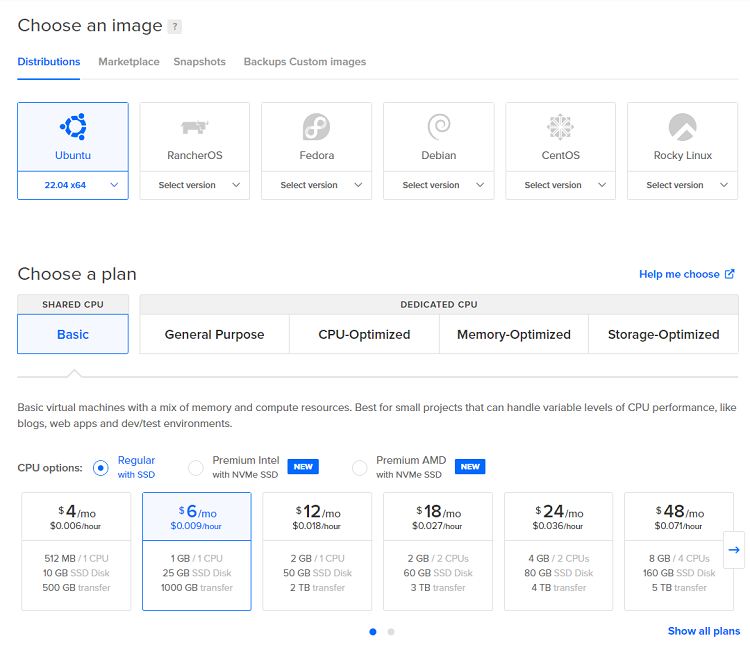
Then, select the following options:
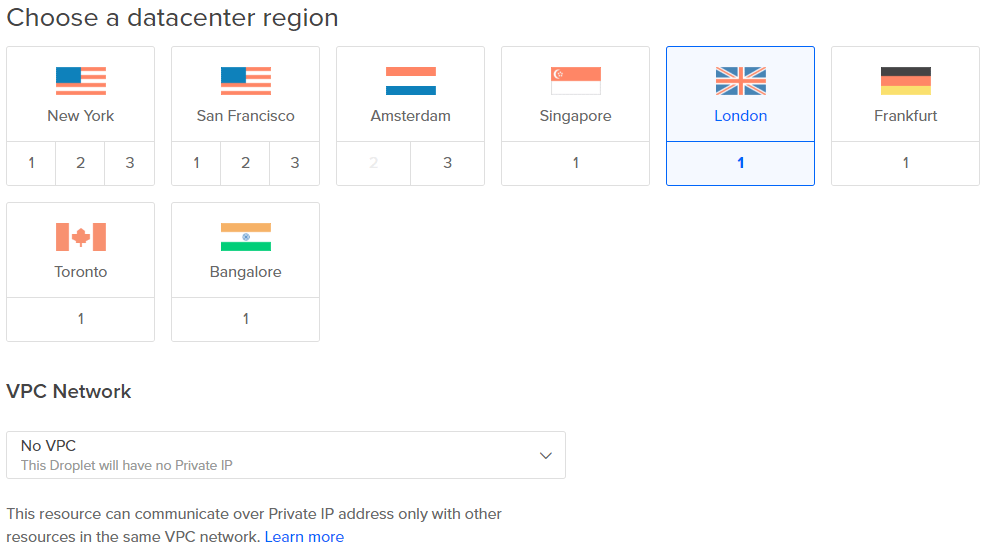
Choose a datacenter region—choose the closest to your location.
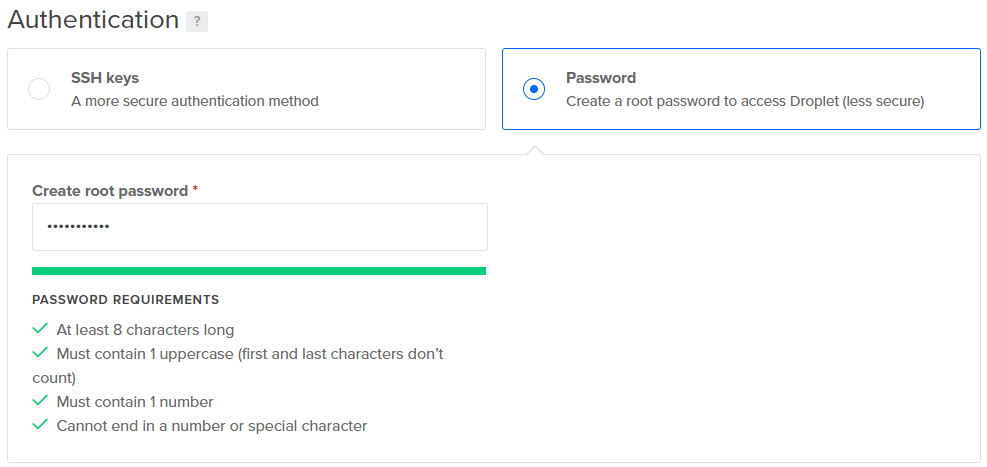
Create the root password that allows you to access your Droplet (save this password, because you’ll need it to access your server).
Then, you can select any additional options you think might be useful for your project.
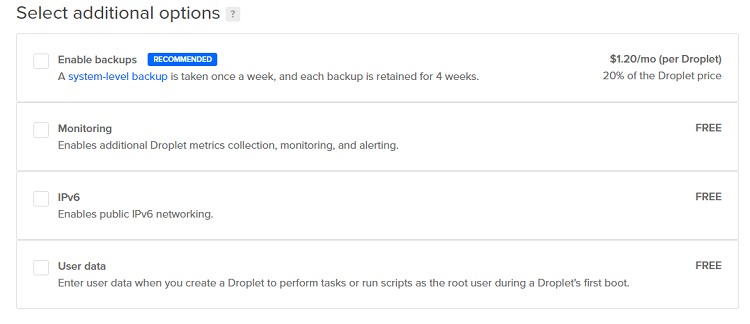
Finally, choose a hostname to easily identify which Virtual Machine you are working with. I’ve named my Droplet home-automation-system.
That’s it, you just need to press the big green button Create Droplet to finish the process.
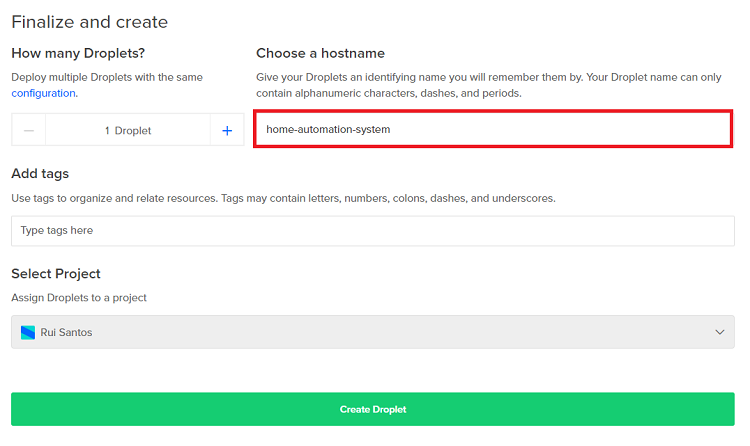
Wait a few minutes, and when the progress bar ends, your Droplet is ready.
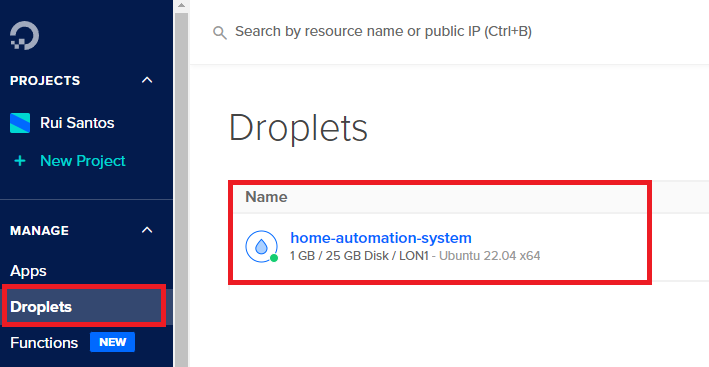
Now, if you click on the Droplets tab, your newly created droplet should be there.
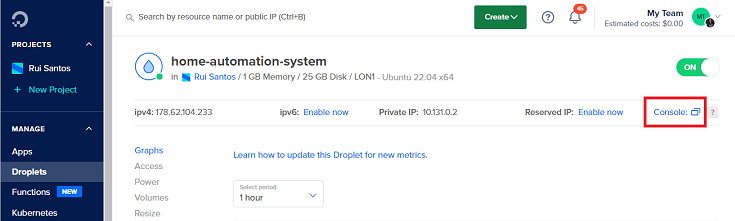
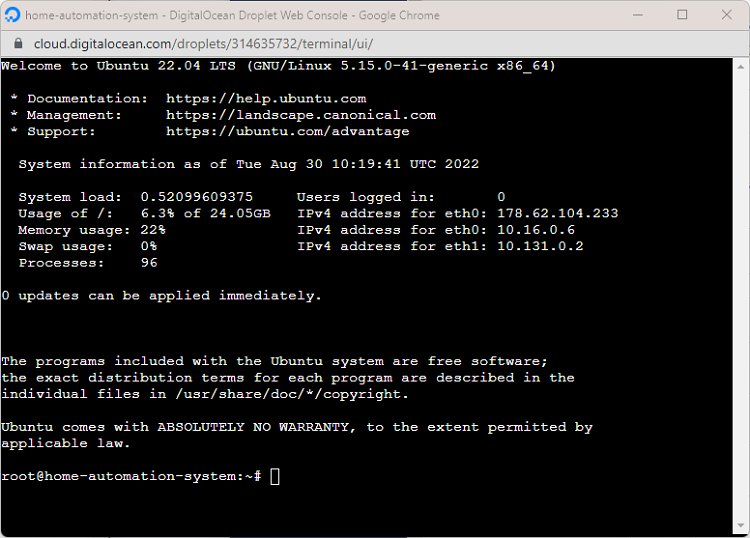
Click on the droplet name. A new page will open. At the top right corner, there’s a Console link. If you click there, it will open a new console/terminal window where you can type Linux commands to install software or run commands the same way you do on your Raspberry Pi via SSH.
Type your login username (root) and the password defined earlier, and press the Enter key to access your server.
There’s an optional step, but it goes beyond the scope of this tutorial. It’s not required to make this project work: prepare your server with a non-root, sudo-enabled user and basic firewall with this Initial Server Setup with Ubuntu 20.04.
Let’s install the Mosquitto Broker on Digital Ocean.

1) Run the following command to upgrade and update your system:
sudo apt update && sudo apt upgrade -y2) When asked, press Y and Enter. It will take some time to update and upgrade.
3) To install the Mosquitto Broker, enter the next command:
sudo apt install -y mosquitto mosquitto-clientsThat’s it! Mosquitto MQTT broker is installed.
4) To make Mosquitto auto-start when the server boots, you need to run the following command (this step is optional, but it ensures that as long as the server is running, Mosquitto will be running even after a server restart):
sudo systemctl enable mosquitto.service5) Now, test the installation by running the following command:
mosquitto -vThis returns the Mosquitto version that is currently running on your server. It will be 2.0.11 or above.
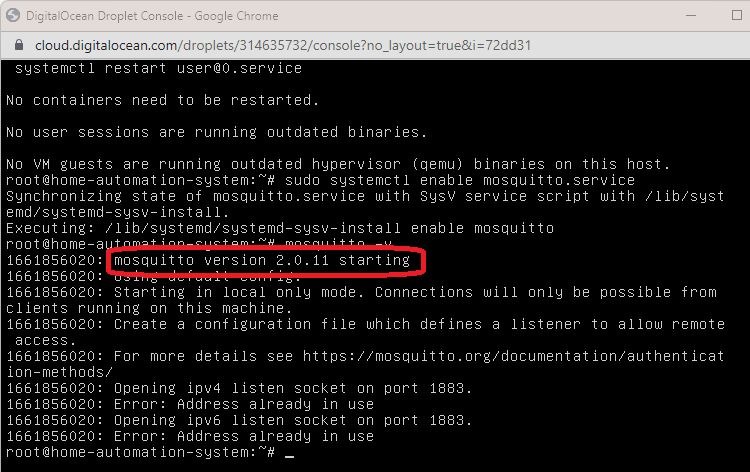
You can ignore the error message “Error: Address already in use”.
To enable remote access so that we can communicate with IoT devices, we need to edit/create a configuration file.
We’ll add authentication with a user and a password.
1) Run the following command, but replace YOUR_USERNAME with the username you want to use:
sudo mosquitto_passwd -c /etc/mosquitto/passwd YOUR_USERNAMEI’ll be using the MQTT user ahmed, so I run the command as follows:
sudo mosquitto_passwd -c /etc/mosquitto/passwd ahmedWhen you run the preceding command with the desired username, you’ll be asked to enter a password. No characters will be displayed while you enter the password. Enter the password and memorize the user/pass combination; you’ll need it later in your projects to make a connection with the broker.
This previous command creates a password file called passwd in the /etc/mosquitto directory. Now, we need to edit the Mosquitto configuration file so that it only allows authentication with the username and password we’ve defined.
2) Set the correct permissions in the passwd file:
sudo chown mosquitto /etc/mosquitto/passwd3) Run the following command to edit the configuration file:
sudo nano /etc/mosquitto/mosquitto.conf4) Add the following line at the top of the file (make sure it is at the top of the file, it won’t work):
per_listener_settings true5) Also, add the following three lines to allow connection for authenticated users and tell Mosquitto where the username/password file is located.
allow_anonymous false
listener 1883
password_file /etc/mosquitto/passwd
Your configuration file will look as follows (the new lines are in bold):
# Place your local configuration in /etc/mosquitto/conf.d/
#
# A full description of the configuration file is at
# /usr/share/doc/mosquitto/examples/mosquitto.conf.example

per_listener_settings true

pid_file /run/mosquitto/mosquitto.pid

persistence true
persistence_location /var/lib/mosquitto/

log_dest file /var/log/mosquitto/mosquitto.log

include_dir /etc/mosquitto/conf.d
allow_anonymous false
listener 1883
password_file /etc/mosquitto/passwd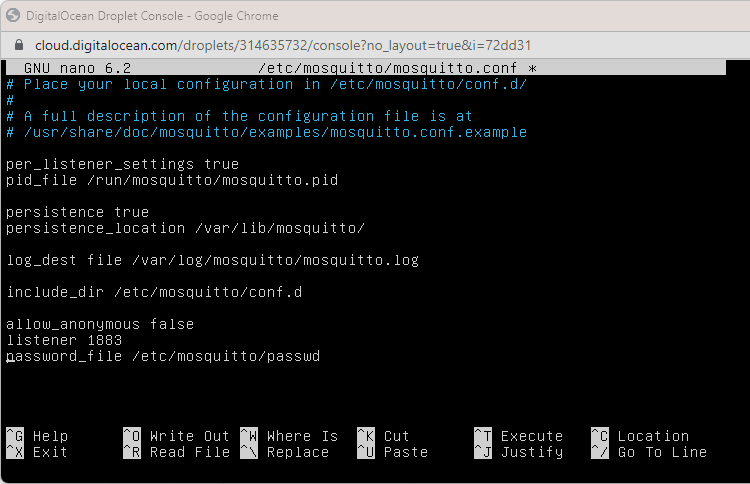
6) Press CTRL-X, then Y, and finally press Enter to exit and save the changes.
7) Restart Mosquitto for the changes to take effect.
sudo systemctl restart mosquitto8) Wait a few seconds. To check if Mosquitto is running, you can type the following command:
sudo systemctl status mosquittoNow, you have Mosquitto MQTT broker installed on the cloud with authentication with username and password enabled.
On your ESP32/ESP8266 Arduino code, on the MQTT Host, you should use your droplet IP address.
To test your MQTT broker installation, you can use another terminal window (Terminal window #2) and establish an SSH communication with your server (you can use PuTTY or a similar SSH client). Enter the droplet IP address and try to establish an SSH connection.
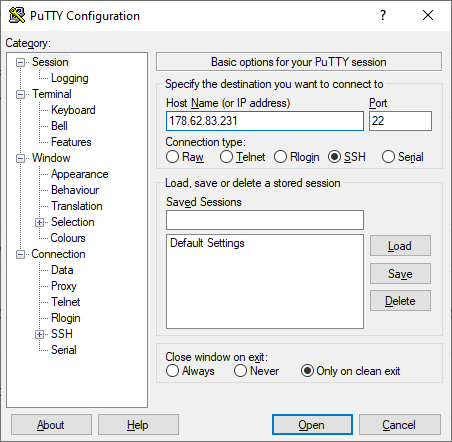
Login as root and enter your password.
Then, enter the following command to subscribe to the testTopic topic. Replace user with your username and pass with your password.
mosquitto_sub -h localhost -t testTopic -u user -P passIn your Terminal window #1, use the next command to publish the message “Hello, world!” in the test topic. Replace user with your username and pass with your password.
mosquitto_pub -h localhost -t testTopic -m "Hello, world!" -u user -P passTerminal window #2 should receive the message.
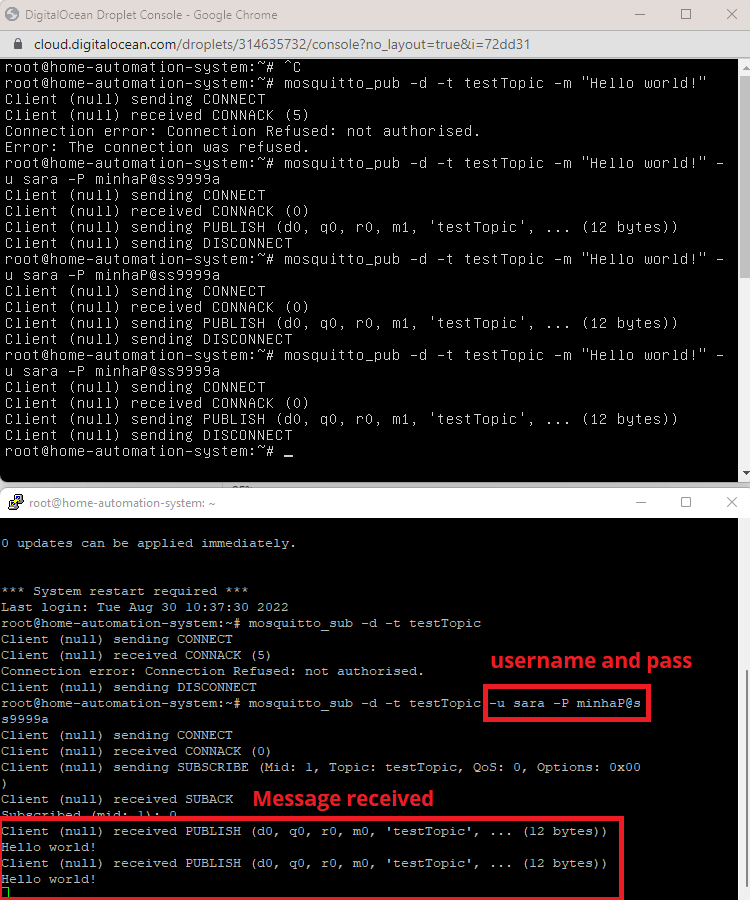
You can use the next table as a reference for the parameters you can pass in the mosquitto_sub and mosquitto_pub commands:
| -h | Hostname |
| -t | MQTT topic |
| -m | MQTT message |
| -u | MQTT username |
| -P | MQTT Password |
We often use our ESP32 and ESP8266 boards in our MQTT projects. So, we’ll show you how you can connect the ESP32 board to your Cloud MQTT Broker—it’s the same for an ESP8266 board, just make sure you use the ESP8266 specific functions.
Before proceeding with this tutorial, make sure you complete the following prerequisites.
We’ll program the ESP32 board using Arduino IDE, so make sure you have the ESP32 add-on installed.
To use MQTT with the ESP32, we’ll use the Async MQTT Client Library.
Installing the Async MQTT Client Library
Installing the Async TCP Library
To use MQTT with the ESP, you also need the Async TCP library.
Copy the following code to your Arduino IDE. To make it work for you, you need to insert your network credentials as well as the MQTT broker details (your Digital Ocean Droplet’s IP Address, broker username, and password).
/*
  Ebokify
  Complete project details at https://ebokify.com/cloud-mqtt-mosquitto-broker-access-anywhere-digital-ocean/
  Permission is hereby granted, free of charge, to any person obtaining a copy of this software and associated documentation files.
  The above copyright notice and this permission notice shall be included in all copies or substantial portions of the Software.
*/
#include <WiFi.h>
extern "C" {
  #include "freertos/FreeRTOS.h"
  #include "freertos/timers.h"
}
#include <AsyncMqttClient.h>

#define WIFI_SSID "REPLACE_WITH_YOUR_SSID"
#define WIFI_PASSWORD "REPLACE_WITH_YOUR_PASSWORD"

// Digital Ocean MQTT Mosquitto Broker
#define MQTT_HOST IPAddress(XXX, XXX, XXX, XXX)
// For a cloud MQTT broker, type the domain name
//#define MQTT_HOST "example.com"
#define MQTT_PORT 1883

#define MQTT_USERNAME "REPLACE_WITH_YOUR_MQTT_USER"
#define MQTT_PASSWORD "REPLACE_WITH_YOUR_MQTT_PASSWORD"

// Test MQTT Topic
#define MQTT_PUB_TEST "test"

AsyncMqttClient mqttClient;
TimerHandle_t mqttReconnectTimer;
TimerHandle_t wifiReconnectTimer;

unsigned long previousMillis = 0;   // Stores last time temperature was published
const long interval = 5000;         // Interval at which to publish sensor readings

int i = 0;

void connectToWifi() {
  Serial.println("Connecting to Wi-Fi...");
  WiFi.begin(WIFI_SSID, WIFI_PASSWORD);
}

void connectToMqtt() {
  Serial.println("Connecting to MQTT...");
  mqttClient.connect();
}

void WiFiEvent(WiFiEvent_t event) {
  Serial.printf("[WiFi-event] event: %d\n", event);
  switch(event) {
    case ARDUINO_EVENT_WIFI_STA_GOT_IP:
      Serial.println("WiFi connected");
      Serial.println("IP address: ");
      Serial.println(WiFi.localIP());
      connectToMqtt();
      break;
    case ARDUINO_EVENT_WIFI_STA_DISCONNECTED:
      Serial.println("WiFi lost connection");
      xTimerStop(mqttReconnectTimer, 0); // ensure we don't reconnect to MQTT while reconnecting to Wi-Fi
      xTimerStart(wifiReconnectTimer, 0);
      break;
  }
}

void onMqttConnect(bool sessionPresent) {
  Serial.println("Connected to MQTT.");
  Serial.print("Session present: ");
  Serial.println(sessionPresent);
}

void onMqttDisconnect(AsyncMqttClientDisconnectReason reason) {
  Serial.println("Disconnected from MQTT.");
  if (WiFi.isConnected()) {
    xTimerStart(mqttReconnectTimer, 0);
  }
}

/*void onMqttSubscribe(uint16_t packetId, uint8_t qos) {
  Serial.println("Subscribe acknowledged.");
  Serial.print("  packetId: ");
  Serial.println(packetId);
  Serial.print("  qos: ");
  Serial.println(qos);
}
void onMqttUnsubscribe(uint16_t packetId) {
  Serial.println("Unsubscribe acknowledged.");
  Serial.print("  packetId: ");
  Serial.println(packetId);
}*/

void onMqttPublish(uint16_t packetId) {
  Serial.print("Publish acknowledged.");
  Serial.print("  packetId: ");
  Serial.println(packetId);
}

void setup() {
  Serial.begin(115200);
  Serial.println();

  mqttReconnectTimer = xTimerCreate("mqttTimer", pdMS_TO_TICKS(2000), pdFALSE, (void*)0, reinterpret_cast<TimerCallbackFunction_t>(connectToMqtt));
  wifiReconnectTimer = xTimerCreate("wifiTimer", pdMS_TO_TICKS(2000), pdFALSE, (void*)0, reinterpret_cast<TimerCallbackFunction_t>(connectToWifi));

  WiFi.onEvent(WiFiEvent);

  mqttClient.onConnect(onMqttConnect);
  mqttClient.onDisconnect(onMqttDisconnect);
  /*mqttClient.onSubscribe(onMqttSubscribe);
  mqttClient.onUnsubscribe(onMqttUnsubscribe);*/
  mqttClient.onPublish(onMqttPublish);
  mqttClient.setServer(MQTT_HOST, MQTT_PORT);
  // If your broker requires authentication (username and password), set them below
  mqttClient.setCredentials(MQTT_USERNAME, MQTT_PASSWORD);
  connectToWifi();
}

void loop() {
  unsigned long currentMillis = millis();
  // Every X number of seconds (interval = 5 seconds)
  // it publishes a new MQTT message
  if (currentMillis - previousMillis >= interval) {
    // Save the last time a new reading was published
    previousMillis = currentMillis;

    String testString = "Hello, world! #" + String(i);
    // Publish an MQTT message on topic test
    uint16_t packetIdPub1 = mqttClient.publish(MQTT_PUB_TEST, 1, true, String(testString).c_str());
    Serial.printf("Publishing on topic %s at QoS 1, packetId: %i", MQTT_PUB_TEST, packetIdPub1);
    Serial.printf(" Message: %.2f \n", testString);
    i++;
  }
}
Type your network credentials on the following lines.
#define WIFI_SSID "REPLACE_WITH_YOUR_SSID"
#define WIFI_PASSWORD "REPLACE_WITH_YOUR_PASSWORD"
Insert the Digital Ocean Droplet IP address, so that the ESP32 connects to your broker (in my case, it is 178.62.83.231).
#define MQTT_HOST IPAddress(178, 62, 83, 231)If your broker requires authentication, type your MQTT username and MQTT password.
#define MQTT_USERNAME "YOUR_USER"
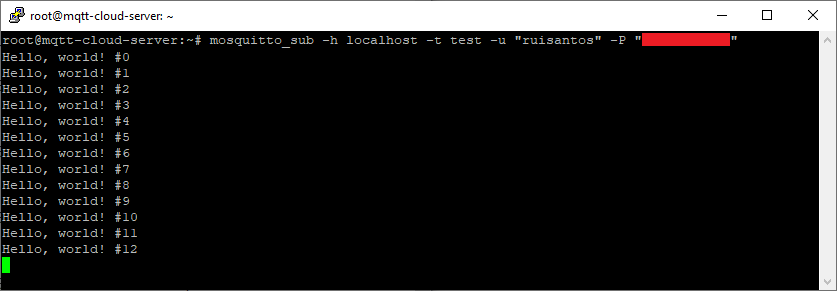
#define MQTT_PASSWORD "YOUR_PASSWORD"If you have your ESP32 running the uploaded code and you open your Arduino IDE Serial monitor, you’ll see that your ESP32 is publishing new messages every 5 seconds.
Establish an SSH connection with your cloud server (using PuTTY, for example) and type (replace user with your username and pass with your password):
mosquitto_sub -h localhost -t test -u user -P passYou should start receiving new MQTT messages published by your ESP32.
The next sketch makes the ESP32 subscribe to a cloud MQTT topic to receive messages. Copy it to your Arduino IDE, then insert your network credentials as well as the MQTT broker details (your Digital Ocean Droplet’s IP Address and the broker username and password).
/*
  Ebokify
  Complete project details at https://ebokify.com/cloud-mqtt-mosquitto-broker-access-anywhere-digital-ocean/
  Permission is hereby granted, free of charge, to any person obtaining a copy of this software and associated documentation files.
  The above copyright notice and this permission notice shall be included in all copies or substantial portions of the Software.
*/
#include <WiFi.h>
extern "C" {
  #include "freertos/FreeRTOS.h"
  #include "freertos/timers.h"
}
#include <AsyncMqttClient.h>

#define WIFI_SSID "REPLACE_WITH_YOUR_SSID"
#define WIFI_PASSWORD "REPLACE_WITH_YOUR_PASSWORD"

// Digital Ocean MQTT Mosquitto Broker
#define MQTT_HOST IPAddress(XXX, XXX, XXX, XXX)
// For a cloud MQTT broker, type the domain name
//#define MQTT_HOST "example.com"
#define MQTT_PORT 1883

#define MQTT_USERNAME "REPLACE_WITH_YOUR_MQTT_USER"
#define MQTT_PASSWORD "REPLACE_WITH_YOUR_MQTT_PASSWORD"

// Test MQTT Topic
#define MQTT_SUB_TEST "test"

AsyncMqttClient mqttClient;
TimerHandle_t mqttReconnectTimer;
TimerHandle_t wifiReconnectTimer;

unsigned long previousMillis = 0;   // Stores last time temperature was published
const long interval = 5000;         // Interval at which to publish sensor readings

int i = 0;

void connectToWifi() {
  Serial.println("Connecting to Wi-Fi...");
  WiFi.begin(WIFI_SSID, WIFI_PASSWORD);
}

void connectToMqtt() {
  Serial.println("Connecting to MQTT...");
  mqttClient.connect();
}

void WiFiEvent(WiFiEvent_t event) {
  Serial.printf("[WiFi-event] event: %d\n", event);
  switch(event) {
    case ARDUINO_EVENT_WIFI_STA_GOT_IP:
      Serial.println("WiFi connected");
      Serial.println("IP address: ");
      Serial.println(WiFi.localIP());
      connectToMqtt();
      break;
    case ARDUINO_EVENT_WIFI_STA_DISCONNECTED:
      Serial.println("WiFi lost connection");
      xTimerStop(mqttReconnectTimer, 0); // ensure we don't reconnect to MQTT while reconnecting to Wi-Fi
      xTimerStart(wifiReconnectTimer, 0);
      break;
  }
}

// Add more topics that want your ESP to be subscribed to
void onMqttConnect(bool sessionPresent) {
  Serial.println("Connected to MQTT.");
  Serial.print("Session present: ");
  Serial.println(sessionPresent);

  // ESP subscribed to test topic
  uint16_t packetIdSub = mqttClient.subscribe(MQTT_SUB_TEST, 0);
  Serial.println("Subscribing at QoS 0");
}

void onMqttDisconnect(AsyncMqttClientDisconnectReason reason) {
  Serial.println("Disconnected from MQTT.");
  if (WiFi.isConnected()) {
    xTimerStart(mqttReconnectTimer, 0);
  }
}

void onMqttSubscribe(uint16_t packetId, uint8_t qos) {
  Serial.println("Subscribe acknowledged.");
  Serial.print("  packetId: ");
  Serial.println(packetId);
  Serial.print("  qos: ");
  Serial.println(qos);
}

void onMqttUnsubscribe(uint16_t packetId) {
  Serial.println("Unsubscribe acknowledged.");
  Serial.print("  packetId: ");
  Serial.println(packetId);
}

// You can modify this function to handle what happens when you receive a certain message in a specific topic
void onMqttMessage(char* topic, char* payload, AsyncMqttClientMessageProperties properties, size_t len, size_t index, size_t total) {
  String messageTemp;
  for (int i = 0; i < len; i++) {
    //Serial.print((char)payload[i]);
    messageTemp += (char)payload[i];
  }
  // Check if the MQTT message was received on topic test
  if (strcmp(topic, MQTT_SUB_TEST) == 0) {
    Serial.println("TRUE");
  }

  Serial.println("Publish received.");
  Serial.print("  message: ");
  Serial.println(messageTemp);
  Serial.print("  topic: ");
  Serial.println(topic);
  Serial.print("  qos: ");
  Serial.println(properties.qos);
  Serial.print("  dup: ");
  Serial.println(properties.dup);
  Serial.print("  retain: ");
  Serial.println(properties.retain);
  Serial.print("  len: ");
  Serial.println(len);
  Serial.print("  index: ");
  Serial.println(index);
  Serial.print("  total: ");
  Serial.println(total);
}

/*void onMqttPublish(uint16_t packetId) {
  Serial.print("Publish acknowledged.");
  Serial.print("  packetId: ");
  Serial.println(packetId);
}*/

void setup() {
  Serial.begin(115200);
  Serial.println();

  mqttReconnectTimer = xTimerCreate("mqttTimer", pdMS_TO_TICKS(2000), pdFALSE, (void*)0, reinterpret_cast<TimerCallbackFunction_t>(connectToMqtt));
  wifiReconnectTimer = xTimerCreate("wifiTimer", pdMS_TO_TICKS(2000), pdFALSE, (void*)0, reinterpret_cast<TimerCallbackFunction_t>(connectToWifi));

  WiFi.onEvent(WiFiEvent);

  mqttClient.onConnect(onMqttConnect);
  mqttClient.onDisconnect(onMqttDisconnect);
  mqttClient.onSubscribe(onMqttSubscribe);
  mqttClient.onUnsubscribe(onMqttUnsubscribe);
  //mqttClient.onPublish(onMqttPublish);
  mqttClient.onMessage(onMqttMessage);
  mqttClient.setServer(MQTT_HOST, MQTT_PORT);
  // If your broker requires authentication (username and password), set them below
  mqttClient.setCredentials(MQTT_USERNAME, MQTT_PASSWORD);
  connectToWifi();
}

void loop() {

}
Type your network credentials on the following lines.
#define WIFI_SSID "REPLACE_WITH_YOUR_SSID"
#define WIFI_PASSWORD "REPLACE_WITH_YOUR_PASSWORD"
Insert the Digital Ocean Droplet IP address, so that the ESP32 connects to your broker (in my case, it is 178.62.83.231).
#define MQTT_HOST IPAddress(178, 62, 83, 231)If your broker requires authentication, type your MQTT username and MQTT password.
#define MQTT_USERNAME "YOUR_USER"
#define MQTT_PASSWORD "YOUR_PASSWORD"To test if your ESP32 is receiving MQTT messages, in your Digital Ocean console, start publishing different messages (for example, “Hi #1!“, “Hi #2!“, etc). Replace user with your username and pass with your password.
mosquitto_pub -h localhost -t test -m "Hi #1!" -u user -P pass
mosquitto_pub -h localhost -t test -m "Hi #2!" -u user -P pass
mosquitto_pub -h localhost -t test -m "Hi #3!" -u user -P pass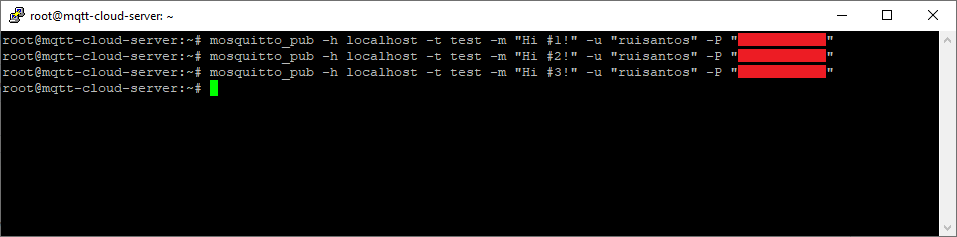
Your ESP32 should receive each message and print it in the Serial Monitor, as shown in the image below.
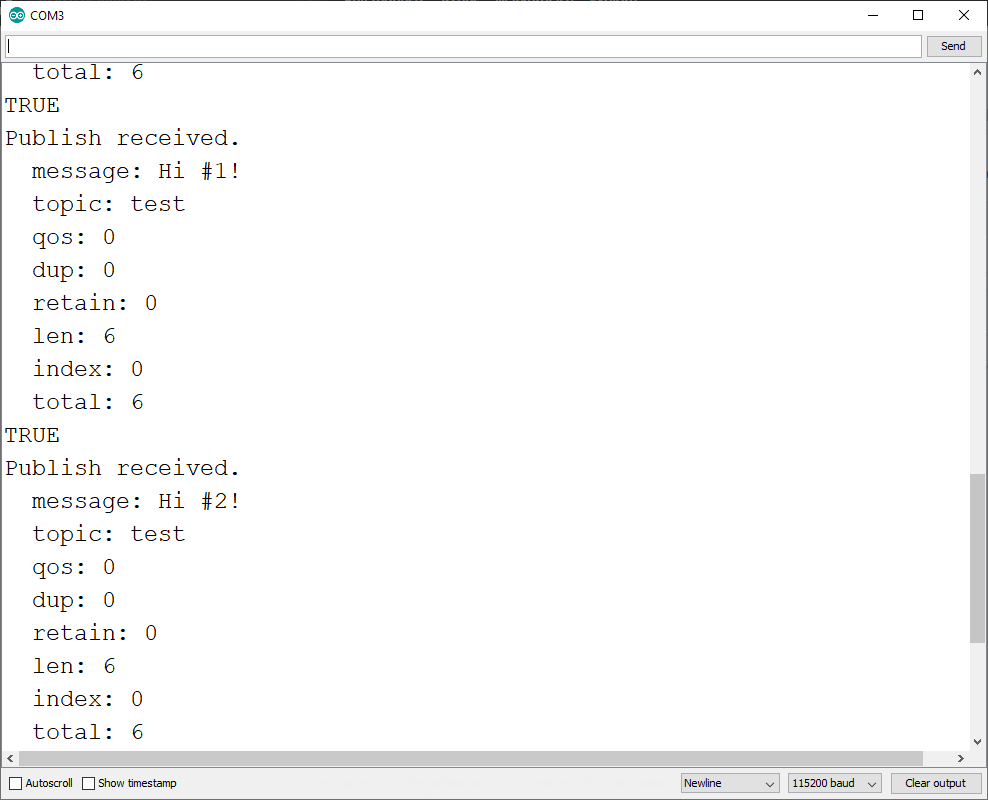
In these quick examples, we’ve shown you how to publish and subscribe to MQTT messages using the Cloud MQTT broker. The idea is to use several ESP32 or ESP8266 boards that publish and subscribe to the same topics to communicate with each other and/or use Node-RED on the cloud to interact with those boards.
The best method to add an SSL certificate to your server is by having a domain name pointed at your server and using Let’s Encrypt certificates.
Having a domain name and Let’s Encrypt SSL Certificates ready, follow the next instructions to secure your Mosquitto broker.
To enable SSL encryption, we need to tell Mosquitto where our Let’s Encrypt certificates are stored. Open up the configuration file we previously started:
sudo nano /etc/mosquitto/mosquitto.confAdd the next lines to make your default.conf add the Let’s Encrypt certificates.
allow_anonymous false
password_file /etc/mosquitto/passwd

listener 1883 localhost

listener 8883
certfile /etc/letsencrypt/live/example.com/cert.pem
cafile /etc/letsencrypt/live/example.com/chain.pem
keyfile /etc/letsencrypt/live/example.com/privkey.pem
Listener 1883 is the standard unencrypted MQTT port. The localhost instructs Mosquitto to only bind this port to the localhost interface, so it’s no longer accessible externally.
On the other hand, listener 8883 sets up an encrypted listener on port 8883. The next three lines point Mosquitto to the appropriate Let’s Encrypt files to set up the encrypted connections.
Save and exit the file (Ctrl+X, Y, Enter key), then restart Mosquitto to update the settings:
sudo systemctl restart mosquittoUpdate the firewall to allow connections to port 8883.
sudo ufw allow 8883Now, you subscribe to the test MQTT topic in the encrypted port (8883). Don’t forget to replace example.com with your domain name in the subscribe and publish commands.
mosquitto_sub -h example.com -t test -p 8883 --capath /etc/ssl/certs/ -u user -P passYou can publish encrypted messages:
mosquitto_pub -h example.com -t test -m "Secure message" -p 8883 --capath /etc/ssl/certs/ -u user -P passWith this setup, you’ll need to prepare your ESP32/ESP8266 to make encrypted MQTT requests on port 8883.
This complete guide was tested, and it should work. There are many steps, and they must be followed exactly as we describe in the right order. Otherwise, something might not work properly.
In all our guides and projects, we always try to help if anyone gets stuck. However, in this particular case, there are so many steps that it can be tough to help you without having access to the server and testing it (of course, we don’t have the resources to help everyone personally).
If you have any problem installing Mosquitto MQTT broker, preparing your Linux Ubuntu server, running Node-RED, or installing an SSL certificate, contact Digital Ocean support and describe exactly what’s happening. I’ve been using their service since 2015, and they always have an extremely helpful support team (or just use their Forum).
Now, if you want to install Node-RED on Digital Ocean, follow the next tutorial: Access Node-RED Dashboard from Anywhere using Digital Ocean.
Read the next guides to learn more about MQTT:
Thanks for reading.