Book Categories:


Wait, don't go!
Become a Member Today and Unlock Access to All eBooks!
Thousands of eBooks at your fingertips. Read, learn, and grow anytime, anywhere.
Become a Member Today and Unlock Access to All eBooks!
Thousands of eBooks at your fingertips. Read, learn, and grow anytime, anywhere.
In this project, you’ll learn how to turn a Raspberry Pi Zero board into a USB keyboard or HID (Human Interface Device). After following some simple steps, you can write a Python script to make your Pi act as a USB keyboard.
For this project, you’ll need a Raspberry Pi Zero board. Important: this tutorial doesn’t work with a Raspberry Pi 3 board.
Zero board is based on the instructions from iSticktoit. First, you need to run these three commands to enable the necessary modules and drivers:
pi@raspberrypi:~ $ echo "dtoverlay=dwc2" | sudo tee -a /boot/config.txt
pi@raspberrypi:~ $ echo "dwc2" | sudo tee -a /etc/modules
pi@raspberrypi:~ $ sudo echo "libcomposite" | sudo tee -a /etc/modules
Now, you have to define your Pi Zero (HID gadget) as a USB keyboard. The configuration is done via ConfigFS, a virtual file system located in /sys/.
Top 6
Raspberry Pi eBooks
From Zero to Professional

The configuration is volatile, so it must run on each startup. Create a new file called isticktoit_usb in /usr/bin/ and make it executable:
pi@raspberrypi:~ $ sudo touch /usr/bin/isticktoit_usb
pi@raspberrypi:~ $ sudo chmod +x /usr/bin/isticktoit_usb
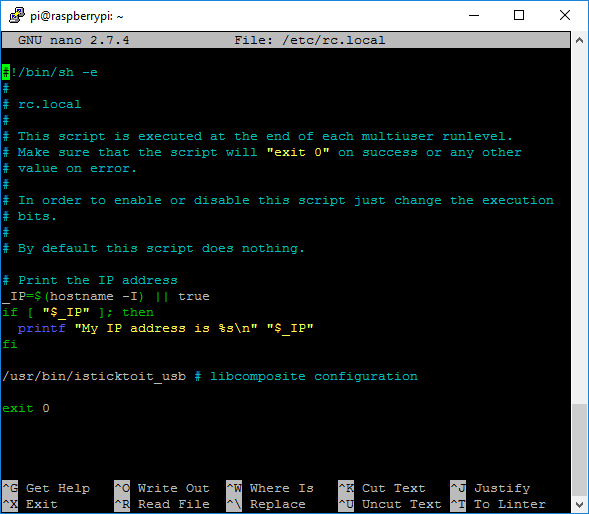
Then, you need to run this script automatically at startup. Open /etc/rc.local with this command:
pi@raspberrypi:~ $ sudo nano /etc/rc.local
Add the following before the line containing exit 0:
/usr/bin/isticktoit_usb # libcomposite configuration
Here’s how your file should look (to save the file, press Ctrl+X followed by Y and Enter):
For this project, we will turn the Raspberry Pi into a USB keyboard, but you could make it work as a Serial adapter, Ethernet adapter, and Mass Storage. Open the file with:
pi@raspberrypi:~ $ sudo nano /usr/bin/isticktoit_usb
Leave the default values, but you could even change the serial number, manufacturer, and product name to fit your specific needs.
#!/bin/bash
cd /sys/kernel/config/usb_gadget/
mkdir -p isticktoit
cd isticktoit
echo 0x1d6b > idVendor # Linux Foundation
echo 0x0104 > idProduct # Multifunction Composite Gadget
echo 0x0100 > bcdDevice # v1.0.0
echo 0x0200 > bcdUSB # USB2
mkdir -p strings/0x409
echo "fedcba9876543210" > strings/0x409/serialnumber
echo "Tobias Girstmair" > strings/0x409/manufacturer
echo "iSticktoit.net USB Device" > strings/0x409/product
mkdir -p configs/c.1/strings/0x409
echo "Config 1: ECM network" > configs/c.1/strings/0x409/configuration
echo 250 > configs/c.1/MaxPower

# Add functions here
mkdir -p functions/hid.usb0
echo 1 > functions/hid.usb0/protocol
echo 1 > functions/hid.usb0/subclass
echo 8 > functions/hid.usb0/report_length
echo -ne \x05\x01\x09\x06\xa1\x01\x05\x07\x19\xe0\x29\xe7\x15\x00\x25\x01\x75\x01\x95\x08\x81\x02\x95\x01\x75\x08\x81\x03\x95\x05\x75\x01\x05\x08\x19\x01\x29\x05\x91\x02\x95\x01\x75\x03\x91\x03\x95\x06\x75\x08\x15\x00\x25\x65\x05\x07\x19\x00\x29\x65\x81\x00\xc0 > functions/hid.usb0/report_desc
ln -s functions/hid.usb0 configs/c.1/
# End functions

ls /sys/class/udc > UDC
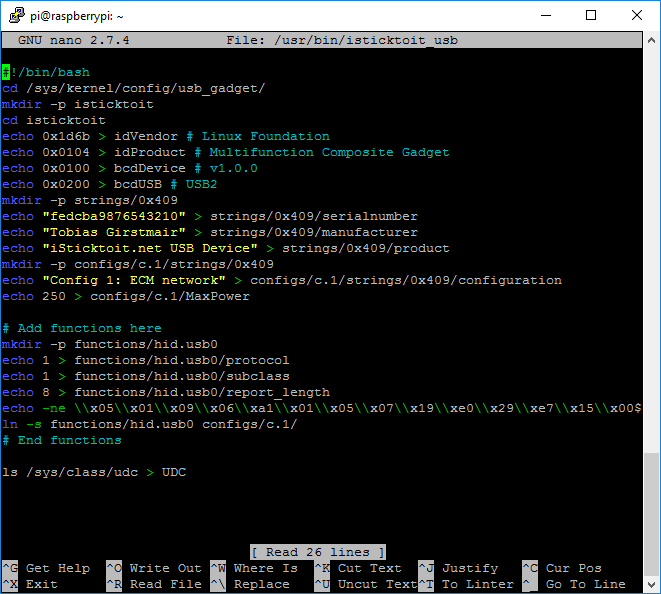
Here’s how your file should look in the end (to save the file, press Ctrl+X followed by Y and Enter):
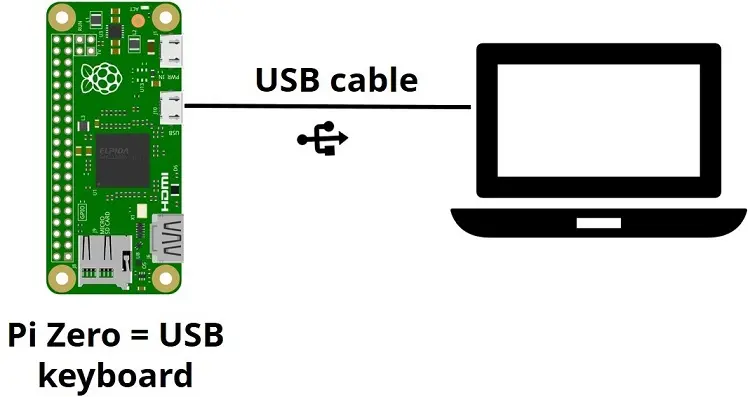
After preparing your Raspberry Pi Zero, connect it to a laptop or desktop computer through the micro USB port that is used for data and peripherals. That micro USB will both power the Pi Zero and act as a keyboard to the connected computer.
Establish an SSH connection with your Pi and use the next command to create a new Python script:
pi@raspberrypi:~ $ nano RPi_Keyboard_Example.py
Copy and paste the next Python script to your Raspberry Pi.
#!/usr/bin/env python3
NULL_CHAR = chr(0)

def write_report(report):
    with open('/dev/hidg0', 'rb+') as fd:
        fd.write(report.encode())

# Press a
write_report(NULL_CHAR*2+chr(4)+NULL_CHAR*5)
# Release keys
write_report(NULL_CHAR*8)
# Press SHIFT + a = A
write_report(chr(32)+NULL_CHAR+chr(4)+NULL_CHAR*5)

# Press b
write_report(NULL_CHAR*2+chr(5)+NULL_CHAR*5)
# Release keys
write_report(NULL_CHAR*8)
# Press SHIFT + b = B
write_report(chr(32)+NULL_CHAR+chr(5)+NULL_CHAR*5)

# Press SPACE key
write_report(NULL_CHAR*2+chr(44)+NULL_CHAR*5)

# Press c key
write_report(NULL_CHAR*2+chr(6)+NULL_CHAR*5)
# Press d key
write_report(NULL_CHAR*2+chr(7)+NULL_CHAR*5)

# Press RETURN/ENTER key
write_report(NULL_CHAR*2+chr(40)+NULL_CHAR*5)

# Press e key
write_report(NULL_CHAR*2+chr(8)+NULL_CHAR*5)
# Press f key
write_report(NULL_CHAR*2+chr(9)+NULL_CHAR*5)

# Release all keys
write_report(NULL_CHAR*8)
Let’s test it, if you plug the Pi Zero to Computer #1, after a few seconds, you’ll see an alert message or sound that indicates that a keyboard was connected successfully.
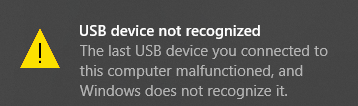
Sometimes you might see this warning message saying “USB device not recognized”. Throughout my tests, I found that you can ignore this warning message and your Pi Zero works as a keyboard without any additional configuration or driver installation. So, you can continue, and it will work just fine.
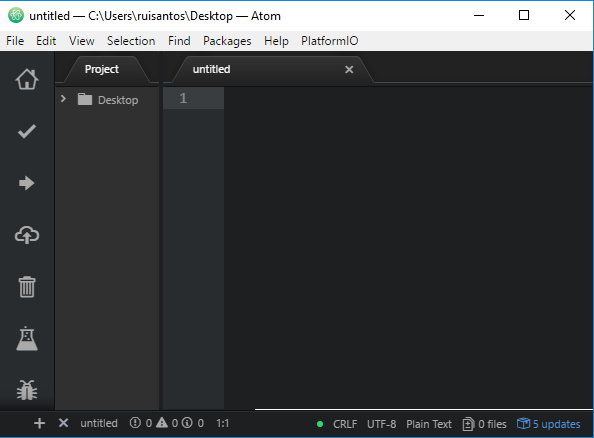
Open any text editor program and leave your cursor in the new file:
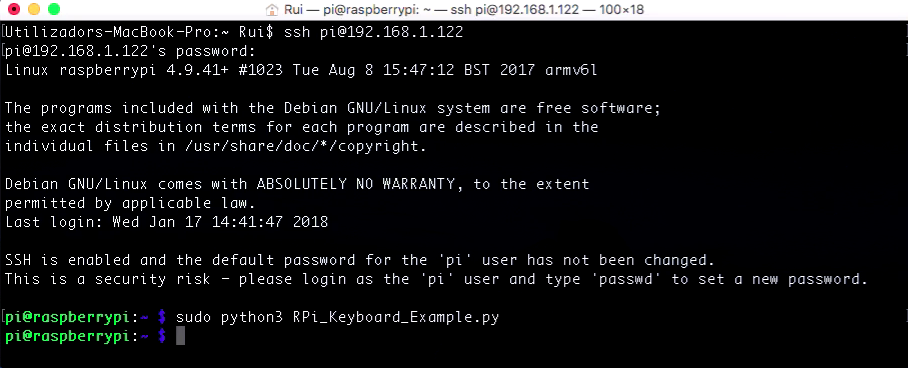
Establish an SSH connection with your Pi Zero and run the Python script created earlier:
pi@raspberrypi:~ $ sudo python3 RPi_Keyboard_Example.py
The script will press these keys in that order: a – A – b – B – Space key – c – D – Enter/Return key – e – f.
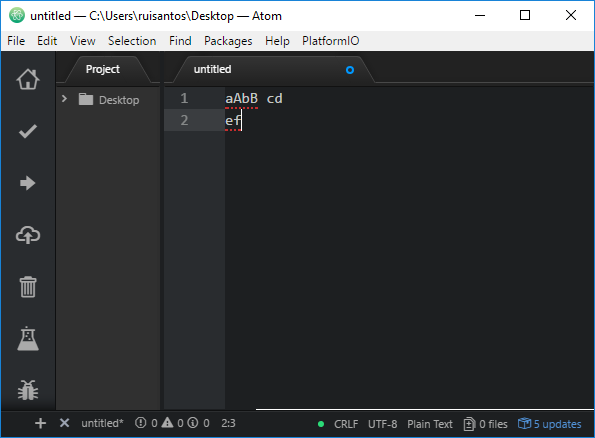
You can customize the Python script to act as a keyboard and press any other character sequence.
Note: the Pi Zero also acts as a keyboard when connected to a Mac or Linux machine without any additional changes.
You can use Table 12: Keyboard/Keypad Page from this USB HID PDF (Page: 90) to find the ID of each key that you would assign in the Python script.
Here’s a section of Table 12. The Usage ID (Dec) column contains the number that you need to use in your Python script to refer to a key press:
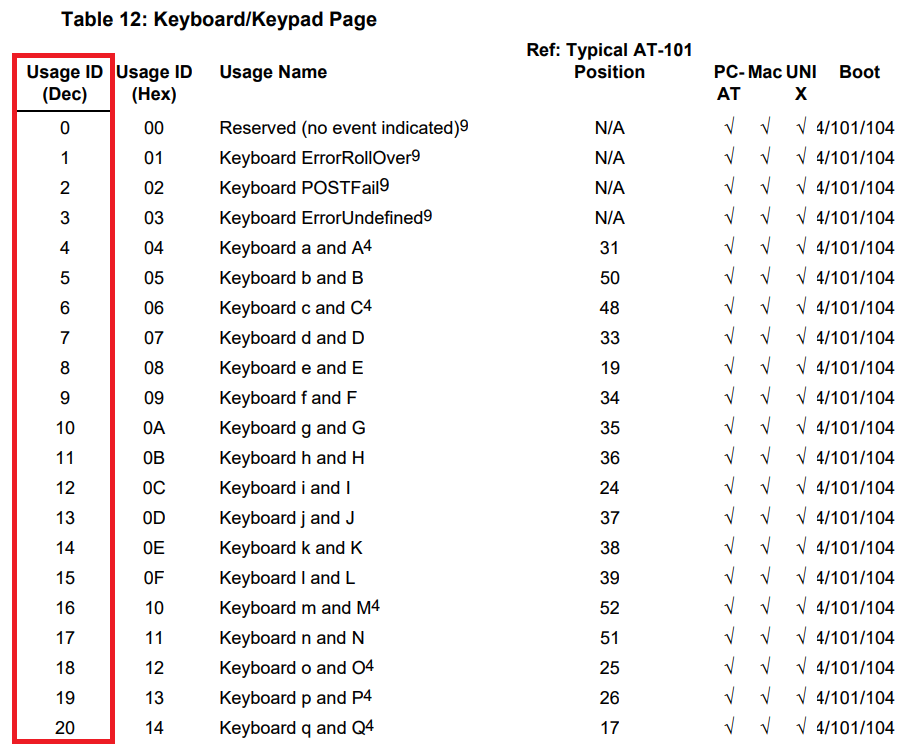
For example, if you change the number highlighted in red, you can simulate a different key press:
write_report(NULL_CHAR*2+chr(4)+NULL_CHAR*5)
The number 4 corresponds to keyboard key a. You can find in the Usage ID (Dec) column the numbers for your desired key press sequence. If you use number 5, it corresponds to b, and so on…
You can use this method to make the Raspberry Pi Zero act as a password filler or use it as a keystroke injection tool. That way, you can easily create programs that type hundreds of keystrokes per minute.
You may also like some of our most popular Raspberry Pi projects:
Thanks for reading.
🚀 Discover the world of electronics and innovation!
✨ Create, program, and experiment with all your creative ideas with ease.
🔥 Don't wait! Browse SpotPear products now and start your amazing project!








