Book Categories:


Wait, don't go!
Become a Member Today and Unlock Access to All eBooks!
Thousands of eBooks at your fingertips. Read, learn, and grow anytime, anywhere.
In this guide, you’ll learn how to read analog signals on the Raspberry Pi GPIOs using a Python program. The Raspberry Pi can only read digital signals. To read analog signals, we need to use an analog-to-digital converter like the MCP3008, for example. As an example, we’ll read the values from a potentiometer, but the example can be applied to any analog sensor. We’ll use the gpiozero interface.
Before continuing with this tutorial, check the following prerequisites.
GPIO stands for General Purpose Input Output pins, and those allow you to connect and control electronic hardware, like LEDs, motors, and sensors to your Raspberry Pi.
Most models of Raspberry Pi boards have a double row of 40 GPIO pins. The layout of the pins is usually the same for most Raspberry Pi models.
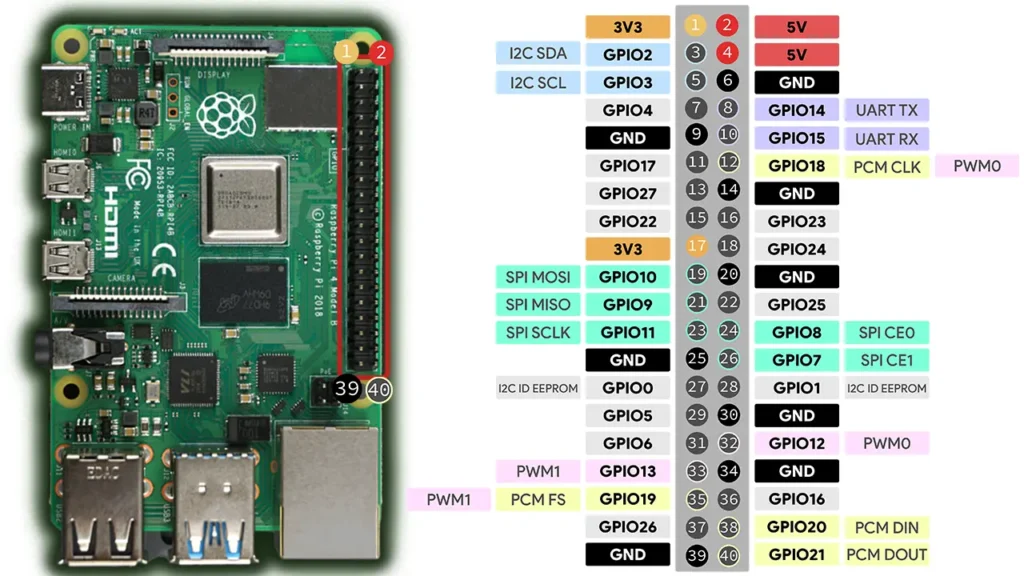
If you’re not familiar with the Raspberry Pi GPIOs, we recommend taking a look at our Raspberry Pi Pinout Guide:

To show you how to read analog signals with the Raspberry Pi GPIOs, we’ll build a simple project to control the brightness of an LED using a potentiometer. So, you’ll learn how to read analog signals with the Raspberry Pi and output PWM signals.
For an introduction to PWM signals with the Raspberry Pi, read the following guide:
To learn how potentiometers work, you can read this guide:
For this project, you’ll need the following parts:
Here’s a list of components you need:
The Raspberry Pi GPIOs can only read digital signals—they can read either HIGH (3.3V) or LOW (0V), but they can’t read any voltages in between. To be able to read varying voltage levels, we need to use an analog-to-digital converter chip like the MCP3008.
The figure below shows an MCP3008 analog-to-digital converter chip.
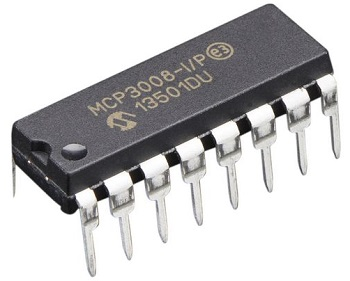
The MCP3008 chip is a 10-bit digital-to-analog converter that reads analog signals and sends them to a microcontroller via SPI communication protocol (SPI signals that the Raspberry Pi can read).
The MCP3008 comes with 16 pins. Half of those pins are analog inputs that you can use to connect to analog devices. The other 8 pins connect to the Raspberry Pi GPIOs.
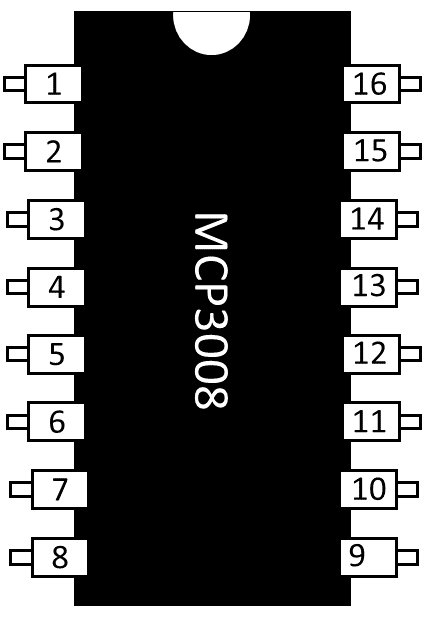
The following table shows the pinout of the MCP3008 chip. To correctly identify each pin, place the chip with the half-circle mark at the top and follow the notation of the picture above.
| Pin | Symbol | Description |
| 1 | CH0 | Analog input (channel 0) |
| 2 | CH1 | Analog input (channel 1) |
| 3 | CH2 | Analog input (channel 2) |
| 4 | CH3 | Analog input (channel 3) |
| 5 | CH4 | Analog input (channel 4) |
| 6 | CH5 | Analog input (channel 5) |
| 7 | CH6 | Analog input (channel 6) |
| 8 | CH7 | Analog input (channel 7) |
| 9 | DGND | Digital ground |
| 10 | CS/SHDN | Chip select/shutdown pin |
| 11 | Din | Serial data in |
| 12 | Dout | Serial data out |
| 13 | CLK | Serial clock |
| 14 | AGND | Analog ground |
| 15 | VRef | Reference voltage input |
| 16 | VDD | +2.7V to 5.5V power supply |
The 8 pins on the left side of the MCP3008 are eight different analog channels. You can connect up to 8 analog devices using those channels. The pins on the right side connect to the Raspberry Pi.
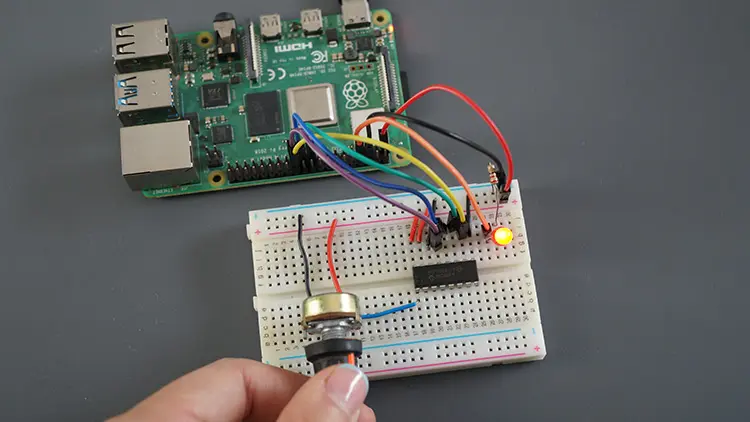
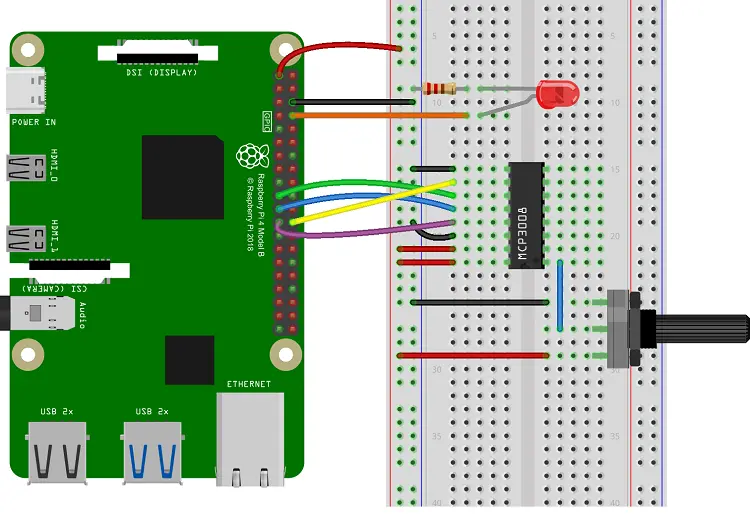
The easiest way to wire an MCP3008 chip to the Raspberry Pi is using a breadboard. Place the MCP3008 chip in the middle of the breadboard. Then, connect it as shown in the following table:
| MCP3008 Pin | Raspberry Pi |
| 1 | Analog Output (potentiometer or analog sensor) |
| 9 | GND |
| 10 | GPIO 8 |
| 11 | GPIO 10 |
| 12 | GPIO 9 |
| 13 | GPIO 11 |
| 14 | GND |
| 15 | 3.3V |
| 16 | 3.3V |
You can also use the following diagram as a reference. We’re also wiring an LED to GPIO 14.
By default, SPI communication is not enabled on the Raspberry Pi. Run the following command on the Raspberry Pi terminal window to enable SPI:
sudo raspi-config nonint do_spi 0
The gpiozero library comes with an MCP3008 class, specially developed to read analog signals from the MCP3008 chip.
The following example reads the value from the potentiometer and adjusts the LED brightness accordingly:
Create a new Python file called potentiometer_led.py and copy the following code.
# Complete Project Details: https://ebokify.com/raspberry-pi-analog-inputs-python-mcp3008/

from gpiozero import PWMLED, MCP3008
from time import sleep

#create an object called pot that refers to MCP3008 channel 0
pot = MCP3008(0)

#create a PWMLED object called led that refers to GPIO 14
led = PWMLED(14)

while True:
    if(pot.value < 0.001):
        led.value = 0
    else:
        led.value = pot.value
    print(pot.value)
sleep(0.1)Reading analog inputs on the Raspberry Pi using the MCP3008 class is very straightforward.
1. Import the MCP3008 class.
from gpiozero import MCP30082. Create an MCP3008 object and pass as an argument the analog channel you’re using. You can create different MCP3008 objects on different channels if you’re using multiple analog peripherals.
pot = MCP3008(ANALOG_CHANNEL)3. Read the value of the analog input using the value property.
pot.valueNow that you know how to read analog inputs on the Raspberry Pi GPIOs, it’s easy to understand the code.
You start by importing the required libraries:
from gpiozero import PWMLED, MCP3008
from time import sleep
Then, you create an object called pot that refers to MCP3008 channel 0, which is the channel that the potentiometer is connected to. Remember that channel 0 corresponds to the MCP3008 pin 1, channel 1 to pin2, and so on.
pot = MCP3008(0)You also create a PMWLED object called led to control the LED using PWM. To learn how to use PWM on the Raspberry Pi pins follow this tutorial.
led = PWMLED(14)To read the analog value on the GPIO that the potentiometer is connected to, you simply use pot.value.
To adjust the LED brightness using PWM, you need to change its duty cycle – you just need to attribute a value between 0 and 1 to the led.value, in which 0 corresponds to a fully off LED and 1 to a fully on LED.
In this example, we’re using a while loop that is always True to keep the program running forever.
while True:We’re constantly checking the value of the potentiometer. If the value is below 0.001, we set the duty cycle to zero to turn the LED off.
if(pot.value < 0.001):
    led.value = 0
Otheriwse, the code will run the else statement in which the duty cycle changes accordingly to the value read from the potentiometer.
else:
    led.value = pot.value
    print(pot.value)
Finally, we print the analog value of the potentiometer and wait 0.1 seconds before checking the potentiometer value again.
print(pot.value)
sleep(0.1)Save your Python file. Then run it on your Raspberry Pi. Run the following command in the directory of your project file (use the name of your file):
python potentiometer_led.py
After running the script, rotate the potentiometer and see the LED brightness adjust accordingly.
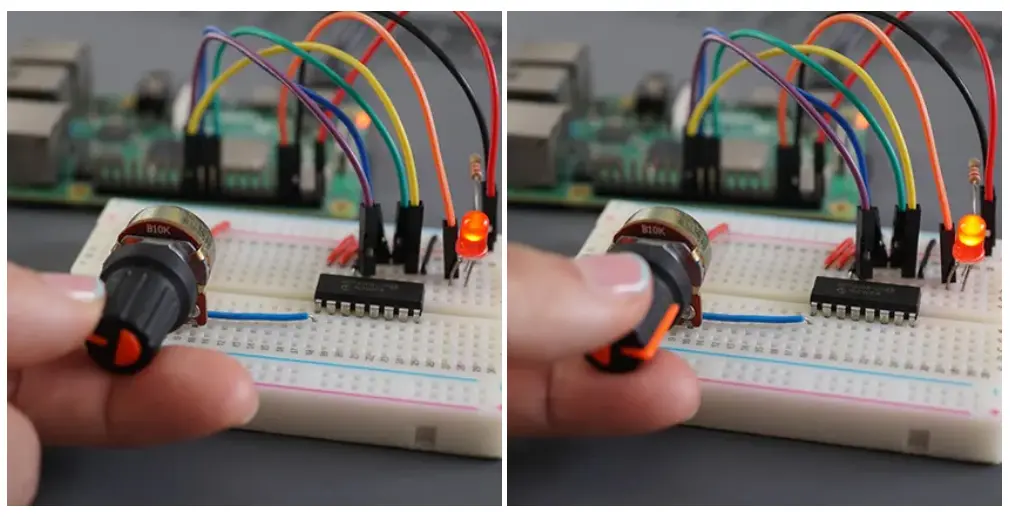
You can stop the execution of the program by pressing CTRL+C.
In this tutorial, you learned how to read analog values on the Raspberry Pi GPIOs using a Python script. The Raspberry Pi GPIOs can’t read analog signals, so we need to use an analog-to-digital converter chip like the MCP3008 chip that sends the analog signals via SPI communication protocol that the Pi can read.
The gpiozero library provides an easy interface called MCP3008 that allows us to easily get the analog values using the value property. As an example, we’ve shown you how to use a potentiometer, but you can use the same methods for any analog sensor that outputs a maximum of 3.3V.
We hope you’ve found this tutorial useful. If you want to learn more about the basics of controlling the Raspberry Pi GPIOs using Python programming language, take a look at our Raspberry Pi tutorials:
You can check all our Raspberry Pi projects on the following link:








