Book Categories:


Wait, don't go!
Become a Member Today and Unlock Access to All eBooks!
Thousands of eBooks at your fingertips. Read, learn, and grow anytime, anywhere.
In this guide, you’ll learn how to set the Raspberry Pi GPIOs as digital inputs and how to read their state using a Python program. As an example, we’ll read the state of a pushbutton (pressed or not pressed), but the example can be applied to any other peripherals that output digital signals. We’ll use the gpiozero interface.
Before proceeding with this tutorial, please verify the following prerequisites.
GPIO stands for General Purpose Input Output pins, and those allow you to connect and control electronic hardware, like LEDs, motors, and sensors, to your Raspberry Pi.
This means they can be used to both read and send information, allowing your Pi to interact
with the outside world.
Most models of Raspberry Pi boards have a double row of 40 GPIO pins. The layout of the pins is usually the same for most Raspberry Pi models.
In this tutorial, we’ll take a look at how we can set the Raspberry Pi GPIOs as outputs to control an LED or any other actuator that can be controlled with high (3V3) and low (0V) signals.

There are two different ways to refer to a GPIO pin: its name (which is known as GPIO numbering or Broadcom numbering) or its corresponding pin physical number (which corresponds to the pin’s physical location on the header).
For example, GPIO 25 corresponds to pin 22 (see the picture below). Throughout this tutorial, we’ll refer to GPIO pins by their GPIO numbering (Broadcom numbering).
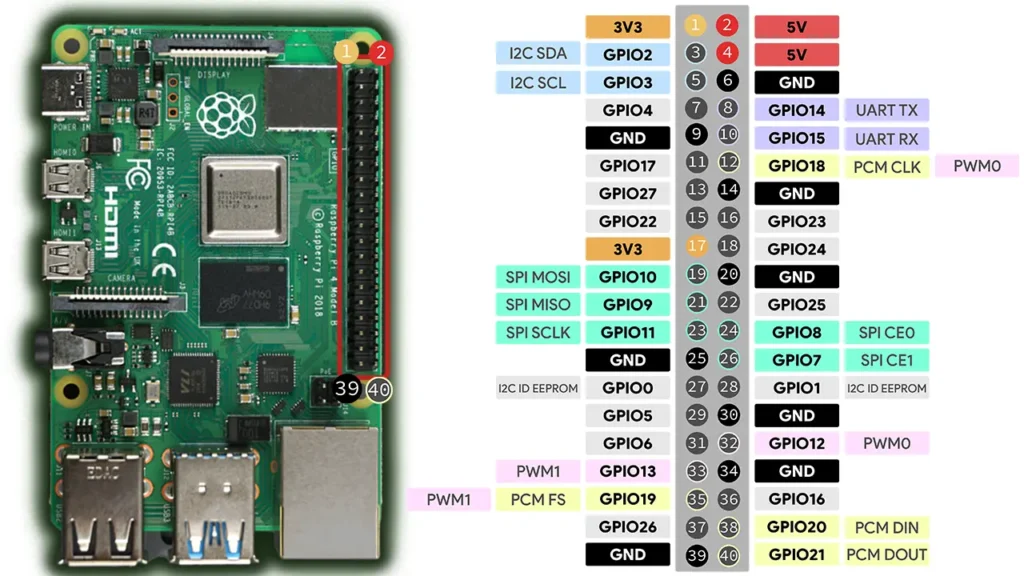
To learn more about the Raspberry Pi GPIOs, check the following guide: Raspberry Pi Pinout Guide: How to use the Raspberry Pi GPIOs?
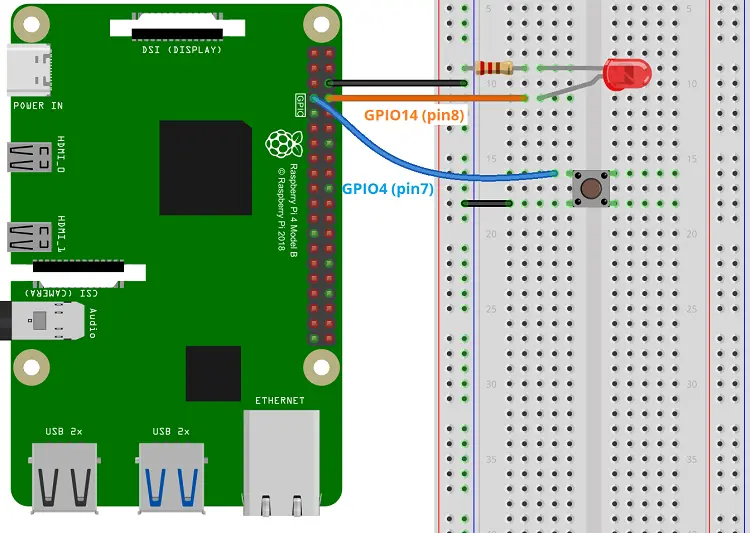
Wire a pushbutton and an LED to the Raspberry Pi GPIOs. We’ll connect one LED to GPIO 14 (pin 8) and the pushbutton to GPIO 4 (pin7). You can use any other pins, except GPIO 0 and GPIO 1.
Here’s a list of components you need for this project:
The gpiozero library provides a collection of interfaces for everyday components like LEDs, buttons, potentiometers, sensors, and much more.
To read digital inputs, the gpiozero library provides the Button interface, designed especially for pushbuttons, and the DigitalInputDevice for generic digital inputs. Both interfaces work similarly, but use functions with different names.
The gpiozero library should already be installed if you’re running Raspberry Pi OS — if not, you can run:
python3 -m pip gpiozero
To show you how to read the state of a pushbutton and how to trigger different events depending on the pushbutton state, we’ll create a Python script to control an LED.

Create a new Python file on your Raspberry Pi called pushbutton_led.py and copy the following code.
# Complete Project Details: https://ebokify.com/raspberry-pi-digital-inputs-python/

from gpiozero import Button, LED
from signal import pause

led = LED(14)
button = Button(4)

button.when_pressed = led.on
button.when_released = led.off

pause()Continue reading to learn how the code works.
First, you import the LED component from the gpiozero library to control the GPIO that the LED is connected to, and the Button component to interact with the pushbutton. Then, you also need to import the pause() function from the signal module to keep your program running so that it can detect events.
from gpiozero import Button, LED
from signal import pauseNext, you create an LED object called led that refers to GPIO 14, which is the GPIO that the LED is connected to. Change the number if you’re using another GPIO.
led = LED(14)When you create and use this LED object, your program knows that GPIO 14 is an output that can be set to HIGH or LOW. After this declaration, you can use led to refer to your GPIO 14. You can use this LED object to control other components than LEDs, as long as they can be controlled with HIGH and LOW signals.
Declaring the pushbutton is also simple. You just need to create an instance of the Button class. Pass as an argument the GPIO the pushbutton is connected to; in our case, it’s GPIO 4.
button = Button(4)You can pass other useful arguments to the Button class:
Button(pin, *, pull_up=True, active_state=None, bounce_time=None, hold_time=1, hold_repeat=False, pin_factory=None)Here’s what these parameters mean:
pin: the GPIO the button is connected to.pull_up: The default value is True > The GPIO will be pulled high by default. You need to connect the other pin of the pushbutton to GND, as we did in the circuit. If you want the button to work on the other way around, set this flag to False and wire the other side of the pushbutton to 3.3V.active_state: the default value is None (automatically set to the right value accordingly to the value of pull_up). If set to False, the input polarity is reversed: the pushbutton sends a HIGH signal, but the software sends a LOW to your program.bounce_time: by default, there isn’t any defined bounce_time. The bounce_time is useful if you’re getting false pushbutton presses. The bounce_time is the length of time, in this case in seconds, that the GPIO will ignore state changes to prevent false positives. If, after testing, you feel the program senses false positives, set a value for the bounce_time.hold_time: the length of time in seconds that we must wait after the button has been pressed to be considered that the button was held (when_held handler)hold_repeat: if set to True, the when_held handler will be executed repeatedly until the pushbutton stops being held. If set to False, it will just run once.pin_factory: This is an advanced feature that you probably won’t need to use or worry about.You can use the when_pressed and when_released handlers to detect when the button is pressed or released and associate a function to run when each event is detected.
In the following line, when the button is pressed(when_pressed), the LED turns on.
button.when_pressed = led.onWhen the when_released event is detected, the LED turns off.
button.when_released = led.offInstead of turning an LED on and off, you can associate any other function that you need to run when those button events are detected.
In the end, we call the pause() function. It keeps the program running even after all the code has run through to detect events—in this case, it’s continuously checking the pushbutton state.
pause()Instead of the previous example, you may want to toggle the LED state with each button press. If that’s the case, you can use the following example.
# Complete Project Details: https://ebokify.com/raspberry-pi-digital-inputs-python/

from gpiozero import Button, LED
from signal import pause

led = LED(14)
button = Button (4)

button.when_pressed = led.toggle

pause()1) To read the state of a pushbutton, you can use the Button interface of the gpiozero library. You need to import it first, like this:
from gpiozero import Button2) Define the GPIO the button is connected to:
button = Button(GPIO_NUMBER_OF_YOUR_CHOICE)3) Then, use the when_pressed and when_released events to make something happen when the button is pressed or released.
button.when_pressed = your_functionbutton.when_released = your_functionSave your Python file. Then run it on your Raspberry Pi. Run the following command in the directory of your project file (use the name of your file):
python pushbutton_led.pyThe LED connected to GPIO 14 should light up when you press the pushbutton.
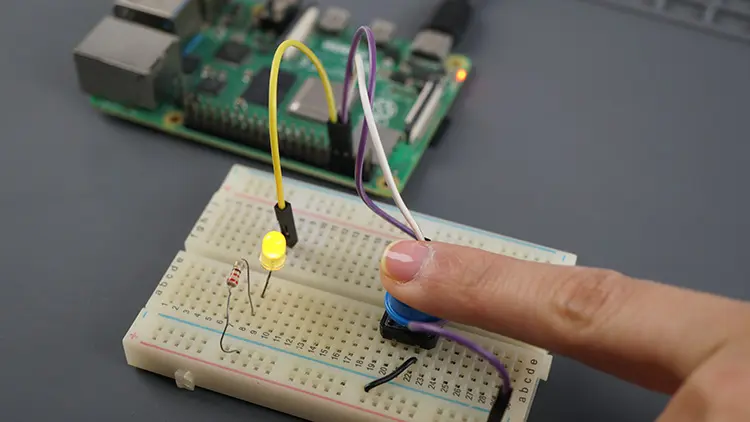
The LED will turn off when you release the pushbutton.
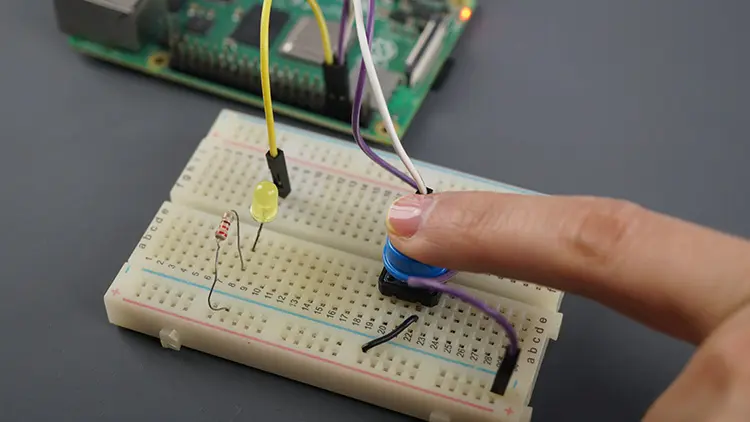
You can stop the execution of the program by pressing CTRL+C.
The Button interface provides other useful methods.
wait_for_press(timeout): it pauses the execution of the script until you press the pushbutton or until the timeout is reached. By default, there isn’t a timeout, so the program will wait on that line of code until you press the button.wait_for_release(timeout): it pauses the execution of the script until you release the pushbutton or until the timeout is reached. By default, there isn’t a timeout, so the program will wait on that line of code until you release the button.is_pressed: returns True if the button is pressed.Here’s a similar example, but using the is_pressed method.
# Complete Project Details: https://ebokify.com/raspberry-pi-digital-inputs-python/

from gpiozero import Button, LED

led = LED(14)
button = Button(4)

while True:
    if button.is_pressed:
        led.on()
    else:
led.off()If you’re using other digital input instead of a pushbutton, you can use the DigitalInputDevice class. It works similarly to the Button class but comes with different methods.
The DigitalInputDevice accepts the following parameters:
DigitalInputDevice(pin, *, pull_up=False, active_state=None, bounce_time=None, pin_factory=None)The parameters are almost the same as the Button class:
pin: the GPIO the peripheral is connected to.pull_up: the default value is True > the GPIO will be pulled high by default.active_state: the default value is None (automatically set to the right value accordingly to the value of pull_up). If set to False, the input polarity is reversed: the pushbutton sends a HIGH signal, but the software sends a LOW to your program.bounce_time: by default, there isn’t any bounce_time defined. It’s useful to prevent false positives.pin_factory: this is an advanced feature that you probably won’t need to use or worry about.Here are some useful methods and properties of the DigitalInputDevice:
when_activated: event that detects that the GPIO received a HIGH signal. You should assign a callback function to run whenever the GPIO goes HIGH.when_deactivated: event that detects that the GPIO received a LOW signal. You should assign a callback function to run whenever the GPIO goes LOW;value: returns the current value of the GPIO (0 if it is LOW, and 1 if it is HIGH);wait_for_active(timeout): it pauses the execution of the script until the GPIO receives a HIGH signal or until the timeout is reached. By default, there isn’t a timeout, so the program will wait on that line of code until that condition is met.wait_for_inactive(timeout): it pauses the execution of the script until the GPIO receives a LOW signal or until the timeout is reached. By default, there isn’t a timeout, so the program will wait on that line of code until that condition is metHere’s an example that turns on an LED, when the GPIO reads a HIGH signal:
# Complete Project Details: https://ebokify.com/raspberry-pi-digital-inputs-python/

from gpiozero import DigitalInputDevice, LED

led = LED(14)
input = DigitalInputDevice(4)

while True:
    if input.value:
        led.on()
    else:
        led.off()
If you want to use events instead, take a look at the following code. It works similarly to the pushbutton example we’ve seen previously.
# Complete Project Details: https://RandomNerdTutorials.com/raspberry-pi-digital-inputs-python/

from gpiozero import DigitalInputDevice, LED
from signal import pause

led = LED(14)
input = DigitalInputDevice (4)

print(input.value)

input.when_activated = led.on
input.when_deactivated =led.off

pause()In this tutorial, you learned how to set the Raspberry Pi GPIOs as digital inputs and how to read their state. The gpiozero library comes with a Button class with useful functions especially for pushbuttons. There is also a DigitalInputDevice class to use with generic input devices.
We hope you found this tutorial useful. If you’re a beginner to the Raspberry Pi, you can get started with the following tutorials:
You can check all our Raspberry Pi projects on the following link:
Thanks for reading.








