Book Categories:


Wait, don't go!
Become a Member Today and Unlock Access to All eBooks!
Thousands of eBooks at your fingertips. Read, learn, and grow anytime, anywhere.
Become a Member Today and Unlock Access to All eBooks!
Thousands of eBooks at your fingertips. Read, learn, and grow anytime, anywhere.
In this guide, you’ll learn how to easily control outputs with the Raspberry Pi GPIOs based on the time of day. We’ll program the Raspberry Pi using Python and the gpiozero library. We’ll create a program that automatically turns on and off outputs according to the time of day. For example, we’ll control LEDs, but you can control any other digital output.
Before proceeding with this tutorial, please verify the following prerequisites.
It may also be useful to take a look at the following tutorial to get to know how to control outputs with the Raspberry Pi:
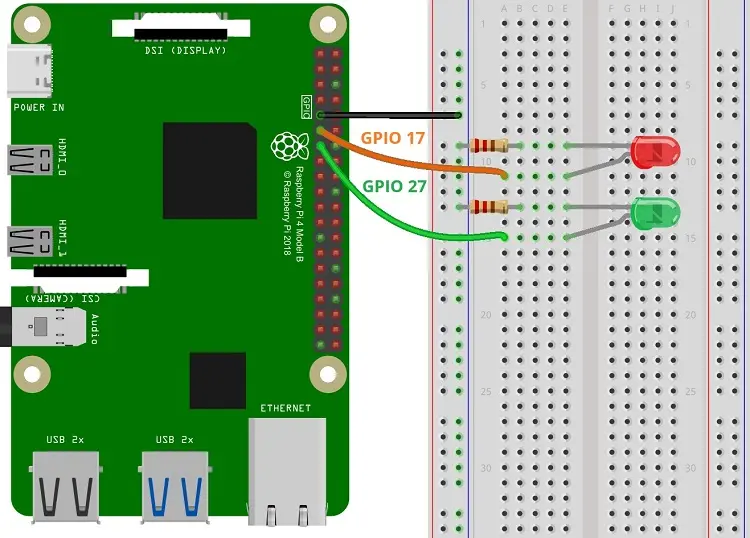
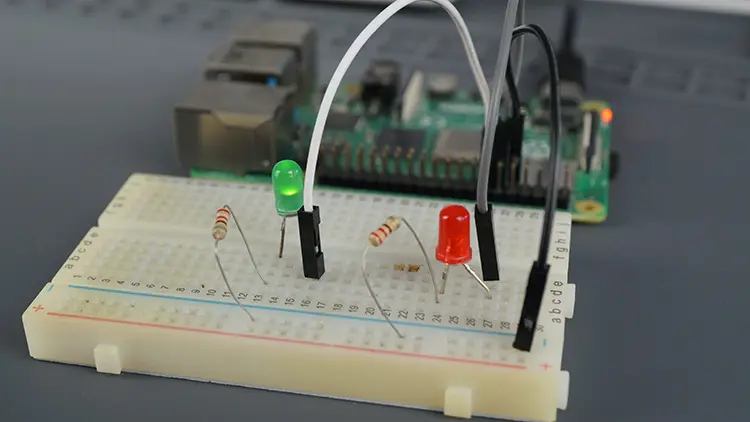
We’ll control two LEDs based on the time of day. Instead of LEDs, you can control any other digital outputs.
We’ll connect one LED to GPIO 17, and another to GPIO 27. You can use any other suitable pins (take a look at the Raspberry Pi pinout here).
Here’s a list of components you need:
Top 6
Raspberry Pi eBooks
From Zero to Professional

The gpiozero library provides a collection of interfaces for everyday components like LEDs, buttons, potentiometers, sensors, and more. We recommend that you follow this tutorial first if you’re not familiar with controlling the Raspberry Pi GPIOs using the gpiozero library.
The gpiozero library should already be installed if you’re running Raspberry Pi OS — if not, you can run the following command:
python3 -m pip gpiozero
The gpiozero library provides an interface called TimeOfDay that allows you to create a device that is active when the computer’s clock indicates that the current time is between a predefined range. We’ll see how it works with the following example.
Create a new Python file on your Raspberry Pi called outputs_timeofday.py and copy the following code.
# Complete Project Details: https://ebokify.com/raspberry-pi-control-outputs-based-on-time/

from gpiozero import LED, TimeOfDay
from datetime import time
from signal import pause

led1 = LED(17)
led2 = LED(27)

tod1 = TimeOfDay(time(16,30), time(16,45), utc=False)
tod2 = TimeOfDay(time(16,45), time(16,50), utc=False)

tod1.when_activated = led1.on
tod1.when_deactivated = led1.off

tod2.when_activated = led2.on
tod2.when_deactivated = led2.off

pause()Continue reading to learn how the code works.
First, you import the LED component from the gpiozero library to control the GPIO that the LED is connected to and TimeOfDay to create a time internal device. You also need the time function from the datetime module to create time objects. Finally, you also need to import the pause() function from the signalmodule to keep your program running so that it can detect events.
from gpiozero import LED, TimeOfDay
from datetime import time
from signal import pauseNext, you create two LED objects called led1 and led2 that refer to GPIO 17 and GPIO 27, respectively.
led1 = LED(17)
led2 = LED(27)Next, we create two objects of type TimeOfDay. This type of object works as pushbuttons do, but everything is done internally. They are active during a predefined period of time. For example, tod1 it is active between 16:30 and 16:45. You should also pass utc=False a parameter, so that it uses your local time.
tod1 = TimeOfDay(time(16,30), time(16,45), utc=False)You can pass other useful arguments to the TimeOfDay class:
classgpiozero.TimeOfDay(start_time, end_time, *, utc=True, event_delay=10.0, pin_factory=None)Here’s what these parameters mean:
start_time (time) – The time from which the device will be considered active.end_time (time) – The time after which the device will be considered inactive.utc (bool) – If True (the default), A naive UTC time will be used for the comparison rather than a local time-zone reading. I prefer to use my local time, so I set this parameter to False.event_delay (float) – The number of seconds between file reads (defaults to 10 seconds).pin_factory: This is an advanced feature that you probably won’t need to use or worry about.We create another TimeOfDay object that will be active between 16:45 and 16:50. You should adjust these values so that you don’t have to wait to test the project.
tod2 = TimeOfDay(time(16,45), time(16,50), utc=False)You can use the when_activated and when_deactivated handlers to detect when it reaches the start and end time, and associate a function to run when each event is detected.
In the following line, when the tod1 is activated, led1 turns on.
tod1.when_activated = led1.onWhen the when_deactivated event is detected (it reaches the end time), led1 turns off.
tod1.when_deactivated = led1.offThese events are just activated in the transition from off time to start time and start time to off time. If you start running the program and it is already in the active period, it won’t turn on because it didn’t detect the transition from the off time to the on time. To prevent this, we can use the is_active method to check the state of the TimeOfDay object (we’ll take a look at this later).
We proceed similarly for the other LED.
tod2.when_activated = led2.on
tod2.when_deactivated = led2.off
Instead of turning an LED on and off, you can associate any other function that you need to run when those button events are detected.
In the end, we call the pause() function. It keeps the program running even after all the code has run through to detect events—in this case, it’s continuously checking the time with the TimeOfDay objects.
pause()Save your Python file. Then run it on your Raspberry Pi. Run the following command in the directory of your project file (use the name of your file):
python gpios_timeofday.pyThe LED connected to GPIO 17 should light up when the time of day reaches 16:30 (in my example), and it will turn off when it reaches 16:45. The other LED, connected to GPIO 27, will light up between 16:45 and 16:50.
These events to turn on and off the LEDs are just activated in the transition from off time to start time and start time to off time. If you start running the program and it is already in the active period, it won’t turn on because it didn’t detect the transition from the off time to the on time. To prevent this, we can use the is_active function to check the state of the TimeOfDay object—check the example below.
The TimeOfDay interface provides other useful methods, like the is_active method. This returns True if the device is currently active, and False otherwise.
Here’s a similar example using this method:
# Complete Project Details: https://ebokify.com/raspberry-pi-control-outputs-based-on-time/

from gpiozero import LED, TimeOfDay
from datetime import time
from signal import pause

led1 = LED(17)
led2 = LED(27)

tod1 = TimeOfDay(time(16,30), time(16,45), utc=False)
tod2 = TimeOfDay(time(16,45), time(16,50), utc=False)

while True:
    if tod1.is_active:
        led1.on()
    else:
        led1.off()

    if tod2.is_active:
        led2.on()
    else:
        led2.off()
The result will be exactly the same as the previous example. But it will turn on the LED even if the start time has already started.
In this tutorial, you learned how to control outputs with the Raspberry Pi based on the time of the day using the gpiozero library. As you can see, using the TimeOfDay interface is fairly straightforward. It acts like a button switch that is activated based on the time of the day.
We hope you found this tutorial useful. If you would like to learn more about controlling the Raspberry Pi GPIOs, take a look at the following tutorials:
You can check all our Raspberry Pi projects on the following link:
🚀 Discover the world of electronics and innovation!
✨ Create, program, and experiment with all your creative ideas with ease.
🔥 Don't wait! Browse SpotPear products now and start your amazing project!








