

Wait! Don’t Go Yet! 👋
Become a Member Today and Unlock Access to All eBooks! 😍
Thousands of eBooks at your fingertips. Read, learn, and grow anytime, anywhere ✨
Become a Member Today and Unlock Access to All eBooks! 😍
Thousands of eBooks at your fingertips. Read, learn, and grow anytime, anywhere ✨
In this project, you’ll install an SQLite package for Node-RED and learn how to write simple SQL queries to interact with your SQLite database.
Recommended resources:
Before you continue reading this project, please make sure you have the Raspbian Operating System installed in your Raspberry Pi.
You can read my Getting Started with the Raspberry Pi Guide to install Raspbian and complete the basic setup.
Follow this next tutorial to learn how to Install SQLite database on a Raspberry Pi. Having SQLite installed on your Raspberry Pi.
Run the list of commands below to install node-red-node-sqlite in your Node-RED user directory. This package gives you basic access to an SQLite database.
Top 6
Raspberry Pi eBooks
From Zero to Professional

pi@raspberry:~ $ sudo apt-get install npm
pi@raspberry:~ $ sudo npm install -g npm@2.x
pi@raspberry:~ $ hash -r
pi@raspberry:~ $ cd ~/.node-red
pi@raspberry:~/.node-red $ npm install node-red-node-sqlite
Restart your Node-RED software with the next commands for the changes to take effect:
pi@raspberrypi:~/.node-red $ cd
pi@raspberrypi:~ $ node-red-stop
pi@raspberrypi:~ $ node-red-start
When your Node-RED software is back on, you can open it by entering the RPi IP address in a web browser, followed by :1880 as follows:
http://YOUR_RPi_IP_ADDRESS:1880
In my case is:
http://192.168.1.98:1880
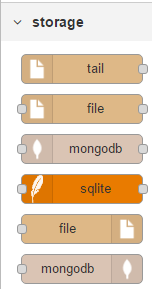
A new node called sqlite should appear on the left under the storage tab:
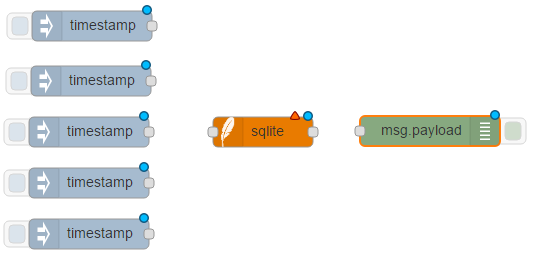
In this flow, you’re going to send 5 SQL queries (CREATE, INSERT, SELECT, DELETE, and DROP) to your SQLite database. Follow these next 10 steps to create your flow:
1) Drag 5 inject nodes, 1 sqlite node, and 1 debug node
2) Press the Add new sqlitedb button
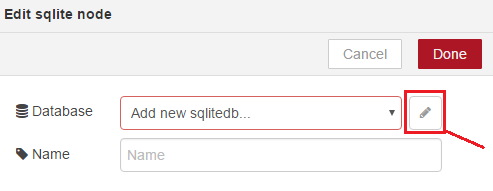
3) Type /tmp/sqlite in the Database field
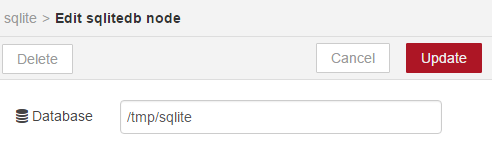
4) Configure your CREATE inject node as follows
CREATE TABLE dhtreadings(id INTEGER PRIMARY KEY AUTOINCREMENT, temperature NUMERIC, humidity NUMERIC, currentdate DATE, currenttime TIME, device TEXT)
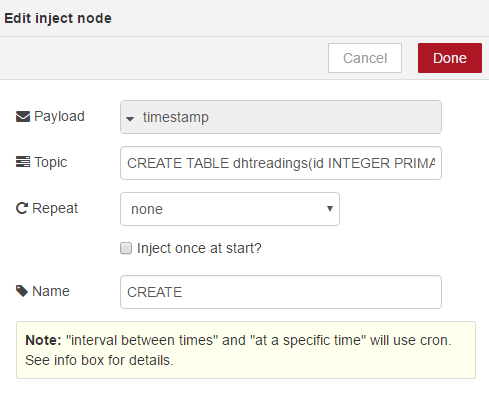
5) Configure your INSERT inject node
INSERT INTO dhtreadings(temperature, humidity, currentdate, currenttime, device) values(22.4, 48, date('now'), time('now'), "manual")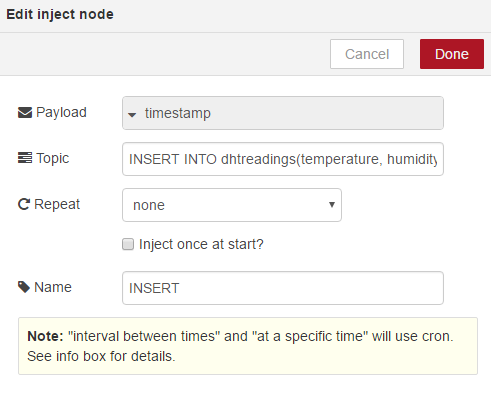
6) Configure your SELECT inject node with
SELECT * FROM dhtreadings
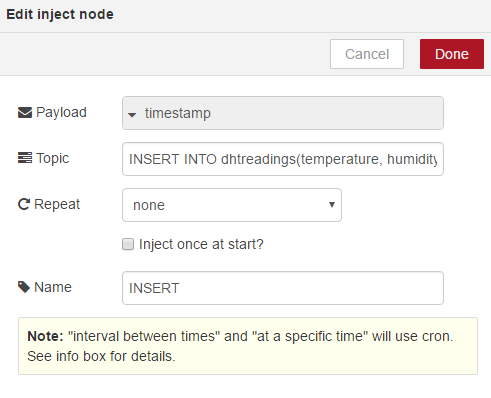
7) Configure your DELETE inject node as follows
DELETE from dhtreadings
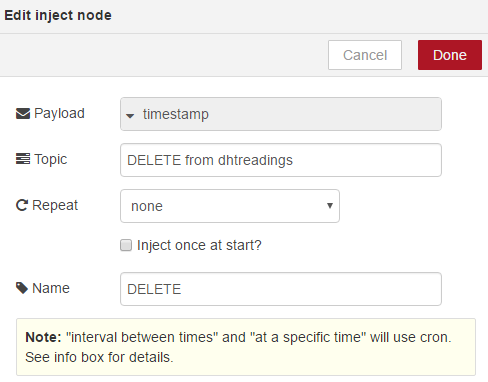
8) Configure your DROP inject node
DROP TABLE dhtreadings
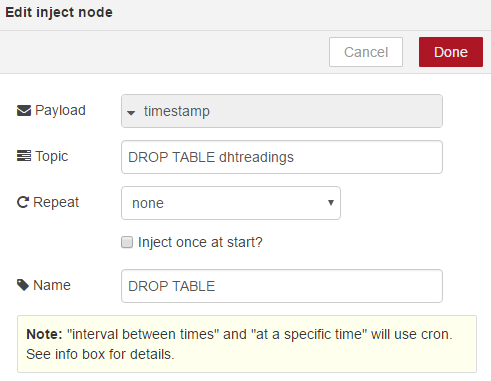
9) Connect all your nodes
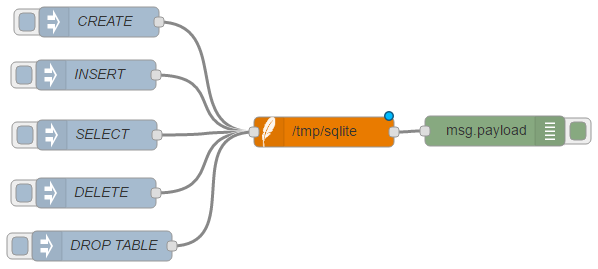
10) To save your application, you need to click the deploy button in the top right corner

Your application is saved and ready.
Let’s test the simple flow. Open the debug window and press the first inject node to trigger the CREATE SQL query. Then, follow this procedure:
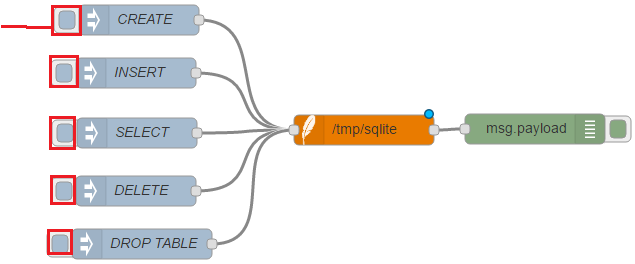
As you can see, the database schema was created, data was inserted, you can select the data from the dhtreadings table, delete it, and drop the table.
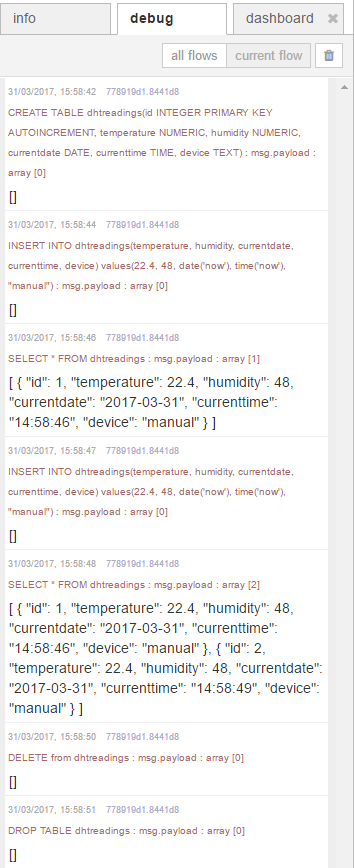
This is a very basic example that can easily be extended for your own projects.
This post is a quick guide to send simple SQL queries to an SQLite database with Node-RED. You can apply this concept to create a complex database that actually stores useful readings.
Do you have any questions? Leave a comment down below!
🚀 Discover the world of electronics and innovation!
✨ Create, program, and experiment with all your creative ideas with ease.
🔥 Don't wait! Browse SpotPear products now and start your amazing project!
