

Wait! Don’t Go Yet! 👋
Become a Member Today and Unlock Access to All eBooks! 😍
Thousands of eBooks at your fingertips. Read, learn, and grow anytime, anywhere ✨
Become a Member Today and Unlock Access to All eBooks! 😍
Thousands of eBooks at your fingertips. Read, learn, and grow anytime, anywhere ✨
In this blog post, I’ll introduce you to SQLite, which is an in-process lightweight library that implements a self-contained, serverless, zero-configuration, transactional SQL database engine. SQLite is the most widely deployed SQL database engine in the world, and its source code is in the public domain.
Don’t have a Raspberry Pi board? read Best Raspberry Pi Starter Kits.
SQLite is an embedded SQL database engine. Unlike most other SQL databases, SQLite does not have a separate server process. SQLite reads and writes directly to ordinary disk files. A complete SQL database with multiple tables, indices, triggers, and views, is contained in a single disk file.

This tutorial shows you how to install SQLite on a Raspberry Pi and teach you some basic commands to use SQLite in your RPi projects.
Note: SQLite is more powerful and has a lot more features from what I’m about to show you, however the purpose of this tutorial is to share a basic example on how you would store temperature and humidity readings in a SQLite table. For more information you can read the official documentation here.
Before you continue reading this project, please make sure you have Raspbian Operating System installed in your Raspberry Pi.
You can read my Getting Started with the Raspberry Pi Guide to install Raspbian and complete the basic setup.
Top 6
Raspberry Pi eBooks
From Zero to Professional

Here’s some of the features that makes SQLite a great database:
Databases are used to store information in a way that can be accessed quickly and easily. In this post you’re going to build a data logging application with a Raspberry Pi that stores temperature and humidity.
You can install SQLite on a Raspberry Pi using this command:
pi@raspberry:~ $ sudo apt-get install sqlite3
You’ll have to type Y and press Enter to confirm the installation.
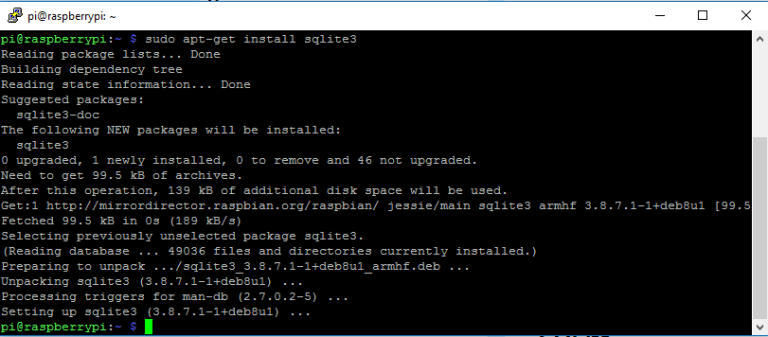
After the installation is completed, the SQLite libraries are supplied with an SQLite shell. Use this next command to invoke the shell and create a database:
pi@raspberry:~ $ sqlite3 sensordata.db
The file sensordata.db is now created. After typing the preceding command, a prompt appears where you can enter commands. The shell supports two types of commands. Commands that start with a ‘.’ are used to control the shell. Try typing these commands:
sqlite> .help
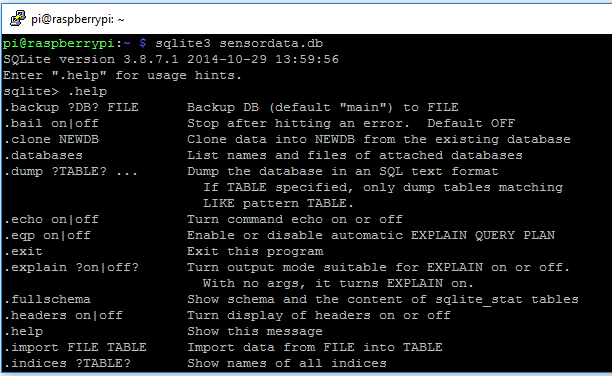
With the ‘.help‘ command you can be quickly reminded of all the supported commands and their respective usage.
To quit from the SQLite shell use the ‘.quit‘ command.
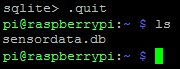
Note: you can use the up arrow to scroll through previous commands.
The shell also supports SQL commands which you’re going to try in the next section.
Structured Query Language (SQL) is a language that’s used for interacting with databases. It can be used to create tables, insert, update, delete and search for data.
SQL works with different database solutions such as SQLite, MySQL and others. SQL statements must end with a semicolon (;).
It’s common for SQL commands to be capitalized, but this isn’t strictly necessary. Most people prefer to use capitalized letters, because it increases readability.
I’m going to start by creating a simple table with 6 columns that could be used for temperature and humidity logging application in different parts of a home. Let’s start by creating a table:
sqlite> BEGIN;
sqlite> CREATE TABLE dhtreadings(id INTEGER PRIMARY KEY AUTOINCREMENT, temperature NUMERIC, humidity NUMERIC, currentdate DATE, currentime TIME, device TEXT);
sqlite> COMMIT;
To see all the tables, type:
sqlite> .tables
dhtreadings
It returns the newly created table named ‘dhtreadings’. You can see the fullschema of the tables when you enter:
sqlite> .fullschema
CREATE TABLE dhtreadings(id INTEGER PRIMARY KEY AUTOINCREMENT, temperature NUMERIC, humidity NUMERIC, currentdate DATE, currentime TIME, device TEXT);
To insert new temperature and humidity readings in the database, you could do something like this:
sqlite> BEGIN;
sqlite> INSERT INTO dhtreadings(temperature, humidity, currentdate, currentime, device) values(22.4, 48, date('now'), time('now'), "manual");
sqlite> COMMIT;
In a future blog post, the ESP8266 is going to send the readings to a Python web server that inserts the data in the table.
To access the data stored in the database, you use the SELECT SQL statement:
sqlite> SELECT * FROM dhtreadings;
1|22.4|48|2017-01-26|23:43:13|manual
So far, you only have 1 reading inserted in the database. You can insert a new reading as follows:
sqlite> BEGIN;
sqlite> INSERT INTO dhtreadings(temperature, humidity, currentdate, currentime, device) values(22.5, 48.7, date('now'), time('now'), "manual");
sqlite> COMMIT;
And when you SELECT the data stored in the table, it returns 2 readings:
sqlite> SELECT * FROM dhtreadings;
1|22.4|48|2017-01-26|23:43:13|manual
2|22.5|48.7|2017-01-26|23:43:54|manual
For an easier understanding, you can compare a SQL table to an Excel sheet that looks like this:

If you want to completely delete the table from your database, you can use the DROP TABLE command.
Warning: the next command will completely delete the dhtreadings table:
sqlite> DROP TABLE dhtreadings;
Now, if you type the ‘.tables‘ command:
sqlite> .tables
It doesn’t return anything, because your table was completely deleted.
We’ve just scratched the surface of what you can do with SQLite.
Do you have any questions? Leave a comment down below!
🚀 Discover the world of electronics and innovation!
✨ Create, program, and experiment with all your creative ideas with ease.
🔥 Don't wait! Browse SpotPear products now and start your amazing project!
