Book Categories:


Wait, don't go!
Become a Member Today and Unlock Access to All eBooks!
Thousands of eBooks at your fingertips. Read, learn, and grow anytime, anywhere.
Become a Member Today and Unlock Access to All eBooks!
Thousands of eBooks at your fingertips. Read, learn, and grow anytime, anywhere.
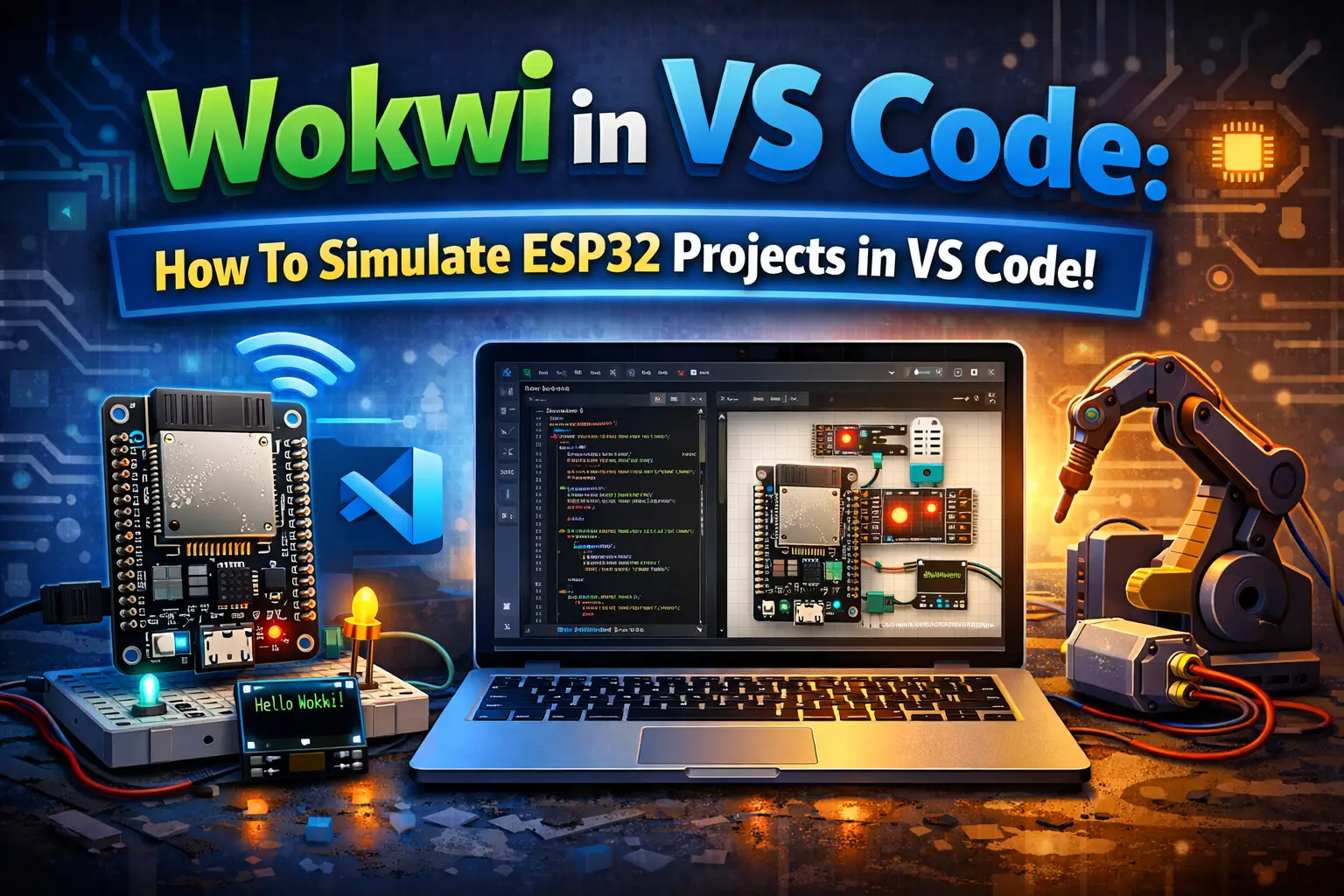
Don’t have any hardware at hand? Not a problem with Wokwi for VS Code!
In this guide, I’ll show you how to install the Wokwi extension in Visual Studio Code, allowing you to simulate ESP32 projects without requiring any physical hardware.
This is useful for tinkering around or when you don’t have access to a real ESP32 and the components at the moment.
Wokwi is a free online simulator that supports a wide range of microcontrollers, including the ESP32. It lets you build virtual circuits with components like LEDs, buttons, sensors, motors, and a lot more.
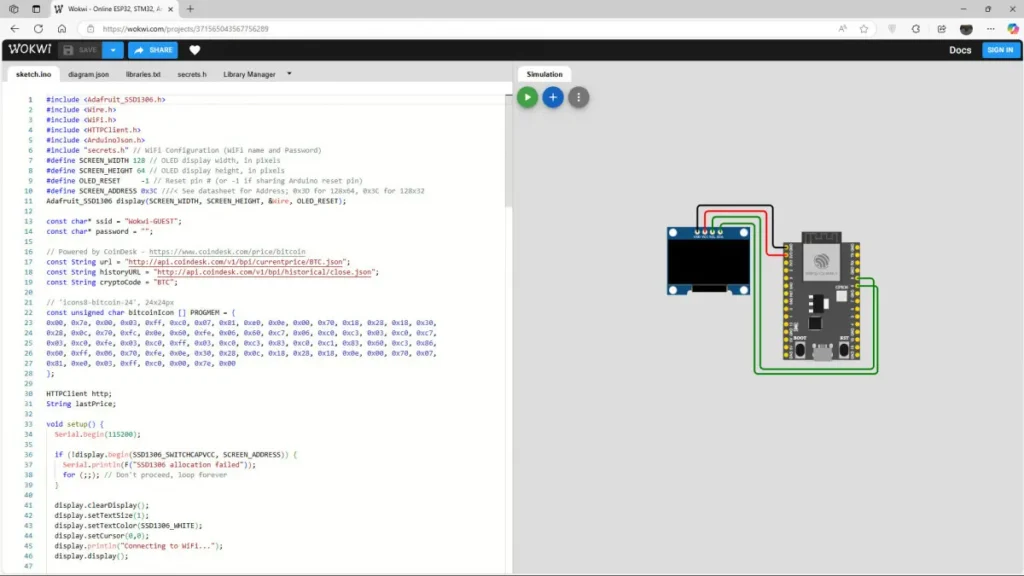
Most developers probably know the Wokwi editor in the browser, which is available at wokwi.com. However, there’s also a Visual Studio Code extension that lets you make use of the Wokwi simulation software directly inside your favorite code editor/IDE.
Top 6
ESP32 eBooks
From Zero to Professional

If you haven’t installed VS Code yet, that’s the first step. The process is straightforward: simply visit the official download page, select the version compatible with your operating system, run the installer, and follow the instructions. It’s quick and straightforward, so I’ll assume you don’t need any more help with that.
Inside VS Code, you’ll need to install the PlatformIO extension to be able to write and compile code for your ESP32. Check out this post for a detailed PlatformIO setup guide.
Let’s install the Wokwi VS Code extension.
To do so, simply head to the extensions tab (4 blocks) on the left of your VS Code window, search for “Wokwi Simulator” and install the extension.
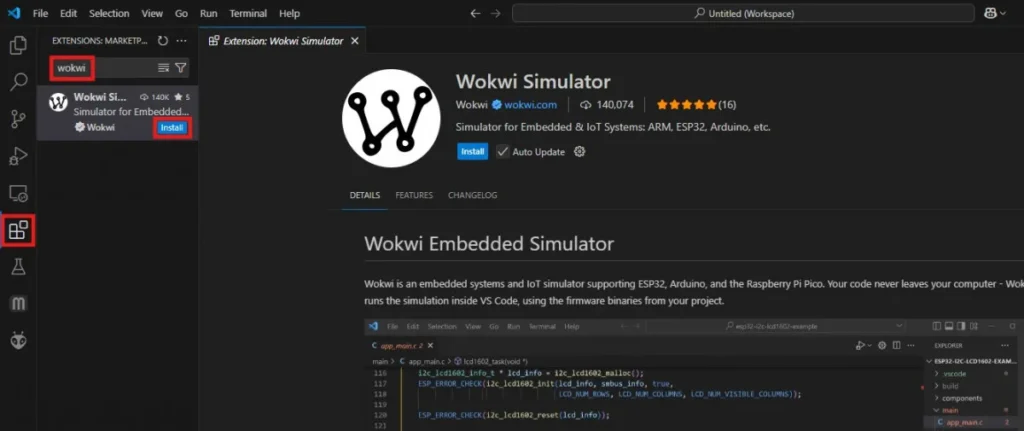
When you are asked whether to trust the publisher of the extension, confirm and install the extension. This is just a security check from VS Code, as some extensions might be malicious. However, that’s not the case for the Wokwi extension – it’s safe to install.
In order to be able to use Wokwi within Visual Studio Code, we need to request a license.
The license is completely free for personal use and is valid for 30 days. After 30 days, you can always request a new license.
To get your free personal license, open the search bar at the top of your VS Code window (or press F1) and type “>wokwi“. Then, select “Wokwi: Request a New License“.
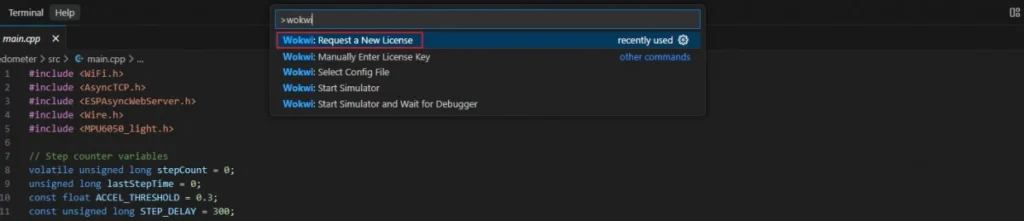
When you are asked whether to open the external website, hit open.
This will take you to Wokwi’s website, where you can get a license.
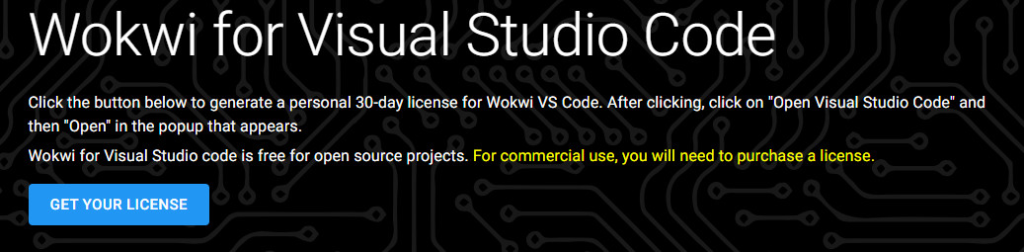
After clicking on “GET YOUR LICENSE”, the browser should take you to VS Code again, where you have to confirm to open the URI. This will automatically update your license.
Top 6
Arduino eBooks
From Zero to Professional
Inside Visual Studio Code, open or create a PlatformIO project where your code and Wokwi setup will go.
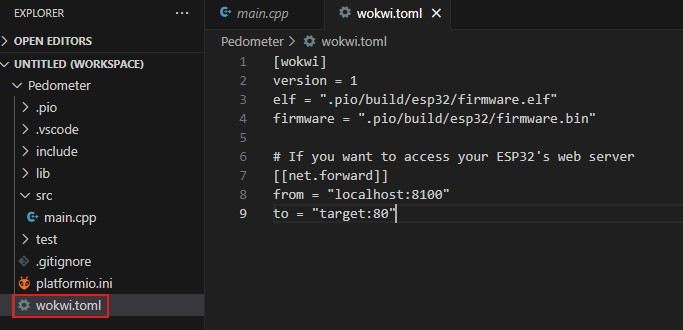
Next, create a new file inside your project’s root folder called “wokwi.toml“. Inside that file, we specify where Wokwi can find the build files. Also, if you plan to create a web server on your ESP32, we can make it accessible from localhost.
[wokwi]
version = 1
elf = ".pio/build/esp32/firmware.elf"
firmware = ".pio/build/esp32/firmware.bin"

# If you want to access your ESP32's web server
[[net.forward]]
from = "localhost:8100"
to = "target:80"
Make sure the paths to the elf and bin files are correct, as they may vary!
Let’s try to simulate a simple ESP32 blink project.
To be able to run the simulation, we need a circuit diagram, which is defined using a “diagram.json” file. We can’t edit the circuit diagram directly inside VS Code. Instead, head to the online editor, create your circuit, and copy the contents of the diagram.json file there. You can use this sample LED project for testing.

Place the diagram.json file inside your project’s root folder.
When you click on the diagram.json file, VS Code should open the circuit diagram, where you will be able to simulate your project. If you don’t want to open the simulation view but edit the file, right-click on it, select “Open With…“, and choose “Text Editor“.
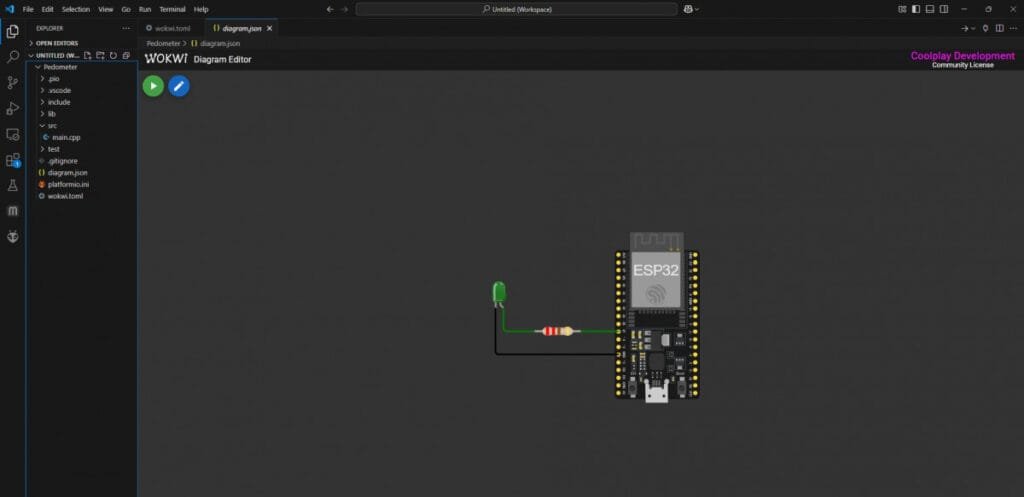
Inside your main.cpp, or wherever your sketch will go, paste this simple blink sketch.
#include <Arduino.h>

#define LED_PIN 27

void setup() {
  pinMode(LED_PIN, OUTPUT);
}

void loop() {
  digitalWrite(LED_PIN, HIGH);
  delay(500);
  digitalWrite(LED_PIN, LOW);
  delay(500);
}
Then, build your project with PlatformIO by hitting F1 and typing “PlatformIO: Build“.
You can also hit the build button (check mark) on the very bottom of the VS Code window.

Next, open your circuit diagram and hit the green run button.
If everything works, the simulation should run, and the LED should flash.
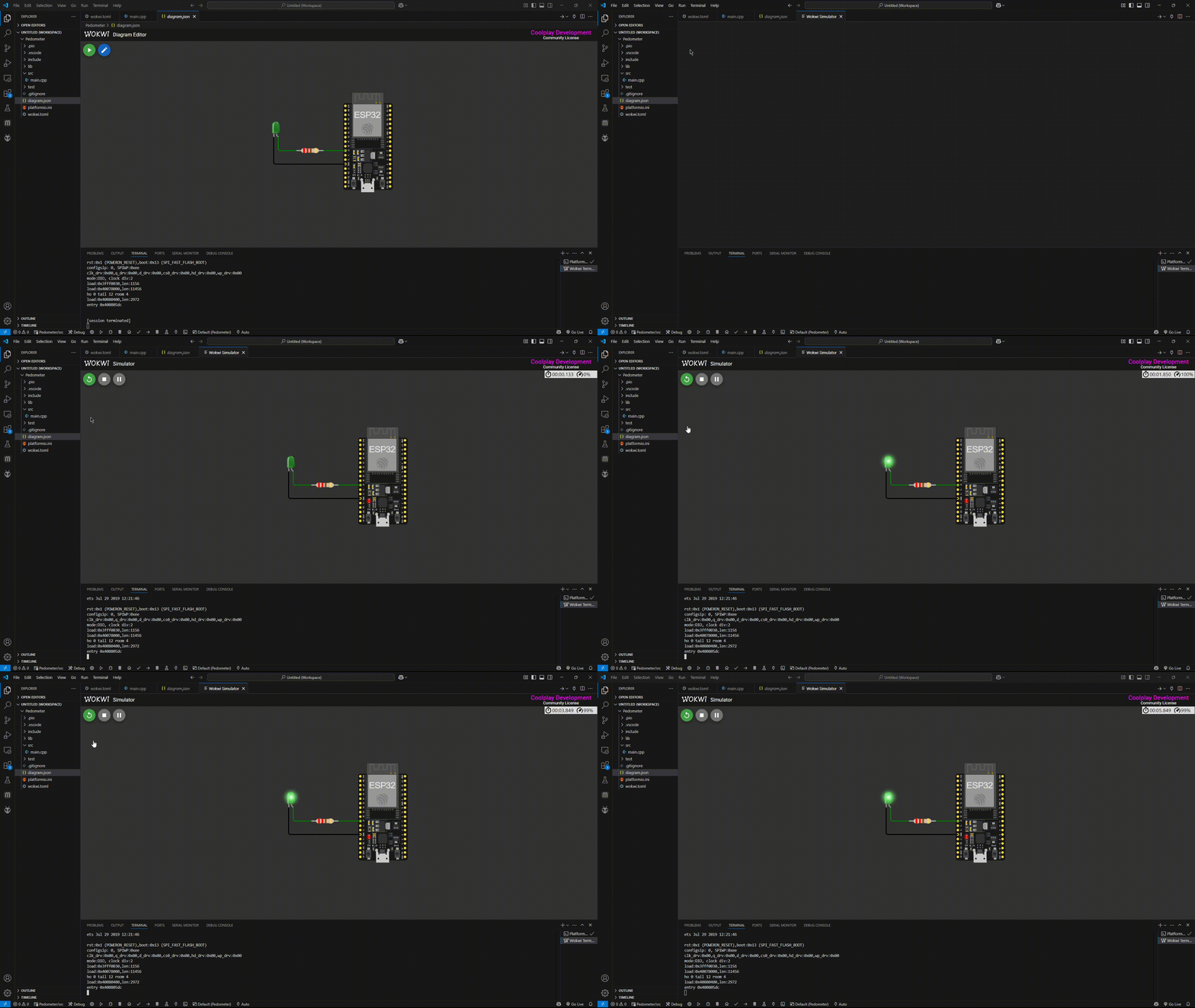
Wokwi + VS Code gives you an amazing platform to prototype ESP32 projects without needing real hardware. From blinking LEDs to simulating full IoT circuits, you can save time, avoid wiring mistakes, and experiment freely.
Give it a try with your next project!
Share your experience with Wokwi in VS Code in the comments below!
Thanks for reading, happy making!
Links marked with an asterisk (*) are affiliate links, which means we may receive a commission for purchases made through these links at no extra cost to you. Read more on our Affiliate Disclosure Page.
🚀 Discover the world of electronics and innovation!
✨ Create, program, and experiment with all your creative ideas with ease.
🔥 Don't wait! Browse SpotPear products now and start your amazing project!



![ESP32 IR Receiver: How To Detect IR Remote Signals [Arduino IDE]](https://ebokify.com/wp-content/uploads/2026/01/ESP32-IR-Receiver-How-To-Detect-IR-Remote-Signals-Arduino-IDE-1-768x512.webp "ESP32 IR Receiver: How To Detect IR Remote Signals [Arduino IDE] 17")