

Wait! Don’t Go Yet! 👋
Become a Member Today and Unlock Access to All eBooks! 😍
Thousands of eBooks at your fingertips. Read, learn, and grow anytime, anywhere ✨
Become a Member Today and Unlock Access to All eBooks! 😍
Thousands of eBooks at your fingertips. Read, learn, and grow anytime, anywhere ✨
In this project, you’ll create a standalone web server with a Raspberry Pi that can toggle two LEDs. You can replace those LEDs with any output (like a relay or a transistor).
To create the web server, you will be using a Python microframework called Flask.
Here’s the hardware that you need to complete this project:
Before you continue reading this project, please make sure you have the Raspbian Operating System installed in your Raspberry Pi.
You can read my Getting Started with the Raspberry Pi Guide to install Raspbian and complete the basic setup.
We’re going to use a Python microframework called Flask to turn the Raspberry Pi into a web server.
Top 6
Raspberry Pi eBooks
From Zero to Professional

To install Flask, you’ll need to have pip installed. Run the following commands to update your Pi and install pip:
pi@raspberrypi ~ $ sudo apt-get update
pi@raspberrypi ~ $ sudo apt-get upgrade
pi@raspberrypi ~ $ sudo apt-get install python-pip python-flask
Then, you use pip to install Flask and its dependencies:
pi@raspberrypi ~ $ sudo pip install flaskThe schematics for this project are fairly straightforward. Simply connect two LEDs to pins GPIO 23 and GPIO 24, as the figure below illustrates.
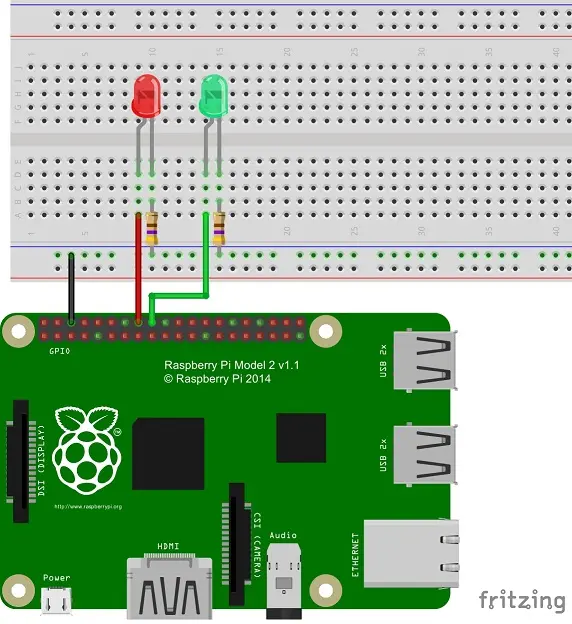
This is the core script of our application. It sets up the web server and actually interacts with the Raspberry Pi GPIOs.
To keep everything organized, start by creating a new folder:
pi@raspberrypi ~ $ mkdir web-server
pi@raspberrypi ~ $ cd web-server
pi@raspberrypi:~/web-server $
Create a new file called app.py.
pi@raspberrypi:~/web-server $ nano app.pyCopy and paste the following script to your Raspberry Pi (this code is based on Matt Richardson's great example).
'''

Adapted excerpt from Getting Started with Raspberry Pi by Matt Richardson

Modified by Ebokify
Complete project details: https://ebokify.com

'''

import RPi.GPIO as GPIO
from flask import Flask, render_template, request
app = Flask(__name__)

GPIO.setmode(GPIO.BCM)

# Create a dictionary called pins to store the pin number, name, and pin state:
pins = {
   23 : {'name' : 'GPIO 23', 'state' : GPIO.LOW},
   24 : {'name' : 'GPIO 24', 'state' : GPIO.LOW}
   }

# Set each pin as an output and make it low:
for pin in pins:
   GPIO.setup(pin, GPIO.OUT)
   GPIO.output(pin, GPIO.LOW)

@app.route("/")
def main():
   # For each pin, read the pin state and store it in the pins dictionary:
   for pin in pins:
      pins[pin]['state'] = GPIO.input(pin)
   # Put the pin dictionary into the template data dictionary:
   templateData = {
      'pins' : pins
      }
   # Pass the template data into the template main.html and return it to the user
   return render_template('main.html', **templateData)

# The function below is executed when someone requests a URL with the pin number and action in it:
@app.route("/<changePin>/<action>")
def action(changePin, action):
   # Convert the pin from the URL into an integer:
   changePin = int(changePin)
   # Get the device name for the pin being changed:
   deviceName = pins[changePin]['name']
   # If the action part of the URL is "on," execute the code indented below:
   if action == "on":
      # Set the pin high:
      GPIO.output(changePin, GPIO.HIGH)
      # Save the status message to be passed into the template:
      message = "Turned " + deviceName + " on."
   if action == "off":
      GPIO.output(changePin, GPIO.LOW)
      message = "Turned " + deviceName + " off."

   # For each pin, read the pin state and store it in the pins dictionary:
   for pin in pins:
      pins[pin]['state'] = GPIO.input(pin)

   # Along with the pin dictionary, put the message into the template data dictionary:
   templateData = {
      'pins' : pins
   }

   return render_template('main.html', **templateData)

if __name__ == "__main__":
   app.run(host='0.0.0.0', port=80, debug=True)
Keeping HTML tags separated from your Python script is how you keep your project organized.
Flask uses a template engine called Jinja2 that you can use to send dynamic data from your Python script to your HTML file.
Create a new folder called templates:
pi@raspberrypi:~/web-server $ mkdir templates
pi@raspberrypi:~/web-server $ cd templates
pi@raspberrypi:~/web-server/templates $
Create a new file called main.html.
pi@raspberrypi:~/web-server/templates $ nano main.html
Copy and paste the following template to your Pi:
<!DOCTYPE html>
<head>
   <title>RPi Web Server</title>
   <!-- Latest compiled and minified CSS -->
   <link rel="stylesheet" href="https://maxcdn.bootstrapcdn.com/bootstrap/3.3.6/css/bootstrap.min.css" integrity="sha384-1q8mTJOASx8j1Au+a5WDVnPi2lkFfwwEAa8hDDdjZlpLegxhjVME1fgjWPGmkzs7" crossorigin="anonymous">
   <!-- Optional theme -->
   <link rel="stylesheet" href="https://maxcdn.bootstrapcdn.com/bootstrap/3.3.6/css/bootstrap-theme.min.css" integrity="sha384-fLW2N01lMqjakBkx3l/M9EahuwpSfeNvV63J5ezn3uZzapT0u7EYsXMjQV+0En5r" crossorigin="anonymous">
   <!-- Latest compiled and minified JavaScript -->
   <script src="https://maxcdn.bootstrapcdn.com/bootstrap/3.3.6/js/bootstrap.min.js" integrity="sha384-0mSbJDEHialfmuBBQP6A4Qrprq5OVfW37PRR3j5ELqxss1yVqOtnepnHVP9aJ7xS" crossorigin="anonymous"></script>
</head>

<body>
   <h1>RPi Web Server</h1>
   {% for pin in pins %}
   <h2>{{ pins[pin].name }}
   {% if pins[pin].state == true %}
      is currently <strong>on</strong></h2><div class="row"><div class="col-md-2">
      <a href="/{{pin}}/off" class="btn btn-block btn-lg btn-default" role="button">Turn off</a></div></div>
   {% else %}
      is currently <strong>off</strong></h2><div class="row"><div class="col-md-2">
      <a href="/{{pin}}/on" class="btn btn-block btn-lg btn-primary" role="button">Turn on</a></div></div>
   {% endif %}
   {% endfor %}
</body>
</html>
To launch your Raspberry Pi web server, move to the folder that contains the file app.py:
pi@raspberrypi:~/web-server/templates $ cd ..
Then run the following command:
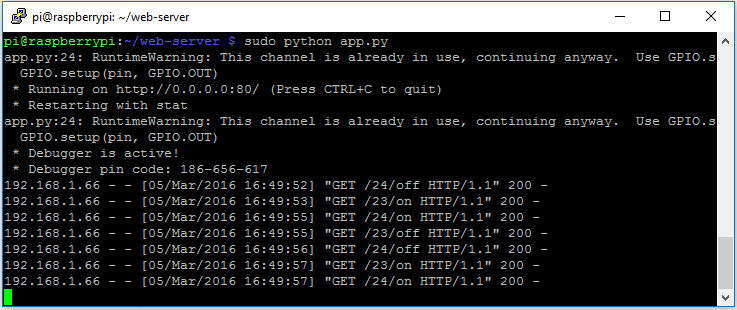
pi@raspberrypi:~/web-server $ sudo python app.py
Your web server should start immediately!
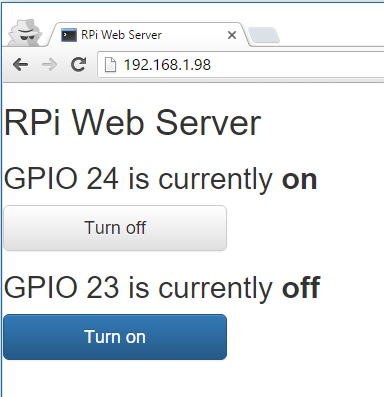
Open your Raspberry Pi address in your browser by entering its IP address, in my case: http://192.168.1.98/.
I hope you’ve found this tutorial useful.
Share this post with a friend who also likes electronics!
Thanks for reading,
🚀 Discover the world of electronics and innovation!
✨ Create, program, and experiment with all your creative ideas with ease.
🔥 Don't wait! Browse SpotPear products now and start your amazing project!
