

Wait! Don’t Go Yet! 👋
Become a Member Today and Unlock Access to All eBooks! 😍
Thousands of eBooks at your fingertips. Read, learn, and grow anytime, anywhere ✨
Become a Member Today and Unlock Access to All eBooks! 😍
Thousands of eBooks at your fingertips. Read, learn, and grow anytime, anywhere ✨
In this tutorial, we’ll show you a practical way to create and execute files remotely on your Raspberry Pi using VS Code on your computer. All you have to do is to install the Remote-SSH extension on VS Code. This extension allows you to establish an SSH connection with your Pi, create files, write code, and execute it directly on your Raspberry Pi board from your computer using VS Code interface. This is the perfect solution if your Raspberry Pi is running headless.
If you’re reading this post, we assume that you are familiar with or are getting started with the Raspberry Pi. You can read our getting started guide below:
We assume you have an operating system installed on your Pi (Raspberry Pi OS or similar), you have enabled SSH on the Pi, and you know your Pi hostname, username, and password — all of this is set up during the installation process.
We also assume you already have Visual Studio Code (VS Code) installed on your computer.
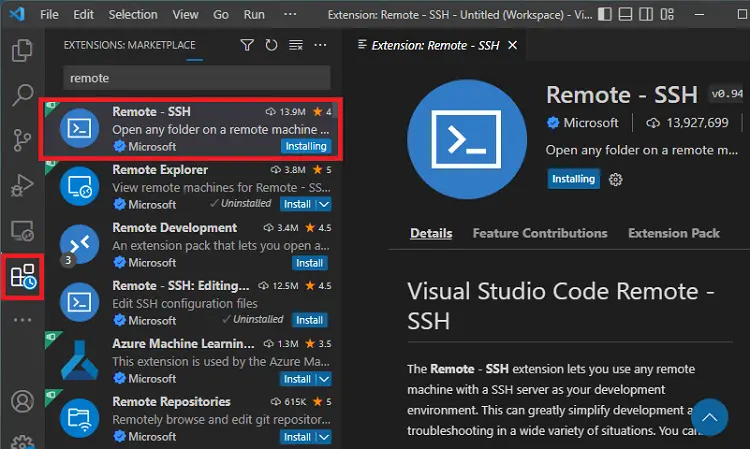
First, you need to install the Remote – SSH extension on VS Code. Click on the Extensions icon on the left sidebar, search for remote, and install the Remote – SSH extension.
Top 6
Raspberry Pi eBooks
From Zero to Professional

After installing, a new Desktop icon will show up on your sidebar. Click on that icon. Then, select Remote on the Remote Explorer field. Then, Click on the + sign to add a new remote machine.

Then, you’ll be asked to run the SSH command to establish a communication with your host.

At this point, you need to know your Raspberry pi localhost name or IP address and username. For example, in my case:
So, I need to write the following command on that field:
ssh pi@raspberrypi2Or, if I wanted to use the IP address instead:
ssh pi@192.168.1.106Then, press Enter. You’ll be asked to select an SSH configuration file where VS code will save the SSH settings for that host. You can choose the one under the Users folder.

You’ll get a message saying the host was added.

On the top left corner, click on the Refresh icon next to Remote.

The Raspberry Pi remote host will show up under the SSH menu. Then, click on the icon to connect in a new window as shown below.

This will open a new window in VS Code dedicated to that remote machine (the Raspberry Pi). You’ll be asked to enter the Raspberry Pi password.

Now, you have a remote connection established with your Raspberry Pi. Notice that the Terminal window at the bottom is connected to your Raspberry Pi. Any commands that you run on that Terminal window, will be run on the Raspberry Pi.
You can open Raspberry Pi folders on VS Code to start creating and writing files. Click on the Open Folder button to open a folder on your Raspberry Pi where you want to start creating or editing your files.

Choose a folder on your Raspberry Pi where you want to start creating your files.

I chose the Documents folder, but you can choose any other location on the Raspberry Pi. The Desktop folder might also be a convenient location. After selecting the folder, click OK.

Insert your Raspberry Pi password again.

You’ll be asked if you trust the authors of the folder. Tick the option Trust the authors of all files in the parent folder ‘pi’, and click Yes, I trust the authors to proceed.

It will open the selected folder on the left sidebar. Now, you can use the VS Code menus to create new files and/or folders under that folder. To open the Terminal window again, go to Terminal > New Terminal.

Once you’ve selected a working folder, you can create and write a new file in that folder. Hover your mouse over the “Documents” tab and click on the New File… button to create a new file. For demonstration purposes, you can create a file called test.py.

It will create and open a new Python file called test.py on the Documents folder of the Raspberry Pi filesystem. You can write to that folder using VS Code environment. You can also delete or move that folder from VS Code.

At this point, you can write your Python code on that file. For demonstration purposes, copy the following line to that file. This will simply print a message on the Terminal window when executed.
print("Hello from Raspberry Pi")
Save your file. To save your file, you can simply press Ctrl+S or Cmd+S.
Now, you have a file called test.py in your Raspberry Pi Documents folder with that line of code.
To run that file, simply call the command python followed by the name of the file in the terminal window. In this case:
python test.pyPress Enter after typing the command.
You should get “Hello from Raspberry Pi” on the Terminal window, which is what that files does (prints a message).

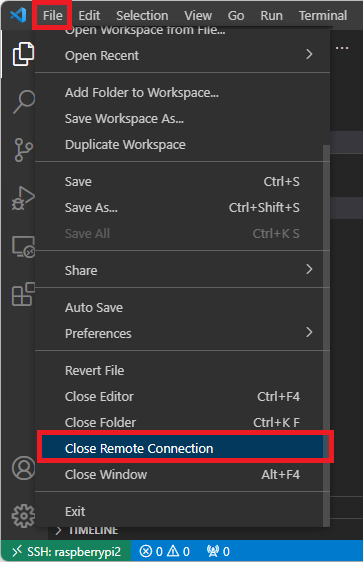
To close the remote session, go to File > Close Remote Connection.
Congratulations! Now, you know how to code on Raspberry Pi remotely using VS Code on your computer using the Remote – SSH extension.
In this tutorial, you learned a very convenient, practical, and easy way to program on your Raspberry Pi remotely via SSH using VS Code on your computer. Using the Remote – SSH extension, you can create new files and folders on the Pi, and write and execute code using the command line.
This is our favorite method to program the Raspberry Pi, because you don’t have to manually transfer the files from your computer to the Pi. Using this method, you’re already writing the code on the Pi. Additionally, the Terminal window allows you to execute commands remotely via SSH on the Pi, which is very practical for running your code.
You can check all our Raspberry Pi projects on the following link:
Thanks for reading.
🚀 Discover the world of electronics and innovation!
✨ Create, program, and experiment with all your creative ideas with ease.
🔥 Don't wait! Browse SpotPear products now and start your amazing project!
