

Wait! Don’t Go Yet! 👋
Become a Member Today and Unlock Access to All eBooks! 😍
Thousands of eBooks at your fingertips. Read, learn, and grow anytime, anywhere ✨
Become a Member Today and Unlock Access to All eBooks! 😍
Thousands of eBooks at your fingertips. Read, learn, and grow anytime, anywhere ✨
In this project, we’re going to show you how to take photos with Node-RED using the Raspberry Pi Camera Module V2.
For this project, you need the following parts:
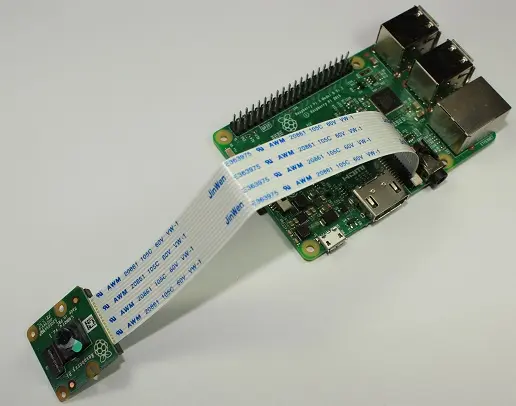
With the Pi shutdown, connect the camera to the Pi CSI port as shown in the following figure. Make sure the camera is connected in the right orientation with the ribbon blue letters facing up.
Top 6
Raspberry Pi eBooks
From Zero to Professional

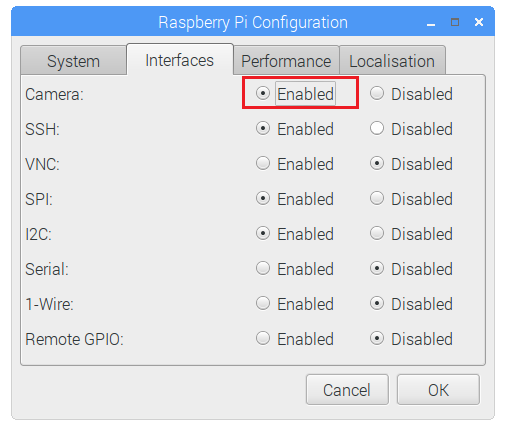
To use the Raspberry Pi Camera module, you need to enable the camera software in your Raspberry Pi. In the Desktop environment, go to the Raspberry Pi Configuration window under the Preferences menu, open the Interfaces tab, and enable the Camera as shown in the figure below.
Or, in the Terminal window, type the following command:
pi@raspberry:~ $ sudo raspi-config
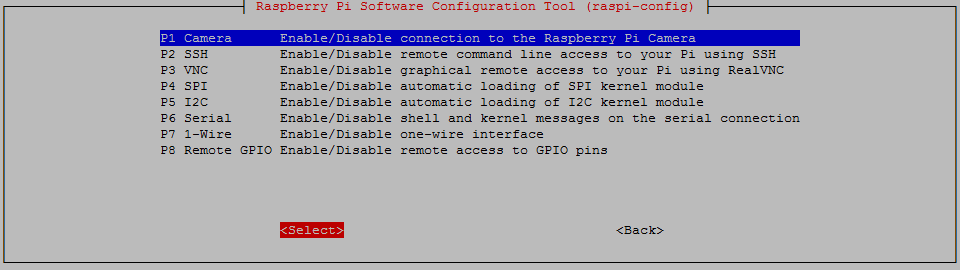
You should see the Raspberry Pi software configuration tool. Select the Interfacing Options:
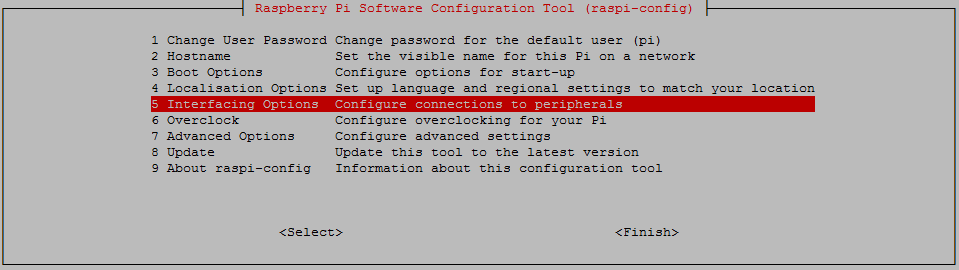
Enable the camera and reboot your Pi:
To install the Raspberry Pi Camera node on Node-RED, enter the following command:
pi@raspberry:~ $ sudo npm install -g node-red-contrib-camerapi
You need to choose a directory where the photos will be temporarily saved. For that, you need to edit the settings.js file. Try one of the following commands because your Node-RED directory installation may be different.
pi@raspberry:~ $ sudo nano /root/.node-red/settings.js
or
pi@raspberry:~ $ sudo nano ~/.node-red/settings.js
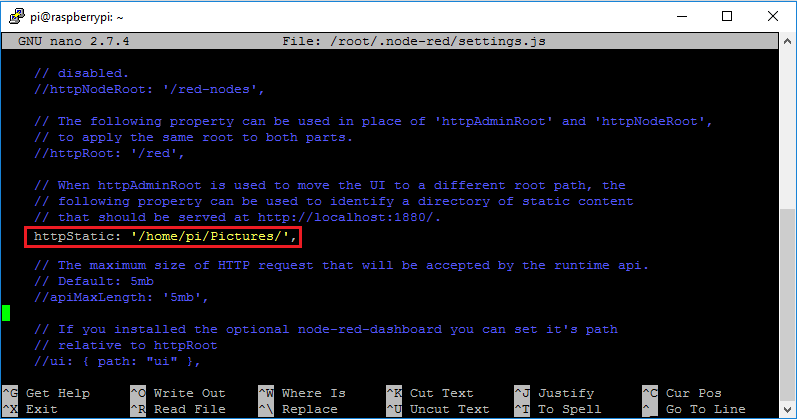
Then, scroll down the file, find the httpStatic setting, uncomment and type your desired directory to store the Raspberry Pi Camera photo. Take a look at the figure below.
httpStatic: '/home/pi/Pictures/',
When you’re done, exit and save the changes.
To start Node-RED, enter the following in the Terminal window:
pi@raspberry:~ $ sudo node-red start
To access Node-RED, open a tab in any browser on the local network and type the following:
http://Your_RPi_IP_address:1880
You should replace Your_RPi_IP_address with your Raspberry Pi IP address. If you don’t know your Raspberry Pi IP address, in the Terminal enter:
pi@raspberry:~ $ hostname -I
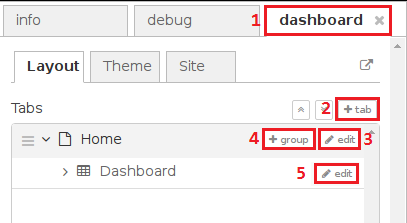
You need to create a tab and a group on Node-RED to add your dashboard widgets. Follow the next instruction to create a tab and a group (see figure below):
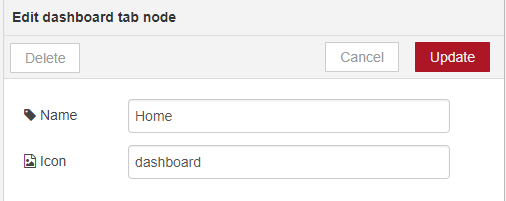
You can edit the tab’s name and change its icon:
Before creating the flow, make sure you have the camerapi takephoto node, as shown in the figure below. If you don’t have the node, check that you’ve followed the instructions above in the Installing the Raspberry Pi Camera node section.
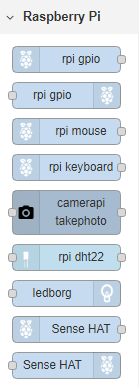
First, drag 3 nodes into the flow: template, camerapi takephoto, and debug.

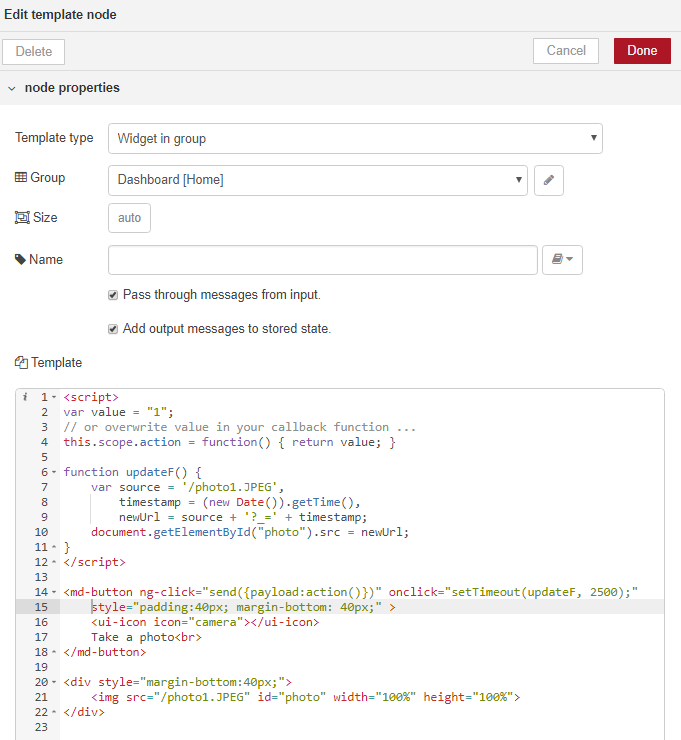
Then, edit the template node, as shown in the figure below – copy and paste the template code below the figure.
<script>
var value = "1";
// or overwrite value in your callback function ...
this.scope.action = function() { return value; }

function updateF() {
  var source = '/photo1.JPEG',
  timestamp = (new Date()).getTime(),
  newUrl = source + '?_=' + timestamp;
  document.getElementById("photo").src = newUrl;
}
</script>

<md-button ng-click="send({payload:action()})" onclick="setTimeout(updateF, 2500);" style="padding:40px; margin-bottom: 40px;" >
 <ui-icon icon="camera"></ui-icon>
 Take a photo<br>
</md-button>

<div style="margin-bottom:40px;">
 <img src="/photo1.JPEG" id="photo" width="100%" height="100%">
</div>
This JavaScript code automatically updates the Node-RED page when a new photo is taken.
Finally, edit the camerapi takephoto node with the following properties:
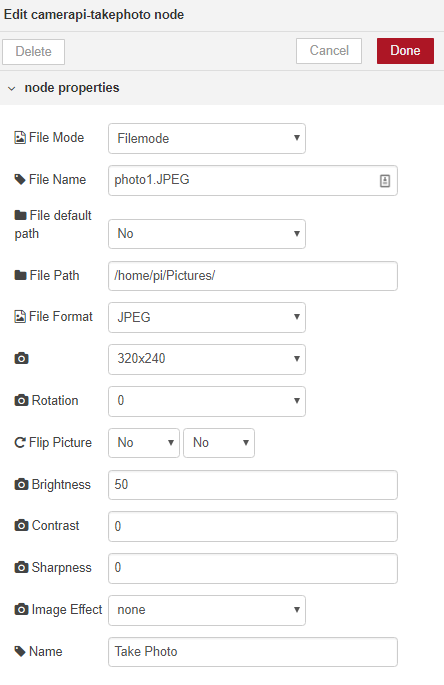
Note 1: don’t forget to add the right File Path to your node, including the last forward slash – /home/pi/Pictures/
Note 2: Every time you open the camerapi takephoto node, it will change the file default path to yes. So, make sure you select the right properties every time you open the node.
Note 3: When you take a new photo, it will be saved in your chosen directory with the name photo1.JPEG. Every time you take a new photo, Node-RED overwrites the existing photo because they have the same name.
Connect the nodes as shown in the figure below.

Lastly, press the Deploy button to save all the changes.

Your Node-RED application is ready. To access the UI, you can use any browser in your local network when you type:
http://Your_RPi_IP_address:1880/ui
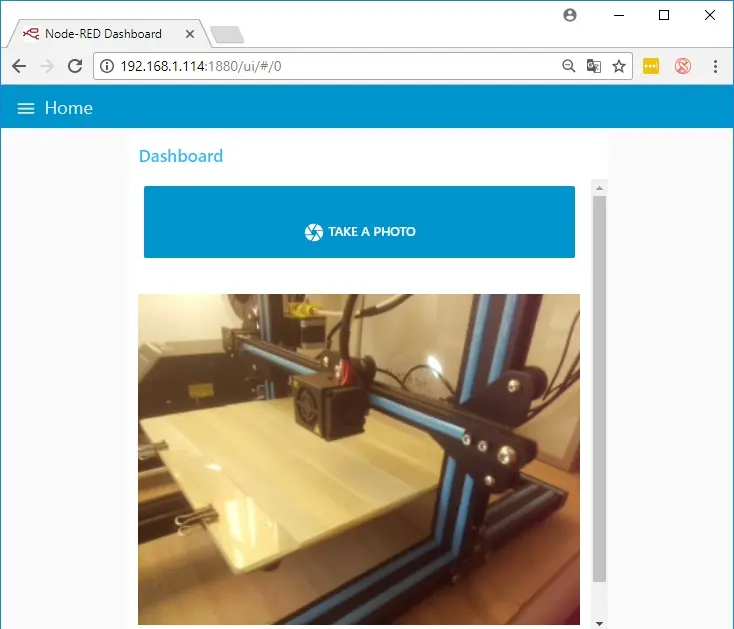
The next figure shows how the Node-RED UI looks. We’re using this application to monitor our Creality CR-10 3D printer. With this setup we can quickly check the printing status from any room by clicking the TAKE A PHOTO button.
1) If your image is not being displayed on the Node-RED UI, you can go to the following URL and see if your httpStatic path was set properly:
http://Your_RPi_IP_address:1880/photo1.JPEG
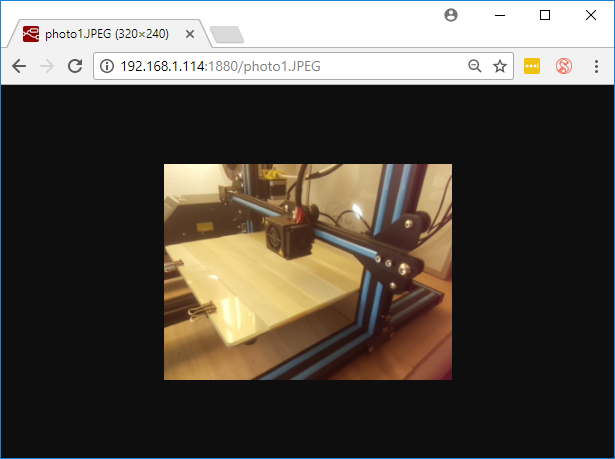
2) If the Pi Camera is not taking photos, double-check that the camera ribbon is well connected to your Pi’s CSI port. Also confirm that it’s enabled in your Pi’s raspi-config menu.
3) Open the camerapi takephoto node and ensure that it has the right file path.
Here’s a GIF image showing how the application works. When you click on the button, a new photo is automatically updated on the Node-RED UI.

In this project, we’ve shown you how you can use the Raspberry Pi Camera with Node-RED to take photos. You can edit the flow and the template to use the camera in your own projects whether you want to monitor your lab, door or 3D printer.
We hope you’ve found this post useful. Thanks for reading!
🚀 Discover the world of electronics and innovation!
✨ Create, program, and experiment with all your creative ideas with ease.
🔥 Don't wait! Browse SpotPear products now and start your amazing project!
