Book Categories:


Wait, don't go!
Become a Member Today and Unlock Access to All eBooks!
Thousands of eBooks at your fingertips. Read, learn, and grow anytime, anywhere.
Learn how to send messages to your WhatsApp account with Node-RED. This can be a great addition to your Node-RED automation system. For example, to send notifications with sensor readings, alert messages when a sensor reading is above or below a certain threshold, when motion is detected, and many other applications. To send the messages, we’ll use a free API called CallMeBot. The Free API is only for personal use.
Before proceeding, you need to have Node-RED installed. You can install Node-RED locally on your computer or on a Raspberry Pi, or on a cloud server. Check the following tutorials:
For a quick Node-RED getting started guide, take a look at the following tutorials:
“WhatsApp Messenger, or simply WhatsApp, is an internationally available American freeware, cross-platform centralized instant messaging and voice-over-IP service owned by Meta Platforms.” It allows you to send messages using your phone’s internet connection, so you can avoid SMS fees.
WhatsApp is a free messaging app available for both Android and iOS. Install WhatsApp on your smartphone if you don’t already have it.

To send messages to your WhatsApp account with Node-RED, we’ll use a free API service called the CallMeBot service. You can learn more about CallMeBot at the following link:
Basically, it works as a gateway that allows you to send a message to yourself. This can be useful to send alert messages from Node-RED.
All the information about how to send messages using the API can be found here.
Before starting to use the API, you need to get the CallmeBot WhatsApp API key. Follow the next instructions (check this link for the instructions on the official website).
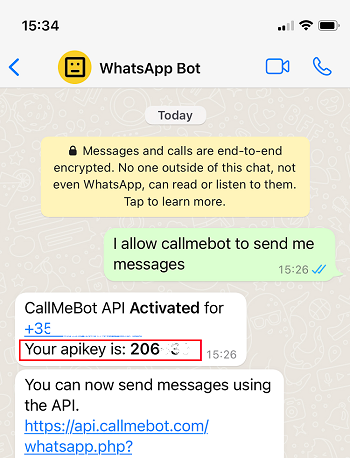
Note: If you don’t receive the API key in 2 minutes, please try again after 24 hours. The WhatsApp message from the bot will contain the API key needed to send messages using the API
There are different nodes you can install in Node-RED that make it easy to send messages to your WhatsApp account. As we’ve mentioned previously, we’ll use the nodes that use the CallmeBot service.
Go to Menu > Manage Palette > Install and search for node-red-contrib-whatsapp-cmb.
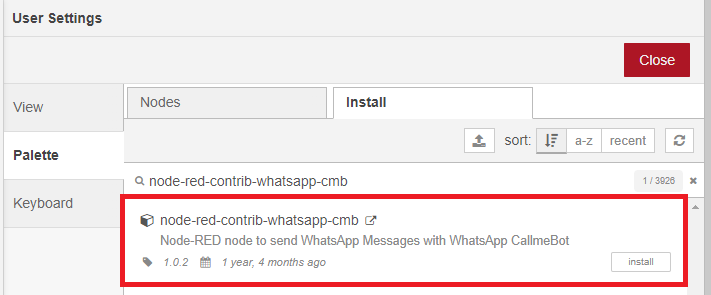
After installing, the WhatsApp node will show up on your palette.
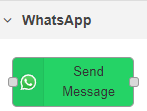
Let’s create a basic example that shows how to send messages to WhatsApp using the node you’ve just installed.
Drag a Send Message WhatsApp node, an inject node, and a debug node to the flow. Wire them as follows:

If you check the WhatsApp node documentation, it says:
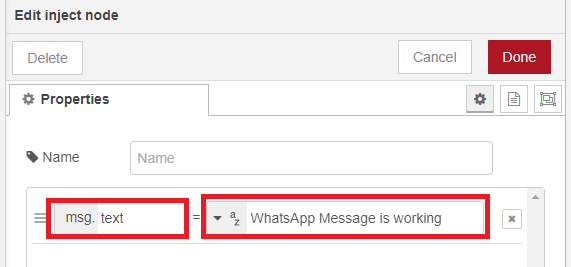
“msg.text is used as the message you want to send. It must be a String. You can use it directly or with output from another node.”
We’ll set the message we want to send in msg.text in the inject node. Double-click on the inject node and edit its properties as follows (you can write any other message).
Double-click on the Send Message node. Click on the pencil icon to add a new WhatsApp account. Give it a name, insert your phone number (in international format), and the API key you received from the bot.
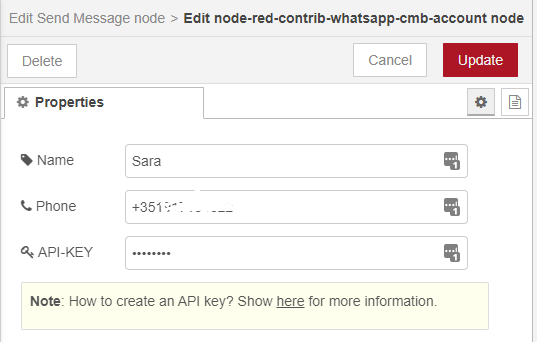
When you’re done, click on Update.
Then, change the Message field to msg.text.
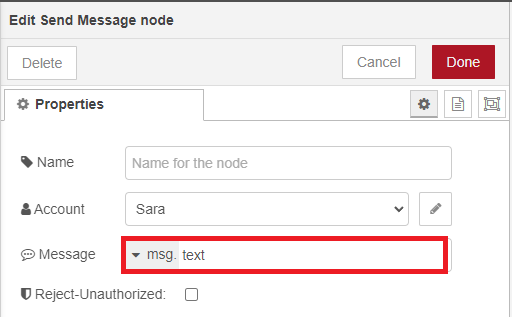
Finally, click Done.
Deploy your application.

After deploying, click on the left square on the inject node to trigger the WhatsApp sender node.

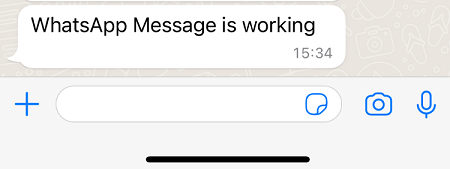
After a few seconds, you should receive a message in your WhatsApp account from the bot with the content you’ve set on the node:
That’s it! You learned an easy way to send messages to your WhatsApp using Node-RED and the callmebot API.
Now you know how to send messages to your WhatsApp account using Node-RED and the callmebot service. You can apply what you learned to your home automation system to send useful notification messages. The idea is to apply this feature in real-world scenarios.
Thanks for reading.








