Book Categories:


Wait, don't go!
Become a Member Today and Unlock Access to All eBooks!
Thousands of eBooks at your fingertips. Read, learn, and grow anytime, anywhere.
In this guide, we’ll show you how you can create complex automation schedules easily using Node-RED and the Big Timer node. The Big Timer node provides a huge range of timing facilities that will take your automation to the next level: you can control outputs based on different time conditions: hours, minutes, days of the week, months, include/exclude specific days or months, based on sunset and sunrise time, and much more.

Before proceeding, you need to have Node-RED installed. You can install Node-RED locally on your computer or on a Raspberry Pi, or on a cloud server. Check one of the following tutorials to install Node-RED:
The Big Timer node for Node-RED provides a huge range of timing facilities that will take your automation to the next level. For example, you don’t want your outside lights to turn on at 6 PM, you want to turn them on when it gets dark. The Big Timer node can use your latitude and longitude to estimate sunset and sunrise times and turn on/off the light accordingly.
The Big Timer Node created by Peter Scargill is a powerful and easy-to-use timing node for Node-RED. We recommend taking a look at the Big Timer page on Peter Scargill’s blog: Big Timer page.

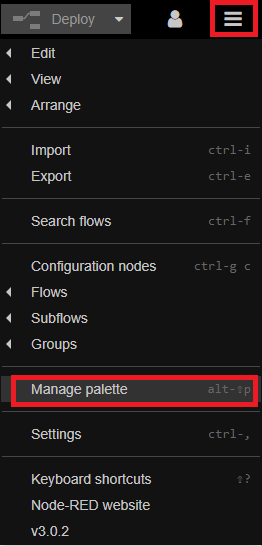
To install the Big Timer node, go to the main menu in the top right corner and click on Manage Palette.
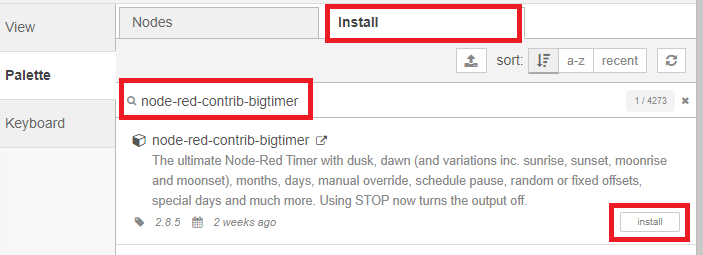
Then, click on the Install tab and search for node-red-contrib-bigtimer. Install that node.
Now, the Big Timer node can be accessed on your palette at the left sidebar under the advanced section.
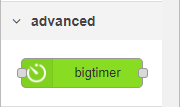
Drag the bigtimer node to the flow. You’ll notice it comes with an input and three outputs.
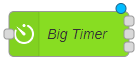
The documentation clearly explains what each output consists of.
“BigTimer has 3 outputs, the first of which triggers when there is a change of state and presents one of two messages (for, for example, MQTT or other control mechanism), the second output has a topic of “status” and contains a simple 1 or 0 every minute in the payload and also has additional outputs reflecting the status message in msg.state and message time and others. The third output presents a message which could be used for speech or debugging.”
The input can be used to override the schedule properties. You can check the valid input commands on the documentation page.
Double-click on the Big Timer node to explore its properties.
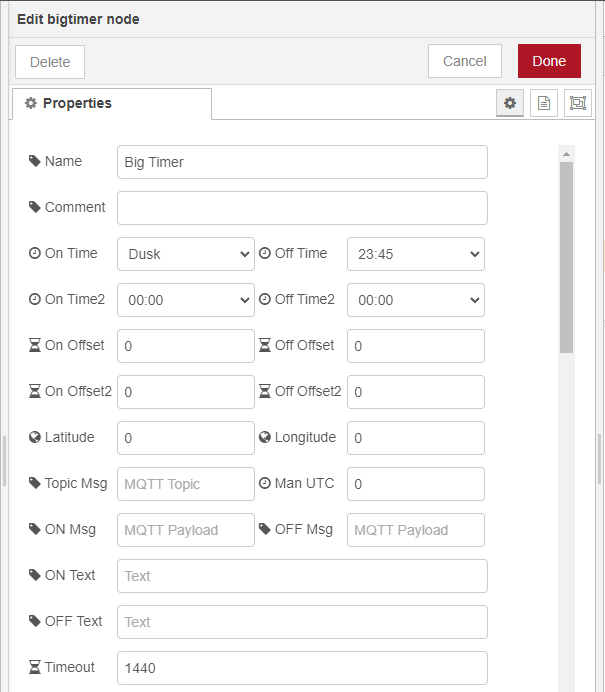
Big Timer allows you to set up complex schedules easily based on multiple conditions. For example, you have the option to set two On Time schedules and two Off Time schedules. You can select specific hours, or you can select: day end, dawn, dusk, solarnoon, sunrise, sunset, night, night end, moonrise, and moonset.
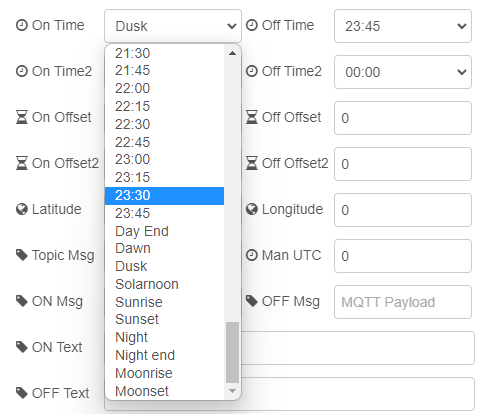
You can adjust the time using the Offset fields to set a trigger, for example, 15 minutes before sunrise.
The first output of the big timer can be a message for an MQTT node or for any other purpose. If you’ll output the message for an MQTT node, you can fill the MQTT topic and On Msg and Off Msg fields.
For precise sunrise, sunset, etc, you should include your latitude and longitude location.
There’s also the option to include up to 12 special days of the year (for example, Christmas), and up to 6 special weekdays of the month.
Similarly, you can exclude special days of the year and/or exclude special weekdays of the month.
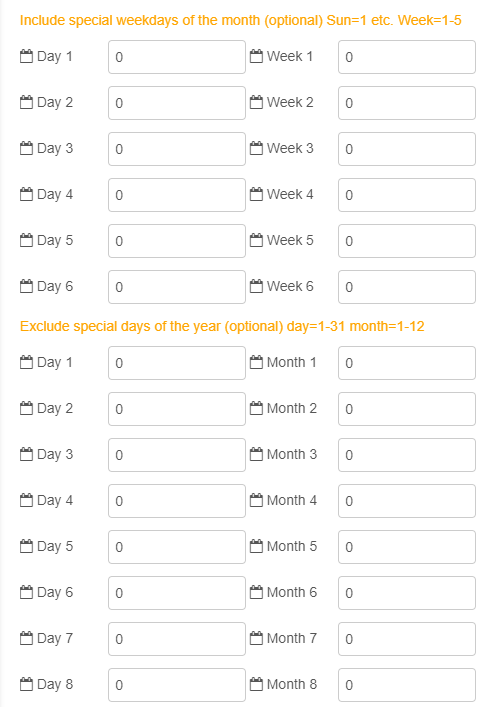
Finally, you also have all these other options to include/exclude specific months or days of the week, exclude even or odd days, etc.
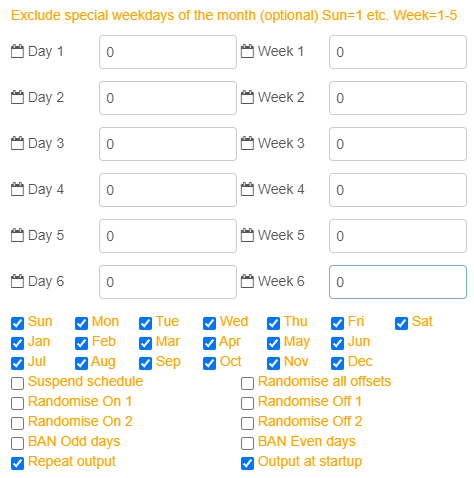
As you can see, there are plenty of options to set up customized and complex schedules easily.
Let’s quickly test the Big Timer node on Node-RED to give you an idea of how it works.
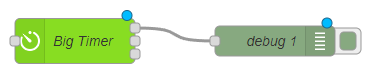
Drag a Big Timer node and a debug node to the flow. Wire the Big Timer first output to the debug node input.
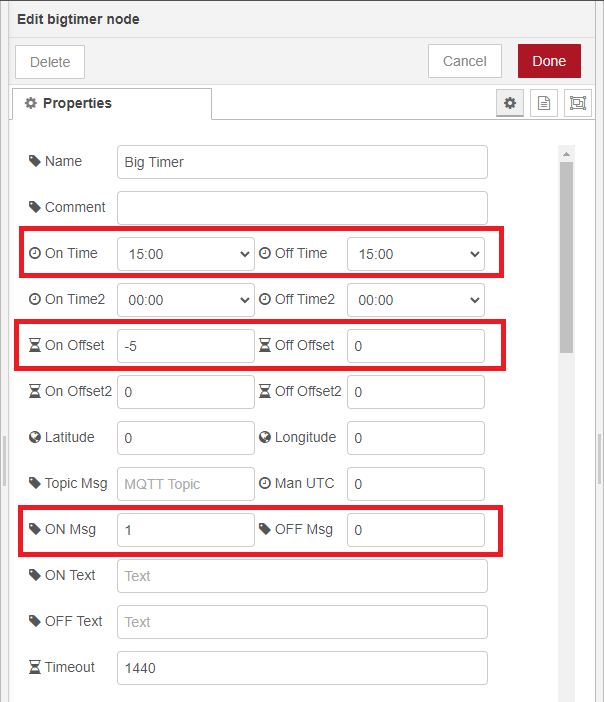
Double-click on the Big Timer Node. Set up an On Time and an Off Time closer to the current time so that you can quickly test it. Define a message that must be sent to the output when it reaches the on time (ON Msg) and another for when it reaches the off time (OFF Msg). We’re setting the messages to 1 and 0, respectively.
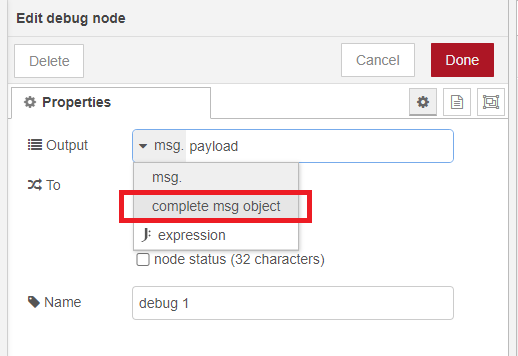
Double-click on the debug node and set the Output to complete msg object so that we can see the complete output of the Big Timer node.
When you’re ready, Deploy your application.

Notice that there’s a message under the Big Timer node indicating how much time it will be on or off.

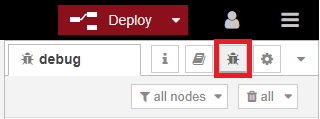
Open the Debug window by clicking on the bug icon at the top right corner.
If you have the Repeat output box ticket on the Big Timer properties (which should be by default), you’ll get the complete output of the Big Timer node on the debug window every minute. Notice that it changes the payload message at the time you specified.
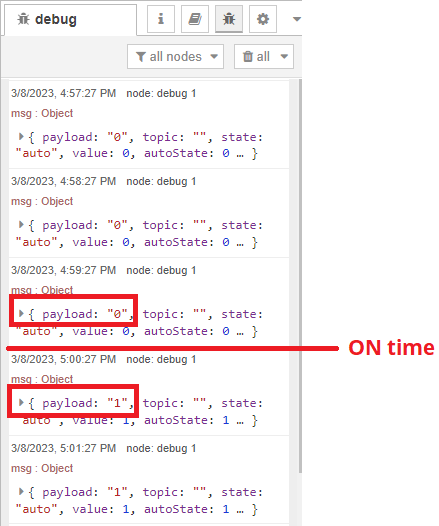
As you can see, with the Big Timer node, we can output different messages for the ON and for the OFF time. Then, you can use that output message to control any device, flow, system, or event that you want.
This was just a simple example showing you how to use the Big Timer node on Node-RED to automate events based on time. There are many more features you can use. You can also use the input of the node to override the current on/off state, enable manual/auto mode, and stop the schedule.
Thanks for reading.








