

Wait! Don’t Go Yet! 👋
Become a Member Today and Unlock Access to All eBooks! 😍
Thousands of eBooks at your fingertips. Read, learn, and grow anytime, anywhere ✨
Become a Member Today and Unlock Access to All eBooks! 😍
Thousands of eBooks at your fingertips. Read, learn, and grow anytime, anywhere ✨
This is a quick guide showing how to install OpenCV (Open Computer Vision Library) software on a Raspberry Pi board. We tested this installation on Raspberry Pi OS 64-bit. OpenCV is an open-source library for computer vision and machine learning that comes with tools and algorithms for image processing, video analysis, and machine learning applications.
There are many ways to install OpenCV on Raspberry Pi; you can install it with pip on a virtual environment, install it using apt install, or compile the software from source. In this guide, we’ll show you two options:
a) Installing OpenCV on Raspberry Pi with pip on Virtual Environment (Recommended)
b) Installing OpenCV on Raspberry Pi with apt
Before proceeding:
Having an SSH connection established with your Raspberry Pi, update and upgrade your Raspberry Pi if any updates are available. Run the following command:
sudo apt update && sudo apt upgrade -yRun the next command, which should print in your terminal a Python version 3.X:
Top 6
Raspberry Pi eBooks
From Zero to Professional

python --versionInstall pip3 and Python 3 Virtual environment:
sudo apt install -y python3-pip python3-virtualenvWe’ll install the OpenCV library in a virtual environment. Creating a virtual environment will isolate the Python libraries we’re using, in this case, the OpenCV library, from the rest of the system.
We’ll create our virtual environment in a directory on our Desktop. Enter the following command in a Terminal window to move to the Desktop:
cd ~/DesktopCreate a folder for your project. This is where we’ll create the virtual environment and install the library. We’ll create a folder called projects.
mkdir projectsMove to the newly created folder:
cd ~/Desktop/projectsCreate a virtual environment for this directory called myenv. This must be the same directory where we’ll install the OpenCV library. Replace myenv with the desired name for your virtual environment.
python3 -m venv projectsenvThen, you can run the following command to check that the virtual environment is there.
ls -l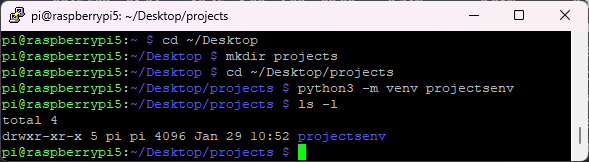
Activate the virtual environment:
source projectsenv/bin/activateYour prompt should change to indicate that you are now in the virtual environment.

Now that we are in our virtual environment, we can install the OpenCV library. Run the following command:
pip3 install opencv-contrib-pythonAfter a few seconds, the library will be installed (ignore any yellow warnings about deprecated packages).
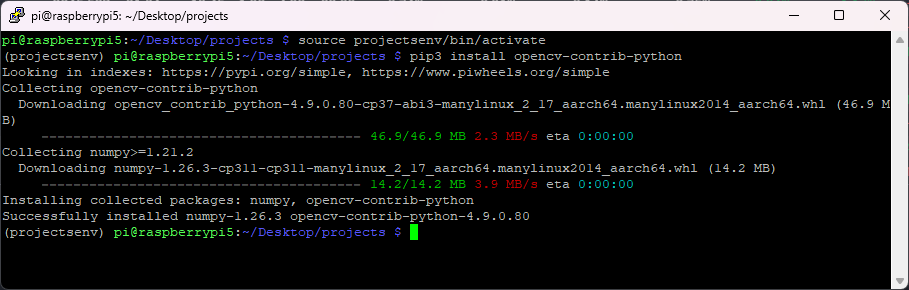
You have everything ready to start writing your Python code.
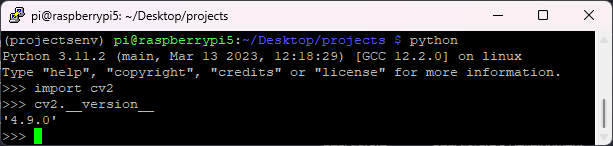
Now, let’s ensure that OpenCV has been installed successfully on your Virtual Environment. In your terminal window, start Python:
pythonThen, in Python, import the OpenCV library.
import cv2Finally, type the next command to check the OpenCV version that you installed.
cv2.__version__If everything has been done properly, it should return your OpenCV version as illustrated in the image below.
You can exit the Python prompt by typing:
exit()Having an SSH connection established with your Raspberry Pi, enter the next command to update and upgrade your packages:
sudo apt update && sudo apt upgrade -yRun the next command, which should print in your terminal a Python version 3.X:
python --version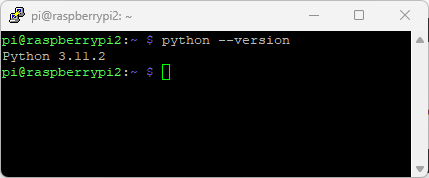
Then, run the next command to install all the required dependencies.
sudo apt install -y build-essential cmake pkg-config libjpeg-dev libtiff5-dev libpng-dev libavcodec-dev libavformat-dev libswscale-dev libv4l-dev libxvidcore-dev libx264-dev libfontconfig1-dev libcairo2-dev libgdk-pixbuf2.0-dev libpango1.0-dev libgtk2.0-dev libgtk-3-dev libatlas-base-dev gfortran libhdf5-dev libhdf5-serial-dev libhdf5-103 libqt5gui5 libqt5webkit5 libqt5test5 python3-pyqt5 python3-devInstall OpenCV using apt install:
sudo apt install -y python3-opencvThis command can take up to 10 minutes, so be patient and wait for the command to complete.
Now, let’s ensure that OpenCV has been installed successfully. In your terminal window, start Python:
pythonThen, in Python, import the OpenCV library.
import cv2Finally, type the next command to check the OpenCV version that you installed.
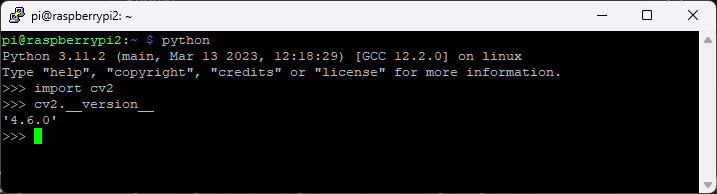
cv2.__version__If everything has been done properly, it should return your OpenCV version as illustrated in the image below.
You can exit the Python prompt by typing:
exit()Congratulations! You successfully installed OpenCV on your Raspberry Pi. Now, you can start building your image and video processing projects.
You may also like reading:
🚀 Discover the world of electronics and innovation!
✨ Create, program, and experiment with all your creative ideas with ease.
🔥 Don't wait! Browse SpotPear products now and start your amazing project!
