

Wait! Don’t Go Yet! 👋
Become a Member Today and Unlock Access to All eBooks! 😍
Thousands of eBooks at your fingertips. Read, learn, and grow anytime, anywhere ✨
Become a Member Today and Unlock Access to All eBooks! 😍
Thousands of eBooks at your fingertips. Read, learn, and grow anytime, anywhere ✨
This guide shows how to install InfluxDB 2 on Raspberry Pi. InfluxDB is an open-source time-series database (TSDB). So, it is ideal to store sensor data with timestamps over a determined period of time.
In previous tutorials, we showed you how to use InfluxDB Cloud and send data from the ESP32 and ESP8266. The InfluxDB free cloud plan has some limitations that might not be suitable for your projects, like the maximum 30-day data retention. If you want to have full control over your data, you can install InfluxDB on a local computer, like your Raspberry Pi.
The amount of data you can save will be limited to the storage of your Raspberry Pi, so make sure you use a microSD card with an appropriate storage size.
InfluxDB 2 is only compatible with 64-bit architectures. So, you must be running Raspberry Pi OS (64-bit) or any other 64-bit OS (like Ubuntu, for example) to successfully install InfluxDB 2. Raspberry Pi OS (64-bit) is only compatible with Raspberry Pi 3 and 4.
Follow the next steps to install Raspberry Pi OS (64-bit).
1) Start by connecting the microSD card to your computer.
2) Go to the Raspberry Pi Software page.
Top 6
Raspberry Pi eBooks
From Zero to Professional

3) Select and download the Raspberry Pi Imager (a tool to flash the OS on the microSD card) for your computer’s operating system.
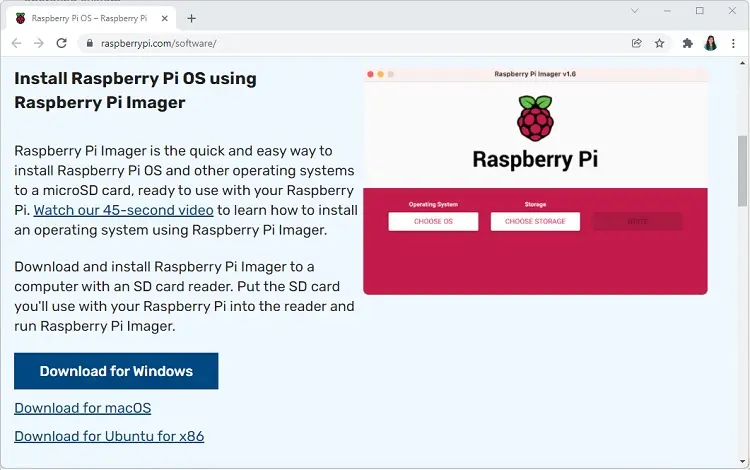
4) Click on the downloaded file to install the Raspberry Pi Imager.
5) When the installation is complete, the Raspberry Pi Imager will open.
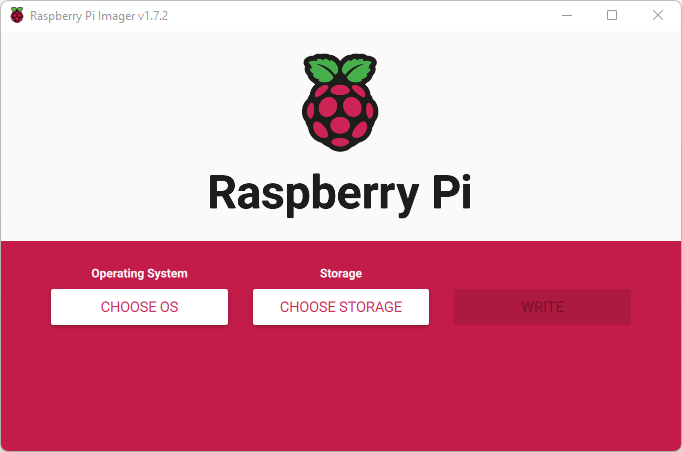
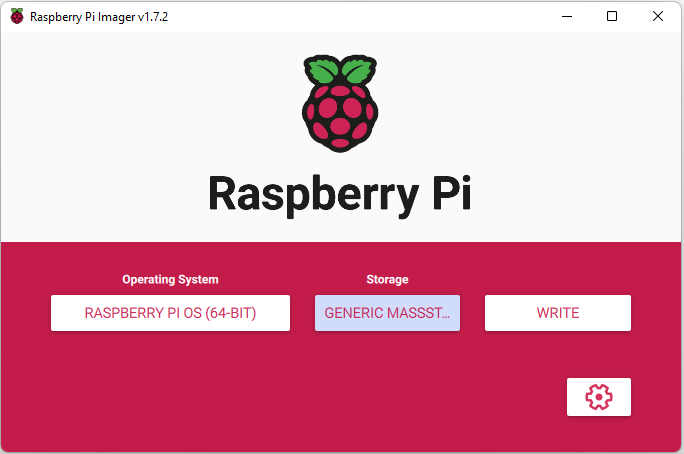
6) Click on Choose OS to select the Operating System. Select the Raspberry Pi OS (other) and then select Raspberry Pi OS (64-bit).

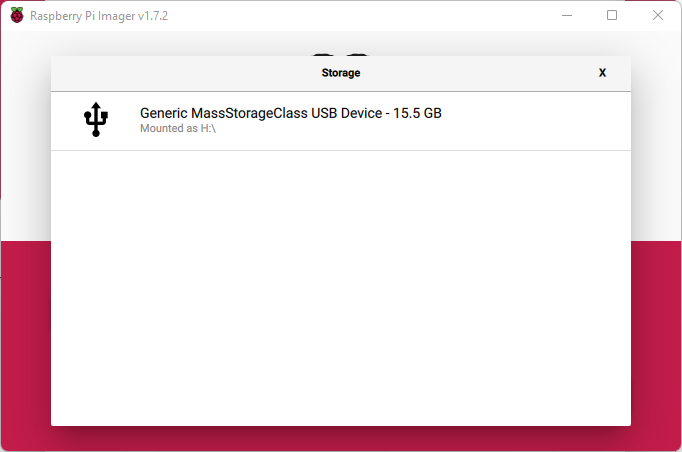
7) Choose storage. You must choose the microSD card where you want to install the OS.
8) The Raspberry Pi Imager allows you to access advanced settings to configure hostname, SSH, and Wi-Fi, among others—click on the gear icon to open advanced settings. If your window doesn’t show the gear icon, press Ctrl–Shift–X to open the advanced setting window.
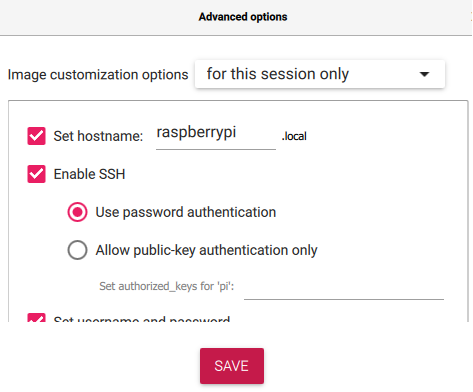
9) You can set hostname (the default will be raspberrypi), enable SSH, and set a password for SSH connection.
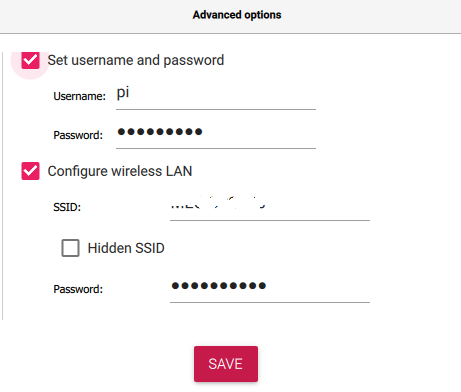
10) Additionally, set up Wi-Fi with your local network credentials so that you can connect to your Raspberry Pi using Wi-Fi later on.
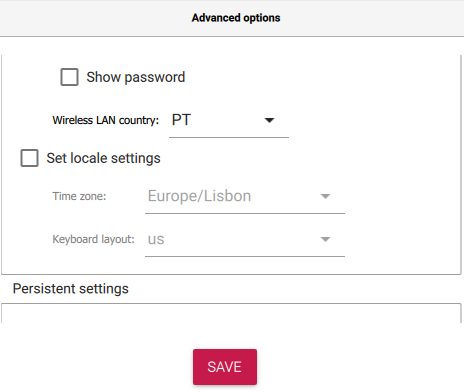
11) Set up your country and time zone. Finally, click Save.
12) After selecting the operating system, storage, and advanced settings, click on write to start installing the operating system on the microSD card.
13) Wait a few seconds while it installs the Operating System.
14) When the installation is complete, click on Continue. It will eject the microSD card safely.
15) Now, remove the card from your computer and insert it into your Raspberry Pi. Then, apply power to the Raspberry Pi to start it.
We’ll use SSH to communicate with the Raspberry Pi. If you’re using Windows, you can use software like PuTTY. If you’re using Linux or Mac OS, you can use the Terminal.
If you don’t know how to establish an SSH connection with your Pi, check these instructions.
With an SSH connection established with your Raspberry Pi, run the following command (copy the complete command with CTRL-C and then paste it into the Terminal window with a right-click on the mouse).
wget -q https://repos.influxdata.com/influxdata-archive_compat.key
echo '393e8779c89ac8d958f81f942f9ad7fb82a25e133faddaf92e15b16e6ac9ce4c influxdata-archive_compat.key' | sha256sum -c && cat influxdata-archive_compat.key | gpg --dearmor | sudo tee /etc/apt/trusted.gpg.d/influxdata-archive_compat.gpg > /dev/null
echo 'deb [signed-by=/etc/apt/trusted.gpg.d/influxdata-archive_compat.gpg] https://repos.influxdata.com/debian stable main' | sudo tee /etc/apt/sources.list.d/influxdata.list

sudo apt-get update && sudo apt-get install influxdb2
Issues with the installation? Check this page for the official instructions. Make sure you select the platforms Ubuntu & Debian.
At some time, it will ask you to install additional packages. Press Y and hit Enter to accept. After installing, the Terminal window should look as follows:
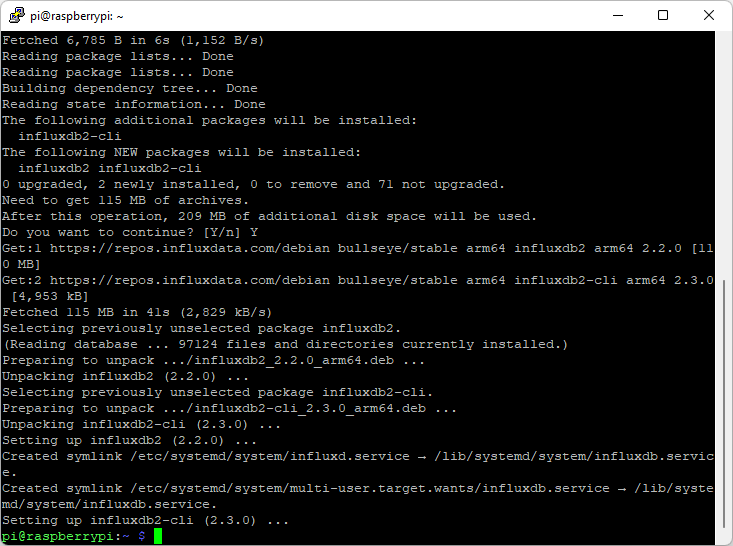
Type the following command to start InfluxDB as a background service on startup.
sudo service influxdb startRun the following command to verify that InfluxDB is running as expected.
sudo service influxdb statusYou should get something as follows:
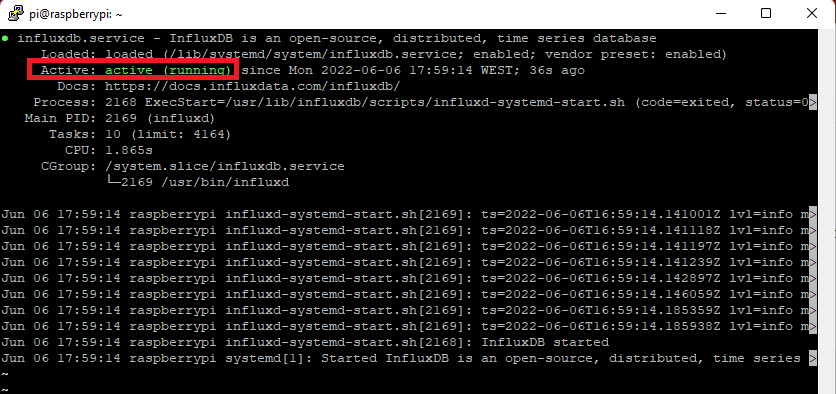
This means that InfluxDB is successfully running as a service.
Note: You may also want to check the official installation instructions here or here.
Now, you can access InfluxDB on your Raspberry Pi IP address, port 8086. My Raspberry Pi IP address is 192.168.1.106, so to access InfluxDB, I just need to type the following in my web browser:
192.168.1.106:8086To get your Raspberry Pi IP address, you can run the following command:
hostname -IWhen you first access InfluxDB, you’ll see the following screen. Click on Get Started.
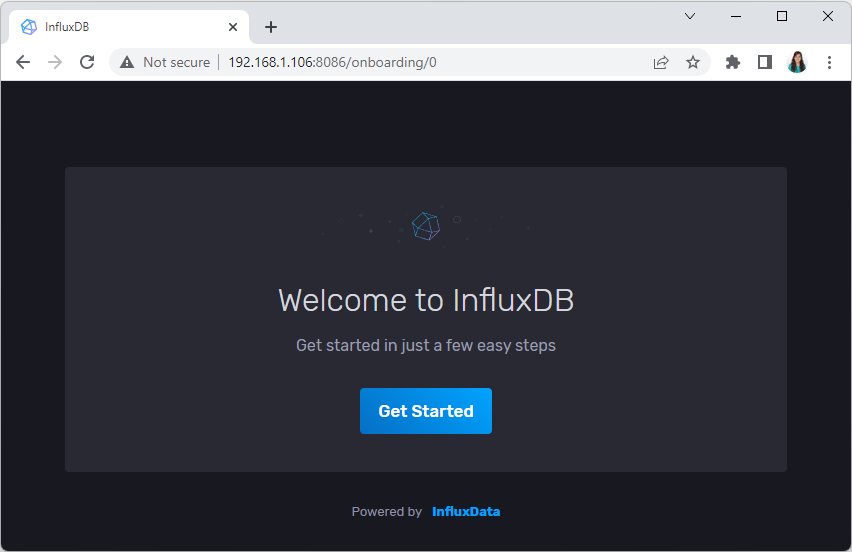
You’ll need to set up an initial user. Fill in the form details; you can use whatever names you want. You need to remember the username and password so that you can access InfluxDB data later on.
Then, click on Continue to proceed.
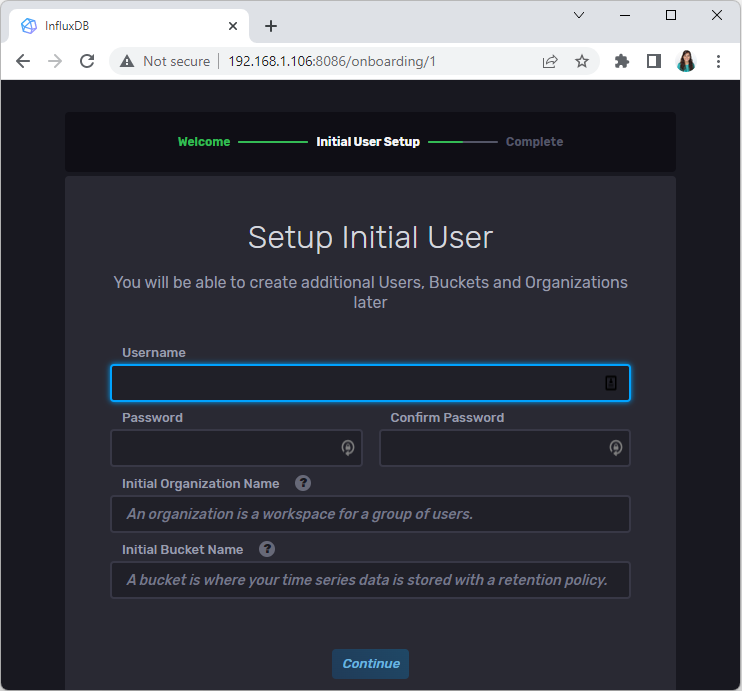
Make sure you copy your operator API token before proceeding. You won’t be able to see it again.
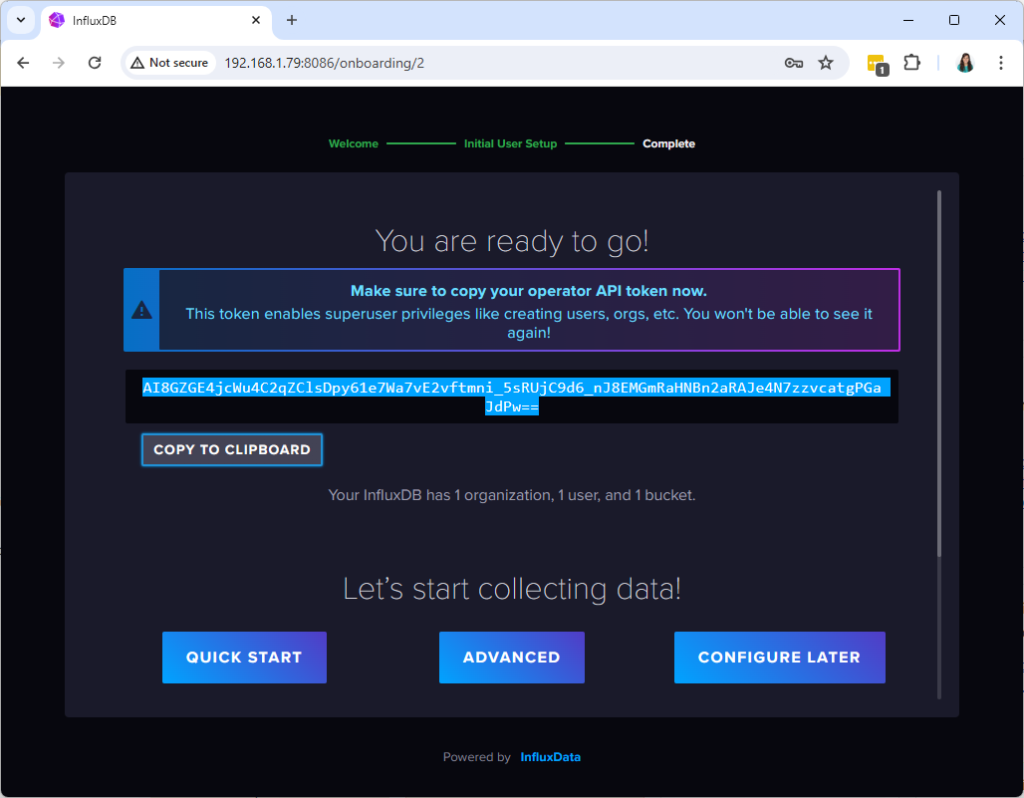
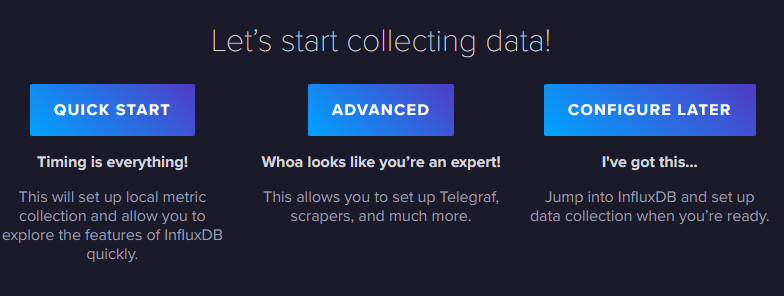
Then, you can click on Quick Start.
You’ll be redirected to the Getting Started screen.
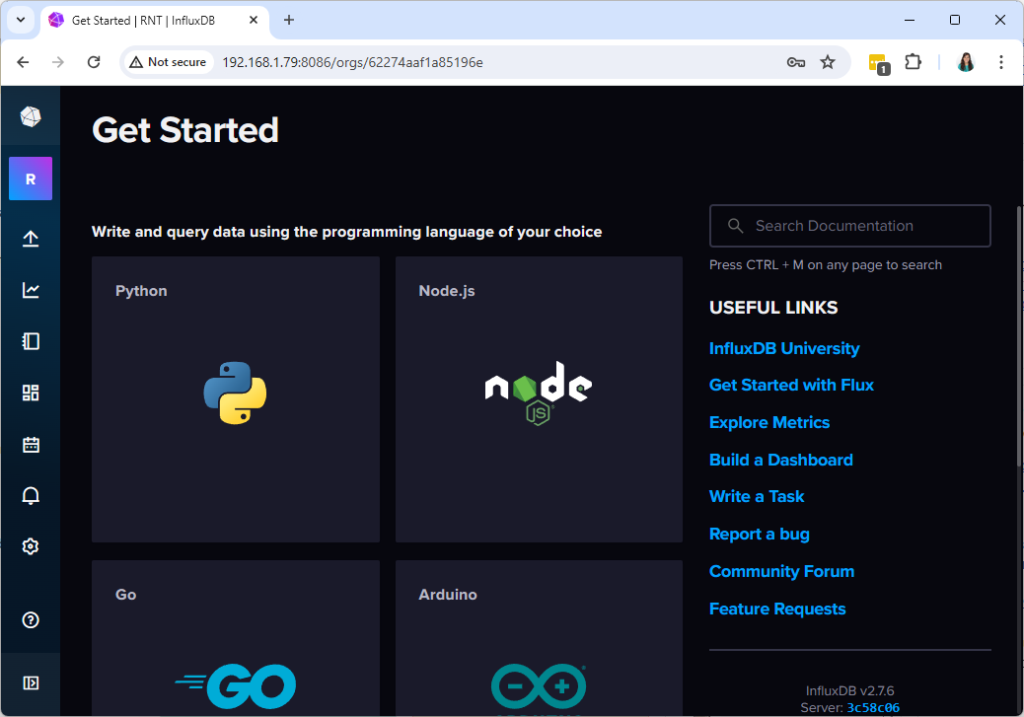
Congratulations! You’ve successfully installed InfluxDB on your Raspberry Pi and set up an initial user, organization, and bucket.
You are now ready to load data to InfluxDB.
Thanks for reading.
🚀 Discover the world of electronics and innovation!
✨ Create, program, and experiment with all your creative ideas with ease.
🔥 Don't wait! Browse SpotPear products now and start your amazing project!
