

Wait! Don’t Go Yet! 👋
Become a Member Today and Unlock Access to All eBooks! 😍
Thousands of eBooks at your fingertips. Read, learn, and grow anytime, anywhere ✨
Become a Member Today and Unlock Access to All eBooks! 😍
Thousands of eBooks at your fingertips. Read, learn, and grow anytime, anywhere ✨

This is a quick guide to installing the ESP8266 board in Arduino IDE in less than 1 minute on a Windows PC, Mac OS X, or Linux computer.
An add-on for the Arduino IDE created by the ESP8266 community allows you to program the ESP8266 using the Arduino IDE and its programming language.
Whether you're using Windows, Mac OS X, or Linux, this tutorial shows how to install the ESP8266 board in the Arduino IDE.
Make sure you have the latest version of the Arduino IDE installed on your computer before you start this installation process. If not, uninstall it and then reinstall it. It may not work otherwise.
Continue with this tutorial after installing the latest Arduino IDE at arduino.cc/en/Main/Software.
You need an ESP8266 board, right? You can buy it right here.
To install the ESP8266 board in your Arduino IDE, follow these next instructions:
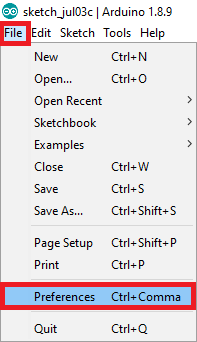
1- In your Arduino IDE, go to File> Preferences.
2- The “Additional Boards Manager URLs” field should be filled up with http://arduino.esp8266.com/stable/package_esp8266com_index.json, as shown in the figure below. After that, click “OK“.
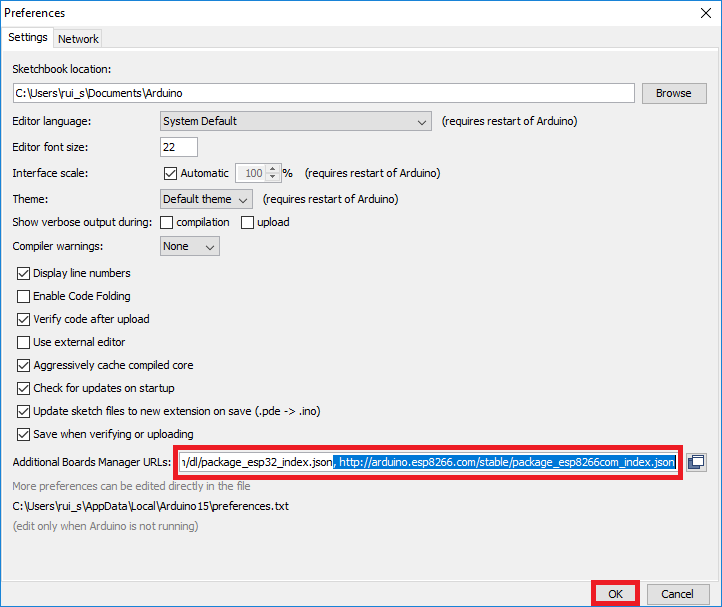
Note: If you already know the ESP32 board URL, do as follows to comma-separate the URLs:
https://dl.espressif.com/dl/package_esp32_index.json, http://arduino.esp8266.com/stable/package_esp8266com_index.json3- Open the Boards Manager. Go to Tools > Board > Boards Manager…

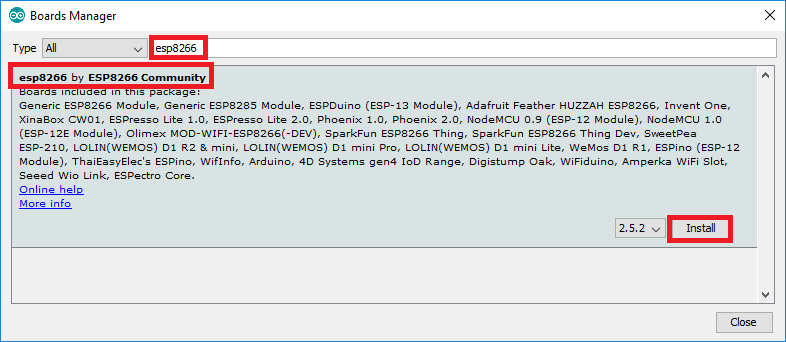
4- Search for ESP8266 and press the install button for “ESP8266 by ESP8266 Community“:
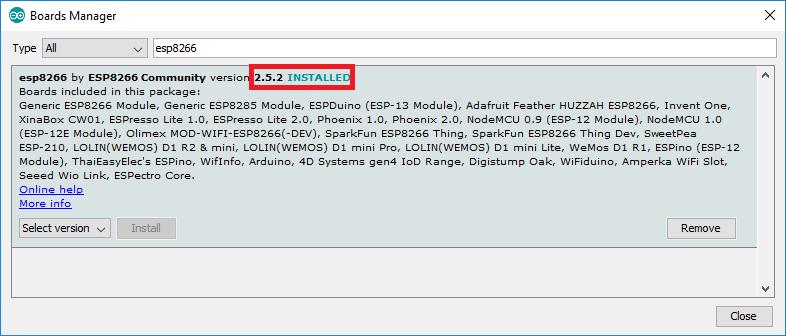
5- That’s it. It should be installed after a few seconds.
Let's test the ESP8266 add-on installation by using the Arduino programming language to see if we can get the ESP8266 to blink an LED.
Here’s the hardware that you need to complete this project:
You also need an FTDI programmer to upload code if you're using the ESP8266-01.
You can use the preceding links to find all the parts for your projects at the best price!
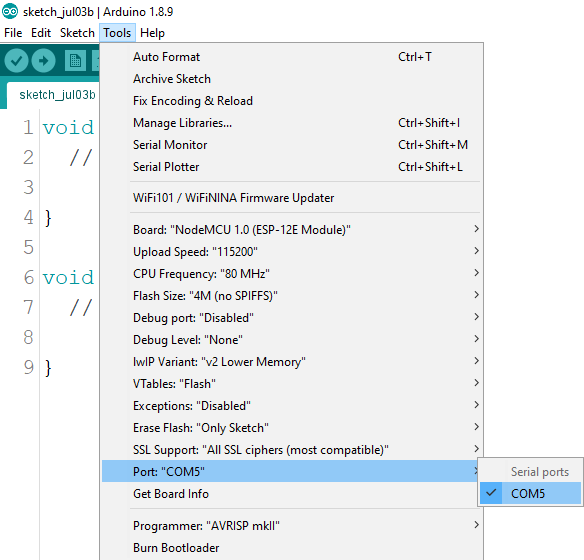
Using an ESP-12E NodeMCU Kit, uploading the sketch is fairly simple since it includes a built-in programmer. Connect your board to the computer. Ensure that you select the right board.

You also need to select the Port:
Then, copy the code provided:
/*********
  BokFive
  Complete project details at https://ebokify.com
*********/

int pin = 2;

void setup() {
  // initialize GPIO 2 as an output.
  pinMode(pin, OUTPUT);
}

// the loop function runs over and over again forever
void loop() {
  digitalWrite(pin, HIGH);   // turn the LED on (HIGH is the voltage level)
  delay(1000);               // wait for a second
  digitalWrite(pin, LOW);    // turn the LED off by making the voltage LOW
  delay(1000);               // wait for a second
}
Wait a few seconds until you see the message “Done uploading“. in the bottom left corner after clicking the “Upload” button in the Arduino IDE.

As shown in the schematic diagram below, uploading code to the ESP-01 serial communication program requires establishing serial communication between your ESP8266 and an FTDI programmer.
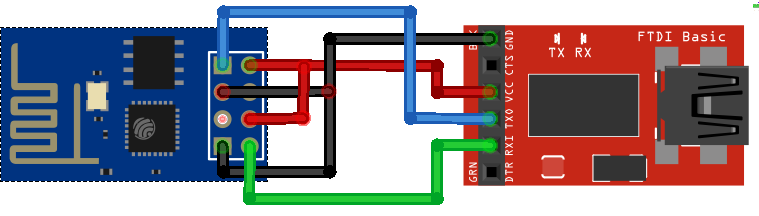
The following table shows the connections between the ESP8266 and the FTDI programmer that you will need to make.
| ESP8266 | FTDI programmer |
| RX | TX |
| TX | RX |
| CH_PD | 3.3V |
| GPIO 0 | GND |
| VCC | 3.3V |
| GND | GND |
Visit this website for the official drivers: http://www.ftdichip.com/Drivers/VCP.htm if you have a brand-new FTDI Programmer and need to install your FTDI drivers on a Windows PC.
You just need to connect the FTDI programmer to your computer and upload the sketch to your ESP8266 board. After a few seconds, you should see the “Done Uploading” message.
Connect an LED to your ESP8266, as shown in the following schematic diagram. GPIO 2 (D4) should be connected to the LED.

If you’re using the ESP8266-01, assemble the following circuit:

If everything went well, your LED should be blinking every 1 second.
If you try to upload a new sketch to your ESP8266 and you get this error message: “esptool.FatalError: Failed to connect to ESP8266: Timed out waiting for packet header”. It means that your ESP8266 is not in flashing or uploading mode.

Follow these steps after selecting the right board name and COM port:

The new sketch should be running on your ESP8266. To restart the ESP8266 and run the newly uploaded sketch, press the “ENABLE/RESET” button.
If you like ESP8266, you may also like:
We hope you find this tutorial useful. Thanks for reading
🚀 Discover the world of electronics and innovation!
✨ Create, program, and experiment with all your creative ideas with ease.
🔥 Don't wait! Browse SpotPear products now and start your amazing project!
