

Wait! Don’t Go Yet! 👋
Become a Member Today and Unlock Access to All eBooks! 😍
Thousands of eBooks at your fingertips. Read, learn, and grow anytime, anywhere ✨
Become a Member Today and Unlock Access to All eBooks! 😍
Thousands of eBooks at your fingertips. Read, learn, and grow anytime, anywhere ✨

The Arduino IDE has an add-on that enables you to program the ESP32 using the Arduino IDE and its programming language. In this article, we'll show you how to install the ESP32 board in the Arduino IDE in less than 1 minute, whether you're using Windows, Mac OS X, or Linux.
You need to have the Arduino IDE installed on your PC before starting this installation method. You may install two versions of the Arduino IDE: version 1 and version 2.
You can download and install Arduino IDE by clicking on the following link: arduino.cc/en/Main/Software
Which version of the Arduino IDE do we recommend? At present, several ESP32 plugins (such as the SPIFFS Filesystem Uploader Plugin) are not supported on Arduino 2. As a result, if you plan on using the SPIFFS plugin in the future, we recommend downloading the legacy version 1.8.X. You only need to scroll down the Arduino software page to find it.
If you want to use Arduino 2, you can do so by following this tutorial:
If you need to install the SPIFFS plugin later, you may do so by installing Arduino 1.8.X and having both versions installed on your PC.
Do you need an ESP32 board? You can buy it here.
Top 6
ESP32 eBooks
From Zero to Professional

Follow these next steps to install the ESP32 board in your Arduino IDE:
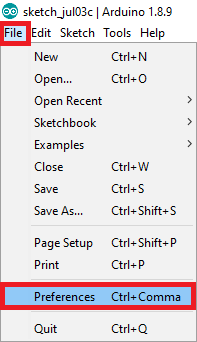
1- In your Arduino IDE, go to File> Preferences.
2- Enter the following into the “Additional Board Manager URLs” field:
https://raw.githubusercontent.com/espressif/arduino-esp32/gh-pages/package_esp32_index.jsonThen, click the “OK” button:
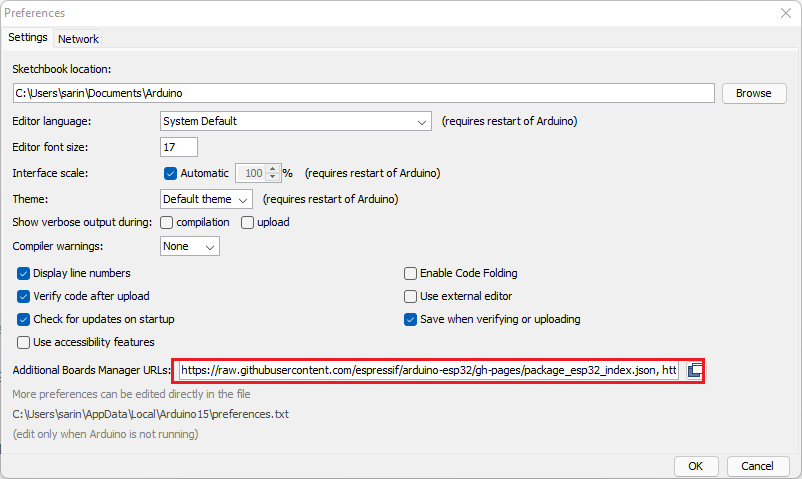
Note: If you already know the ESP8266 board URL, you may use a comma to separate the URLs as follows:
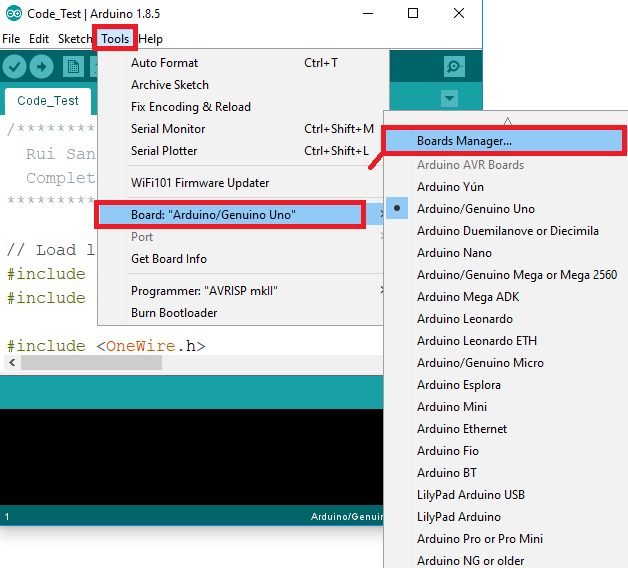
https://raw.githubusercontent.com/espressif/arduino-esp32/gh-pages/package_esp32_index.json, http://arduino.esp8266.com/stable/package_esp8266com_index.json3- Open the Boards Manager. Go to Tools > Board > Boards Manager…
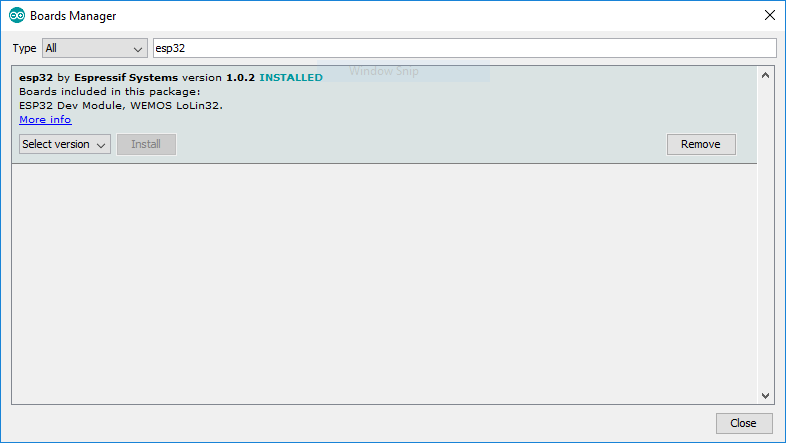
4- Search for ESP32 and press the install button for “ESP32 by Espressif Systems“:
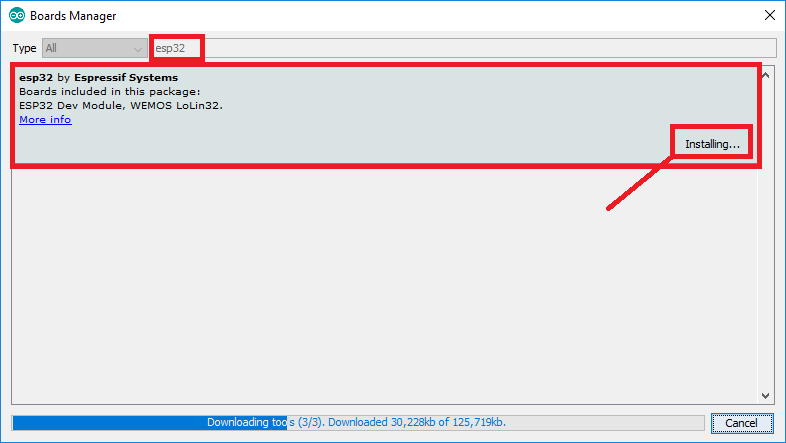
5- That’s it. It should be installed after a few seconds.
Top 6
Arduino eBooks
From Zero to Professional

Connect the ESP32 board to your PC. With your Arduino IDE open, do the following steps:
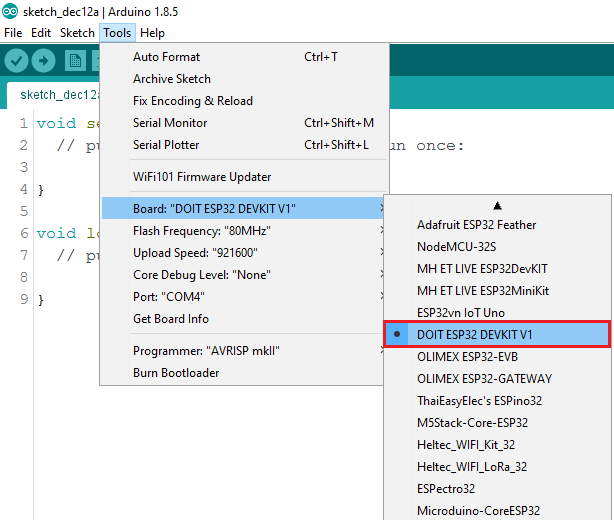
1. Select your board in Tools > Board menu (in my case, it’s the DOIT ESP32 DEVKIT V1).
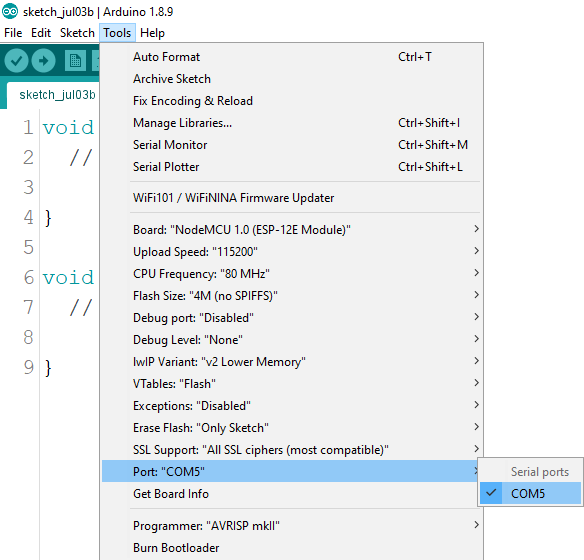
2. Select the Port (if you don’t see the COM Port in your Arduino IDE, you need to install the CP210x USB to UART Bridge VCP Drivers):
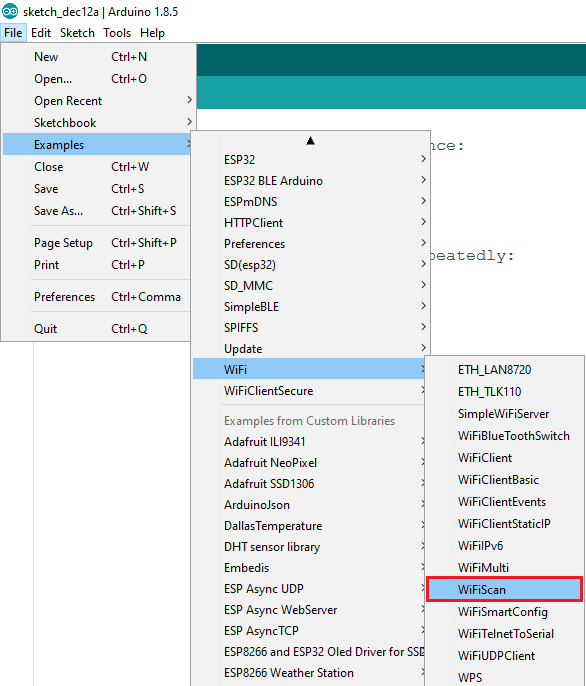
3. Open the following example under File > Examples > WiFi (ESP32) > WiFiScan
4. A new sketch opens in your Arduino IDE:
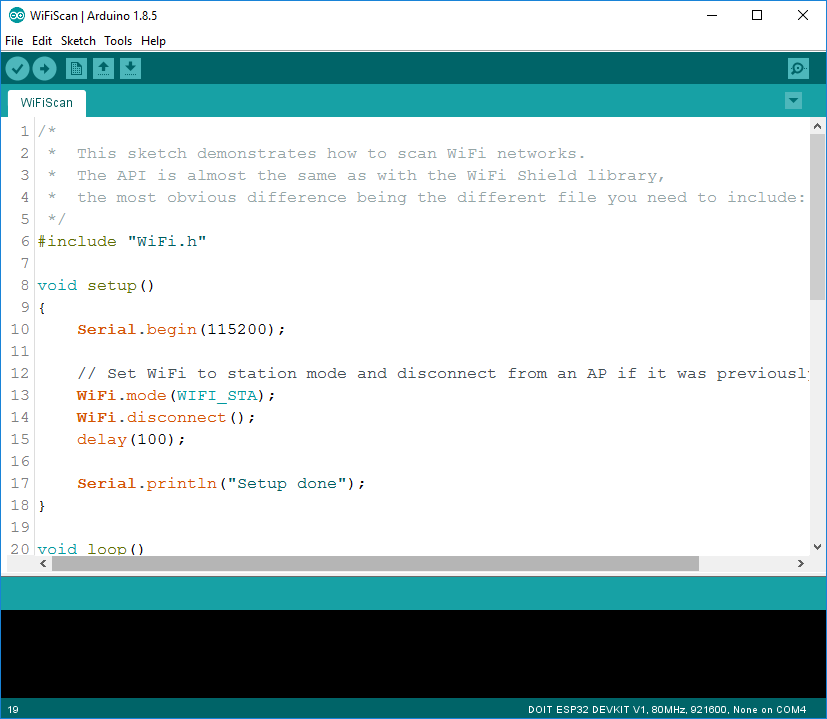
5. In the Arduino IDE, press the “Upload” button. Wait for a few seconds while the code compiles and uploads to your board.

6. If everything went well, you should see a “Done uploading” message.
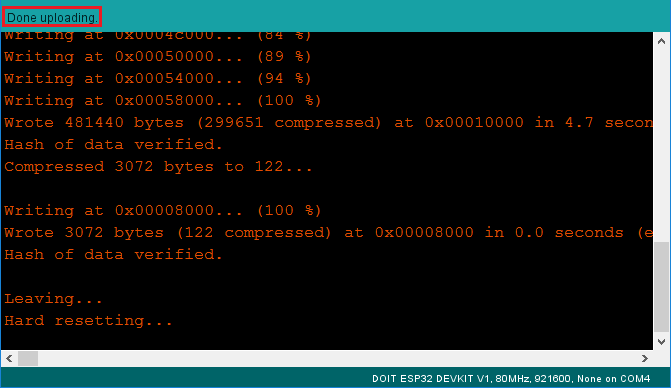
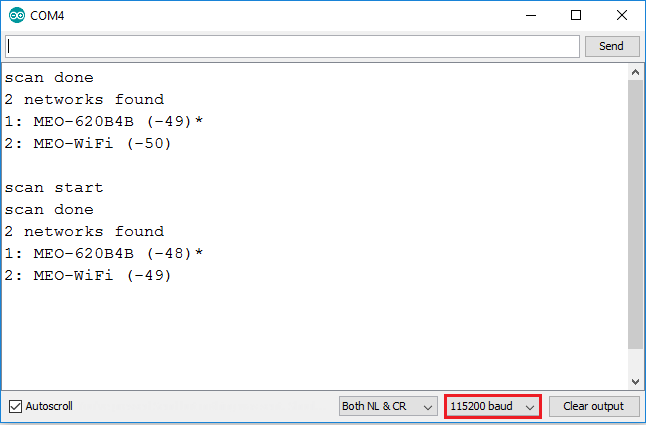
7. Open the Arduino IDE Serial Monitor at 115200 baud rate:

8. When you press the ESP32 on-board “Enable” button, you should see the following networks accessible near your ESP32:
When you try to upload a new sketch to your ESP32, you will see the following error message: “A fatal error occurred: Failed to connect to ESP32: Timed out… Connecting…”. It indicates that your ESP32 is not in the flashing or uploading phase.
After you've chosen the right board name and COM port, proceed as follows:


That's all. The new sketch should be running on your ESP32. To restart the ESP32 and run the newly uploaded sketch, press the “ENABLE” button.
You'll have to repeat that button sequence each time you wish to upload a new sketch. Follow the suggestions in the next step if you want to solve this problem once and for all without the need to press the “BOOT” button:
If you experience any problems or issues with your ESP32, take a look at our in-depth ESP32 Troubleshooting: A Complete Guide.
This is a quick guide that demonstrates how to Install ESP32 board in Arduino IDE in less than 1 minute on a Windows PC, Mac OS X, or Linux PC. Take a look at the ESP32 troubleshooting guide if you run into any problems during the installation process.
If you like ESP32, you may also like:
We hope you find this tutorial useful. Thanks for reading.
🚀 Discover the world of electronics and innovation!
✨ Create, program, and experiment with all your creative ideas with ease.
🔥 Don't wait! Browse SpotPear products now and start your amazing project!
