

Wait! Don’t Go Yet! 👋
Become a Member Today and Unlock Access to All eBooks! 😍
Thousands of eBooks at your fingertips. Read, learn, and grow anytime, anywhere ✨
Become a Member Today and Unlock Access to All eBooks! 😍
Thousands of eBooks at your fingertips. Read, learn, and grow anytime, anywhere ✨
In this blog post, I’ll introduce you to phpLiteAdmin, which is a web-based user interface written in PHP that makes it easy to interact with SQLite databases.
Don’t have a Raspberry Pi board? Read Best Raspberry Pi Starter Kits.
Before you continue reading this project, make sure you have the Raspbian Operating System installed on your Raspberry Pi.
You can read my Getting Started with the Raspberry Pi Guide to install Raspbian and complete the basic setup.
You also need to have SQLite installed in your Raspberry Pi.
You need to install Apache2 on your Raspberry Pi; Apache is used to serve your web pages. Enter the next command:
pi@raspberry:~ $ sudo apt-get install apache2 -y
Top 6
Raspberry Pi eBooks
From Zero to Professional

You also need to install PHP, which is an open-source web scripting language that is used to build dynamic web applications. To install PHP and its modules, type in this command:
pi@raspberrypi:~ $ sudo apt-get install php5 libapache2-mod-php5 php5-sqlite -y
Move to your /var/www/html directory and edit the dir.conf file:
pi@raspberry:~ $ cd /var/www/html
pi@raspberrypi:/var/www/html $ sudo nano /etc/apache2/mods-enabled/dir.conf
Make the next change to the file. Before: index.html index.php

After: index.php index.html

Ctrl+X, type Y, and press Enter to save your changes. Restart the Apache2 service for the changes to take effect:
pi@raspberrypi:/var/www/html $ sudo service apache2 restart
Create a new PHP file with the name index.php:
pi@raspberrypi:/var/www/html $ sudo nano index.php
Copy the next line to your index.php file:
<?php phpinfo(); ?>
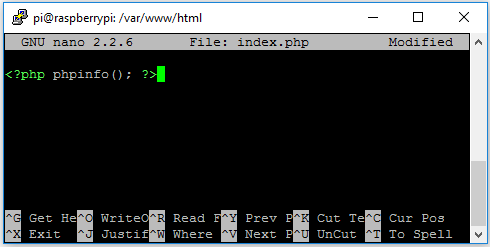
Ctrl+X, type Y, and press Enter to save your changes.
Go to your Raspberry Pi IP address (use the command ifconfig to print your Pi IP address in your terminal window), and this is what you should see:
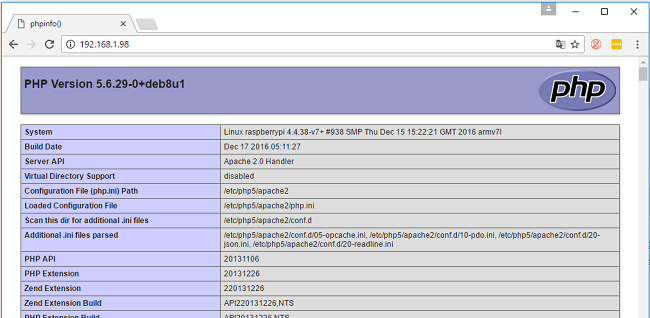
Your PHP installation was successful. Now, you can remove the index.php file:
pi@raspberrypi:/var/www/html $ sudo rm index.php
While on the /var/www/html directory, create a new folder called database:
pi@raspberrypi:/var/www/html $ sudo mkdir database
pi@raspberrypi:/var/www/html $ cd database/
pi@raspberrypi:/var/www/html/database $
Follow the next command to download and prepare phpLiteAdmin:
pi@raspberrypi:/var/www/html/database $ sudo wget https://bitbucket.org/phpliteadmin/public/downloads/phpLiteAdmin_v1-9-7-1.zip
pi@raspberrypi:/var/www/html/database $ sudo unzip phpLiteAdmin_v1-9-7-1.zip
pi@raspberrypi:/var/www/html/database $ sudo rm phpLiteAdmin_v1-9-7-1.zip
To set a password and the path to your SQLite database in your phpLiteAdmin configuration, this is what you need to do:
pi@raspberrypi:/var/www/html/database $ sudo cp phpliteadmin.config.sample.php phpliteadmin.config.php
pi@raspberrypi:/var/www/html/database $ sudo nano phpliteadmin.config.php
Change your file to look similar to mine (see below). Type a unique password and the path to your SQLite database:
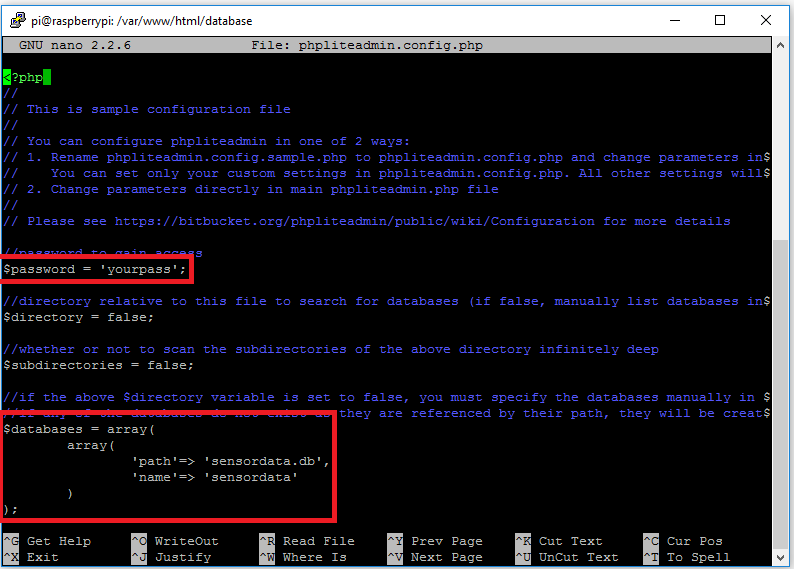
You can use the file created in the previous tutorial or simply create a new one:
pi@raspberrypi:/var/www/html/database $ sqlite3 sensordata.db
sqlite> .quit
In order to make phpLiteAdmin work properly, you need to change some permissions and file ownership. Run the following commands:
pi@raspberrypi:/var/www/html/database $ cd ..
pi@raspberrypi:/var/www/html $ sudo chmod 777 database
pi@raspberrypi:/var/www/html $ sudo chmod 777 database/*
pi@raspberrypi:/var/www/html $ sudo chown root:root database
pi@raspberrypi:/var/www/html $ sudo chown root:root database/*
After running the preceding commands, confirm that root is the owner and those are the permissions for the database folder:
pi@raspberrypi:/var/www/html $ ls -l
drwxrwxrwx 2 root root 4096 Jan 30 15:11 database
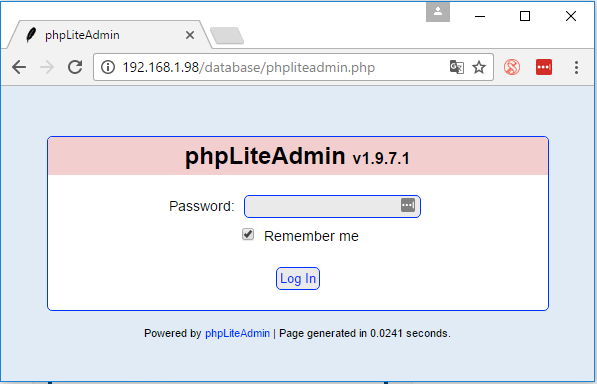
Open your http://RPi_IP_Address/database/phpliteadmin.php. This is how it should look:
Enter your password to login and this is the web page that loads:
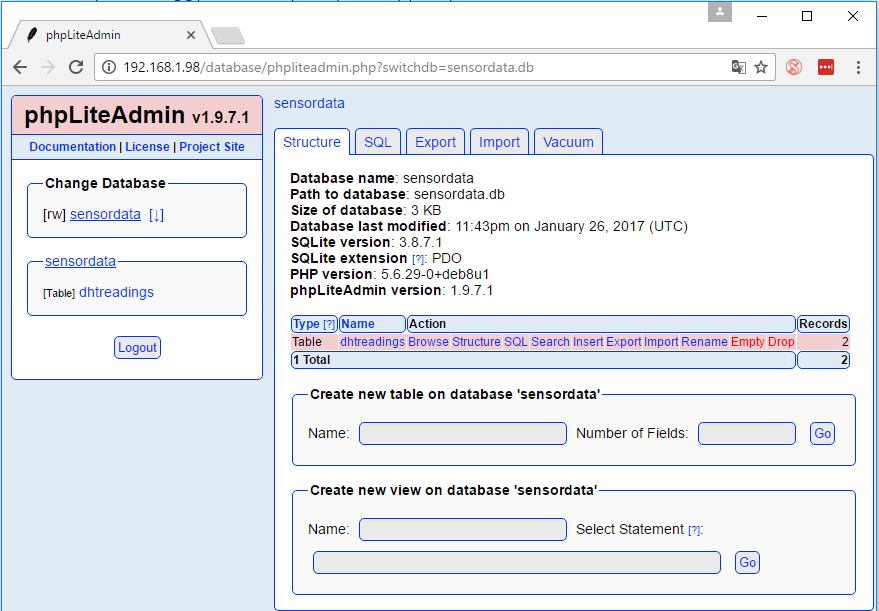
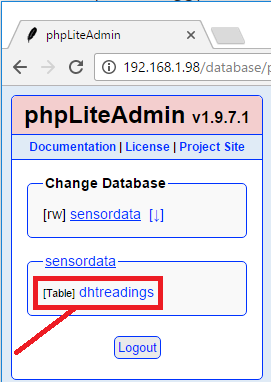
On the left menu, you can see your database and table (if you’ve used the database created in the previous tutorial). Open the dhtreadings table:
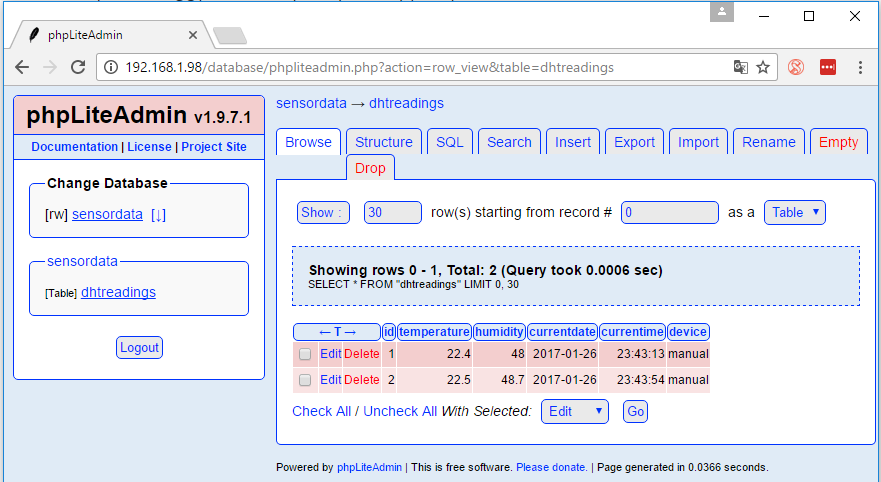
Inside that table, you can see two rows:
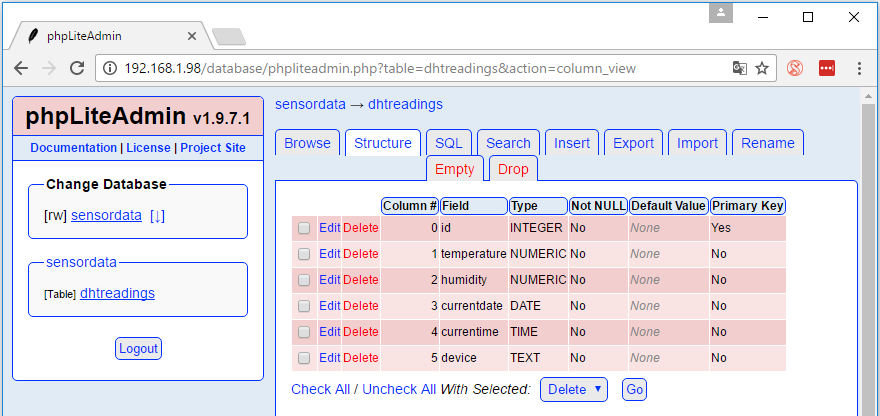
Open the Structure tab:

You can see the settings of each column, and you can change them if necessary.
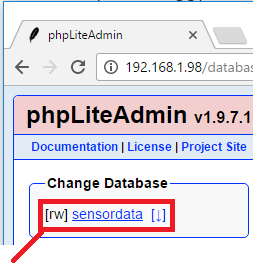
Next, open the sensordata database:
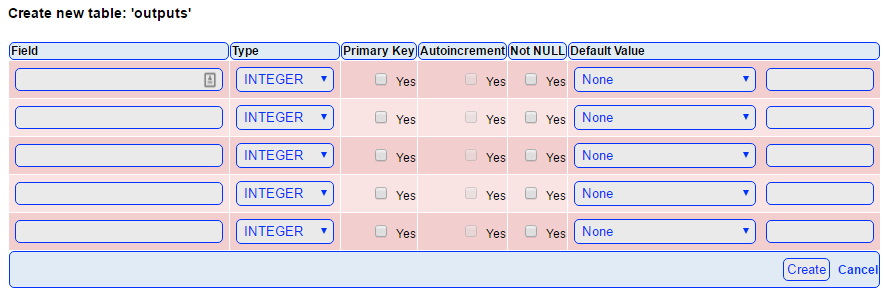
Select the Create new table option and give it a name, for example, outputs:

Then, you could define the data columns for each row:
The real advantage of using phpLiteAdmin is that, instead of sending SQL commands through a terminal window, you can add, remove, and update all data through a nice user interface.
Do you have any questions? Leave a comment down below!
🚀 Discover the world of electronics and innovation!
✨ Create, program, and experiment with all your creative ideas with ease.
🔥 Don't wait! Browse SpotPear products now and start your amazing project!
