

Wait! Don’t Go Yet! 👋
Become a Member Today and Unlock Access to All eBooks! 😍
Thousands of eBooks at your fingertips. Read, learn, and grow anytime, anywhere ✨
Become a Member Today and Unlock Access to All eBooks! 😍
Thousands of eBooks at your fingertips. Read, learn, and grow anytime, anywhere ✨
This article is an introduction to the Raspberry Pi Camera V2 Module. It explains how to quickly get started with the camera: how to take photos and record video into a file.
Don’t have a Raspberry Pi yet? Check the Best Raspberry Pi Starter Kits.
The Raspberry Pi Camera V2 module is very tiny, and it looks like this:
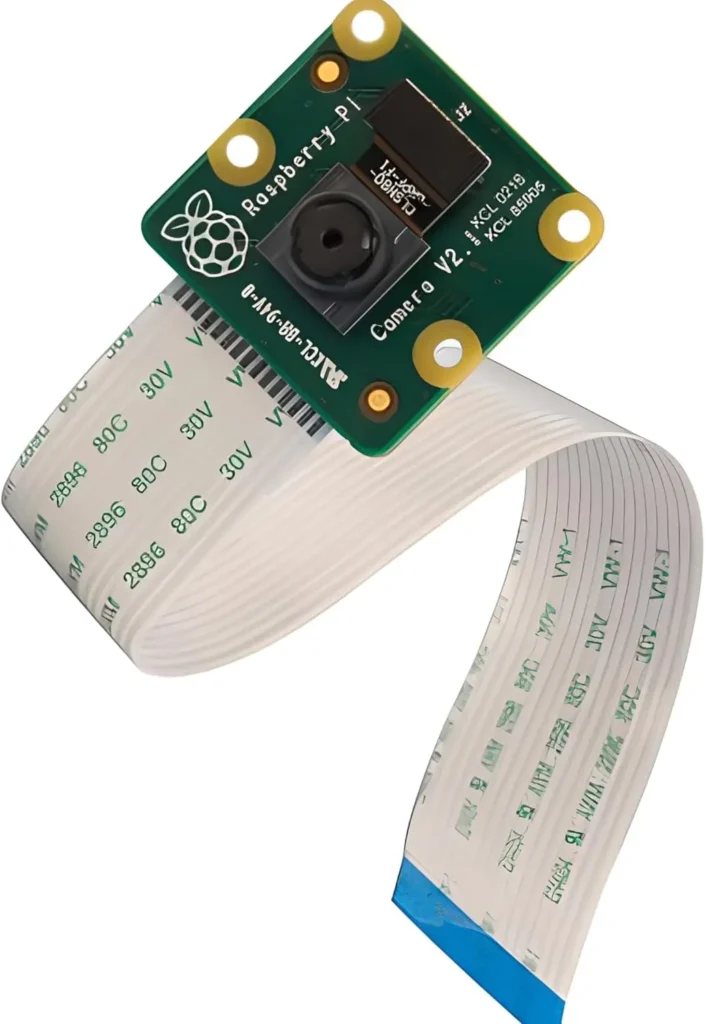
The Raspberry Pi Camera V2 features an 8 megapixel Sony IMX219 image sensor with a fixed focus lens; it is capable of 3280×2464 pixel static images and supports 1080p30, 720p60, and 640×480p90 video.
The camera is compatible with all Raspberry Pi models.
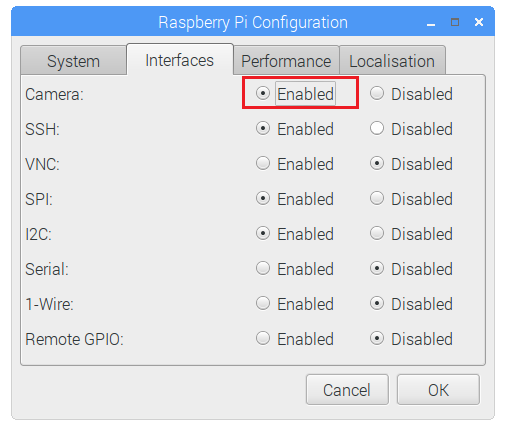
To use the Raspberry Pi Camera module, you need to enable the camera software in your Raspberry Pi. In the Desktop environment, go to the Raspberry Pi Configuration window under the Preferences menu, open the Interfaces tab, and enable the Camera as shown in the figure below.
Top 6
Raspberry Pi eBooks
From Zero to Professional

Or, in the Terminal window, type the following command:
pi@raspberry:~ $ sudo raspi-config
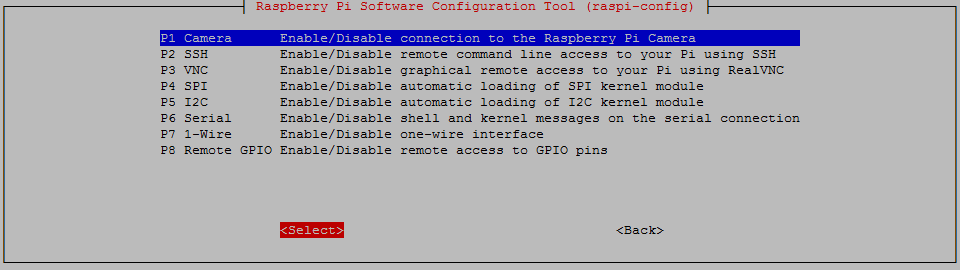
You should see the Raspberry Pi software configuration tool. Select the Interfacing Options:
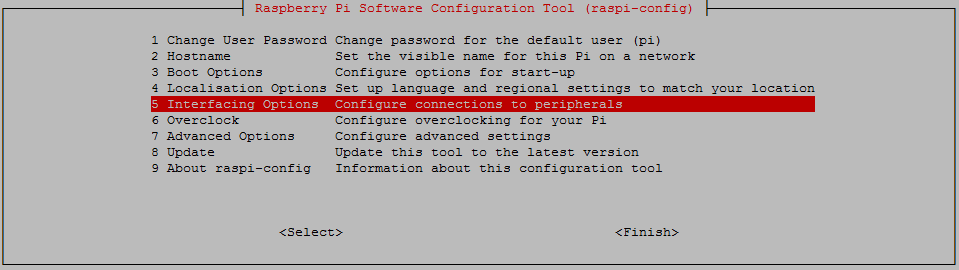
Enable the camera and reboot your Pi:
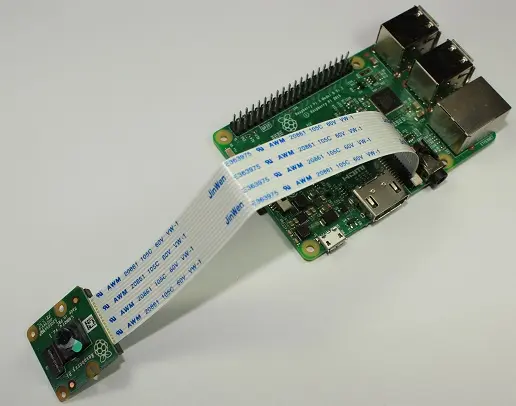
Connecting the Raspberry Pi Camera Module is easy. With the Pi shutdown, connect the camera to the Pi CSI port as shown in the following figure. Make sure the camera is connected in the right orientation with the ribbon blue letters facing up, as shown in the next figure.
The easiest way to control the Raspberry Pi Camera is by using the Python PiCamera package.
I recommend using Python 3 to run this script, even though the PiCamera package supports Python 2. Create a new file called take_photo.py:
pi@raspberrypi:~ $ nano take_photo.py
Copy the following code to your newly created file:
from time import sleep
from picamera import PiCamera

camera = PiCamera()
camera.resolution = (1024, 768)
camera.start_preview()

sleep(2)
camera.capture('test_photo.jpg')
Press Ctrl+X to save your file, type Y, and Enter.
When you run the script:
pi@raspberrypi:~ $ python3 take_photo.py
It takes a photo with the Raspberry Pi Camera and saves it with the test_photo.jpg name:
The next Python script also uses the PiCamera package to record video into a file.
Create a new file called record_video.py:
pi@raspberrypi:~ $ nano record_video.py
Copy the following code to your newly created file:
import picamera

camera = picamera.PiCamera()

camera.resolution = (640, 480)
camera.start_recording('test_video.h264')
camera.wait_recording(5)
camera.stop_recording()

print('Finished recording')
Press Ctrl+X to save your file, type Y, and Enter.
When you run the script:
pi@raspberrypi:~ $ python3 record_video.py
It takes 5 seconds video with the Raspberry Pi Camera and saves it as test_video.h264 name. You can modify the script to set the camera resolution and extend the video recording duration.
To watch the video on a Raspberry Pi with the Raspbian Desktop environment, you can use the omxplayer software.
pi@raspberrypi:~ $ omxplayer test_video.h264
Here’s a screenshot of the recording:
This post was a quick introduction guide to the Raspberry Pi Camera V2 Module and how to take photos and record video into a file.
If you like this post, you’ll also like this project: Video Streaming with the Raspberry Pi Camera.
We hope you’ve found this post useful.
Thanks for reading!
🚀 Discover the world of electronics and innovation!
✨ Create, program, and experiment with all your creative ideas with ease.
🔥 Don't wait! Browse SpotPear products now and start your amazing project!
