

Wait! Don’t Go Yet! 👋
Become a Member Today and Unlock Access to All eBooks! 😍
Thousands of eBooks at your fingertips. Read, learn, and grow anytime, anywhere ✨
Become a Member Today and Unlock Access to All eBooks! 😍
Thousands of eBooks at your fingertips. Read, learn, and grow anytime, anywhere ✨
In this post, we’re going to show you how to get started with Home Assistant on Raspberry Pi. We’ll show you how to set up Home Assistant, and we’ll build a simple example to get you started with home automation.
Home Assistant is a home automation hub. A home automation hub is a place where different devices with different protocols communicate with each other. This means you can link all your devices in just one place and build cool automations based on the state of all your devices.
Home Assistant is the biggest open-source home automation platform to date, and it supports 895 different components.
There are different ways to install Home Assistant. You can run it on your computer or use a Raspberry Pi to act as an exclusive home automation hub. In this tutorial, we’re going to install Home Assistant on a Raspberry Pi 3.
To start running Home Assistant on the RPi, you need to install Hass.io.
Top 6
Raspberry Pi eBooks
From Zero to Professional

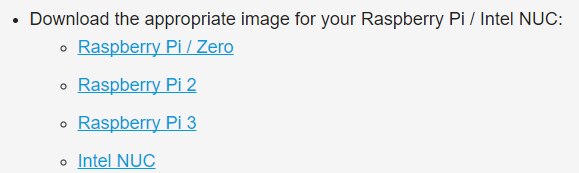
1) Go to https://home-assistant.io/hassio/installation/ and choose the appropriate image for your Raspberry Pi. We recommend using Raspberry Pi 3. Click on the Raspberry Pi 3 link to download the Hass.io image to your computer.
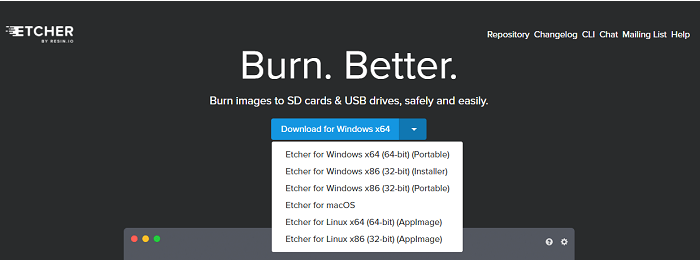
2) Go to https://etcher.io/ and install Etcher on your computer. Select the appropriate installation for your operating system.
3) When the installation is done, open Etcher and click on Select image. Open the image you’ve just downloaded in step 1).
4) Make sure Etcher selects the right SD card. Then, click Flash! Note: You need to have your SD card formatted before doing this step. Wait a few minutes while Etcher flashes the image on the SD card.
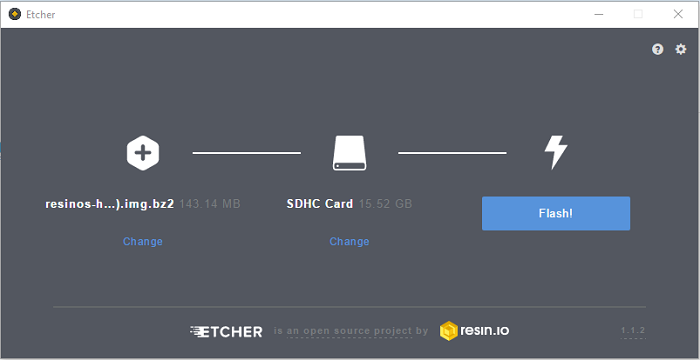
5) Insert the SD card into your Pi. Connect an Ethernet cable and power it up.
6) After a few minutes, you should be able to access the Home Assistant user interface from any device on the same local network. You just need to type on the browser http://hassio.local:8123 or go to http://your-pi-ip-address:8123 by replacing your-pi-ip-address with your Raspberry Pi IP address. If you don’t know how to find your Raspberry Pi IP address, check this post.
7) Be patient, the installation takes about 20 minutes (or more) to download all the dependencies it needs for Home Assistant. While it is being installed, you’ll see the following in your browser window.
Note: Sometimes the screen below doesn’t load, but the installation is still continuing in the background. Let it complete the installation.
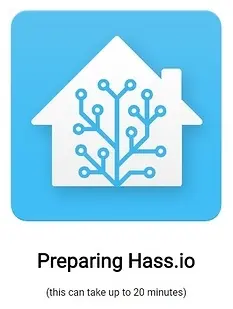
Once it’s done, your Raspberry Pi will auto-reboot, so you have to wait another 3 minutes. Then, refresh your web page, and you should see the Home Assistant user interface default view.
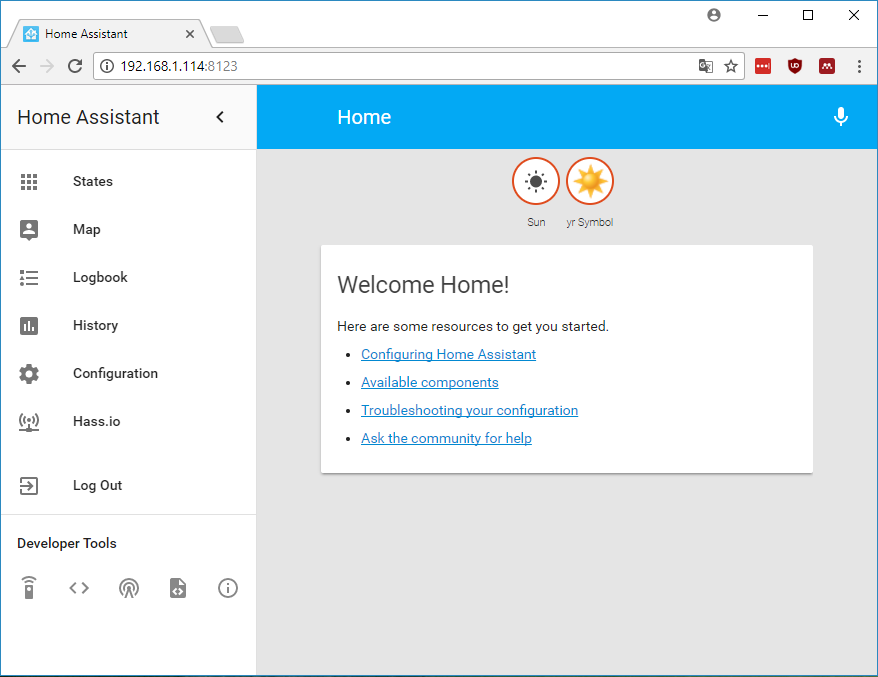
Navigate through each tab and explore what’s inside.
There are several add-ons you can add to get Home Assistant even better. We recommend installing Samba share and OpenSSH. You can also install other add-ons that you might find useful.
The Samba share add-on gives you access to the Raspberry Pi’s folders on your computer. This is useful so that you can access and change your Home Assistant configuration settings through your computer.
1) To install the Samba share add-on, in the Home Assistant user interface, go to Hass.io.
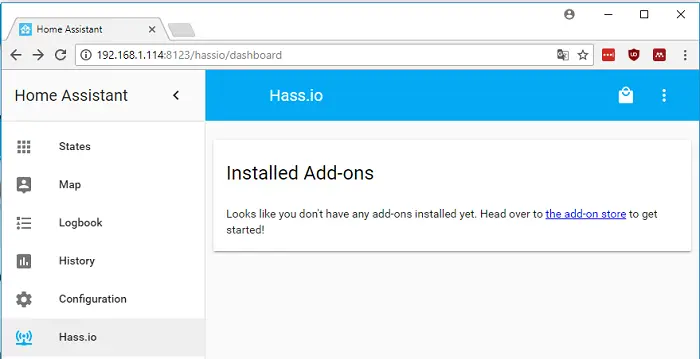
2) Click on the icon in the upper-right corner and then select the Samba share add-on.
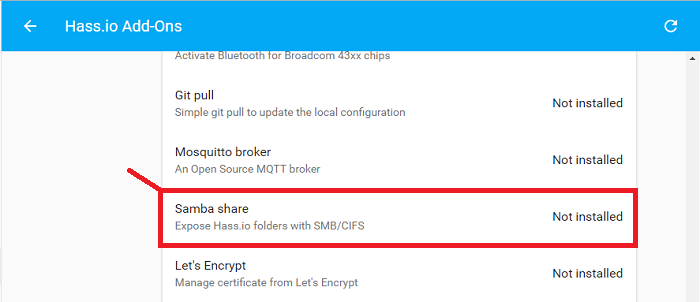
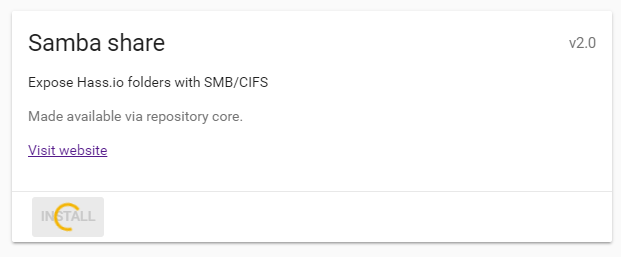
3) Then, click install. The installation may take a minute or two.
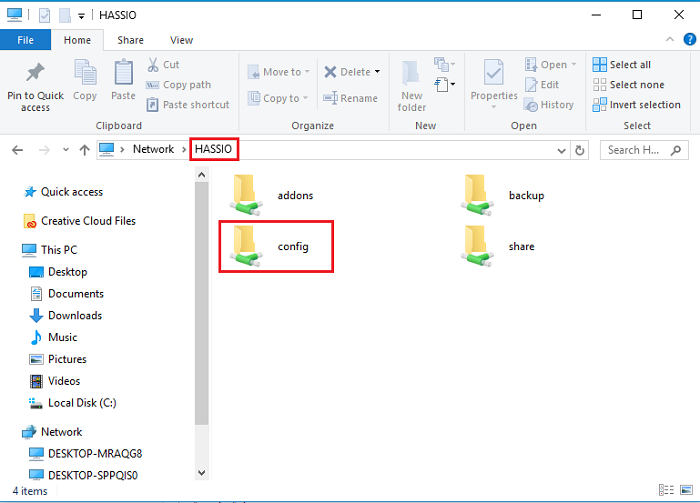
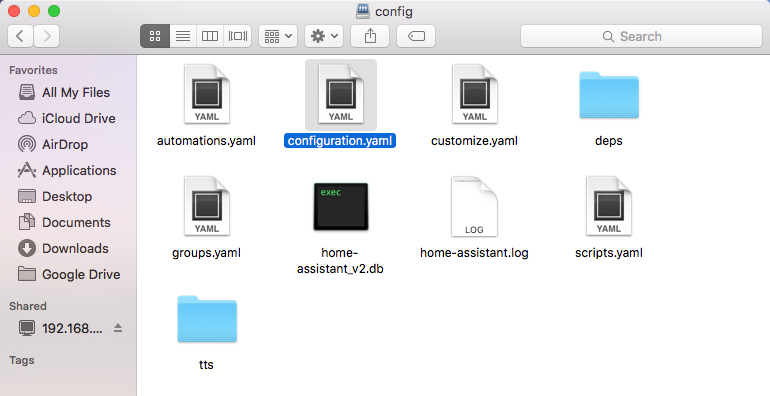
1) Once the Samba share is installed on your computer, go to Network Devices. You should see a new device called HASSIO. Open it, and there should be a couple of folders, including the config folder.
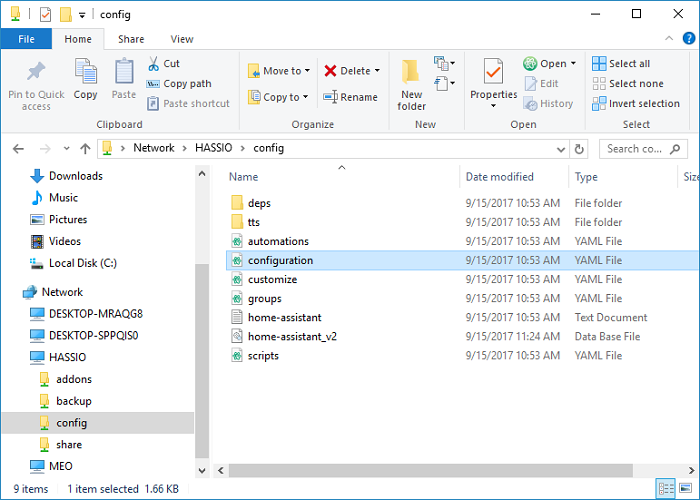
2) Inside the config folder, you should see the configuration.yaml file.
1) To access the shared files in Mac OS X, go to Finder > Go > Connect to Server.
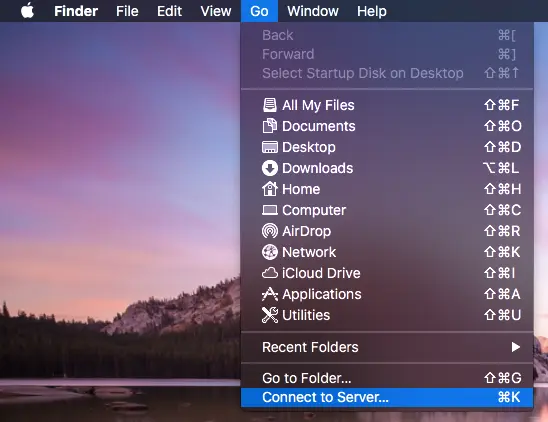
2) A new window pops up. Write the server address as follows:
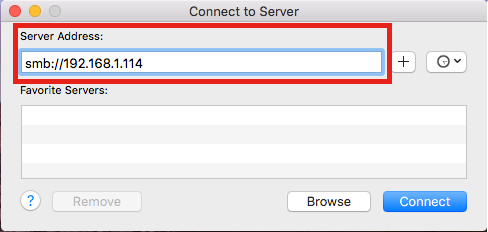
The server address should be smb:// followed by your Raspberry Pi IP address.
3) Select Connect As Guest
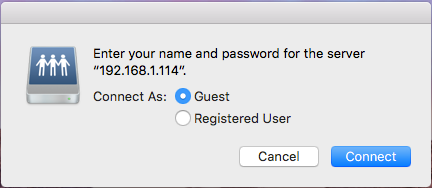
4) Select the desired folder. In this case, select the config folder.
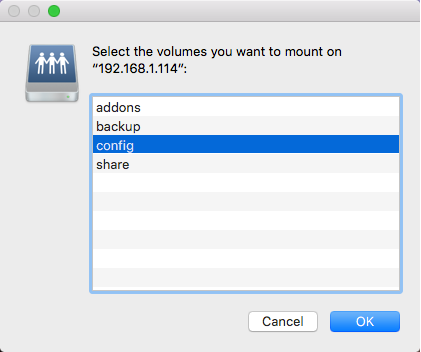
5) Finally, you can access the configuration.yaml file.
We also recommend installing the SSH server add-on. This allows you to connect to your Raspberry Pi that is running Home Assistant over SSH.
1) Go to the Hass.io tab, click on the upright corner icon, and search for SSH server.
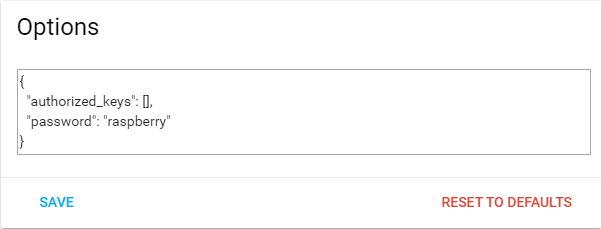
2) Then, a tab with the SSH server opens. In the Options section, add a password as follows (use your own password) and click SAVE:
3) Finally, click INSTALL to install Open SSH.
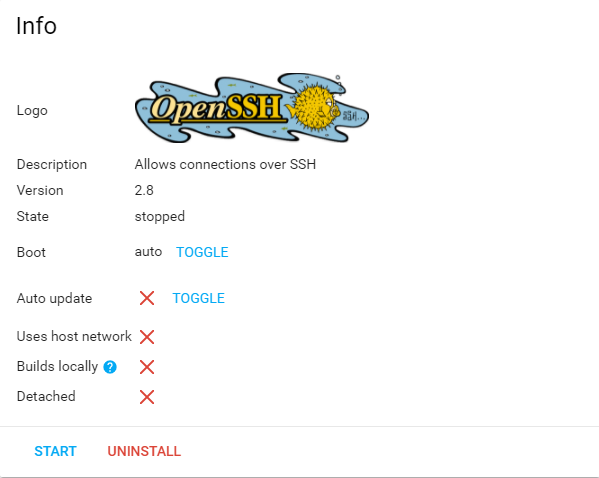
4) The Boot option is set to auto, which means the connection is established automatically when you boot your pi. For now, click START to establish the communication.
We recommend rebooting your Pi after installing the add-ons. For that, you need to communicate with your Pi via SSH.
Connection via SSH on Windows
1) If you’re running Windows on your computer, use Putty to establish the communication. If you don’t have Putty installed, you can click here.
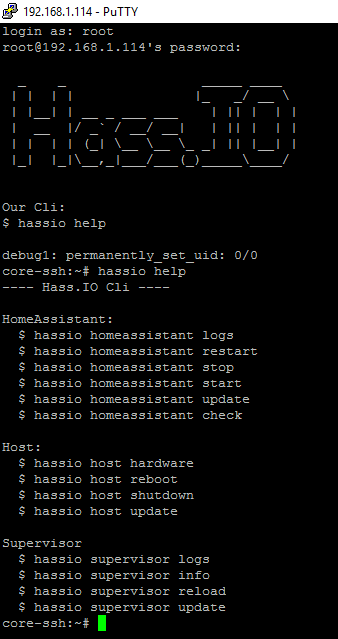
2) Enter your Pi IP address with Port 22 selected and click Open. When you first connect, you’ll be prompted with a Warning message. Click Yes.
3) Login as root and enter the password you’ve defined in the previous section at 2).
4) If you type hassio help, you’ll see the commands you can use to communicate with the Pi.
5) To reboot your Pi, enter the following
core-ssh:~# hassio host reboot
Connecting via SSH on MAC OS X
1) To connect via SSH on MAC OS X, open the Terminal and type:
ssh root@your-rpi-ip-address
You need to replace your-rpi-ip-address with your Raspberry Pi IP address.
2) Enter the password.
3) Finally, reboot your Pi:
core-ssh:~# hassio host reboot
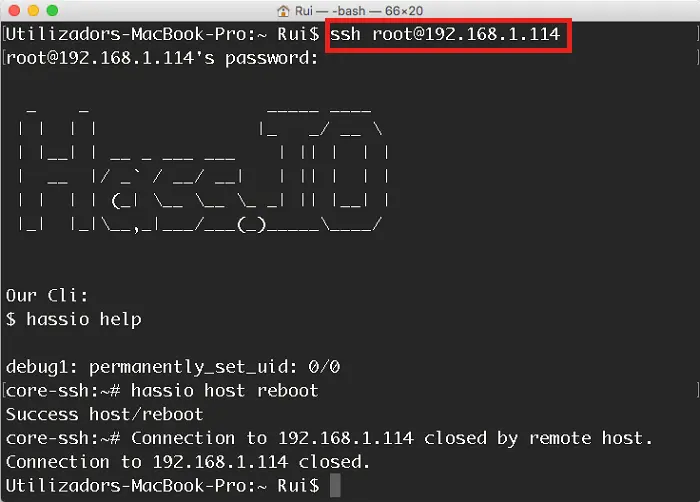
Congratulations! You’ve set up Home Assistant successfully.
In Home Assistant, the configuration.yaml file saves data in a hierarchical format to let Home Assistant know what you want to do. This file stores what components you’re using, how they are organized, and how to automate with them.
Go to the HASSIO shared file, select the configuration folder and open the configuration.yaml file.
In your file, you can see homeassistant at the beginning. This is a component itself, and it is the only mandatory component. introduction is another component, frontend, config, and so on.
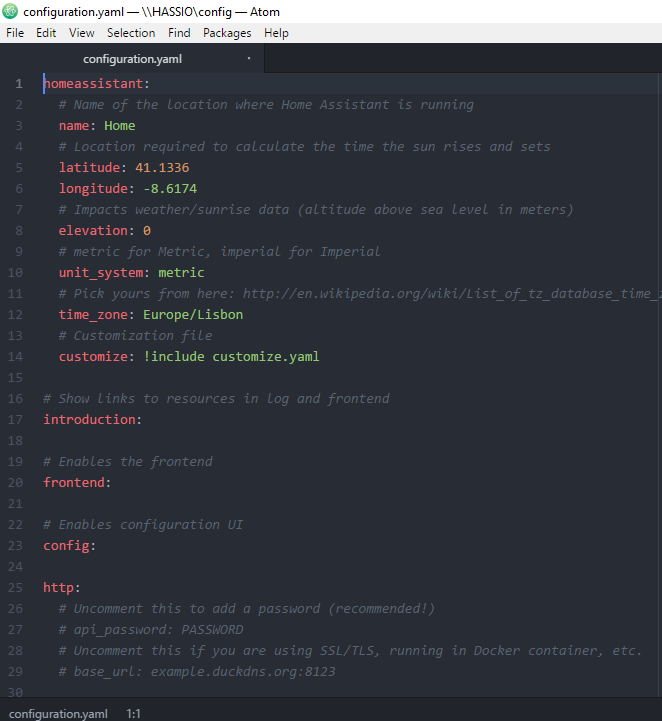
The automations are in a different file called automations (you can also add the automations directly to the configuration file). You can organize all your different components in groups – this is also done in a separate file called groups.
These separated files are linked in the configuration file at the end.

You can easily add a password to your Home Assistant User Interface. In the configuration.yaml file, you just need to uncomment the line by taking out the #:
# api_password: PASSWORD

Instead of PASSWORD, enter your desired password.
For your changes to take effect:
1) Save your configuration.yaml file.
2) In the Home Assistant User Interface, go to Configuration, select General, and click the CHECK CONFIG button. This tells you if everything is going well with the syntax of the configuration.yaml file. This may take a few seconds. When it’s done, you get a Valid! message if everything is good with the syntax.
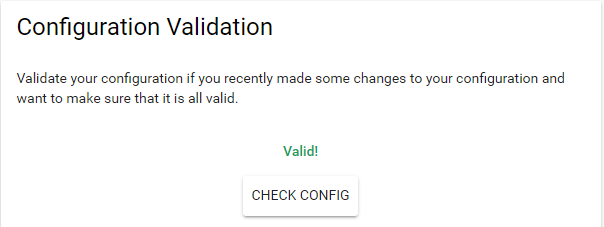
3) Then, on the same tab, in the Server Management section, click RESTART.
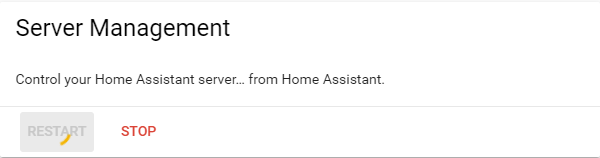
4) Wait for the system to restart.
Next time you go to your Home Assistant User Interface, it will ask you for a password. The changes you’ve made previously took effect.
To add components to the configuration.yaml file go to https://home-assistant.io/components/ and search for the desired components.
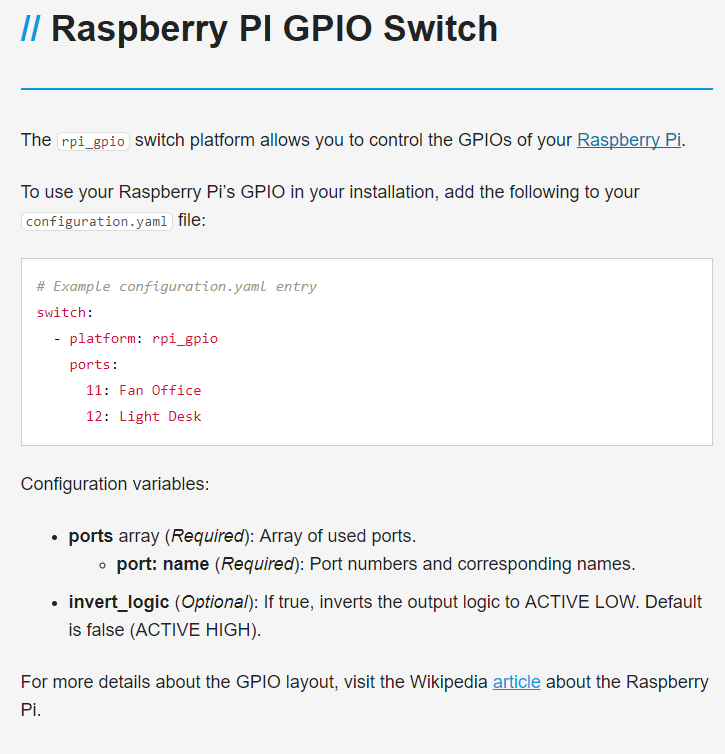
Then, you just have to copy the entry given to the configuration.yaml file, and add or edit the configuration variables to meet your needs. For example, here’s what you have when you search for a Raspberry Pi GPIO Switch:
This is just a simple example to get you familiar with Home Assistant: adding components and building automations.
In this example, we’re going to control two RPI GPIOS through Home Assistant. We’re going to add two switches to turn two LEDs on and off. We’re also going to build a simple automation that turns one of the LEDs on and off at a specific time. Let’s get started!
Here’s a complete list of the parts required for this project:
The circuit for this example is simple. You just need to connect two LEDs through a 330 Ohm resistor to GPIO 11 and GPIO 12. Just follow the schematics.
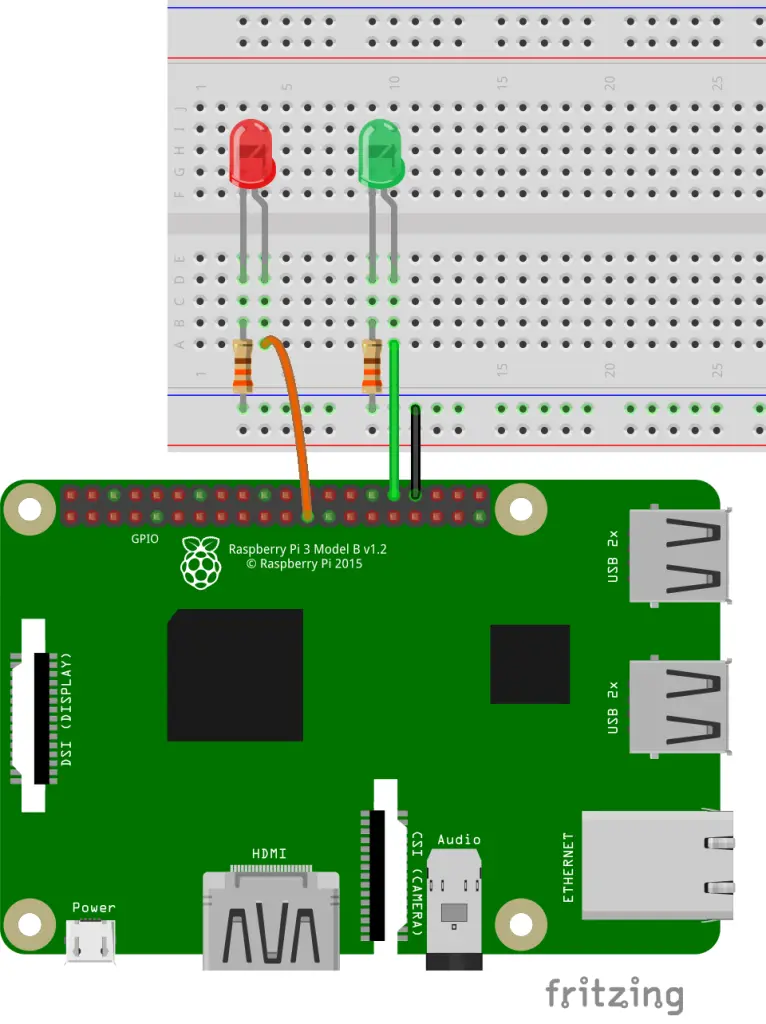
The first step is to add the Raspberry Pi switch component to the configuration.yaml file.
1) Go to https://home-assistant.io/components/ and type Raspberry Pi.
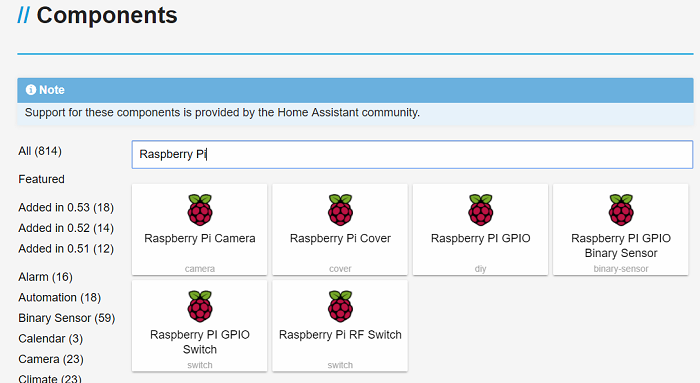
2) Select Raspberry Pi GPIO Switch. The component’s page shows an entry file example and the variables you can add to configure your components.
3) Copy the entry given to your configuration.yaml file.
# Example configuration.yaml entry
switch:
  - platform: rpi_gpio
    ports:
      11: Fan Office
      12: Light Desk
In this entry, we’re adding two buttons that will control the Raspberry Pi GPIOs 11 and 12. We are calling them Fan Office and Light Desk. For testing purposes, we’ll use the default names, but you can call them whatever you want and select other GPIOs.
4) After copying the entry to your configuration.yaml file, save the file. Then check the syntax and restart the Pi as we did in the “Saving Changes and Updating” section. Wait for Home Assistant to restart.
5) Go to your Home Assistant User Interface, and you should see two new buttons on the interface called Fan Office and Light Desk. Click on those buttons to turn the LEDs on and off.
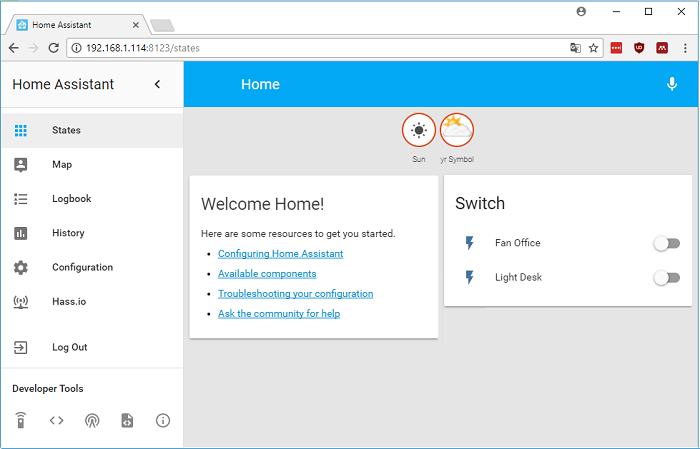
You can also check the History and Logbook to see how the components’ states changed and analyse their state over time.
In this example, keep the previous circuit. We’re going to automatically turn on and off the Light Desk LED.
You can build automations directly on the configuration.yaml file, in the automations.yaml file or in the User interface.
To build automations in the User iInterface, go to Configuration > Automation and click the (+) sign in the bottom right corner.
In the Automation tab, you have several sections: New Automation, Triggers, Conditions, and Action.
In Home Assistant, the automation has 3 parts:
Before proceeding with the automation, you need to be familiar with some of the developer tools.

States
Select the States under the Developer Tools. Here you can test setting the state of a device. You can also see the ID of all your entities. For example, your Fan Office and Light Desk buttons have the following IDs, state, and attributes:

Services
Under the Developer Tools, select Services. Here, you can call a service from a component and test it, to see what happens.
Here we are going to test a service that turns the Light Desk LED on.
In the Domain field, select switch. On the service, select turn_on.
When you select turn_on, the valid parameters for that event appear.
In this case, as we only want to turn on the Light Desk LED, we need to enter some JSON data, selecting only the entity we want to trigger.
{
 "entity_id": "switch.light_desk"
}
Click on the CALL SERVICE button to fire the event. This is just a method to check the service you want to call. The Light Desk LED should turn on when you click on the CALL SERVICE button.
Now, go back to the Automation tab.
In the New Automation section, give a name to your automation. You can call it whatever you want.
In this example, what will trigger the automation is the time. When it is a specific time, the LED should light up. So, in the Trigger Type, select time. In the At section, select the hour you want to trigger your automation.
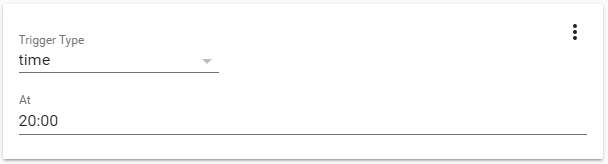
Save your changes by clicking on the Save icon at the bottom right corner.
Here, we’re not going to add any condition, but an example of one condition would be: the LED only lights up at 20:00 if you’re at home.
Action
The Action Type for this example is Call Service, and we are going to call the service we tested previously in the services section under the Developer Tools.
We’ve seen that the service is:
switch.turn_on
and the JSON data is
{
 "entity_id": "switch.light_desk"
}
Save your Automation by clicking the Save button at the bottom right corner.
To turn the LED off at 8:00, for example, you need to add another automation, change the time, and call the service switch.turn_off.
In this post, we’ve shown you how to get started with Home Assistant in Raspberry Pi – how to install and set everything up.
We’ve also shown you how to add services to the Home Assistant and how to make a simple automation with the Pi’s GPIOs. The idea is that you use these concepts to automate your home in a smart manner.
We hope you’ve found this post useful.
Thanks for reading!
🚀 Discover the world of electronics and innovation!
✨ Create, program, and experiment with all your creative ideas with ease.
🔥 Don't wait! Browse SpotPear products now and start your amazing project!
