

Wait! Don’t Go Yet! 👋
Become a Member Today and Unlock Access to All eBooks! 😍
Thousands of eBooks at your fingertips. Read, learn, and grow anytime, anywhere ✨
Become a Member Today and Unlock Access to All eBooks! 😍
Thousands of eBooks at your fingertips. Read, learn, and grow anytime, anywhere ✨
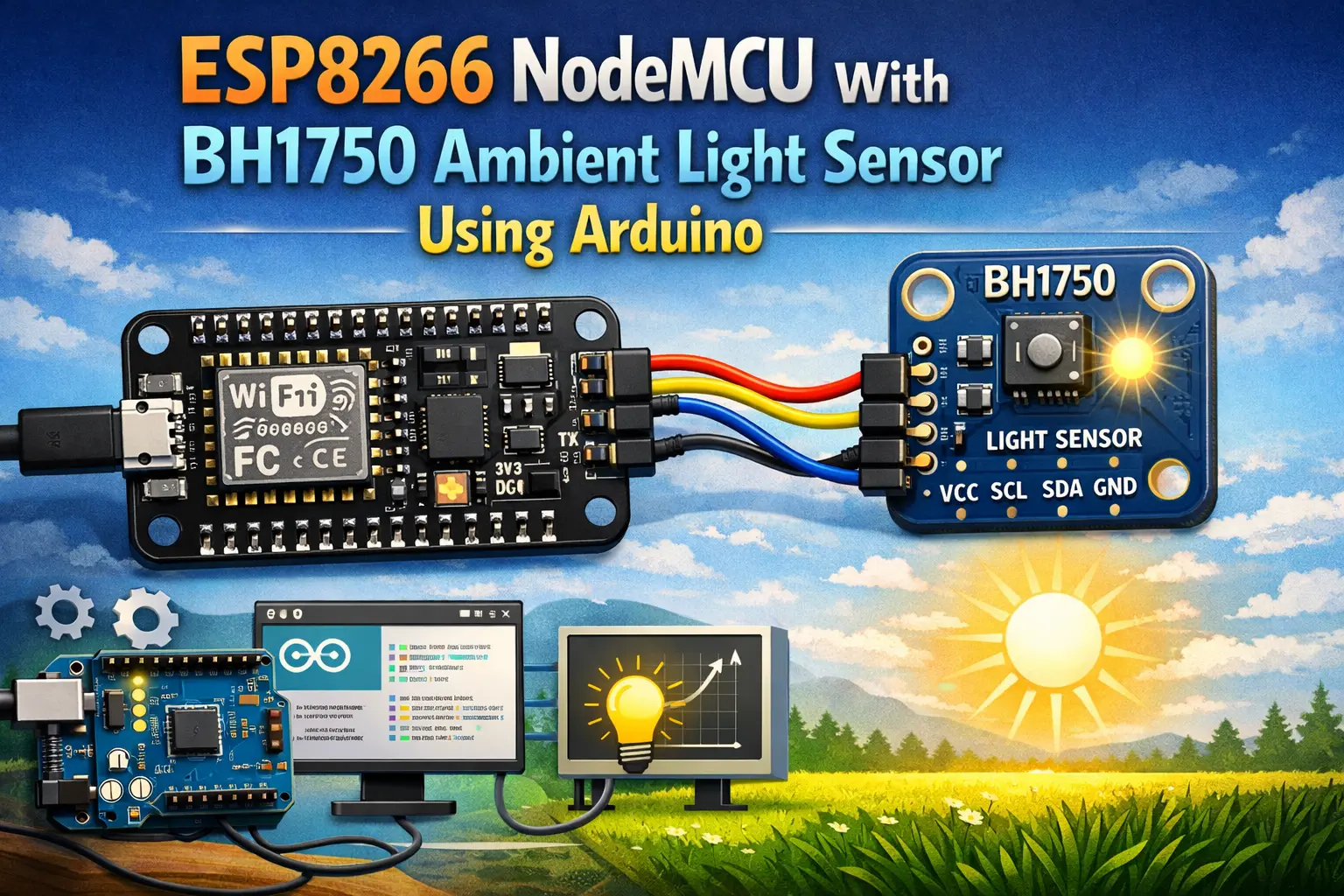
An ambient light sensor with 16 bits is called the BH1750. In this article, you will learn how to use the BH1750 ambient light sensor with the ESP8266 NodeMCU board using the Arduino IDE. The sensor communicates with a microcontroller using the I2C communication protocol.
Learn how to install the required libraries, wire the sensor to the ESP8266 NodeMCU board, and create a simple sketch to display the sensor readings in the Serial Monitor.
The BH1750 is a 16-bit ambient light sensor that uses the I2C standard to communicate. It outputs brightness measurements in lux (an SI-derived unit of illuminance). It can measure a minimum of 1 lux and a maximum of 65535 lux.
The sensor board may come in different breakout board forms. Below are some pictures. The BH1750 sensor is shown in both images.
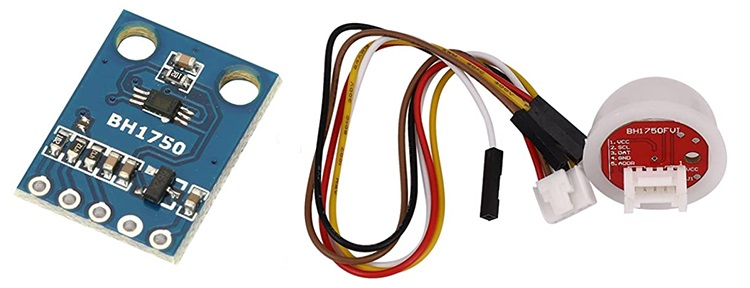
The following is a list of the BH1750 sensor's features. Consult the datasheet for the BH1750 sensor for more information.
One-time measurement and continuous measurement are the two distinct measurement modes that the sensor supports. Each mode supports three distinct resolution modes.
| Low Resolution Mode | 4 lux precision | 16 ms measurement time |
| High Resolution Mode | 1 lux precision | 120 ms measurement time |
| High Resolution Mode 2 | 0.5 lux precision | 120 ms measurement time |
The sensor continually measures ambient light levels in continuous measurement mode. The sensor measures the ambient light value once while in one-time measurement mode before entering power-saving mode.

Because the BH1750 is an ambient light sensor, it may be used in a wide variety of applications. As an example:

Here’s the BH1750 pinout:
| VCC | Powers the sensor (3.3V or 5V) |
| GND | Common GND |
| SCL | SCL pin for I2C communication |
| SDA (Data) | SDA pin for I2C communication |
| ADD* | Selects address |
The I2C sensor address is set via the ADD pin. The I2C address is 0x23 if the voltage on that pin is less than 0.7VCC (the pin is left floating or connected to GND). If the voltage is higher than 0.7xVCC (pin connected to VCC), the address is 0x5C. To summarise:
0x230x5CThe BH1750 ambient light sensor supports an I2C interface.

The BH1750 sensor may be connected to the ESP8266 using the default I2C pins:
| BH1750 | ESP8266 |
| SCL | GPIO 5 (D1) |
| SDA | GPIO 4 (D2) |
The ESP8266's default I2C pins are GPIO 5 and GPIO 4. Other pins may be used as long as they are properly set in the code.
Let's put the BH1750 sensor to the test now that you're more acquainted with it. In this part, we'll put up a simple project that reads ambient light and displays it in the Arduino IDE Serial Monitor.
To complete this tutorial, you need the following parts:
You can use the preceding links to find all the parts for your projects at the best price!
Wire the BH1750 sensor to the I2C pins of the ESP8266. You may follow the next schematic diagram.

You can also follow the next table:
| BH1750 | ESP8266 |
| VCC | 3.3V |
| GND | GND |
| SCL | GPIO 5 (D1) |
| SDA (Data) | GPIO 4 (D2) |
| ADD* | Don’t connect |
By not connecting the ADD pin, we are selecting the I2C address 0x23. Connect it to 3.3V instead to select the 0x5C address.
Using the Arduino IDE, we will program the ESP8266 board. As a result, ensure that you have the ESP8266 add-on installed. Continue to the next tutorial:
There are numerous libraries available for reading data from the BH1750 sensor. We'll be using Christopher Laws' BH1750 library. It is ESP32, ESP8266, and Arduino-compatible.
Go to Sketch > Include Library > Manage Libraries after starting the Arduino IDE. It's time to open the library manager.
Install the Christopher Laws BH1750 library by searching for “BH1750” in the search box.

In your Arduino IDE, paste the following code: This code simply reads ambient light levels in lux and shows the values on the serial monitor. It is the BH1750test library's example code, which can be accessed by going to File > Examples > BH1750 > BH1750test.
/*
  Example of BH1750 library usage. This example initialises the BH1750 object using the default high resolution continuous mode and then makes a light level reading every second.
*/

#include <Wire.h>
#include <BH1750.h>

BH1750 lightMeter;

void setup(){
  Serial.begin(9600);

  // Initialize the I2C bus (BH1750 library doesn't do this automatically)
  Wire.begin();
  // On esp8266 you can select SCL and SDA pins using Wire.begin(D4, D3);
  // For Wemos / Lolin D1 Mini Pro and the Ambient Light shield use Wire.begin(D2, D1);

  lightMeter.begin();

  Serial.println(F("BH1750 Test begin"));
}

void loop() {
  float lux = lightMeter.readLightLevel();
  Serial.print("Light: ");
  Serial.print(lux);
  Serial.println(" lx");
  delay(1000);
}
The library also provides other examples worth exploring.
By including the required libraries, we start with the BH1750.h library to read from the sensor and the Wire.h library to use the I2C communication protocol.
#include <Wire.h>
#include <BH1750.h>
Then, we create an BH1750 object called lightMeter.
BH1750 lightMeter;In the setup(), initialize the Serial Monitor at a baud rate of 9600.
Serial.begin(9600);Initialize the I2C communication protocol. It will start I2C communication on the microcontroller’s default I2C pins. If you want to use different I2C pins, pass them to the begin() method, like this: Wire.begin(SDA, SCL).
Wire.begin();Initialize the sensor using the begin() method on the BH1750 object (lightMeter).
lightMeter.begin();lightMeter.begin();In the loop(), we create a variable called lux, which saves the luminance values. To get the value, you simply call the readLightLevel() function on the BH1750 object (lightMeter).
float lux = lightMeter.readLightLevel();Finally, display the measurement on the serial monitor.
Serial.print("Light: ");
Serial.print(lux);
Serial.println(" lx");
You get and print a new reading every second.
delay(1000);The code can now be uploaded to your board. Connect the board to the computer first. Then select the ESP8266 board you are using by going to Tools > Board. Select the COM port that your board is connected to by going to Tools > Port. Lastly, press the upload button.

After successfully uploading the code, open the serial monitor at a baud rate of 9600.
New luminance readings should be printed on the serial monitor.
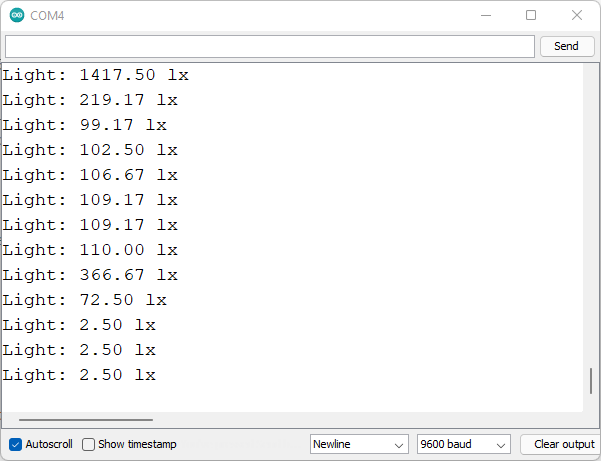
Other examples that illustrate more useful features and functions are provided by the library we're using with the BH1750 sensor. Check this page for a complete list of BH1750 library examples.
The library uses continuous high-resolution measurement mode by default, but you may change this by passing the appropriate measurement mode to the begin() method when initializing the sensor. As an example:
lightMeter.begin(BH1750::CONTINUOUS_HIGH_RES_MODE)Here’s a list of all available modes:
See the properties of each mode in the previous section.
If you like ESP8266, you may also like:
We hope you find this tutorial useful. Thanks for reading
🚀 Discover the world of electronics and innovation!
✨ Create, program, and experiment with all your creative ideas with ease.
🔥 Don't wait! Browse SpotPear products now and start your amazing project!
