

Wait! Don’t Go Yet! 👋
Become a Member Today and Unlock Access to All eBooks! 😍
Thousands of eBooks at your fingertips. Read, learn, and grow anytime, anywhere ✨
Become a Member Today and Unlock Access to All eBooks! 😍
Thousands of eBooks at your fingertips. Read, learn, and grow anytime, anywhere ✨

Learn how to use the ESP32 with WiFiMulti. You may register numerous networks (SSID/password combinations) using it. The ESP32 will connect to the Wi-Fi network that has the strongest signal strength (RSSI). If the connection fails, it will attempt to connect to the next network in the list.
WiFiMulti is useful in your ESP32 IoT projects if your board can connect to more than one Wi-Fi network. Implementing this functionality in your projects is quite simple and dramatically improves them.
With just a few lines of code, you can quickly integrate WiFiMulti into your ESP32 projects. In your Arduino IDE, you may find an example. When you have an ESP32 board selected (Tools > Board), proceed to File > Examples > WiFi > WifiMulti.
Here are the essential steps to using WiFiMulti with the ESP32:
First, you need to include both the WiFi.h and WiFiMulti.h libraries.
#include <WiFi.h>
#include <WiFiMulti.h>Then, you need to create a WiFiMulti object:
Top 6
ESP32 eBooks
From Zero to Professional

WiFiMulti wifiMulti;Then, in the setup(), use the wifiMulti object's addAp() method to add a network. The network SSID and password are sent as arguments to the addAP() method. At least one network should be added.
wifiMulti.addAP("ssid_from_AP_1", "your_password_for_AP_1");
wifiMulti.addAP("ssid_from_AP_2", "your_password_for_AP_2");
wifiMulti.addAP("ssid_from_AP_3", "your_password_for_AP_3");Finally, using the run() method, connect to Wi-Fi. You may also print a message if the Wi-Fi connection is lost.
if(wifiMulti.run() != WL_CONNECTED) {
  Serial.println("WiFi not connected!");
  delay(1000);
}
If you run this snippet in the loop() section, the ESP32 will automatically try to connect to the next strongest network in the list if it is detached from a Wi-Fi network.
For you to understand how WiFiMulti works with the ESP32, we created a simple example that accomplishes the following:
You may test this by copying the following code into your Arduino IDE: It is based on the WiFiScan and WiFiMulti examples from the ESP32 Arduino core examples.
/*
 *  Based on the following examples:
 *  WiFi > WiFiMulti: https://github.com/espressif/arduino-esp32/blob/master/libraries/WiFi/examples/WiFiMulti/WiFiMulti.ino
 *  WiFi > WiFiScan: https://github.com/espressif/arduino-esp32/blob/master/libraries/WiFi/examples/WiFiScan/WiFiScan.ino
 *  Complete project details at our blog: https://ebokify.com/
 *
 */

#include <WiFi.h>
#include <WiFiMulti.h>

WiFiMulti wifiMulti;

// WiFi connect timeout per AP. Increase when connecting takes longer.
const uint32_t connectTimeoutMs = 10000;

void setup(){
  Serial.begin(115200);
  delay(10);
  WiFi.mode(WIFI_STA);

  // Add list of wifi networks
  wifiMulti.addAP("ssid_from_AP_1", "your_password_for_AP_1");
  wifiMulti.addAP("ssid_from_AP_2", "your_password_for_AP_2");
  wifiMulti.addAP("ssid_from_AP_3", "your_password_for_AP_3");

  // WiFi.scanNetworks will return the number of networks found
  int n = WiFi.scanNetworks();
  Serial.println("scan done");
  if (n == 0) {
      Serial.println("no networks found");
  }
  else {
    Serial.print(n);
    Serial.println(" networks found");
    for (int i = 0; i < n; ++i) {
      // Print SSID and RSSI for each network found
      Serial.print(i + 1);
      Serial.print(": ");
      Serial.print(WiFi.SSID(i));
      Serial.print(" (");
      Serial.print(WiFi.RSSI(i));
      Serial.print(")");
      Serial.println((WiFi.encryptionType(i) == WIFI_AUTH_OPEN)?" ":"*");
      delay(10);
    }
  }

  // Connect to Wi-Fi using wifiMulti (connects to the SSID with strongest connection)
  Serial.println("Connecting Wifi...");
  if(wifiMulti.run() == WL_CONNECTED) {
    Serial.println("");
    Serial.println("WiFi connected");
    Serial.println("IP address: ");
    Serial.println(WiFi.localIP());
  }
}

void loop(){
  //if the connection to the stongest hotstop is lost, it will connect to the next network on the list
  if (wifiMulti.run(connectTimeoutMs) == WL_CONNECTED) {
    Serial.print("WiFi connected: ");
    Serial.print(WiFi.SSID());
    Serial.print(" ");
    Serial.println(WiFi.RSSI());
  }
  else {
    Serial.println("WiFi not connected!");
  }
  delay(1000);
}
Don't forget to add a list of networks on the following lines. You can add additional networks by multiplying those lines.
wifiMulti.addAP("ssid_from_AP_1", "your_password_for_AP_1");
wifiMulti.addAP("ssid_from_AP_2", "your_password_for_AP_2");
wifiMulti.addAP("ssid_from_AP_3", "your_password_for_AP_3");
Top 6
Arduino eBooks
From Zero to Professional

Note: If you wish to test this project but only have access to one network, you may use your smartphone to establish a hotspot and add the hotspot name and password to the list of possible networks. I tested it on my iPhone, and it worked well (you may need to remove spaces and special characters from the hotspot name).
You can upload your code to your ESP32 after adding a list of networks to it.
To restart the board, open the Serial Monitor at 115200 baud and press the ESP32 RST button.
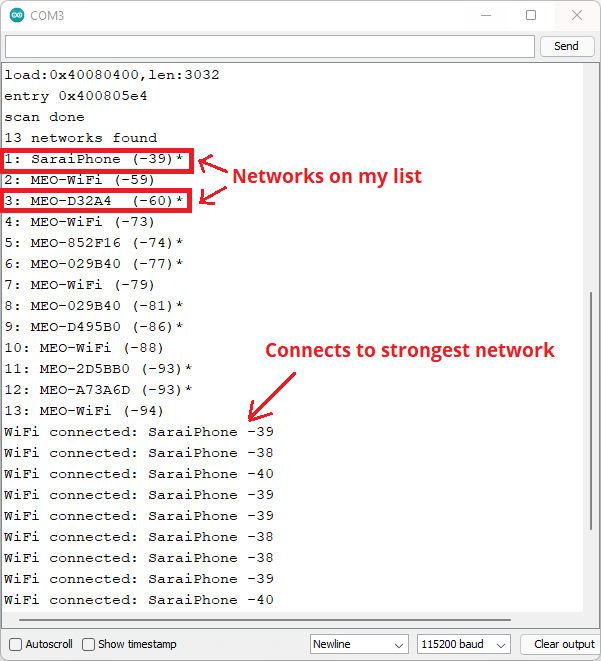
It will first provide a list of nearby networks and their RSSI. In my case, I have access to the first and third networks. In my case, the ESP32 connects to the strongest network on the list (an RSSI closer to zero indicates a stronger signal).
When I remove the iPhone hotspot, the connection is gone, and it will connect to the next strongest network on the list.
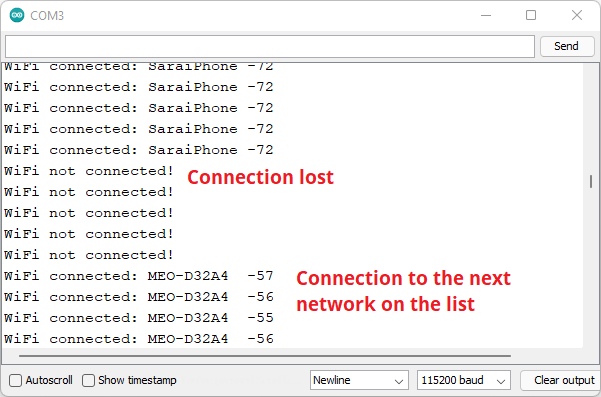
In this article, you learn how to use ESP32 with WiFiMulti to add a list of networks to which the ESP32 may connect. It will connect to the network that has the strongest signal strength (RSSI). If it loses contact with that network, it will try to connect to the next network on the list.
If you like ESP32, you may also like:
We hope you find this tutorial useful. Thanks for reading.
🚀 Discover the world of electronics and innovation!
✨ Create, program, and experiment with all your creative ideas with ease.
🔥 Don't wait! Browse SpotPear products now and start your amazing project!
