Book Categories:


Wait, don't go!
Become a Member Today and Unlock Access to All eBooks!
Thousands of eBooks at your fingertips. Read, learn, and grow anytime, anywhere.
Become a Member Today and Unlock Access to All eBooks!
Thousands of eBooks at your fingertips. Read, learn, and grow anytime, anywhere.
When working with the ESP32, SPIFFS (SPI Flash File System) is a convenient way to store static files like HTML, CSS, JavaScript, images, or JSON configuration data. However, with the Arduino IDE 2, the traditional SPIFFS upload tools are currently not supported.
In this guide, I’ll show you how to upload files to the ESP32 SPIFFS manually using command-line tools (no Arduino IDE required). This is especially useful for developers using Arduino IDE 2 or those who prefer a CLI-based workflow.
In order to manually upload files to the ESP32, we need some Python tools that require the Python programming language to be installed.
If you’ve already got Python installed on your computer, you can skip to the next step.
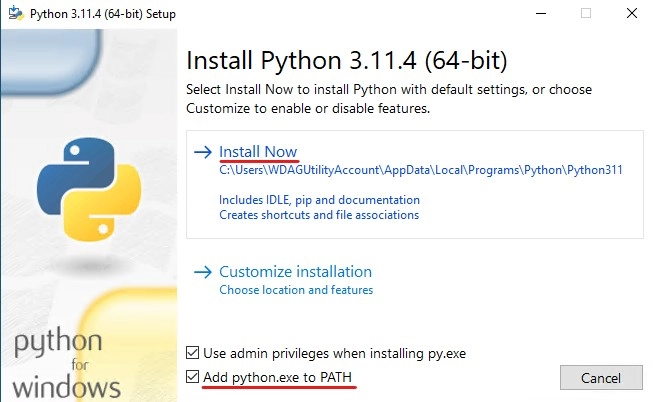
On Windows, head to python.org and download the latest Python version with Pip. After downloading, run the installer and follow the instructions there. Make sure to tick “Add python.exe to PATH“.
Top 6
ESP32 eBooks
From Zero to Professional

On Linux, run the following command in your terminal to download the latest version of Python:
sudo apt install python3-pipWe need to install a tool called mkspiffs that packs all the files we want to upload into a single .bin file.
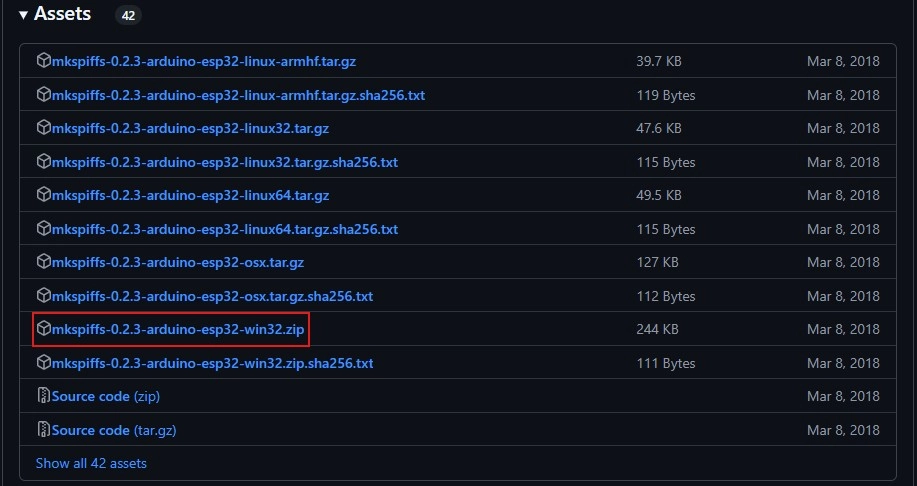
Download the official mkspiffs release from GitHub and unpack the zip file in a place of your choice. Make sure to remember the path.
Next, we need to add the mkspiffs tool to our Path environment variable to access it from any directory.
On Windows, search for “environment variables“, click on Environment Variables… > Path > Edit.
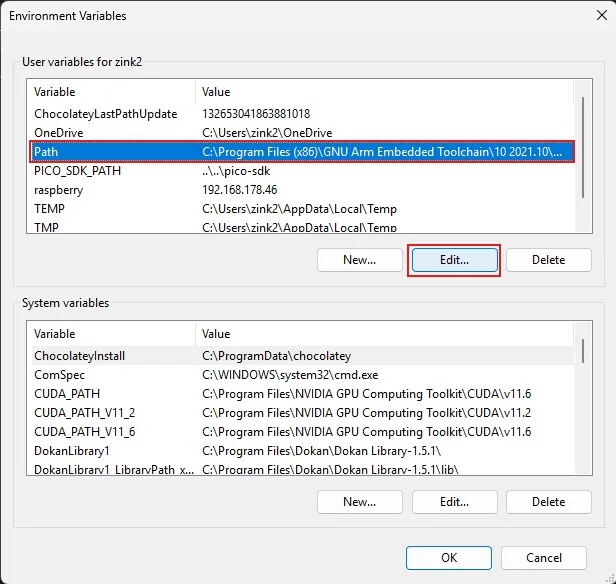
Then, add a New entry with the path to your mkspiffs.exe. Make sure to only specify the folder where mkspiffs.exe is located, not the file itself!
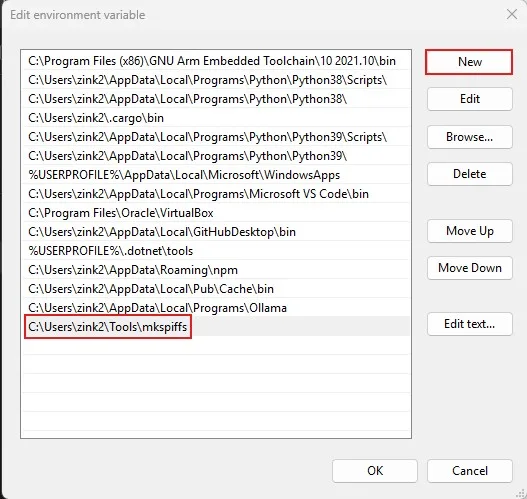
Close all the windows by hitting OK. Also, reopen your terminal so that all changes take effect.
For uploading data to our ESP32 dev board, we need the Python esptool. To install it, open your terminal and enter the following PiP command:
pip install esptoolTop 6
Arduino eBooks
From Zero to Professional

Next, we need to set up the folder structure and create the SPIFFS image.
In your project directory, create a new folder called data. Place all the files you want to upload to your ESP32 inside that folder. Here’s what it should look like:
YourProject/
├── YourSketch.ino
└── data/
    └── index.html
For testing, feel free to use the following example HTML file:
<h1>Hello from SPIFFS!</h1>
<p>This file was uploaded via CLI using spiffsgen.py</p>
Now that we have data to upload, we need to generate a SPIFFS .bin file from it.
We need to pack the files into a single binary file so that we can upload them to the ESP32. That’s where mkspiffs comes in:
mkspiffs -c data -b 4096 -p 256 -s 0x160000 spiffs.binExplanation of the flags:
For the mkspiffs and esptool commands, we need to specify the SPIFFS partition size and offset. Those values can be found in a CSV file.
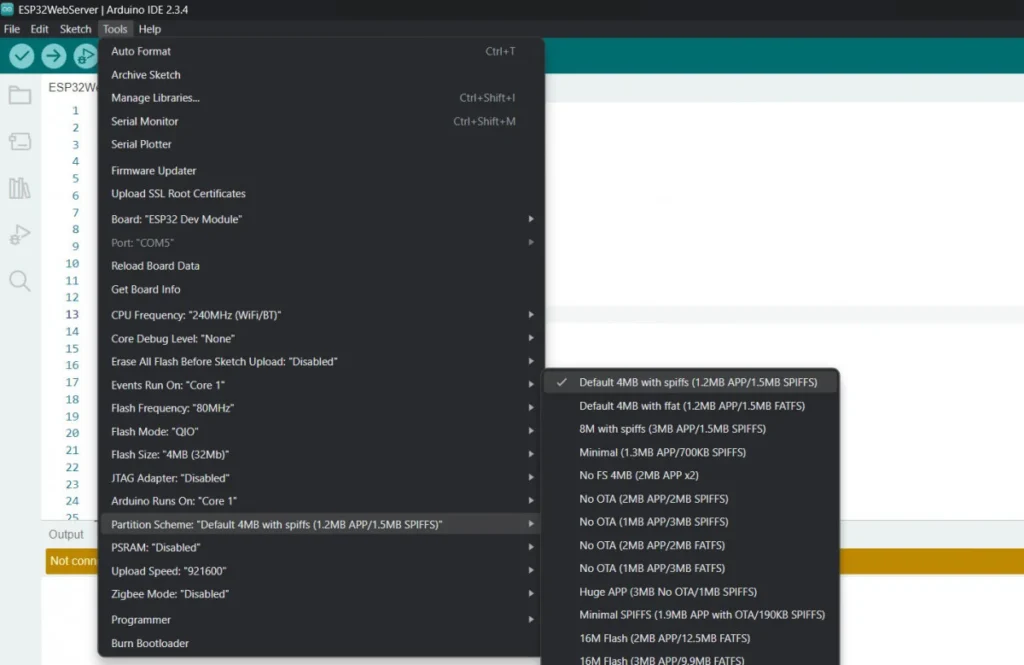
If you are using the Arduino IDE to program your ESP32, check which partition scheme you are normally using when uploading a sketch.
You can do so by clicking Tools > Partition scheme in the Arduino IDE while an ESP32 board is selected.
Next, look for the corresponding .csv file in your ESP32 core’s tools directory.
Usually, you’ll find it under the following path:
C:\Users\<user>\AppData\Local\Arduino15\packages\esp32\hardware\esp32\<version>\tools\partitionsThe contents of this file should be similar to this:
# Name,   Type, SubType, Offset,  Size, Flags
nvs,      data, nvs,     0x9000,  0x5000,
otadata,  data, ota,     0xe000,  0x2000,
app0,     app,  ota_0,   0x10000, 0x140000,
app1,     app,  ota_1,   0x150000,0x140000,
spiffs,   data, spiffs,  0x290000,0x160000,
coredump, data, coredump,0x3F0000,0x10000,
Look for the entry that says “spiffs” and note the Offset and Size values.
You need the Size value in the mkspiffs command above and the Offset value in the esptool command coming up next.
If you are using the ESP-IDF only, the default partitions.csv file is usually stored in your project’s folder or in the default configuration:
$IDF_PATH/components/partition_table/partitions_singleapp.csvLast but not least, we need to upload the binary file to the ESP32.
Therefore, enter the following command in your terminal:
esptool --chip esp32 --port COM4 --baud 460800 write_flash 0x290000 spiffs.binFlag explanation:
If your ESP32 doesn’t automatically switch into boot mode, press the BOOT button on your development board while esptool is trying to upload to it.
Let’s check whether uploading the files to your ESP32 was successful.
Use the following sketch to read the contents of the file you uploaded:
#include "SPIFFS.h"

void setup() {
  Serial.begin(115200);
  Serial.println("Booting...");

  if (!SPIFFS.begin(true)) {
    Serial.println("SPIFFS Mount Failed");
    return;
  }
  Serial.println("SPIFFS Mounted!");

  File file = SPIFFS.open("/index.html");
  if (!file || file.isDirectory()) {
    Serial.println("Failed to open file or it's a directory");
    return;
  }

  Serial.println("File opened! Contents:");
  while (file.available()) {
    Serial.write(file.read());
  }
  file.close();
  Serial.println("\nFile closed.");
}

void loop() {}Uploading files to ESP32 SPIFFS manually using mkspiffs and esptool gives you full control and is compatible with the Arduino IDE 2. This CLI method ensures reliable file deployment without relying on plugins.
Whether you’re building an ESP32 web server or storing other persistent data, this workflow keeps you flexible and in control of your file system layout.
Did you encounter any problems following this guide? Share your questions in the comments!
Thanks for reading!
Links marked with an asterisk (*) are affiliate links, which means we may receive a commission for purchases made through these links at no extra cost to you. Read more on our Affiliate Disclosure Page.
🚀 Discover the world of electronics and innovation!
✨ Create, program, and experiment with all your creative ideas with ease.
🔥 Don't wait! Browse SpotPear products now and start your amazing project!




![ESP32 IR Receiver: How To Detect IR Remote Signals [Arduino IDE]](https://ebokify.com/wp-content/uploads/2026/01/ESP32-IR-Receiver-How-To-Detect-IR-Remote-Signals-Arduino-IDE-1-768x512.webp "ESP32 IR Receiver: How To Detect IR Remote Signals [Arduino IDE] 13")