Book Categories:


Wait, don't go!
Become a Member Today and Unlock Access to All eBooks!
Thousands of eBooks at your fingertips. Read, learn, and grow anytime, anywhere.
Become a Member Today and Unlock Access to All eBooks!
Thousands of eBooks at your fingertips. Read, learn, and grow anytime, anywhere.
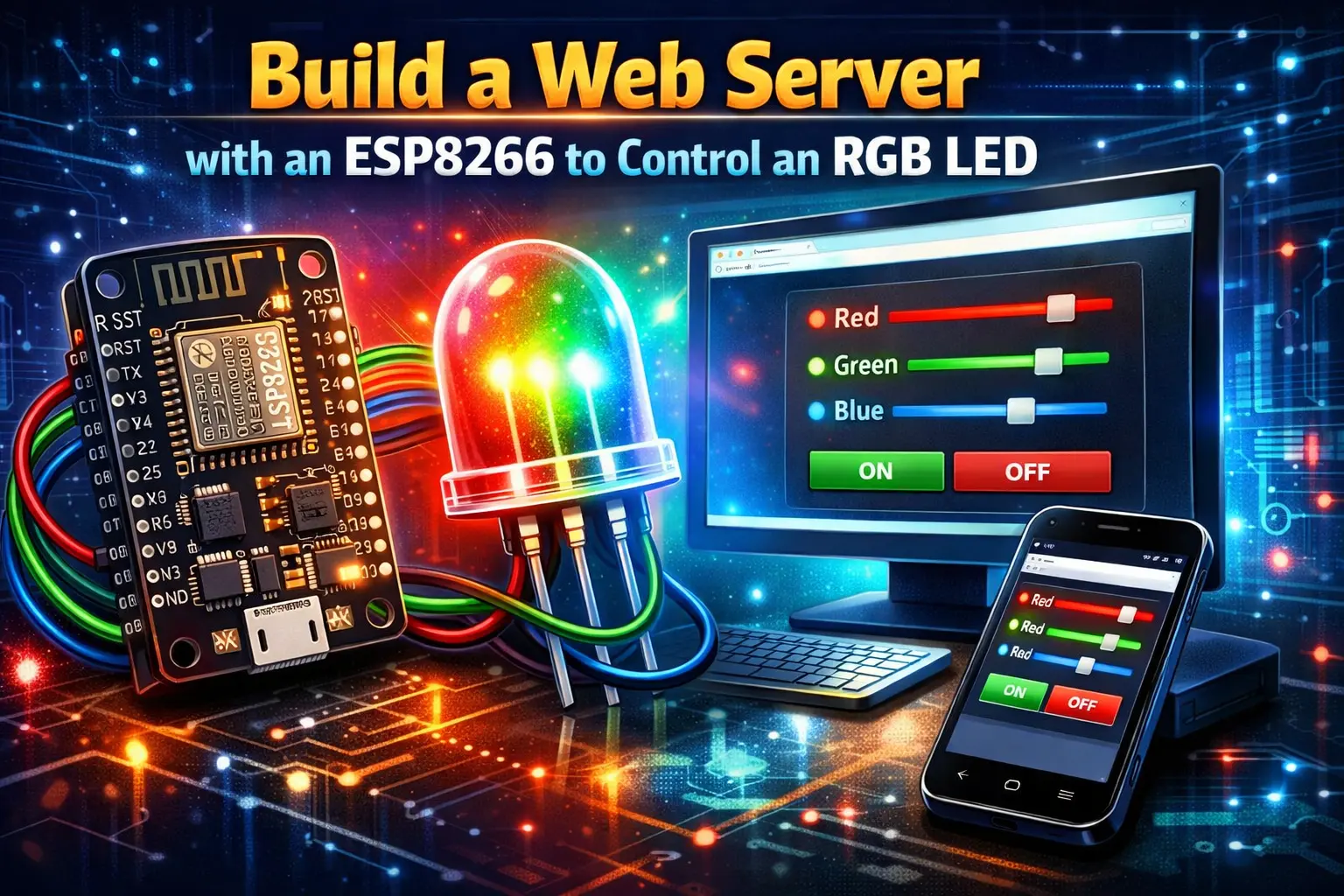
To remotely control an RGB LED, you will build a web server using an ESP8266 in this project. ESP8266 RGB Colour Picker is the name of this project.
Let’s get started!
You will need the following items to proceed with this project:
You can use the preceding links to find all the parts for your projects at the best price!
In this article, we are going to use the NodeMCU firmware. You have to flash your ESP using the NodeMCU firmware.
I recommend using the ESPlorer IDE, a program created by 4refr0nt, to send commands to your ESP8266.
Follow these instructions to download and install ESPlorer IDE:

You should see a window similar to the one shown in the preceding illustration. To upload a Lua file, follow these instructions:
Everything you need to worry about or change is highlighted in Red Box.

Using the preceding program, upload the following code to your ESP8266: You should have a file named “init.lua” in your project.
Note: Don’t forget to add your network name (SSID) and password to the script below.
-- Ebokify
-- Complete project details at https://ebokify.com

wifi.setmode(wifi.STATION)
wifi.sta.config("YOUR_NETWORK_NAME","YOUR_NETWORK_PASSWORD")

print(wifi.sta.getip())

function led(r, g, b)
    pwm.setduty(1, r)
    pwm.setduty(2, g)
    pwm.setduty(3, b)
end
pwm.setup(1, 1000, 1023)
pwm.setup(2, 1000, 1023)
pwm.setup(3, 1000, 1023)
pwm.start(1)
pwm.start(2)
pwm.start(3)

srv=net.createServer(net.TCP)
srv:listen(80,function(conn)
    conn:on("receive", function(client,request)
        local buf = "";
        buf = buf.."HTTP/1.1 200 OK\n\n"
        local _, _, method, path, vars = string.find(request, "([A-Z]+) (.+)?(.+) HTTP");
        if(method == nil)then
            _, _, method, path = string.find(request, "([A-Z]+) (.+) HTTP");
        end
        local _GET = {}
        if (vars ~= nil)then
            for k, v in string.gmatch(vars, "(%w+)=(%w+)&*") do
                _GET[k] = v
            end
        end
        buf = buf.."<!DOCTYPE html><html><head>";
        buf = buf.."<meta charset=\"utf-8\">";
        buf = buf.."<meta http-equiv=\"X-UA-Compatible\" content=\"IE=edge\">";
        buf = buf.."<meta name=\"viewport\" content=\"width=device-width, initial-scale=1\">";
        buf = buf.."<link rel=\"stylesheet\" href=\"https://maxcdn.bootstrapcdn.com/bootstrap/3.3.6/css/bootstrap.min.css\">";
        buf = buf.."<script src=\"https://maxcdn.bootstrapcdn.com/bootstrap/3.3.6/js/bootstrap.min.js\"></script>";
        buf = buf.."<script src=\"https://cdnjs.cloudflare.com/ajax/libs/jscolor/2.0.4/jscolor.min.js\"></script>";
        buf = buf.."</head><body><div class=\"container\"><div class=\"row\"><h1>ESP Color Picker</h1>";
        buf = buf.."<a type=\"submit\" id=\"change_color\" type=\"button\" class=\"btn btn-primary\">Change Color</a> ";
        buf = buf.."<input class=\"jscolor {onFineChange:'update(this)'}\" id=\"rgb\"></div></div>";
        buf = buf.."<script>function update(picker) {document.getElementById('rgb').innerHTML = Math.round(picker.rgb[0]) + ', ' +  Math.round(picker.rgb[1]) + ', ' + Math.round(picker.rgb[2]);";
        buf = buf.."document.getElementById(\"change_color\").href=\"?r=\" + Math.round(picker.rgb[0]*4.0117) + \"&g=\" +  Math.round(picker.rgb[1]*4.0117) + \"&b=\" + Math.round(picker.rgb[2]*4.0117);}</script></body></html>";

        if(_GET.r or _GET.g or _GET.b) then
            -- This is for RGB Common Cathode
            -- led(_GET.r, _GET.g,_GET.b)

            -- This is for RGB Common Anode
            led(1023-_GET.r, 1023-_GET.g,1023-_GET.b)
        end
        client:send(buf);
        client:close();
        collectgarbage();
    end)
end)
Important: If you're using an RGB LED common cathode, you'll need to comment and uncomment some code in the if(_GET.r, _GET.g, or _GET.b) statement, as explained in the script comments.
To create the circuit for the RGB LED common anode, follow these schematics.

Important: If you're using an RGB LED's common cathode, you'll need to connect the longer lead to GND.
When you restart your ESP8266, it prints the ESP IP address to your serial monitor. Keep the IP address handy in case you need it later.
The ESP IP address in my case is 192.168.1.7. Read this troubleshooting guide if you experience problems seeing your IP.
You’re all set!
Enter your ESP8266's IP address into any browser. What you should see is as follows:

A small window with a color picker opens when you click on the field. To select the color for your RGB LED, drag your mouse or finger over the screen.

Then simply click the “Change Color” button:

Your RGB LED has now turned blue.

This is a simple example that shows how easy it is to remotely control an RGB LED with an ESP8266. To control an actual bulb, take this example and modify it.
If you like ESP8266, you may also like:
We hope you find this tutorial useful. Thanks for reading.
🚀 Discover the world of electronics and innovation!
✨ Create, program, and experiment with all your creative ideas with ease.
🔥 Don't wait! Browse SpotPear products now and start your amazing project!




![[Resolve] Reconnect ESP8266 to Wi-Fi Network After Lost Connection](https://ebokify.com/wp-content/uploads/2023/07/Resolve-Reconnect-ESP8266-to-Wi-Fi-Network-After-Lost-Connection-1-768x512.webp "[Resolve] Reconnect ESP8266 to Wi-Fi Network After Lost Connection 14")