

Wait! Don’t Go Yet! 👋
Become a Member Today and Unlock Access to All eBooks! 😍
Thousands of eBooks at your fingertips. Read, learn, and grow anytime, anywhere ✨
Become a Member Today and Unlock Access to All eBooks! 😍
Thousands of eBooks at your fingertips. Read, learn, and grow anytime, anywhere ✨

This guide explains how to install Node-RED software on a Linux Ubuntu VM (Virtual Machine) using Digital Ocean. Running Node-RED in the cloud allows you to access your Node-RED Dashboard from anywhere.
You can also install the MQTT Mosquitto Broker in your VM to connect several ESP32/ESP8266 boards and other IoT devices from anywhere using different networks with an Internet connection.
Node-RED is a powerful tool for building Internet of Things (IoT) applications using visual programming: connect code blocks (nodes) together to perform a task. Node-RED provides a dashboard (Node-RED dashboard) that can be used as an Home Automation platform to interact with IoT devices to control outputs and monitor sensors.
You can easily establish communication with Node-RED and your ESP32/ESP8266 boards using HTTP requests or MQTT, for example.
What’s the advantage of installing Node-RED on the cloud (Digital Ocean hosting service), and how does it work? Here’s an example.
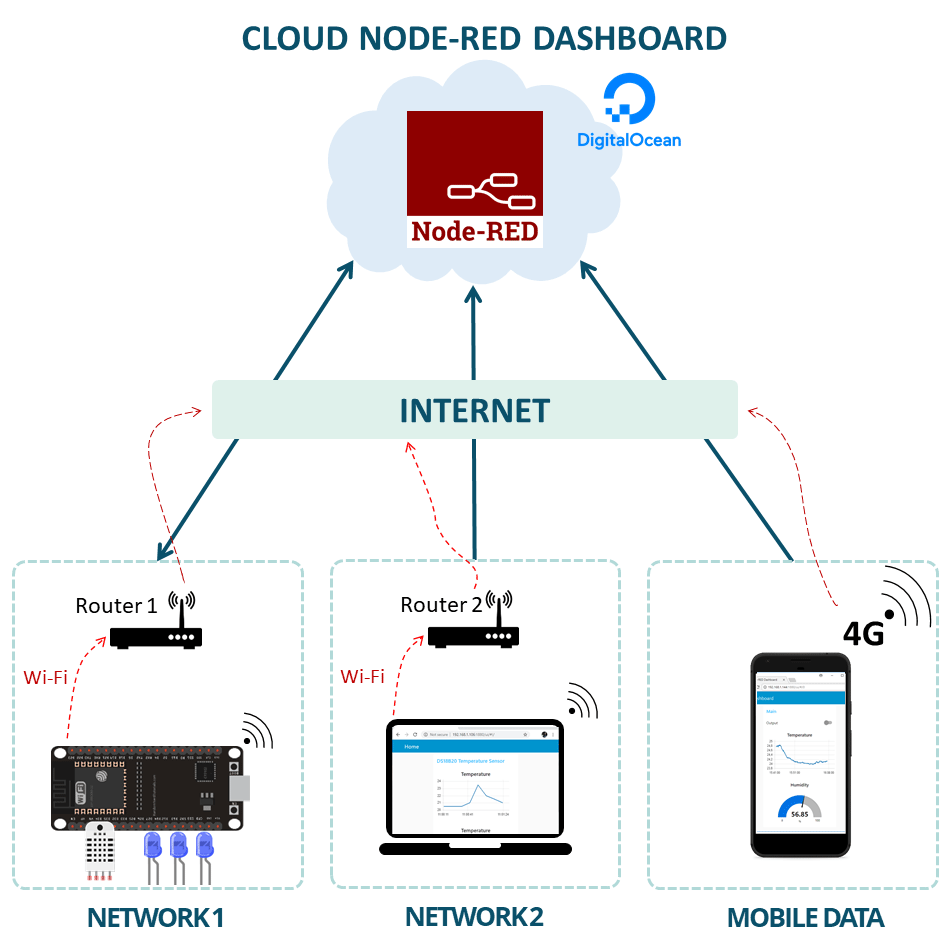
To run your Cloud MQTT Mosquitto Broker, you need to use a hosting service that allows you to have access to the command line and install any software that you need. I recommend using Digital Ocean that offers an Ubuntu server that you can manage through a command line.
I’ve been using it since 2015, and I personally recommend it, but you can use any other hosting service. Any hosting service that offers a Linux Ubuntu VM with full console access should work.
If you don’t have a hosting account, I recommend signing up for Digital Ocean. When you sign up for Digital Ocean, you can try it for 60 days (they give you free credits to test the platform).
If you like our projects, you might consider signing up for the recommended hosting service, because you’ll be supporting our work.
Note: You can also run Node-RED in your local network using a Raspberry Pi board. However, the purpose of this tutorial is to run Node-RED in the cloud to communicate with boards (or other IoT devices) across different networks.
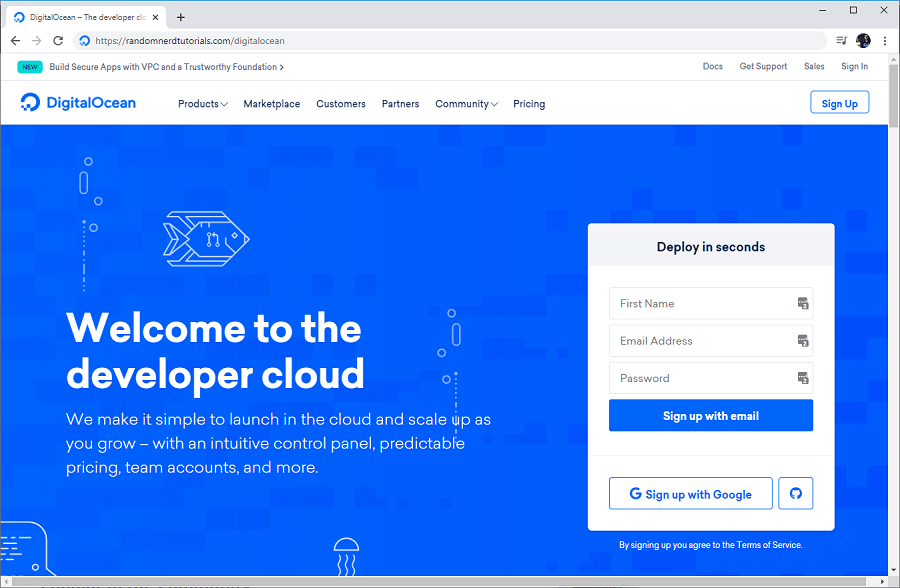
To create a Digital Ocean Account, go to Digital Ocean and press the “Sign Up” button.
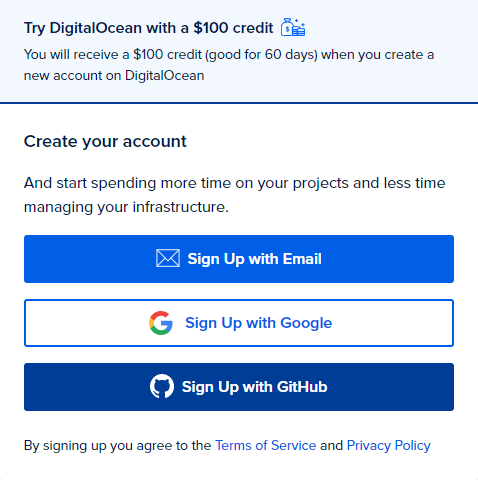
Create your account, and you’ll receive a $100 credit that you can use for 60 days to test the platform. You might need to enter a valid credit card, but you can cancel your account anytime if you’re no longer interested in using the service after the free 60-day trial.
Complete the account creation using your preferred method (I always use the Email option).
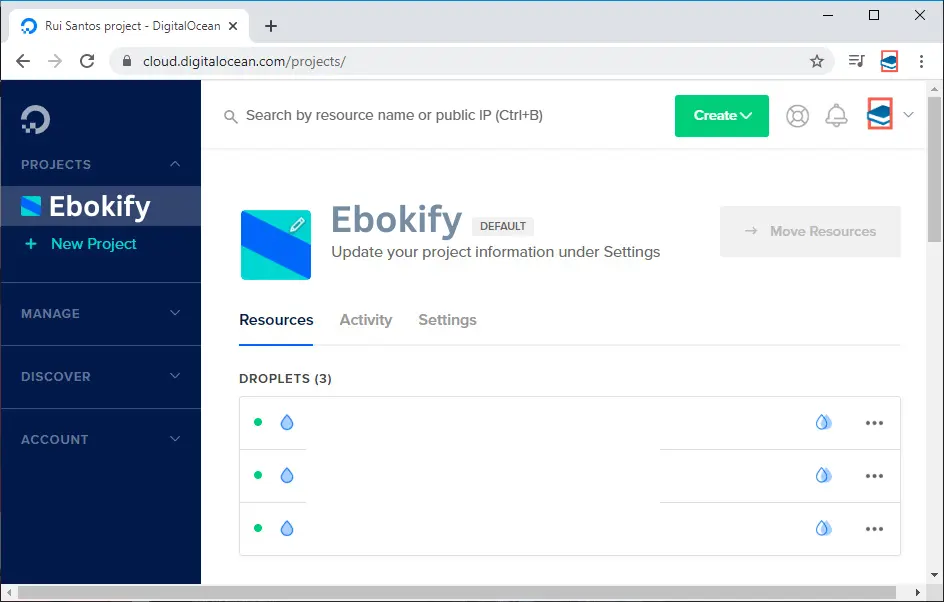
Confirm your account and login, you should see a similar Dashboard.
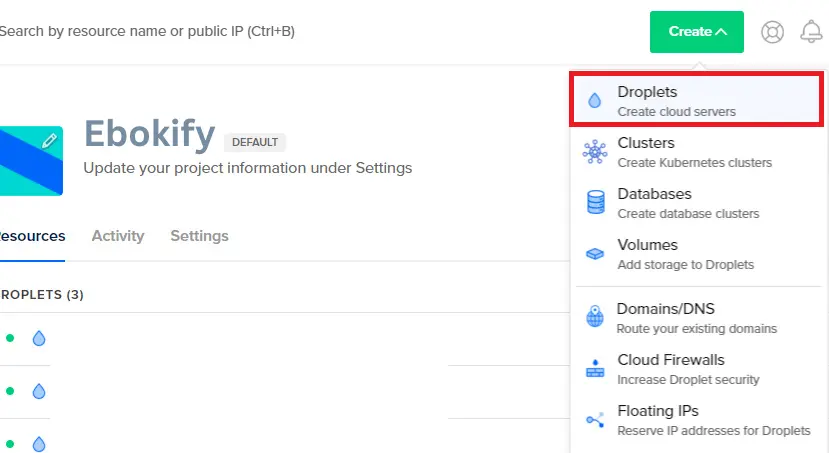
To create a new VM, press the “Create” button on the top right corner and select the “Droplets” option. Digital Ocean calls Droplets to its VMs.
Important: if you’re already running a Droplet with MQTT Mosquitto Broker, you can skip these next steps (creating a Droplet). You can run both Node-RED and Mosquitto MQTT broker in the same server.
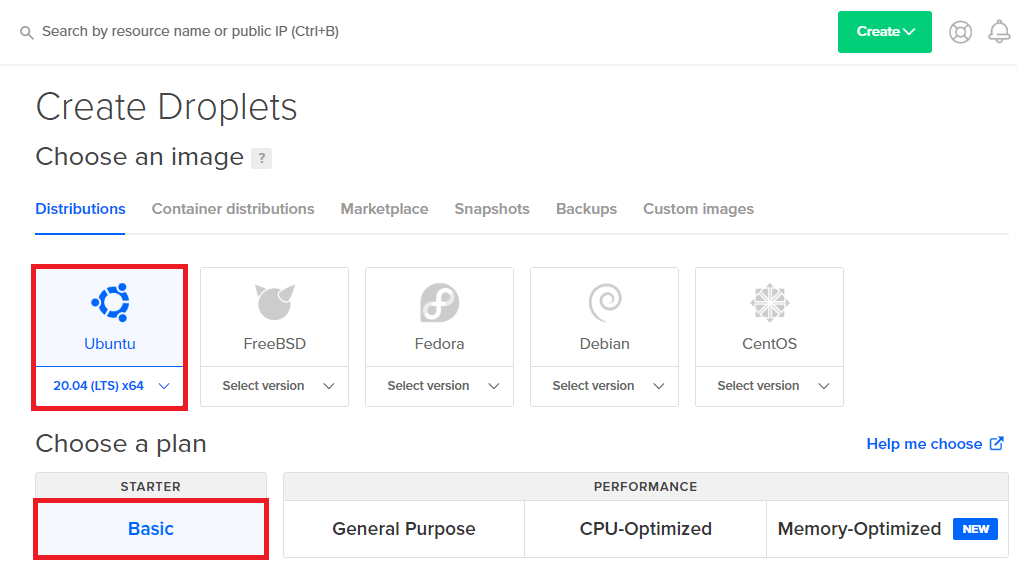
For this guide, I’ll be using Ubuntu 20.04 (LTS) x64, and I recommend choosing the same option. You can also use the “Basic” starter plan.
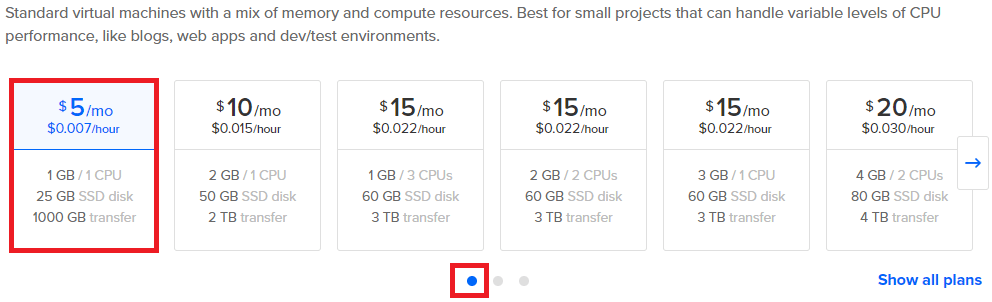
In the VM resources menu, you can choose the cheapest plan for $5/month. Even with the lowest plan, it will run the MQTT Broker and Node-RED smoothly.
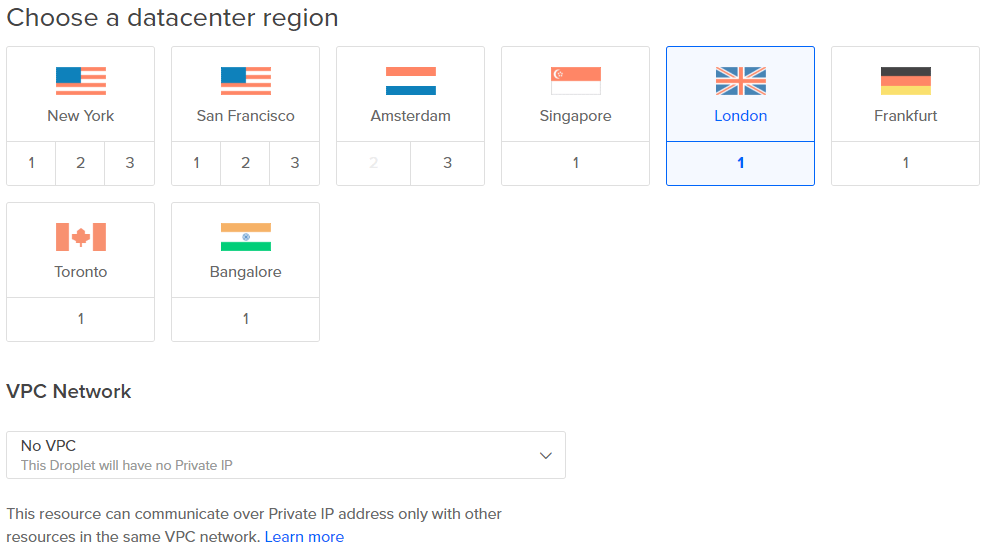
Choose the Virtual Machine datacenter location closer to you. In my case, I’ve used “London” region.
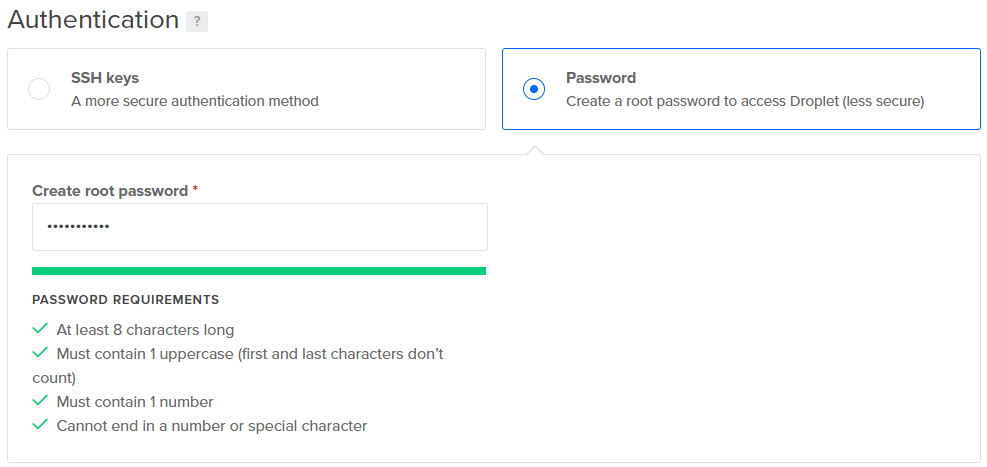
Create the root password that allows you to access your Droplet (save this password, because you’ll need it to access your server).
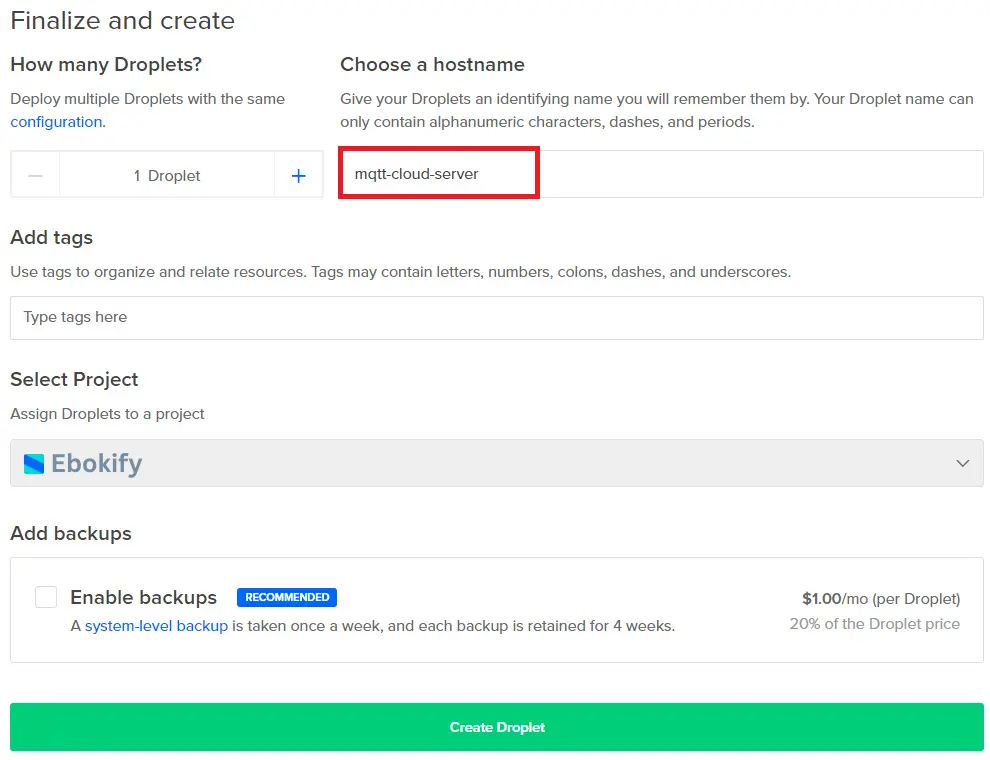
Finally, choose a hostname to easily identify which Virtual Machine you are working with. I’ve named my Droplet as “mqtt-cloud-server”. That’s it, you just need to press the big green button “Create Droplet” to finish the process.
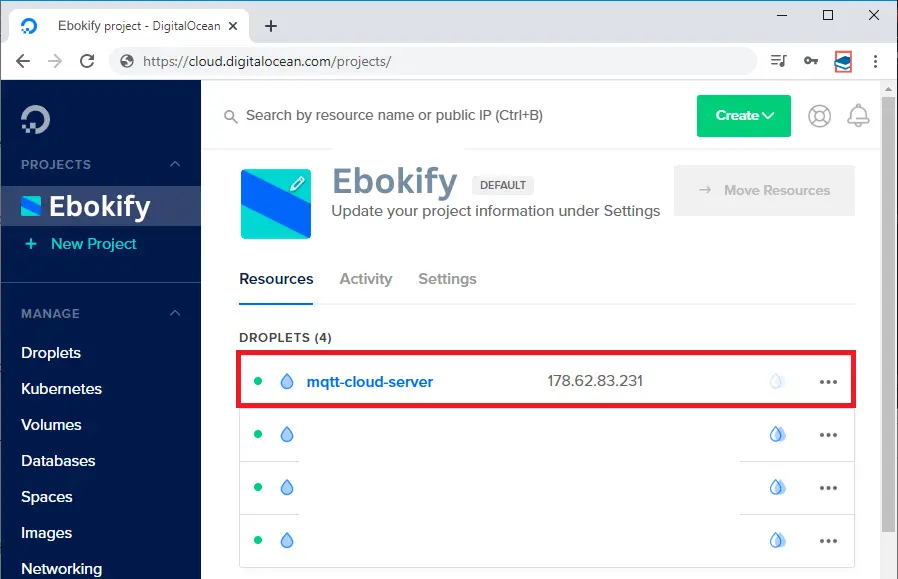
Wait a few minutes, and when the progress bar ends, your Droplet is ready.
When your Droplet is prepared, open your newly created server (in my case, it’s called “mqtt-cloud-server“).
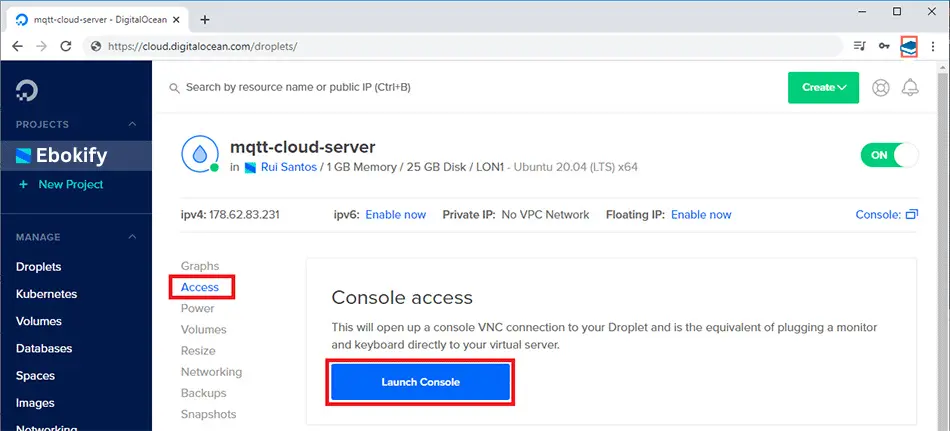
Select the “Access” menu and press the “Launch Console” button.
A new browser window opens up on your computer.
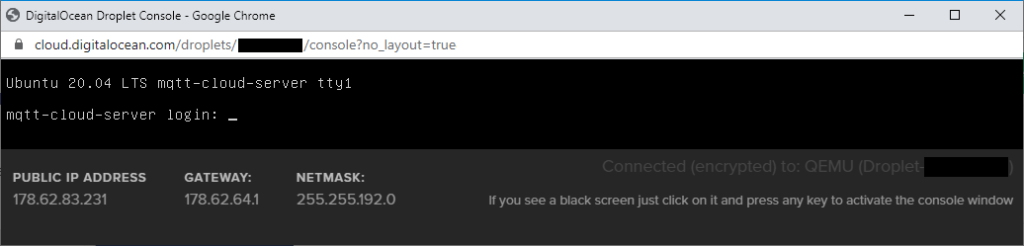
Type your login (root) and the password defined earlier, and press Enter key to access your server.
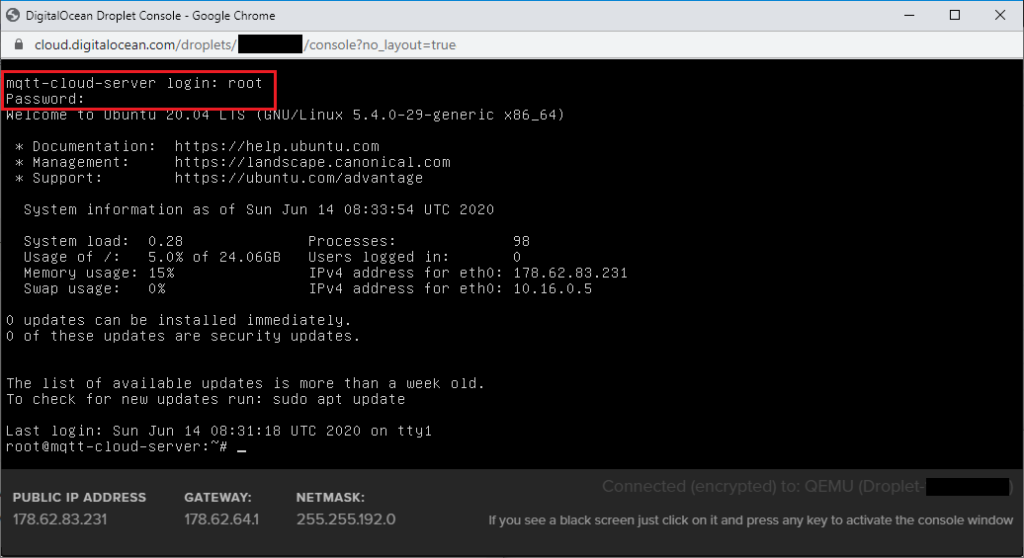
There’s an optional step, but it goes beyond the scope of this tutorial. It’s not required to make this project work: prepare your server with a non-root, sudo-enabled user and basic firewall with this Initial Server Setup with Ubuntu 20.04.
Let’s install Node-RED software.
Before installing the software, update and upgrade your server (this will take a few minutes to complete).
sudo apt update && sudo apt upgrade -yTo install Node-RED, you’ll need npm:
sudo apt install npm -yThis next command installs Node-RED as a global module along with all its dependencies.
sudo npm install -g --unsafe-perm node-redWhen the installation process is completed, you should see a similar message:
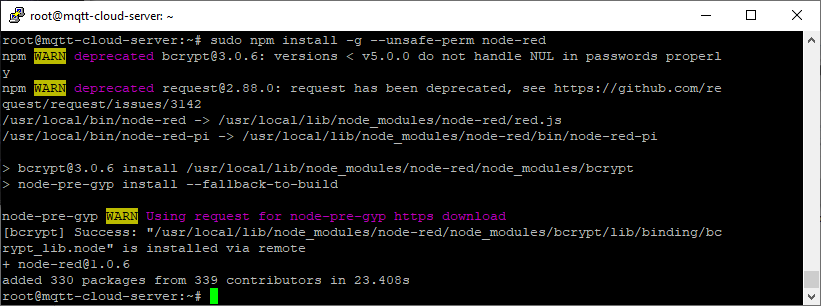
Open up a port on your server firewall. Node-RED defaults to using port 1880, so run this next command:
sudo ufw allow 1880You can confirm it has succeeded if the end of the command output looks similar to:
node-red start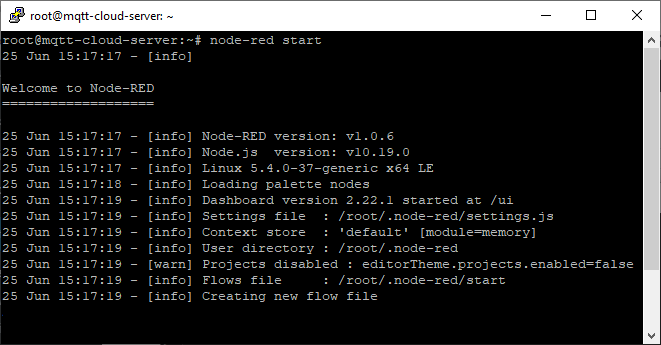
Wait a few seconds while everything loads. If you go to your Digital Ocean Droplet IP address, followed by the port number 1880:
http://YOUR-Digital-Ocean-IP-Address:1880For example:
http://178.62.83.231:1880Node-RED software should load. Here’s how it should look:
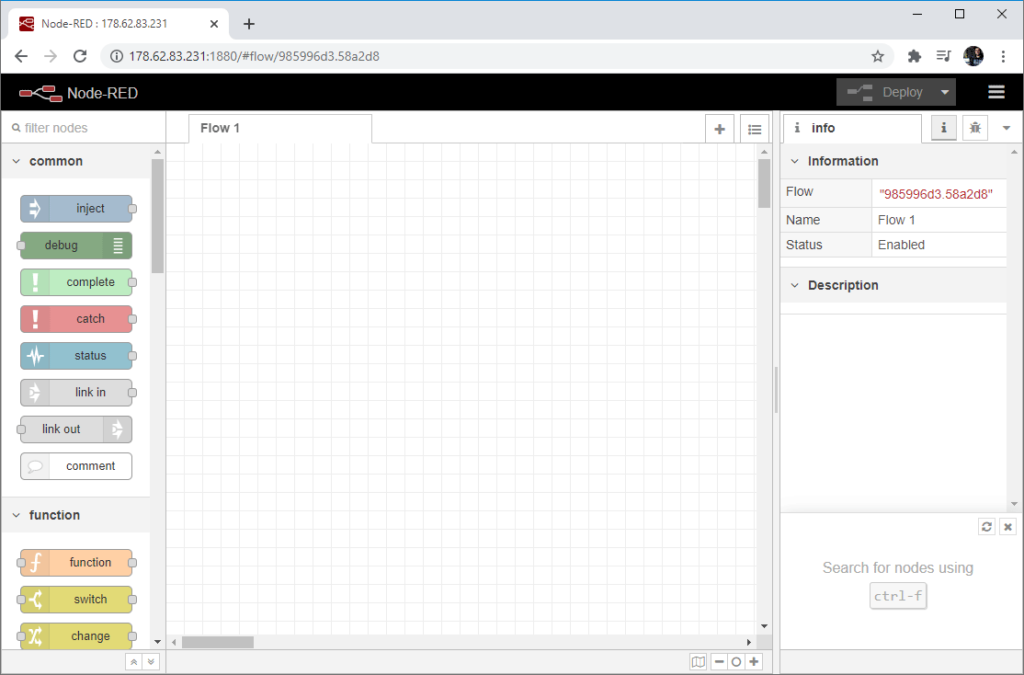
In your console window, press the Ctrl+C key to stop Node-RED.
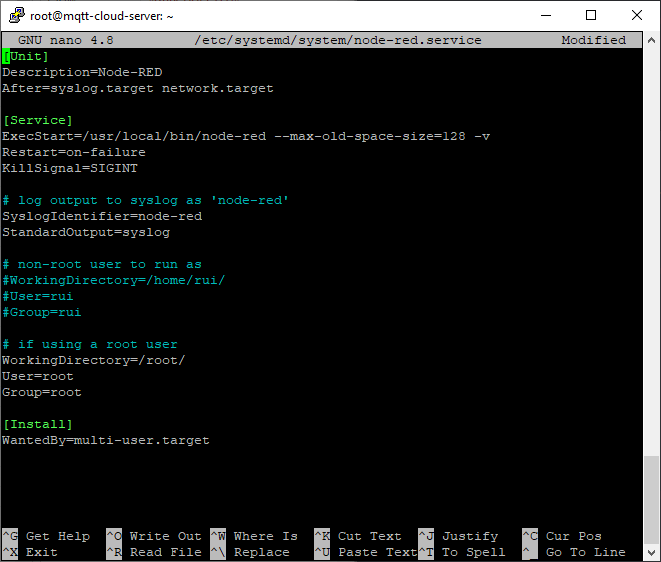
To make Node-RED autostart when you boot or restart your Virtual Machine, you need to create a new systemd file for the nodered.service:
sudo nano /etc/systemd/system/nodered.serviceThen, add the following (if you’re using root, you can leave the file as it is – otherwise, comment out the root and configure the non-root user option):
[Unit]
Description=Node-RED
After=syslog.target network.target

[Service]
ExecStart=/usr/local/bin/node-red --max-old-space-size=128 -v
Restart=on-failure
KillSignal=SIGINT

# log output to syslog as 'node-red'
SyslogIdentifier=node-red
StandardOutput=syslog

# non-root user to run as
#WorkingDirectory=/home/rui/
#User=rui
#Group=rui

# if using a root user
WorkingDirectory=/root/
User=root
Group=root

[Install]
WantedBy=multi-user.target
Your file should look like this, save it and exit (Ctrl+X, Y, Enter key).
To enable the Node-RED service and run this file on boot, enter the command:
sudo systemctl enable nodered.serviceRestart your Virtual Machine to test if Node-RED is automatically starting on boot:
sudo rebootWait approximately 2 to 3 minutes for your server to fully restart. When you open your server IP address, Node-RED software should load automatically:
http://YOUR-Digital-Ocean-IP-Address:1880That’s it! Your Node-RED software is prepared.
Install node-red-admin package to make it available globally:
npm install -g --unsafe-perm node-red-adminRun the next command to create a password hash:
node-red-admin hash-pwYou will be prompted for a password. Type your desired password, press the Enter key, and a hash will be printed on the screen.
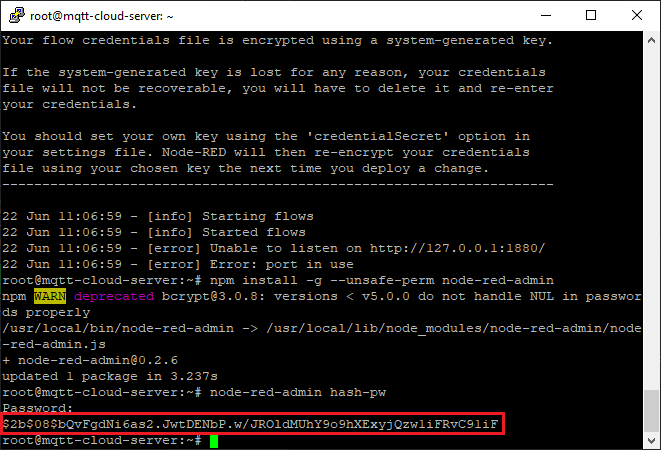
Copy the hash string to your clipboard and open the Node-RED settings file. In my case, the hash is:
$2b$08$bQvFgdNi6as2.JwtDENbP.w/JROldMUhY9o9hXExyjQzw1iFRvC9liFOpen the settings.js file:
sudo nano ~/.node-red/settings.jsScroll down and uncomment the adminAuth block (by removing the “// ” in front of each line). Change username to whatever you like, and paste the previously generated hash into the password field.
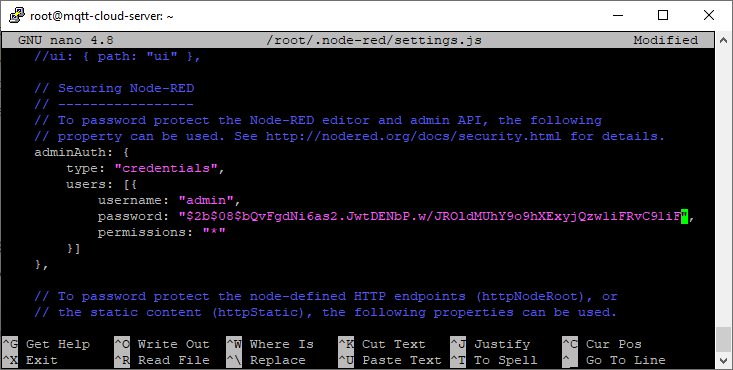
Make sure you uncomment and replace the password field with the hash exactly as illustrated above; failing to do so will make it impossible to login and you’ll have to repeat this process.
Exit the file and save it (Ctr+X, Y, Enter key). Restart your server to ensure that all changes take effect:
sudo rebootNow, when you access your Node-RED software, you’ll be prompted to enter the username (default is admin) and the password defined earlier.
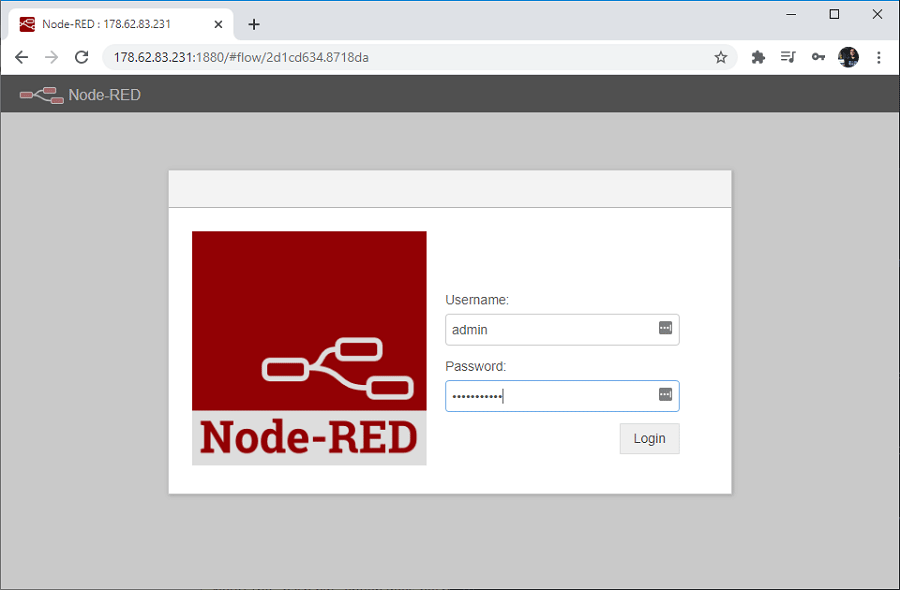
After logging in, you’ll be redirected to Node-RED software where you can create and edit your flows. You also have a menu at the top right corner to logout.
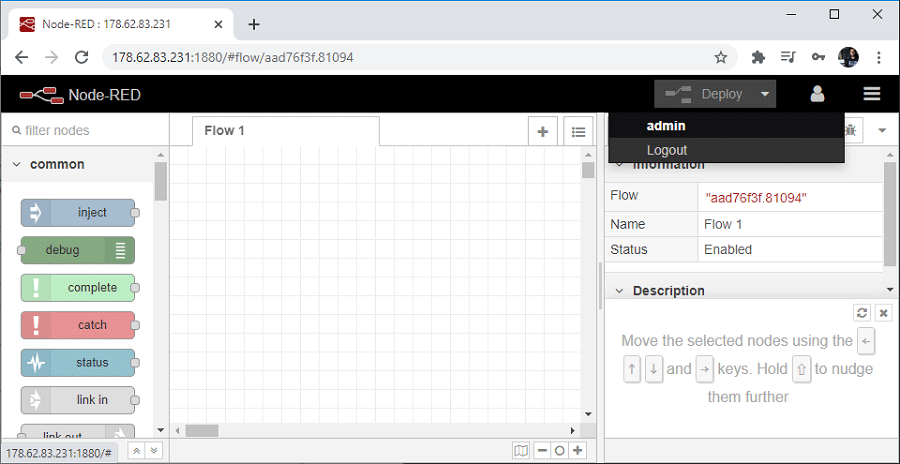
That’s it! Your server is ready and you can install Node-RED Dashboard or connect Node-RED to your cloud MQTT broker.
The best method to add an SSL certificate to your server is by having a domain name pointed at your server and using Let’s Encrypt SSL certificates.
Having those prerequisites completed, open a new Nginx configuration for the site (replace the path with your domain name).
sudo nano /etc/nginx/sites-enabled/example.comCopy and paste the following to the new file. You need to change the domain name and certificate paths:
server {
  listen 80;
  listen 443 ssl http2;
  server_name example.com;
  ssl_certificate /etc/letsencrypt/live/example.com/fullchain.pem;
  ssl_certificate_key /etc/letsencrypt/live/example.com/privkey.pem;
  ssl_protocols TLSv1 TLSv1.1 TLSv1.2;
  ssl_ciphers EECDH+AES128:RSA+AES128:EECDH+AES256:RSA+AES256:EECDH+3DES:RSA+3DES:!MD5;
  ssl_prefer_server_ciphers On;
  ssl_session_cache shared:SSL:128m;
  ssl_stapling on;
  ssl_stapling_verify on;
  resolver 8.8.8.8;

  location / {
    if ($scheme = http) {
      return 301 https://$server_name$request_uri;
    }
    proxy_pass http://localhost:1880;
    proxy_set_header Host $host;
    proxy_set_header X-Real-IP $remote_addr;
    proxy_http_version 1.1;
    proxy_set_header Upgrade $http_upgrade;
    proxy_set_header Connection "upgrade";
  }

  location '/.well-known/acme-challenge' {
    root /var/www/html;
  }
}
Change the example.com text to your own domain name:
server_name example.com;
ssl_certificate /etc/letsencrypt/live/example.com/fullchain.pem;
ssl_certificate_key /etc/letsencrypt/live/example.com/privkey.pem;
When you’re done editing the file, save it and exit the editor (Ctrl+X, Y, Enter key). Reload Nginx to pick up the new configuration.
sudo systemctl reload nginxFinally, restart your server:
sudo rebootWait a couple of minutes to restart. Finally, navigate to your server: http://example.com. You should be redirected to https://example.com (note the https) and see the Node-RED software login page. This means we’re now proxying Node-RED through Nginx.
This complete guide was tested, and it should work. There are many steps, and they must be followed exactly as we describe, something might not work properly.
In all our guides and projects, we always try to help if anyone gets stuck. However, in this particular case, there are so many steps that it can be extremely hard to help you without having access to the server and testing it (of course, we don’t have the resources to personally help everyone).
If you have any problem installing Mosquitto MQTT broker, preparing your Linux Ubuntu server, running Node-RED, or installing an SSL certificate, contact Digital Ocean support and describe exactly what’s happening. I’ve been using their service since 2015, and they always have an extremely helpful support team (or just use their Forum).
Now, if you want to install Mosquitto MQTT Broker on Digital Ocean, follow the next tutorial: Run Your Cloud MQTT Mosquitto Broker (access from anywhere using Digital Ocean).
Read the next guides to learn more about Node-RED:
Thanks for reading.
🚀 Discover the world of electronics and innovation!
✨ Create, program, and experiment with all your creative ideas with ease.
🔥 Don't wait! Browse SpotPear products now and start your amazing project!
