Book Categories:


Wait, don't go!
Become a Member Today and Unlock Access to All eBooks!
Thousands of eBooks at your fingertips. Read, learn, and grow anytime, anywhere.

The Serial Peripheral Interface Flash File System (SPIFFS) is built into the ESP32. SPIFFS is a lightweight filesystem designed for microcontrollers with flash chips linked through an SPI connection, such as the ESP32 flash memory. In this post, we'll show you how to effortlessly upload files to the ESP32 SPIFFS filesystem using an Arduino IDE plugin.
Note: If you have an ESP8266 board, read: Install ESP8266 LittleFS Filesystem Uploader in Arduino IDE.
If you're using VS Code with the PlatformIO extension, instead read the following tutorial:
SPIFFS allows you to access flash memory in the same way that you would in a normal filesystem on your computer, although it is simpler and more restricted. Files may be read, written, closed, and deleted. SPIFFS does not support folders at the time of writing; therefore, everything is kept in a flat format.
Using SPIFFS with the ESP32 board is especially useful to:
You may use SPIFFS to write HTML and CSS in separate files and save them on the ESP32 filesystem. Learn how to create a web server using files stored on the ESP32 file system by reading the following tutorial:

By writing your code on the Arduino IDE, you may create, save, and write files to the ESP32 filesystem. Since you would have to type the contents of your files into the Arduino sketch, this is not particularly useful.
Fortunately, there is a plugin for the Arduino IDE that enables you to upload files straight from a folder on your computer to the ESP32 filesystem. This makes working with files really simple and easy. Install it now.
Make sure you have the ESP32 add-on for the Arduino IDE before anything else. Follow the next tutorial if you don't:
Follow the next steps to install the filesystem uploader if you’re using Windows:
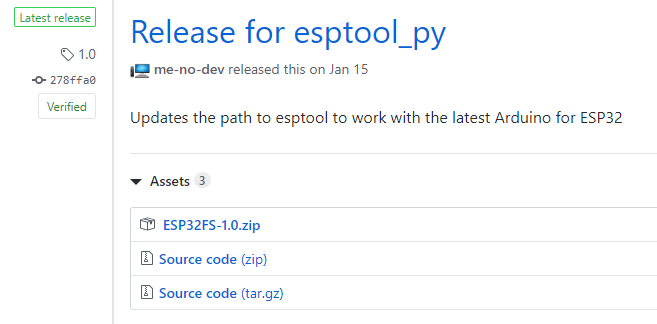
1) Go to the releases page and click the ESP32FS-1.0.zip file to download.
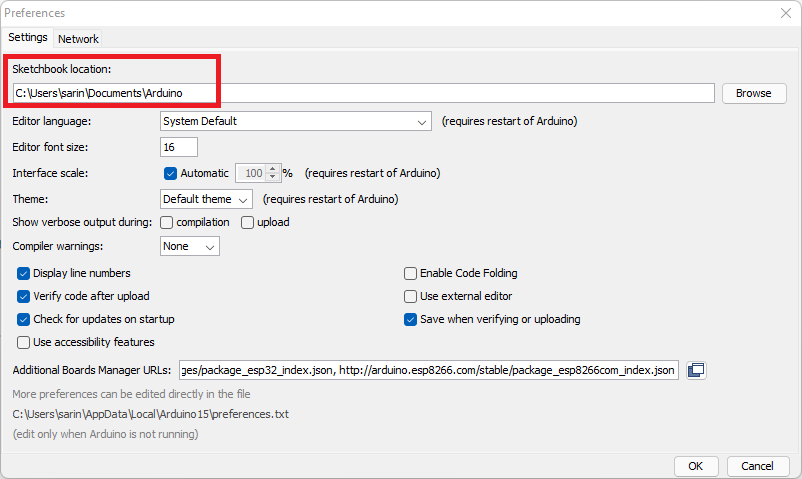
2) Find the location of your sketchbook. Check the location of your Sketchbook in your Arduino IDE's File > Preferences menu. It's on the following path in my case: C:\Users\sarin\Documents\Arduino.
3) Go to the sketchbook location, and create a tools folder.
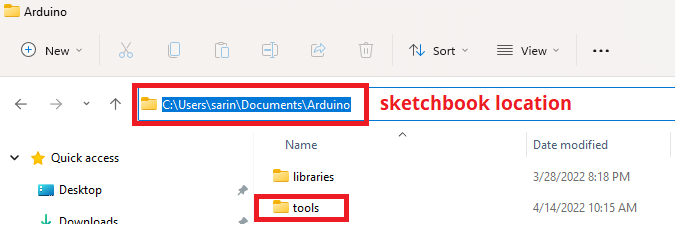
4) The downloaded “.zip” folder has to be unzipped. Copy the “ESP32FS” folder from it into the “tools” folder you created in the previous step after opening it. You need to use a similar folder layout:

<Sketchbook-location>/tools/ESP32FS/tool/esp32fs.jar

5) Finally, restart your Arduino IDE.
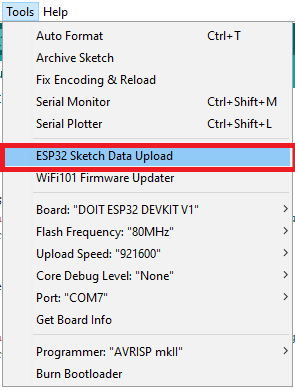
Open the Arduino IDE to check that the plugin was installed successfully. Check that the “ESP32 Sketch Data Upload” option is included in the “Tools” menu after choosing your ESP32 board.
Follow the next instructions if you’re using MacOS X.
1) Go to the releases page and click the ESP32FS-1.0.zip file to download.
2) Unpack the files.
3) Create a folder called “tools” in /Documents/Arduino/.
4) Copy the unpacked “ESP32FS“ folder to the “tools” directory. You should have a similar folder structure.
~Documents/Arduino/tools/ESP32FS/tool/esp32fs.jar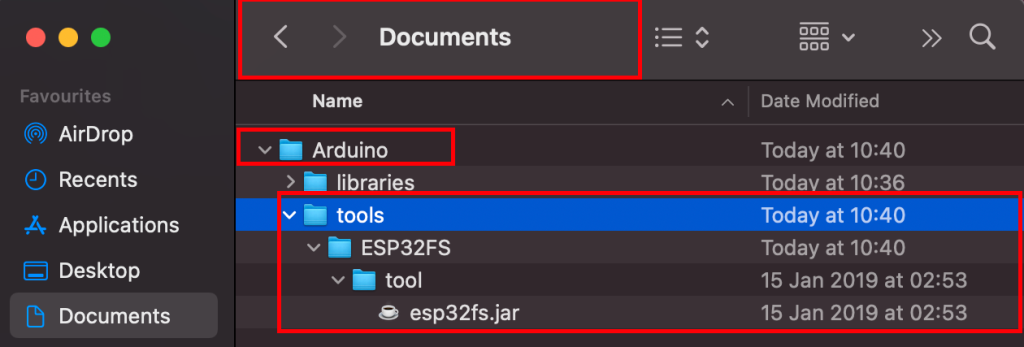
5) Finally, restart your Arduino IDE.
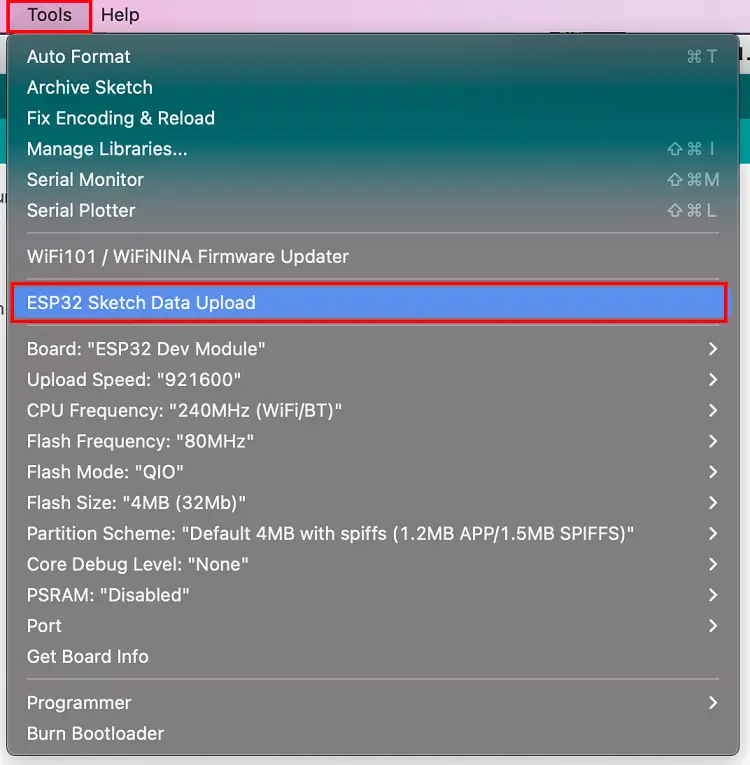
Open the Arduino IDE to check that the plugin was installed successfully. Check that the “ESP32 Sketch Data Upload” option is included in the “Tools” menu after choosing your ESP32 board.
Follow the next filesystem steps to upload files to the ESP32.
1) Create and save an Arduino sketch. You may save an empty sketch for demonstration purposes.
2) Open the Sketch folder after that. Select Sketch > Show Sketch Folder from the menu. Your sketch should open in the folder where it was saved.

3) Inside that folder, create a new folder called “data“.
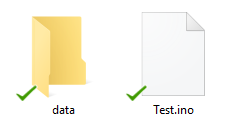
4) The files you intend to save to the ESP32 filesystem should be put within the “data” folder. Create a text file named “test_example.txt” as an illustration.
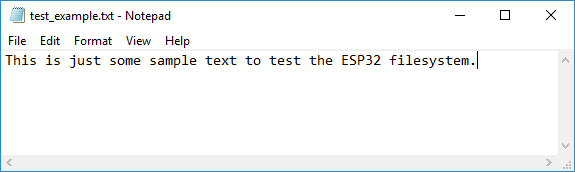
5) You just need to go to Tools > ESP32 Sketch Data Upload in the Arduino IDE to upload the files.
The uploader will overwrite anything you have already saved in the filesystem.
Note: When you see the message “Connecting……._……,” you may need to press the on-board “BOOT” button on some ESP32 development boards.
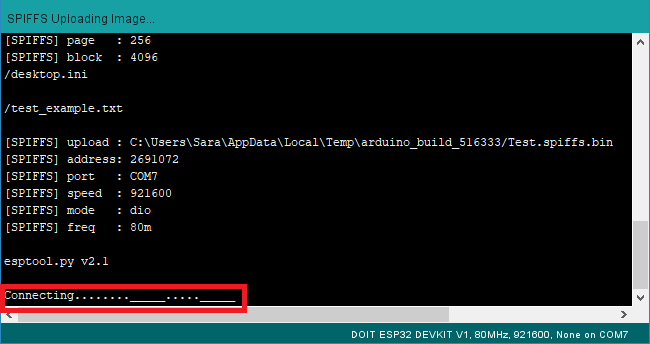
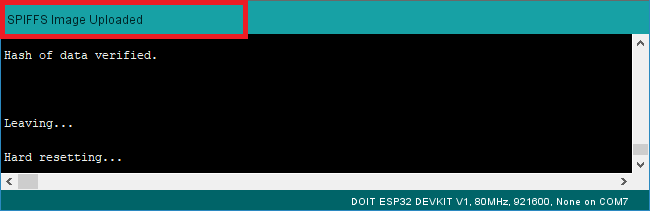
You will know that the files have been successfully uploaded to the ESP32 filesystem when you see the “SPIFFS Image Uploaded” message.
Let's just check to see whether the file was saved to the ESP32 filesystem. On your ESP32 board, just upload the following code:
/*********
  Ebokify
  Complete project details at https://ebokify.com
*********/

#include "SPIFFS.h"

void setup() {
  Serial.begin(115200);

  if(!SPIFFS.begin(true)){
    Serial.println("An Error has occurred while mounting SPIFFS");
    return;
  }

  File file = SPIFFS.open("/test_example.txt");
  if(!file){
    Serial.println("Failed to open file for reading");
    return;
  }

  Serial.println("File Content:");
  while(file.available()){
    Serial.write(file.read());
  }
  file.close();
}

void loop() {

}
Open the Serial Monitor at the 115200 baud rate after uploading. Press the “ENABLE/RST” button on the ESP32. Your .txt file's contents should be printed on the Serial Monitor.
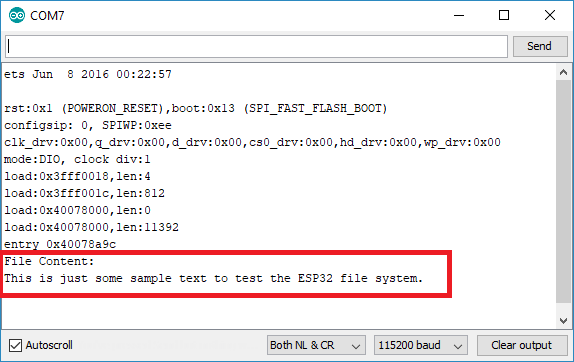
You’ve successfully uploaded files to the ESP32 filesystem using the plugin.
One of the simplest ways to upload files to the ESP32 filesystem is by using the filesystem uploader plugin. To learn how to create a web server using HTML and CSS files that are stored on the filesystem, see the following project: ESP32 Web Server using SPIFFS (SPI Flash File System).
Using the ESP32 Preferences library is another way to save data permanently. In flash memory, it is particularly useful to save data in key-value pairs. The following tutorial should be reviewed:
If you like ESP32, you may also like:
We hope you find this tutorial useful. Thanks for reading.






![ESP32 IR Receiver: How To Detect IR Remote Signals [Arduino IDE]](https://ebokify.com/wp-content/uploads/2026/01/ESP32-IR-Receiver-How-To-Detect-IR-Remote-Signals-Arduino-IDE-1-768x512.webp "ESP32 IR Receiver: How To Detect IR Remote Signals [Arduino IDE] 23")