Book Categories:


Wait, don't go!
Become a Member Today and Unlock Access to All eBooks!
Thousands of eBooks at your fingertips. Read, learn, and grow anytime, anywhere.
To program the ESP32 development board, we recommend using the Arduino IDE in our ESP32 projects and tutorials. However, owing to permission issues, the Arduino IDE version, or multiple Arduino IDE installations, it might be a little tricky to install the ESP32 add-on on certain Windows computers using the Git GUI.
There’s also another popular method to program ESP32 development boards using the Atom text editor combined with PlatformIO IDE. With this method, you can still use the same programming language you use on Arduino IDE.
This next tutorial was tested on both a Windows 10 PC and a Mac OS X computer.
The first step is to go to the Atom.io website and download the free text editor.
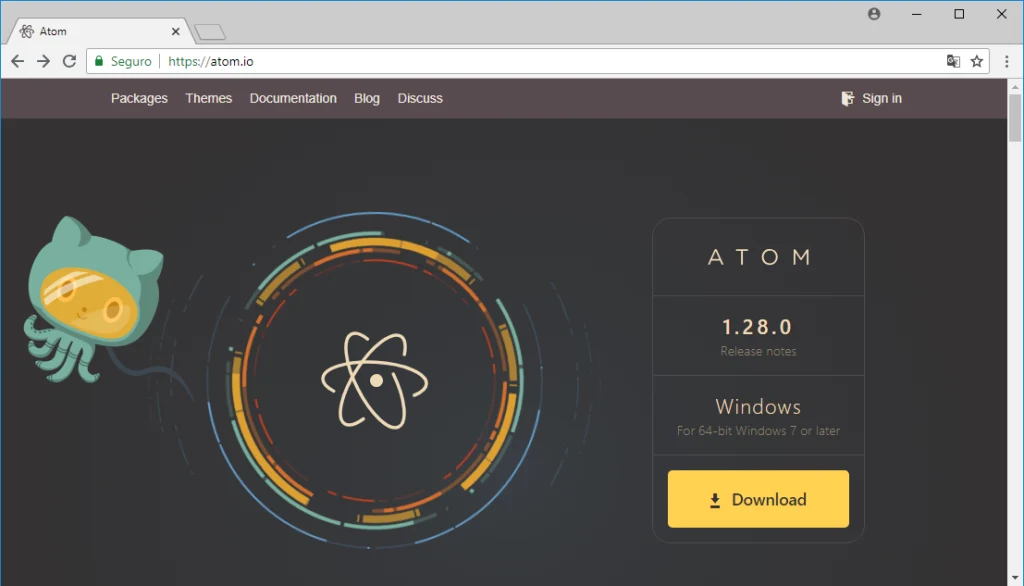
Then, open and run the downloaded installation file. It's a pretty simple installation. To finish the Atom installation, follow the on-screen instructions.
Python 2.7.X must be installed on your PC to use PlatformIO IDE to program your ESP32 boards. Go to the Python downloads page and get the latest Python 2.7.X version for your OS (Operating System).
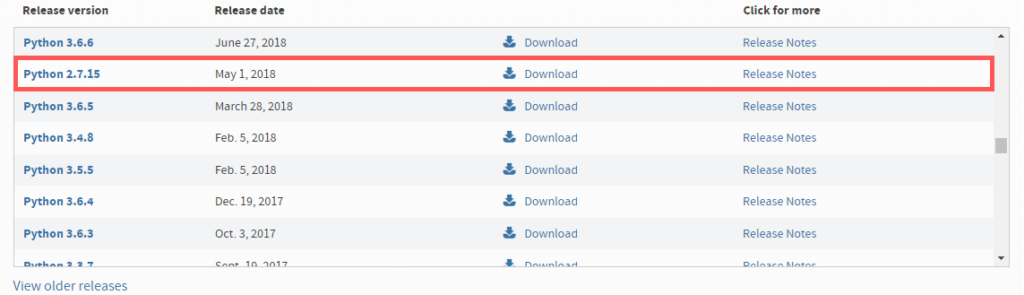

Note: We've used Python 2.7.15 for this unit. Any other version of Python 2.7.X should also work.
To start the Python installation, open the downloaded file. Follow these instructions as you go to the next step:
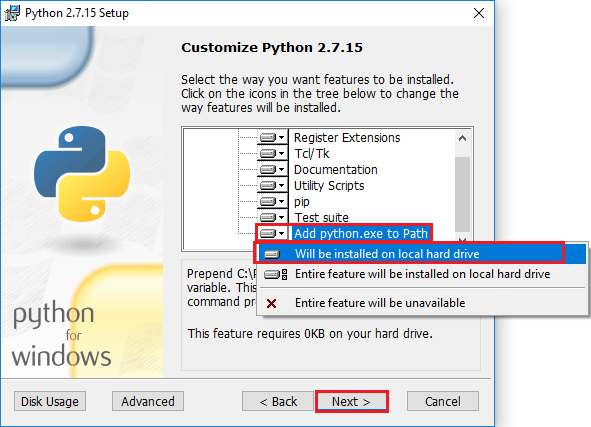
To complete the installation, press “Next” after that. You need to open the “Command Prompt” after installing Python 2.7.X.
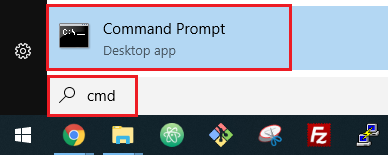
To check the Python and pip versions installed, run the next sequence of commands:
python --version
Python 2.7.15
pip --version
pip 9.0.3
Both commands should return output that is similar (the version may change slightly in your case). Check to see whether virtualenv is installed after that.
virtualenv --versionIf it is already installed, go to the next stage. Otherwise, you'll need to use the following command to install it:
pip install virtualenvThen, run this command again to check whether virtualenv was correctly installed:
virtualenv --version
16.0.0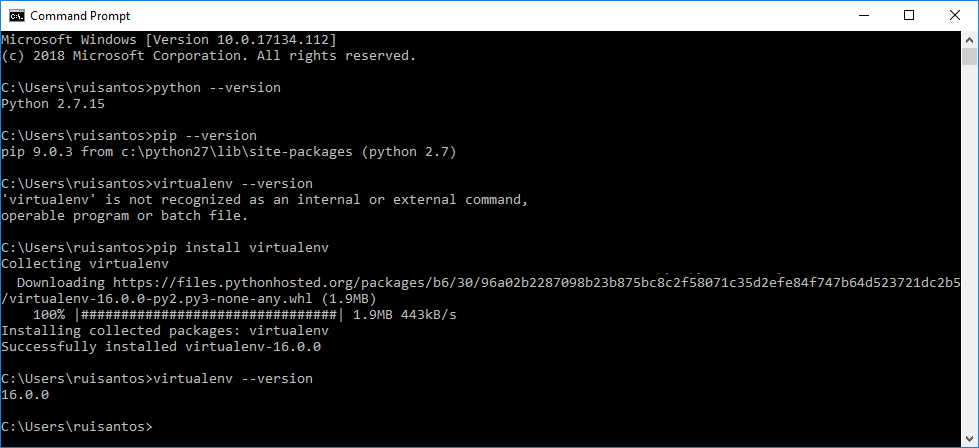
Python 2.7.X must be installed on your PC to use PlatformIO IDE to program your ESP32 boards. To install Python 2.7.X, do the next sequence of commands. After that, check to see that Python, pip, and virtualenv are installed:
$ brew install python2

$ python --version
Python 2.7.15

$ pip --version
pip 9.0.3

$ virtualenv --version

$ pip install virtualenv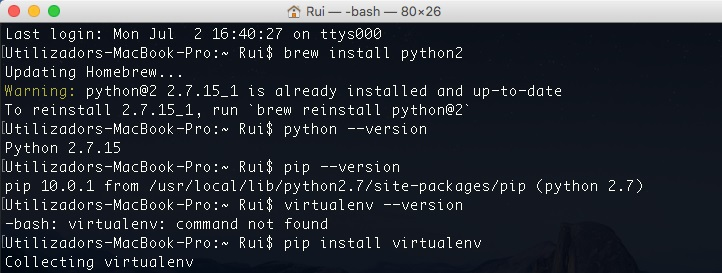
PlatformIO IDE uses Clang for intelligent code completion. Open the Terminal or Command Prompt and run: to check if Clang is installed on your system.
clang --versionIf Clang is not already installed, follow the instructions for your operating system to install it:
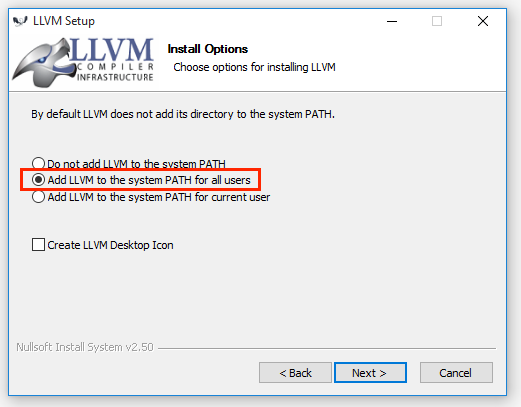
Warning: Do not install CLANG 4.0; only CLANG 3.9 is supported at the moment.
xcode-select --installOpen Atom text editor and go to File > Settings after installing all PlatformIO IDE dependencies.
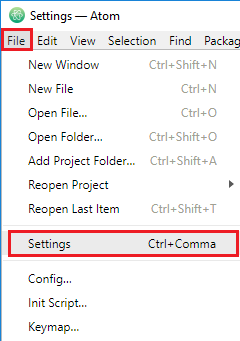
On the left menu, open the “Install” tab:
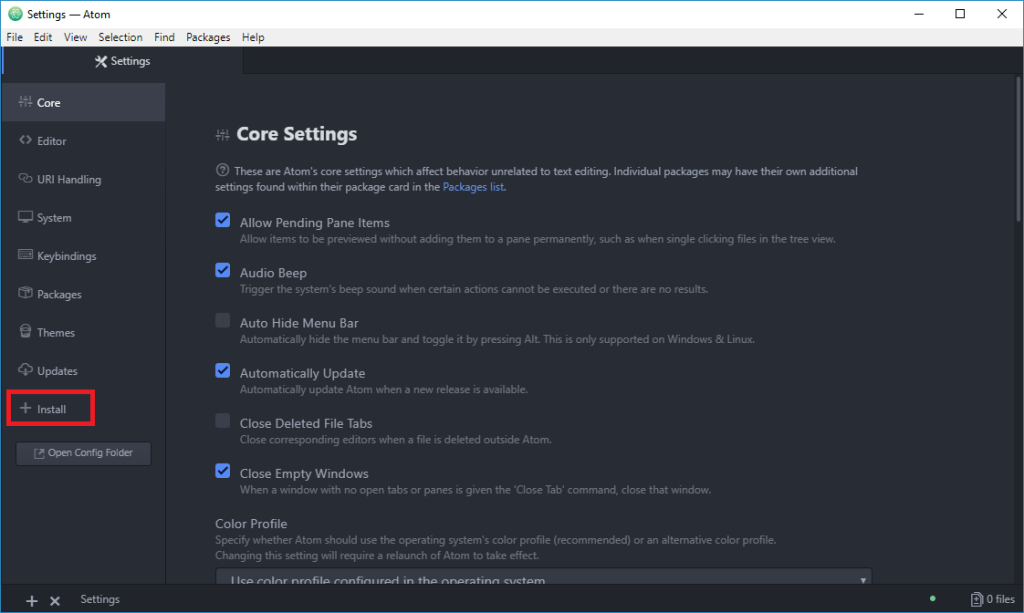
Search for “platformio” and press the Enter/Return key:
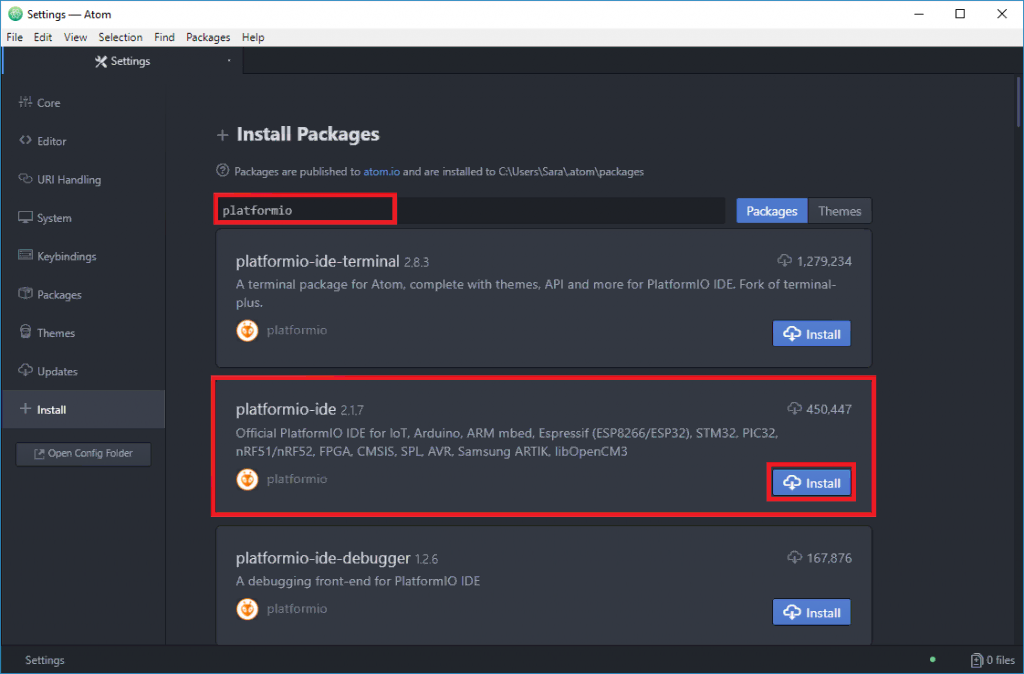
Install the “platformio-ide” option that is indicated in the preceding picture. For the modifications to take effect when the installation is complete, restart the Atom text editor.
A new text editor window with the “Welcome to PlatformIO” screen should load now when you open Atom text:
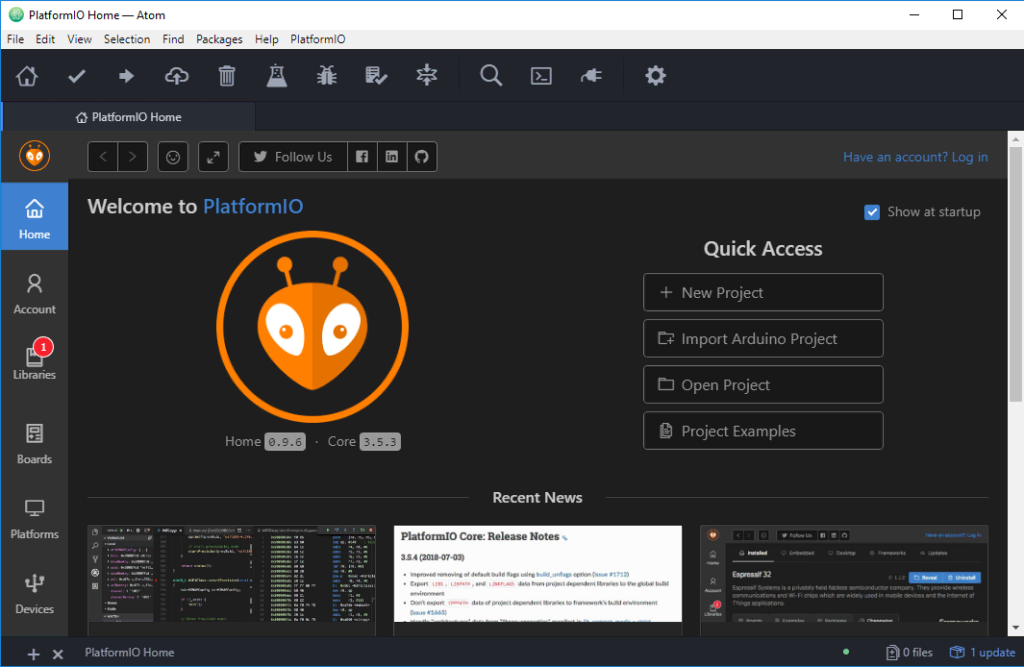
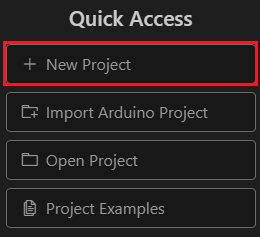
Press the “New Project” button in the quick access menu:
A new window allows you to create a new project for your board. The next step is as follows:
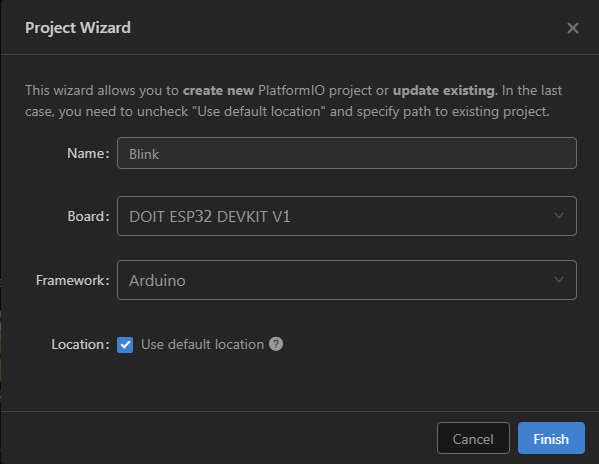
You can navigate through files and folders once the new project has been created since you'll see the new folder on the left menu.
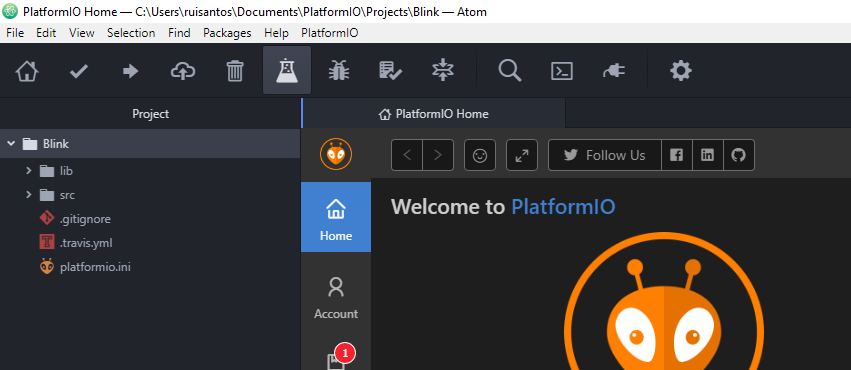
Double-click the main.cpp file in the src folder to open it. The file opens in a new window in Atom, where you may edit it:
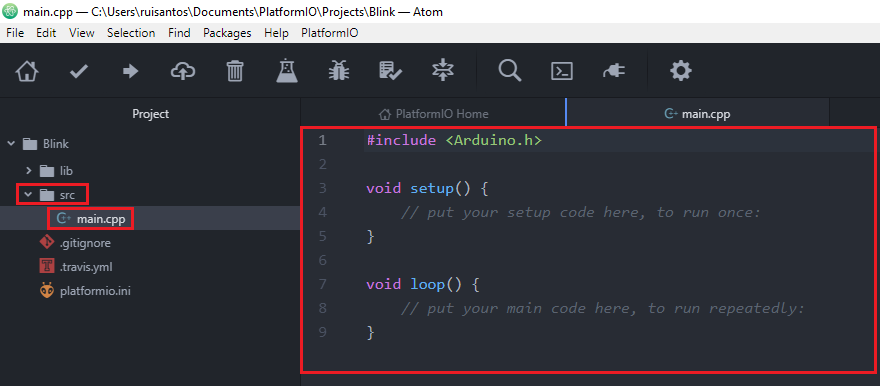
Similar to your Blink.ino file used in the Arduino IDE is the main.cpp file You can write Arduino code, but you need to start with a file and include the Arduino framework. If you start the sketch with the following line, all Arduino sketches will essentially work with PlatformIO IDE:
#include <Arduino.h>To test PlatformIO IDE, let's try an example. We'll make GPIO 23's LED blink. The parts you need to follow this example are listed below:
You can use the preceding links to find all the parts for your projects at the best price!
Follow the next schematic to assemble your circuit.
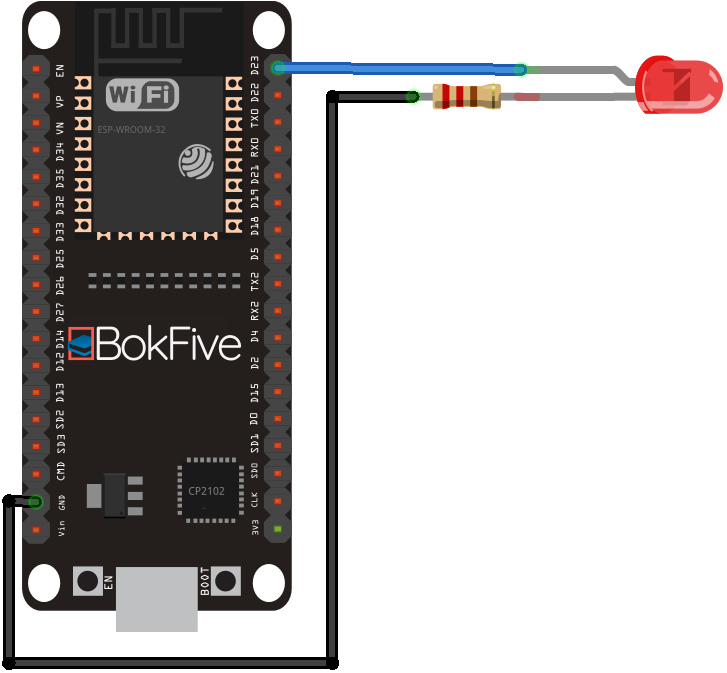
Here’s a sketch for testing purposes that blinks the LED:
#include <Arduino.h>

// ledPin refers to ESP32 GPIO 23
const int ledPin = 23;

// the setup function runs once when you press reset or power the board
void setup() {
    // initialize digital pin ledPin as an output.
    pinMode(ledPin, OUTPUT);
}

// the loop function runs over and over again forever
void loop() {
    digitalWrite(ledPin, HIGH);   // turn the LED on (HIGH is the voltage level)
    delay(1000);                  // wait for a second
    digitalWrite(ledPin, LOW);    // turn the LED off by making the voltage LOW
    delay(1000);                  // wait for a second
}
For the next steps to upload the code to your ESP32 board, copy the code to the Atom text editor and complete them as follows:

Wait a few seconds while the sketch uploads to your board:
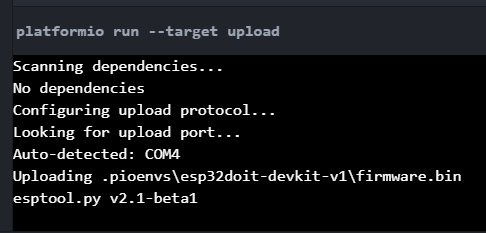
Your ESP32 ought to be blinking the LED attached to GPIO 23 once per second once you load the sketch.
I'm done now! You may now use PlatformIO to program your ESP32 board since PlatformIO was successfully installed.
We've only just scratched the surface of PlatformIO IDE's capabilities. Here's what each PlatformIO IDE button does/means:

We've modified the Blink code previously used to include some Serial.println() commands to show how the Serial Monitor looks. You may open the Serial Monitor by clicking the following icon:
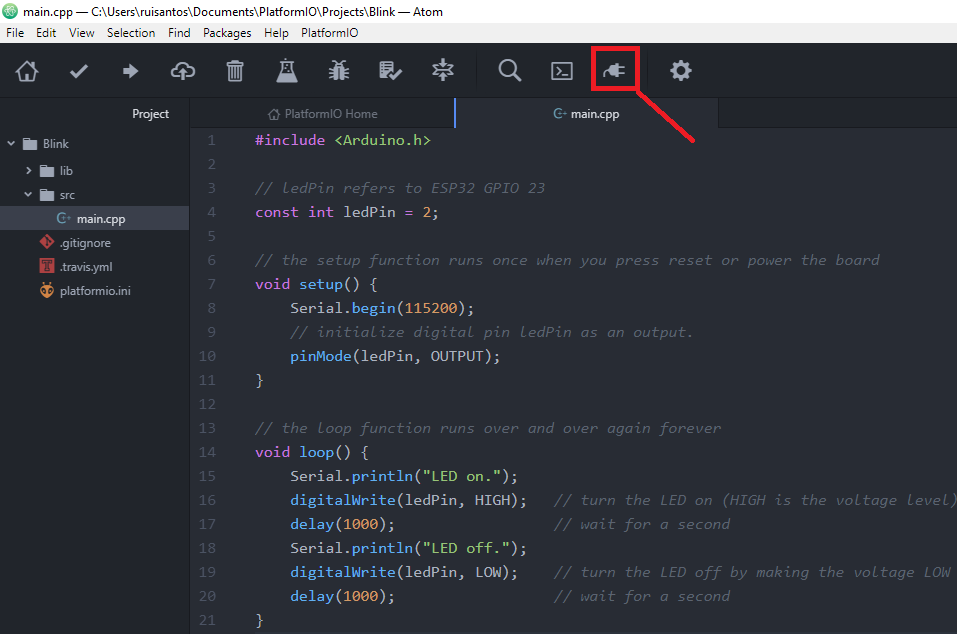
Your settings should be completed automatically by the PlatformIO software. Alternatively, select your ESP32's COM port and Baudrate. Then, press the “Start” button as follows:
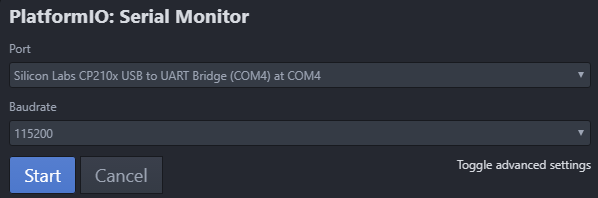
You have a window that outputs all of the Serial.println() commands used in your code, much like the Arduino IDE Serial Monitor:
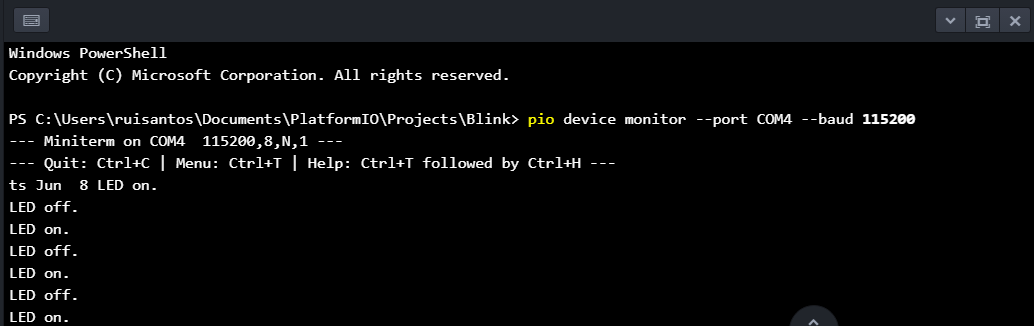
As you can see, it’s printing the messages “LED on” and “LED off“.
To explore the numerous features and functionalities that PlatformIO provides, we recommend using the following links as a resource:
If you like ESP32, you may also like:
We hope you find this tutorial useful. Thanks for reading.



![ESP32 IR Receiver: How To Detect IR Remote Signals [Arduino IDE]](https://ebokify.com/wp-content/uploads/2026/01/ESP32-IR-Receiver-How-To-Detect-IR-Remote-Signals-Arduino-IDE-1-768x512.webp "ESP32 IR Receiver: How To Detect IR Remote Signals [Arduino IDE] 30")