Book Categories:


Wait, don't go!
Become a Member Today and Unlock Access to All eBooks!
Thousands of eBooks at your fingertips. Read, learn, and grow anytime, anywhere.
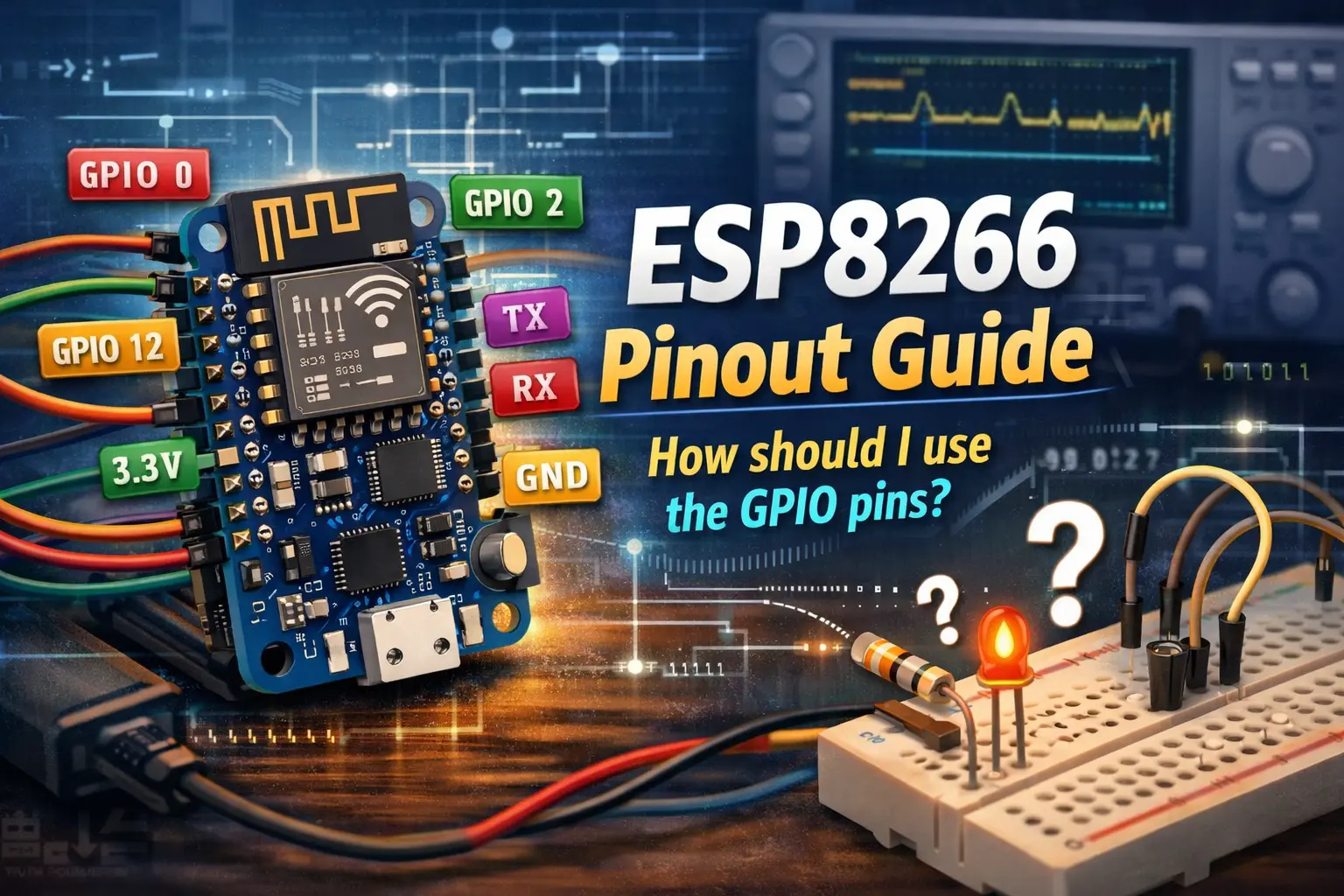
This article offers an ESP8266 pinout guide, including pinout diagrams, functions, and instructions on how to use them.
With 17 GPIO pins, the ESP8266 12-E chip comes standard. Some GPIOs are not exposed for usage on all ESP8266 development boards, while others have extremely specific functions.
By using the most suitable pins for your projects, you'll learn how to properly use the ESP8266 GPIOs and save yourself hours of aggravation.
Note: Not all GPIOs are available on all development boards; however, each GPIO works the same way regardless of the development board you're using.
The following figure illustrates the pinout for the ESP8266 12-E chip. If you're using an ESP8266 bare chip in your projects, use this diagram.
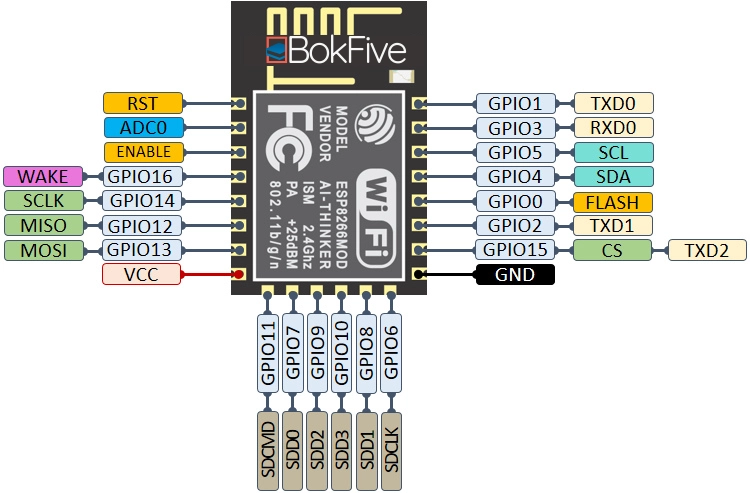
The following figure illustrates the 12-E chip pinout for the ESP8266. If you're using an ESP8266 bare chip in your projects, this diagram is for you.
The ESP-01, ESP8266-12E NodeMCU Kit, and Wemos D1 Mini are the most widely used ESP8266 boards.
The following GPIO diagram may be used as a guide if you are using an ESP8266-01 board.

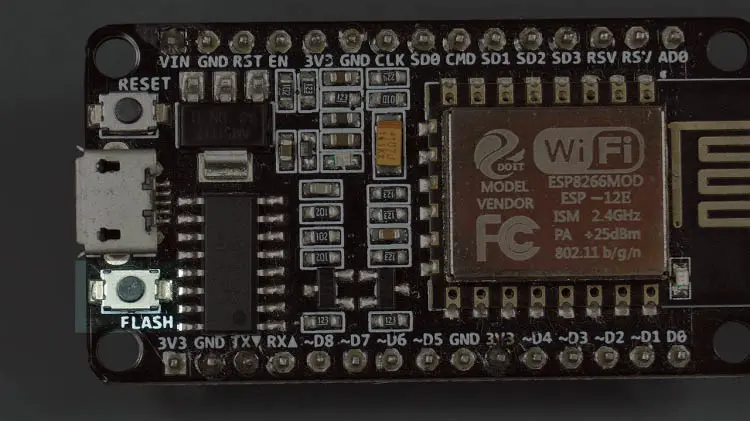
The pinout diagram for the ESP8266 12-E NodeMCU kit is shown below.

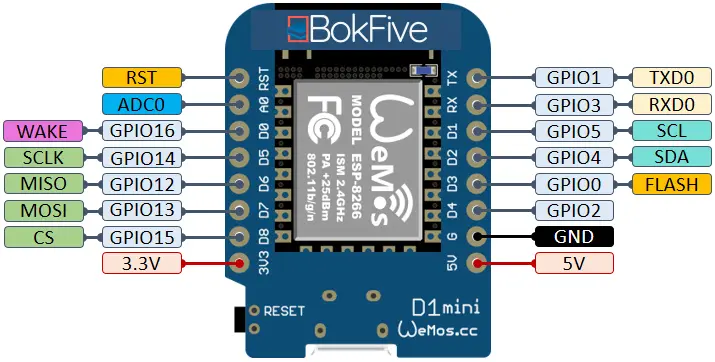
The following figure shows the pinout for the WeMos D1 Mini.
So that you always have the ESP8266 diagrams next to you, we've put up a handy PDF that you can download and print:
The ESP8266 peripherals include:
The GPIO number does not match the label on the board's silkscreen, which is an important point to notice about the ESP8266. D0, for example, corresponds to GPIO16, and D1 to GPIO5.
The following table shows the correlation between the silkscreen labels and the GPIO number, as well as which pins are suitable to use in your projects and which ones you need to be careful with.
The pins highlighted in green may be used. You need to pay attention since the ones highlighted in yellow may exhibit unexpected behaviors, particularly during boot. It is not recommended to use the pins highlighted in red as inputs or outputs.
| Label | GPIO | Input | Output | Notes |
| D0 | GPIO16 | no interrupt | no PWM or I2C support | HIGH at boot used to wake up from deep sleep |
| D1 | GPIO5 | OK | OK | often used as SCL (I2C) |
| D2 | GPIO4 | OK | OK | often used as SDA (I2C) |
| D3 | GPIO0 | pulled up | OK | connected to FLASH button, boot fails if pulled LOW |
| D4 | GPIO2 | pulled up | OK | HIGH at boot connected to on-board LED, boot fails if pulled LOW |
| D5 | GPIO14 | OK | OK | SPI (SCLK) |
| D6 | GPIO12 | OK | OK | SPI (MISO) |
| D7 | GPIO13 | OK | OK | SPI (MOSI) |
| D8 | GPIO15 | pulled to GND | OK | SPI (CS) Boot fails if pulled HIGH |
| RX | GPIO3 | OK | RX pin | HIGH at boot |
| TX | GPIO1 | TX pin | OK | HIGH at boot debug output at boot, boot fails if pulled LOW |
| A0 | ADC0 | Analog Input | X |
For a more thorough and detailed analysis of the ESP8266 GPIOs and their functions, keep reading.
On ESP8266 boards, GPIOs 6 to 11 are often connected to the flash chip. Therefore, it is not recommended that you use these pins.
If some pins are pulled HIGH or LOW, the ESP8266 may be prevented from booting. The following list shows the status of the pins on BOOT in the state they are in:
When the ESP8266 boots, a 3.3-volt signal is output on a few pins. Relays or other peripherals connected to those GPIOs may make this problematic. The HIGH signal is output by the following GPIOs at boot:
Furthermore, except GPIO5 and GPIO4, the other GPIOs may output a low-voltage signal upon startup, which might be problematic if they are connected to transistors or relays. You may read this article to learn about the state and behavior of each GPIO during startup.
GPIO4 and GPIO5 are the safest GPIOs to use if you want to operate relays.
The ESP8266 only has one GPIO that supports analog reading. On the silkscreen, the GPIO is often marked as A0 and is called ADC0.
When using the ESP8266 bare chip, the maximum input voltage of the ADC0 pin is 0 to 1 V. Because these boards include an in-built voltage divider, the voltage input range is 0 to 3.3 volts when using a development board like the ESP8266 12-E NodeMCU kit.
The majority of ESP8266 development boards have an LED. GPIO2 is generally connected to this LED.

With inverted logic, the LED works. To turn it off, send a HIGH signal, and to turn it on, send a LOW signal.
The ESP8266 is reset when the RST pin is pulled LOW. It is the same as pressing the on-board RESET button when you do this.

GPIO0, when pulled LOW, sets the ESP8266 into bootloader mode. This is the same as pressing the FLASH/BOOT button on the board.
The ESP8266 may be awakened from deep sleep via GPIO16. GPIO16 should be connected to the RST pin to wake up the ESP8266 from deep sleep.
Although the ESP8266 lacks hardware I2C pins, they may be implemented through software. As a result, you may use any GPIO as an I2C interface. The following GPIOs are often used as I2C pins:
The pins used as SPI in the ESP8266 are:
All I/O pins (GPIO 0 to GPIO 15) on the ESP8266 support software PWM. PWM signals on the ESP8266 have a resolution of 10 bits.
The ESP8266 supports interrupts in any GPIO, except GPIO16.
We hope you found our ESP8266 pinout guide helpful. You might leave a comment below if you have any tips on how to use the ESP8266 GPIOs properly.
If you like ESP8266, you may also like:
We hope you find this tutorial useful. Thanks for reading




![[Resolve] Reconnect ESP8266 to Wi-Fi Network After Lost Connection](https://ebokify.com/wp-content/uploads/2023/07/Resolve-Reconnect-ESP8266-to-Wi-Fi-Network-After-Lost-Connection-1-768x512.webp "[Resolve] Reconnect ESP8266 to Wi-Fi Network After Lost Connection 14")
PWM Pins
All I/O pins (GPIO 0 to GPIO 15) on the ESP8266 support software PWM. PWM signals on the ESP8266 have a resolution of 10 bits.
When consulting the datasheet of the nodemcu esp8266 it indicates that only 4 pins are used for PWM:
GPIO15
GPIO14
GPIO12
GPIO 4