Book Categories:


Wait, don't go!
Become a Member Today and Unlock Access to All eBooks!
Thousands of eBooks at your fingertips. Read, learn, and grow anytime, anywhere.
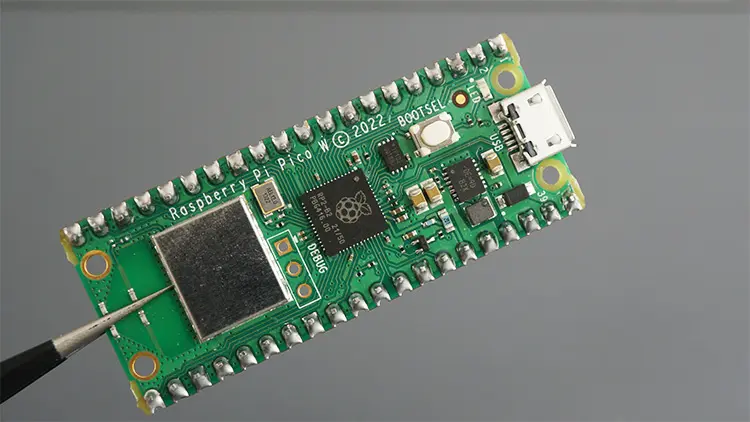
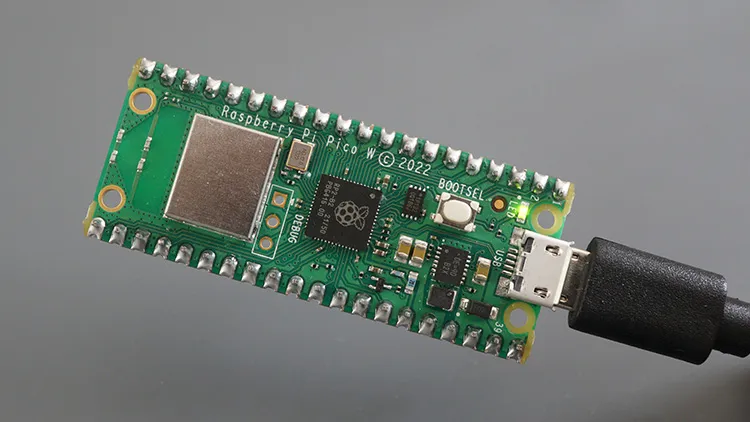
This article is a getting-started guide for the Raspberry Pi Pico W microcontroller board. It was built around the RP2040 chip, provides many GPIOs to connect peripherals, and can be programmed using C/C++ programming language or Micropython. Let’s explore the features of the Raspberry Pi Pico and learn how to run your first program.
The Raspberry Pi Pico is a low-cost microcontroller board developed around the RP2040 chip by the Raspberry Pi Foundation. Unlike previous versions of the Raspberry Pi, the Raspberry Pi Pico is not meant to run an operating system. It is a microcontroller board like the Arduino or ESP32, whose main purpose is to control electronic components through its GPIOs. If you’re familiar with the ESP32 or ESP8266 board, the Raspberry Pi Pico is not much different.
You may also like: Learn Raspberry Pi Pico with MicroPython (eBook)
There are two main variants of the Raspberry Pi Pico board:
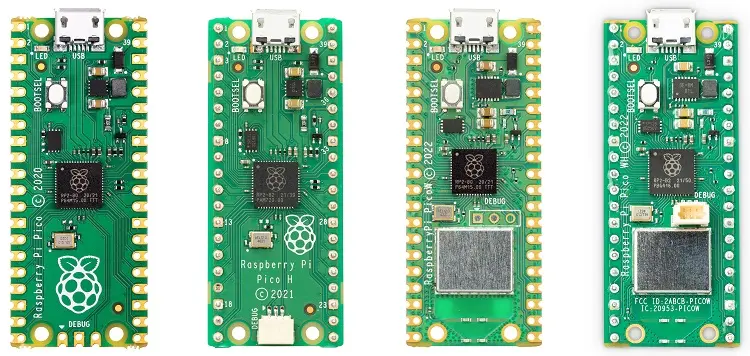
You may also see those versions referenced with an H, like Raspberry Pi Pico H, or Raspberry Pi Pico WH, which means they come with soldered header pins.
The Raspberry Pi Pico W comes with wireless connectivity, which is essential if you need to use Wi-Fi or Bluetooth in IoT or home automation projects. We recommend getting a Raspberry Pi Pico W, as the price difference is not significant and you’ll have the flexibility to use Wi-Fi or Bluetooth if needed.
Throughout this tutorial, we’ll use the Raspberry Pi Pico W, but everything also applies to the Raspberry Pi Pico, except for the wireless connectivity features.
The Raspberry Pi Pico W board is widely available in many different stores. Check the following link to compare its price on different stores:
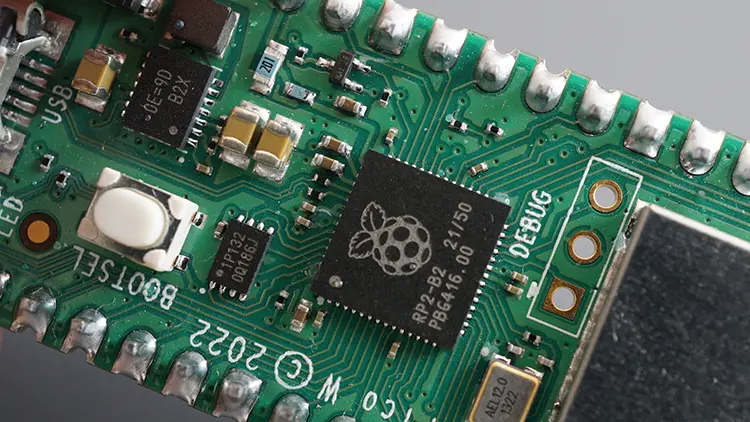
Here’s a list of the Raspberry Pi Pico W main specs:
The Raspberry Pi Pico comes with 40 pins, 26 of which are programmable GPIOs that you can use to connect peripherals.
The Raspberry Pi Pico supports the following peripheral interfaces on its GPIOs:
The Raspberry Pi Pico GPIOs run at 3.3V.
The following picture shows the Raspberry Pi Pico pinout (which functions are supported by each pin). For a more detailed description of the Raspberry Pi Pico Pinout, check out this tutorial: Raspberry Pi Pico and Pico W Pinout Guide: GPIOs Explained.
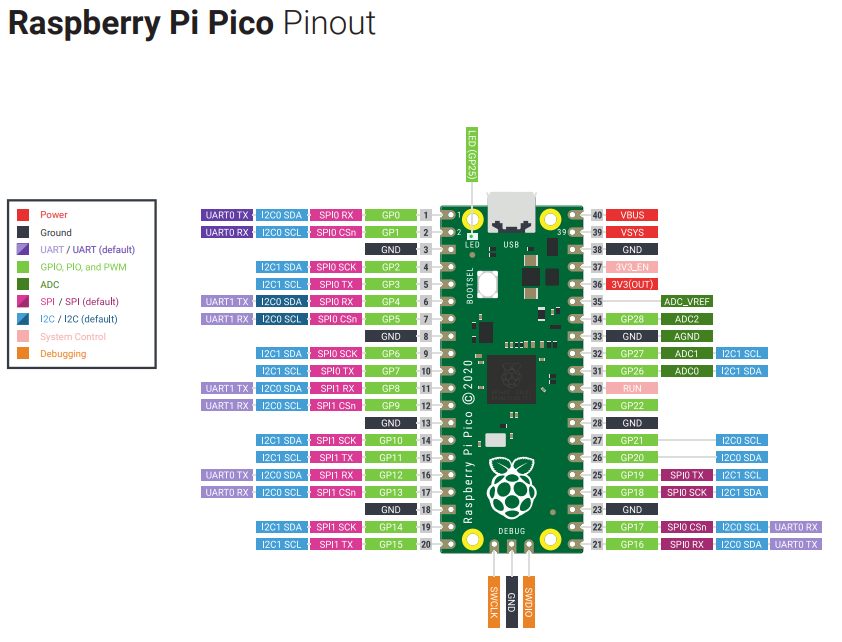
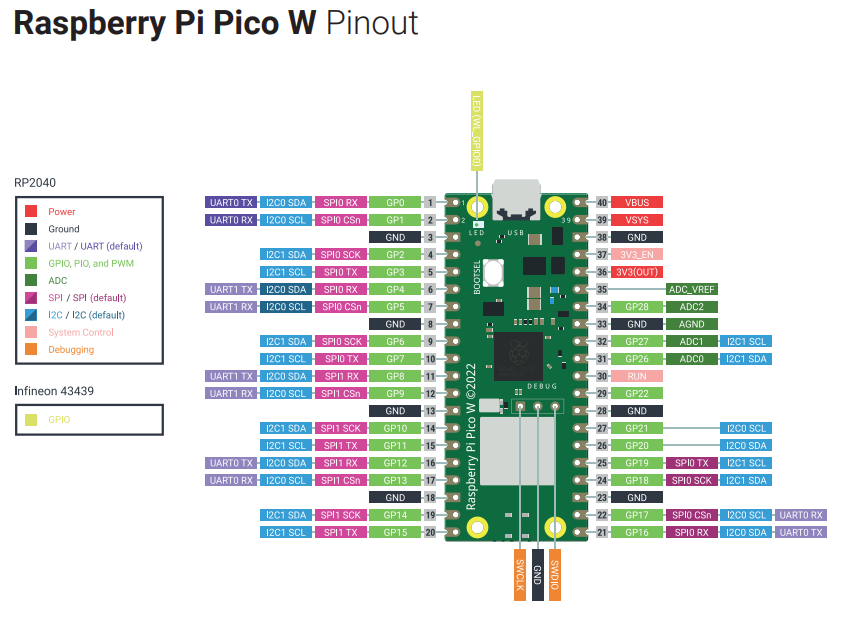
The pins marked in red are power pins that output 3.3V. The black pins are GND pins. All pins in light green can be used as “regular” GPIOs (input and output) and all can generate PWM signals.
SPI, I2C, UART communication protocols, and ADC are supported on the pins with the corresponding labels.
The Raspberry Pi Pico can be programmed using C/C++ programming language (using Arduino IDE) or MicroPython. Currently, MicroPython is the most popular way to program the Raspberry Pi Pico, and Thonny IDE is the recommended IDE to use with the Raspberry Pi Pico.
The Raspberry Pi Pico comes with a micro USB port that can be used for both power and programming. To program the Raspberry Pi Pico, you just need to use a USB cable to connect the board to your computer. Most Raspberry Pi Pico kits include the proper USB cable.
If you want to start programming the Raspberry Pi Pico using Arduino IDE instead, read the following tutorial:
If you want to use MicroPython, continue reading.

MicroPython is a Python 3 programming language re-implementation targeted for microcontrollers and embedded systems. MicroPython is very similar to regular Python. Apart from a few exceptions, the language features of Python are also available in MicroPython. The most significant difference between Python and MicroPython is that MicroPython was designed to work under constrained conditions.
Because of that, MicroPython does not come with the entire pack of standard libraries. It only includes a small subset of the Python standard libraries, but it includes modules to easily control and interact with the GPIOs, use Wi-Fi, and other communication protocols.
Thonny IDE is the recommended software to program the Raspberry Pi Pico board using MicroPython, and that’s the one we’ll use in this tutorial.
Thonny IDE can also be used to program the ESP32 and ESP8266 using MicroPython firmware. Learn more here: Getting Started with Thonny MicroPython (Python) IDE for ESP32 and ESP8266.
Go to this link https://thonny.org/ and click on the right link to download the package for your operating system.
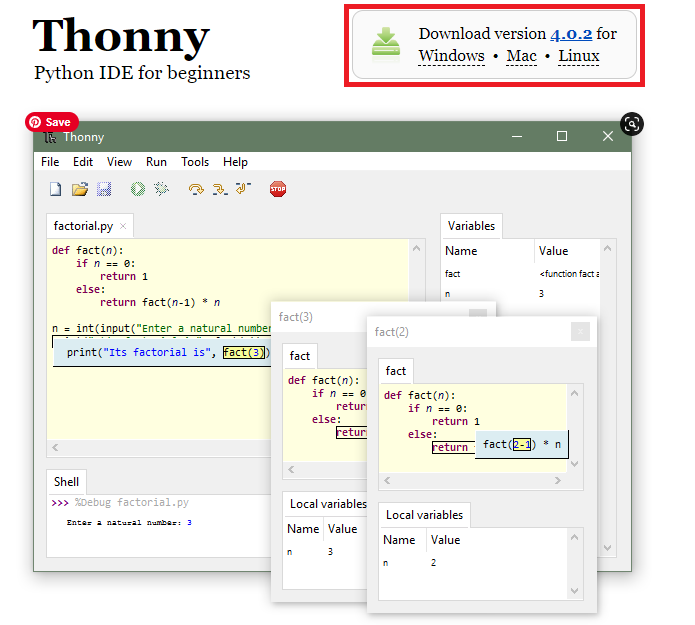
Run the downloaded executable file and follow the installation procedure (use all the default settings).
Connect the Raspberry Pi Pico to your computer while holding the BOOTSEL button at the same time so that it goes into bootloader mode to flash the firmware.
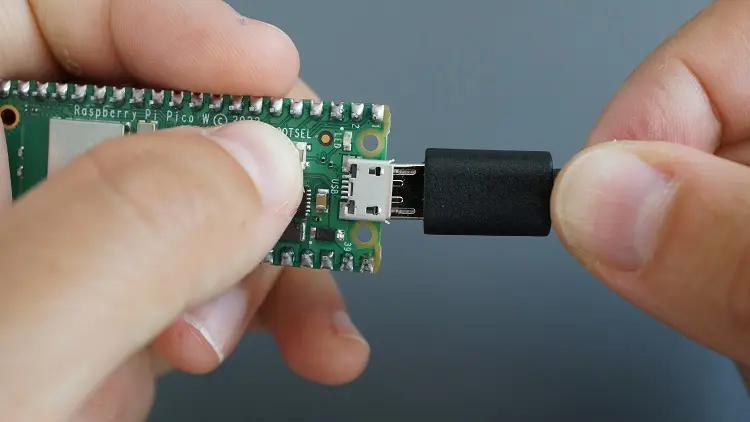
It will open a new window on your computer as a new USB device; you can ignore and close that window.
Open Thonny IDE.
Go to Tools > Options. Select the Interpreter tab on the new window that opens.
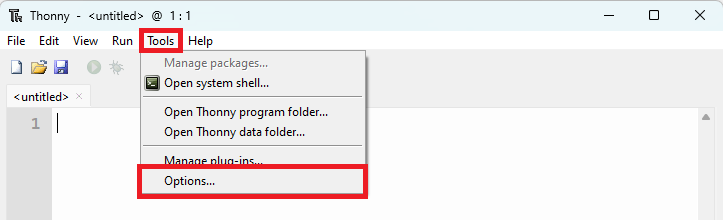
Select MicroPython (Raspberry Pi Pico) for the interpreter, and the Try to detect port automatically for the Port. Then, click on Install or update MicroPython.
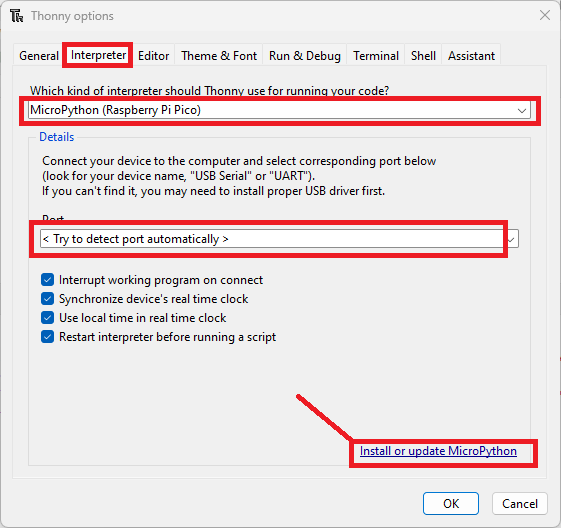
The following window will open.
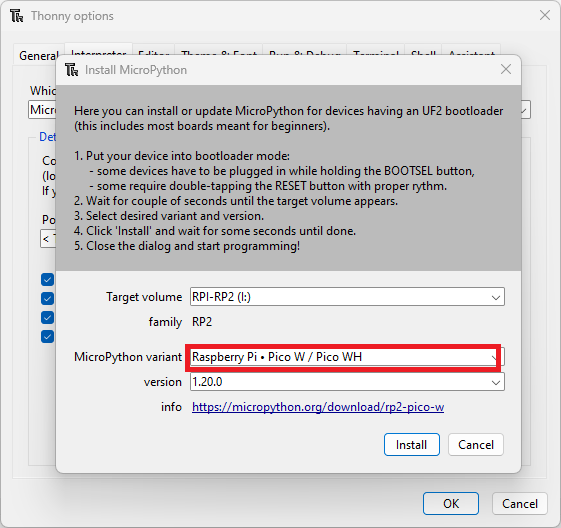
Select the MicroPython variant according to the board you’re using. In our case, we’re using the Pico W. Select a different option if you’re using the Pico.
Finally, click Install.
After a few seconds, the installation should be completed.
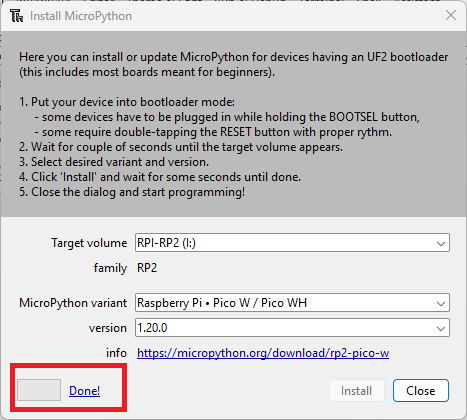
You can close the window. You should get the following message on the Shell, and at the bottom right corner, it should have the Interpreter it’s using and the COM port.
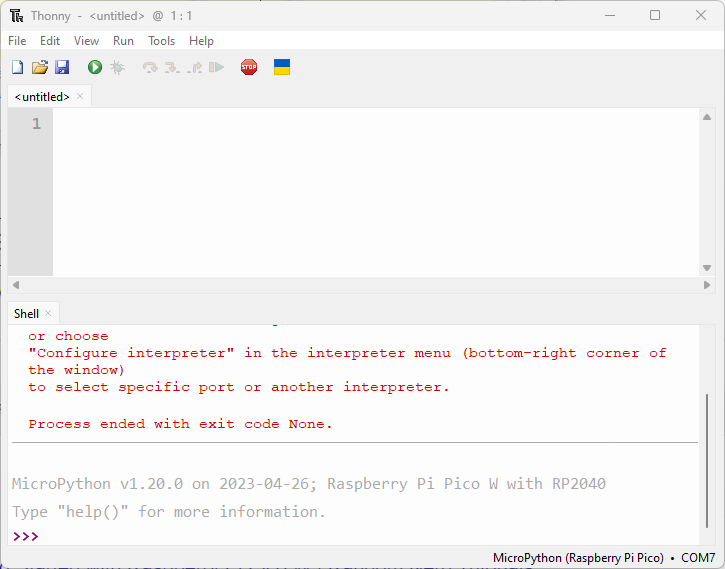
If it doesn’t recognize the device, and you have a message saying “no backend” on the bottom-right corner, it may be the case that it is not detecting the COM port automatically. If that’s the case, go to Tools > Options > Interpreter and select the COM port manually. After that, it should recognize the MicroPython device, and you should get the previous message.
Type help() in the Shell and see if your device responds back.
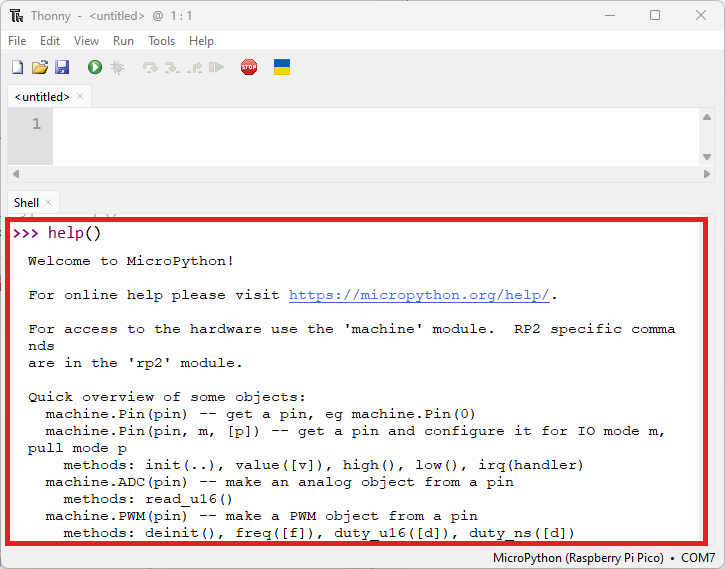
It should print some useful information about programming the Raspberry Pi Pico board using MicroPython.
Type the following:
print('Hello')It should print Hello on the Shell.
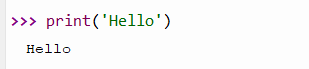
If you’ve followed until this step, you should have Thonny IDE successfully installed, as well as MicroPython firmware on your Raspberry Pi Pico board.
To get you familiar with the process of writing a file and executing code on the Raspberry Pi Pico board, we’ll upload a new script that simply blinks the on-board LED.
When you open Thonny IDE for the first time, the Editor shows an untitled file. Copy one of the following scripts to that file:
Raspberry Pi Pico
from machine import Pin
from time import sleep
led = Pin(25, Pin.OUT)
while True:
  led.value(not led.value())
sleep(0.5)from machine import Pin
from time import sleep
led = Pin('LED', Pin.OUT)
while True:
led.value(not led.value())
sleep(0.5)To run that script on your board, simply click on the Run icon in Thonny IDE.

The onboard LED will start blinking.
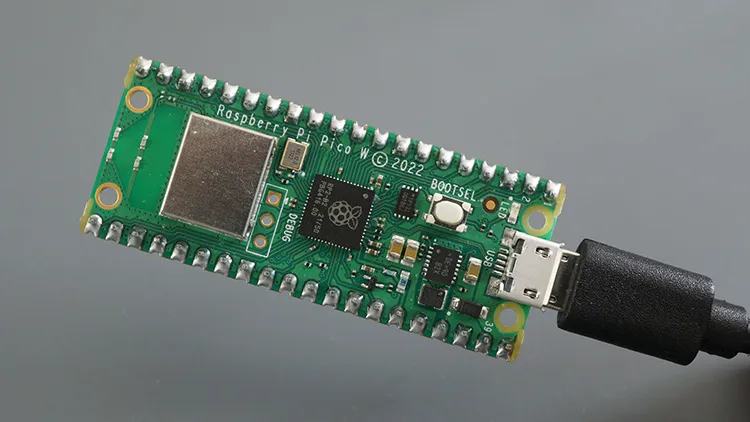
To stop the execution of the program, you can hit the STOP button or simply press CTRL+C.

Important note: just running the file with Thonny doesn’t copy it permanently to the board’s filesystem. This means that if you unplug it from your computer and apply power to the board, nothing will happen because it doesn’t have any Python files saved on its filesystem. The Thonny IDE Run function is useful to test the code, but if you want to upload it permanently to your board, you need to create and save a file to the board's filesystem. See the next section.
Stop the execution of the previous program by clicking on the Stop button if you haven’t already.
With the code copied to the file, click on the Save icon. Then, select Raspberry Pi Pico.
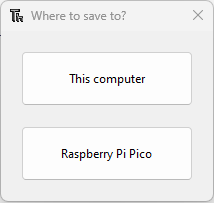
Save the file with the following name: main.py.
Note: When you name a file main.py, the Raspberry Pi Pico will run that file automatically on boot. If you call it a different name, it will still be saved on the board filesystem, but it will not run automatically on boot.
Finally, click OK to proceed.
Now, you can remove and apply power again to the board, or you can even power it using a different power supply that is not your computer. You’ll notice that the board will automatically start blinking the LED when it starts.
This tutorial was a quick introduction to the Raspberry Pi Pico board. The Raspberry Pi Pico is a cheap microcontroller board developed by the Raspberry Pi Foundation.
The board can be programmed using C/C++ programming language (using Arduino IDE) or MicroPython. The most popular method to program this board is using MicroPython firmware. In this tutorial, you learned how to run your first MicroPython script on the board and how to save it as a file.
If you’re serious about learning about the Raspberry Pi Pico, make sure you check our eBook:
If you also want to learn how to program the Raspberry Pi Pico using Arduino IDE, read the following tutorial:
You may also like:
Thanks for reading


