Book Categories:


Wait, don't go!
Become a Member Today and Unlock Access to All eBooks!
Thousands of eBooks at your fingertips. Read, learn, and grow anytime, anywhere.
A big part of using a Raspberry Pi is also using the terminal. The terminal is something that a lot of people try to avoid because they feel like it is a bit hard to use.
But it doesn’t need to be that way, because in reality, we can break it down to just a few basic commands that you need to know to do pretty much everything.
After you learn these commands, you’ll hopefully feel really comfortable using the terminal. When you access the terminal through an SSH connection, you can install software on your Pi remotely, create files or folders, and run any scripts directly from your computer.
You also don’t need to know all these commands by heart; you can always access this post as a reference to remind you how to do something.
For this tutorial, I’ll be using a Raspberry Pi board with the Raspbian Lite Operating System installed.
Here’s the table of contents:
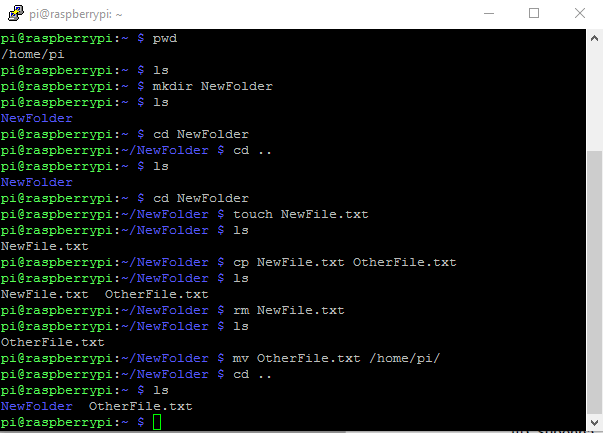
It’s time to play around with the command line.

For starters, type pwd, which means print working directory:
pi@raspberry:~ $ pwd
/home/pi
The output is /home/pi. Forward slashes are always used to indicate folders and files within other folders. In this case, the current working directory is pi, which is inside home, which is inside the root of the file system. Here, pi is the username with which you are logged in.
Note: The commands in Linux are case-sensitive, which means that PWD, PwD, pWd, and any other variations are completely different from pwd. The same holds for all other commands and for any code written in the programming languages addressed in this course.
The most frequent commands you will use are ls (list) and cd (change directory). They are used for listing the contents of a directory and moving from one directory to another.
When you first open the terminal, it will open up in your home folder (as you’ve seen with the pwd command). You can display exactly what kind of files or folders are in the working directory with ls:
pi@raspberry:~ $ ls
Right now, your directory is empty, so you won’t see anything when you try to list your files and folders. Want to create a new folder? Usemkdir followed by the name you want to give the folder:
pi@raspberry:~ $ mkdir NewFolder
pi@raspberry:~ $ ls
NewFolder
To navigate, we’ll be using the cd command, followed by the location you want to move to. This can be done like so:
pi@raspberry:~ $ cd NewFolder
pi@raspberry:~/NewFolder $
This moved you to the NewFolder directory that you just created.
Here’s one trick you can use so you don’t have to remember the exact name of the path – the command line or terminal will try to autocomplete the phrase if you press the Tab key while something is only partially typed. Try the cd command again (use cd .. to move up one directory):
pi@raspberry:~/NewFolder $ cd ..
pi@raspberry:~ $ ls
NewFolder
Now start writing your cd command again…
pi@raspberry:~ $ cd NewF
… by pressing Tab when you’ve only written ‘NewF’ It will autocomplete the file path:
pi@raspberry:~ $ cd NewFolder
Finally, there are some quick commands you can use to manipulate files. Create a new file with the touch command:
pi@raspberry:~/NewFolder $ touch NewFile.txt
pi@raspberry:~/NewFolder $ ls
NewFile.txt
Individual files can be copied using the command cp, followed by the file name, and you can also use this to rename files by doing:
pi@raspberry:~/NewFolder $ cp NewFile.txt OtherFile.txt
pi@raspberry:~/NewFolder $ ls
NewFile.txt OtherFile.txt
The original file can then be deleted by using the rm command followed by the file name:
pi@raspberry:~/NewFolder $ rm NewFile.txt
pi@raspberry:~/NewFolder $ ls
OtherFile.txt
You can move files using the mv command:
pi@raspberry:~/NewFolder $ mv OtherFile.txt /home/pi
pi@raspberry:~/NewFolder $ cd ..
pi@raspberry:~/NewFolder $ ls
NewFolder OtherFile.txt
There’s a lot more you can do with the command line, but these are the very basics.
As you use Linux more and more, you’ll be confronted with tasks that need the command line, and through this process, you’ll learn just how much can be accomplished when you work using the command line to manipulate files.
Nano is an easy-to-use text editor that is installed by default in the Raspbian distribution and many other Linux distributions.
You can run nano by just typing nano at the command prompt.
You can use the following commands to edit the OtherFile.txt created in the previous Unit:
pi@raspberry:~ $ cd
pi@raspberry:~ $ nano OtherFile.txt
Nano will follow the path and open that file if it exists. If it does not exist, it’ll start a new buffer with that file name in that directory.
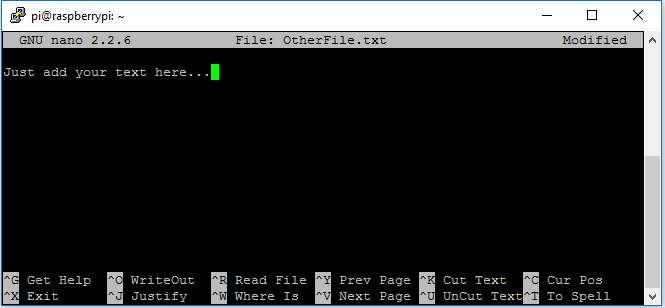
Let’s take a look at the default nano screen:
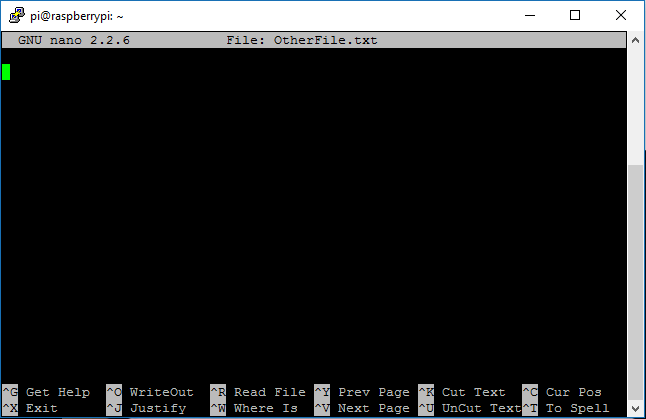
At the top row, you’ll see the name of the program version number, the name and extension of the file you’re editing, and whether the file has been modified since it was last saved.
Note: If you have a new file that isn’t saved yet, you’ll see “New Buffer.”
Next, you’ll see the contents of your file.
Lastly, the final two rows at the bottom are the shortcut lines (as shown below).

Program functions are referred to as “shortcuts” in nano, such as saving, quitting, searching, etc. The most common ones are listed at the bottom of the screen (as shown in the preceding Figure), but there are many more that aren’t.
Warning: nano does not use the Shift key in shortcuts. All shortcuts use lowercase letters and unmodified number keys, so Ctrl+G is NOT Ctrl+Shift+G.
Press Ctrl+G to bring up the Help menu and scroll down with your arrow keys to see a list of valid shortcuts.
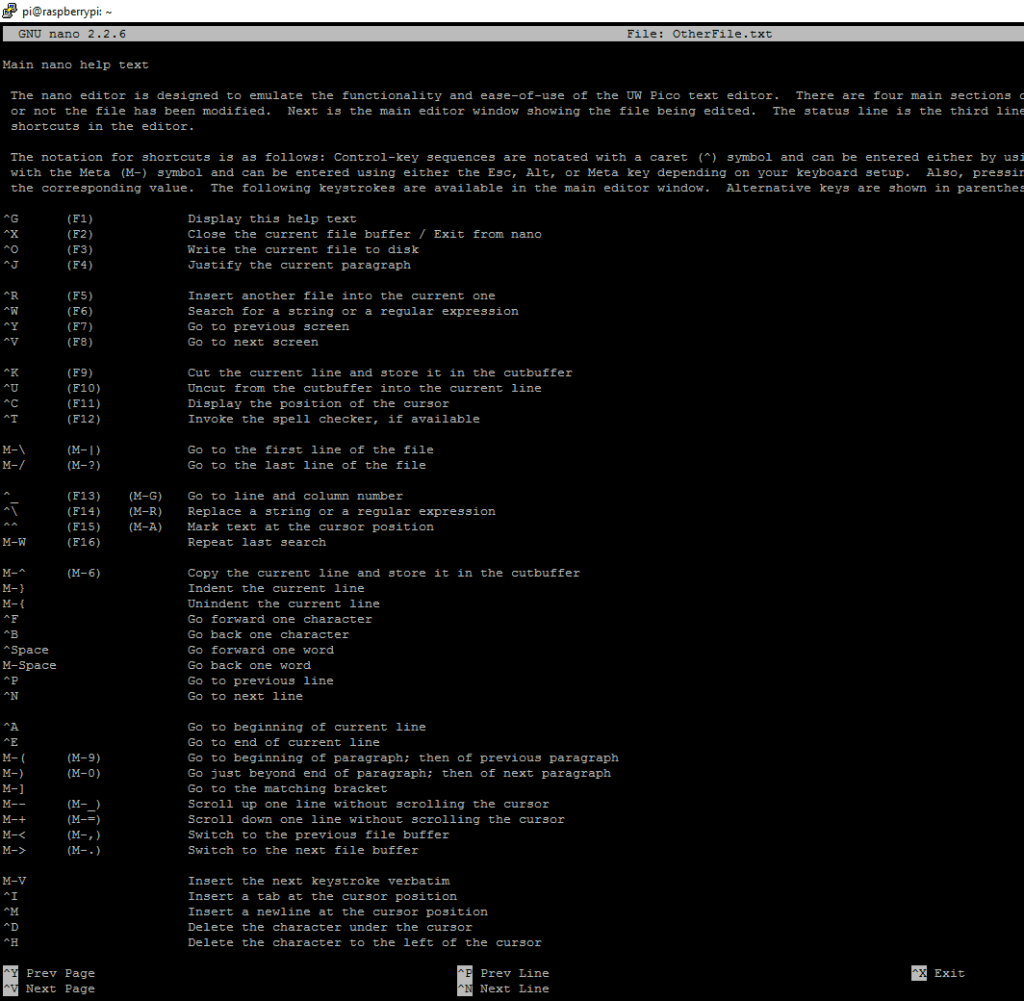
When you’re done looking at the list, hit Ctrl+X to exit the Help menu.
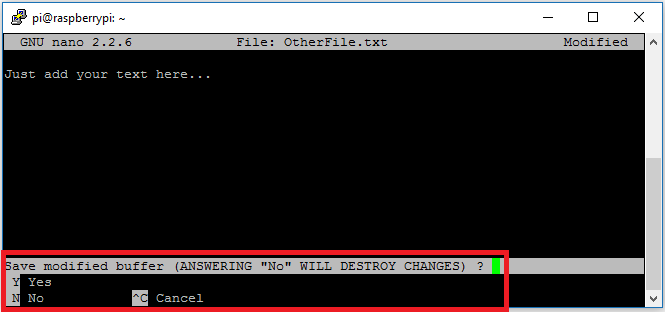
Now, let’s say you’re working on your text file and you want to save it and exit nano. This is executed by pressing Ctrl+X.
Nano will ask you if you want to save the changes. You can type:
This is a very brief tutorial that shows how to edit a file and save it using the nano program.
The nano is way more powerful and has a lot of shortcuts that you can use to your advantage, but those go beyond what you need to know to complete this course. You can always refer to the official documentation or use the built-in Help menu.
When you know your way around the command line, downloading and installing new software on a computer or device running the Linux OS is quite easy.
The software comes in what are called packages — software programs that can be downloaded from the Internet and installed simply by typing a command in the prompt.
To download and install these packages, you normally use a package manager, which downloads and installs not only the software you requested but also all other required software, known as dependencies.
The Raspbian distribution uses a package manager called apt.
To manage your software, you need the authorization of the administrator, whom you already know as the superuser. To do so, type sudo (superuser do) before a command.
First and foremost, you have to update the list of available package versions that your package manager is aware of. (The package manager keeps such a list in the Raspberry’s file system.) Type the following command:
pi@raspberry:~ $ sudo apt-get update
You need to be connected to the Internet for this command to work. Text scrolls by after you type the command, giving information about the newest listings.
Next, you should update the software, which you can achieve by commanding apt to upgrade. This command upgrades all the packages you’ve installed to their most recent versions:
pi@raspberry:~ $ sudo apt-get upgrade
In terms of wording, the difference between updating and upgrading is subtle, but what they do is quite different (even though they’re usually done together).
sudo apt-get update updates the list of available package versions but doesn’t install or upgrade any of them, whereas sudo apt-get upgradeupdates the packages themselves, checking the list to do so. For that reason, you should always run an update before an upgrade.
To install a package for which you already know the name, you have to type the following command:
pi@raspberry:~ $ sudo apt-get install <desired application name>
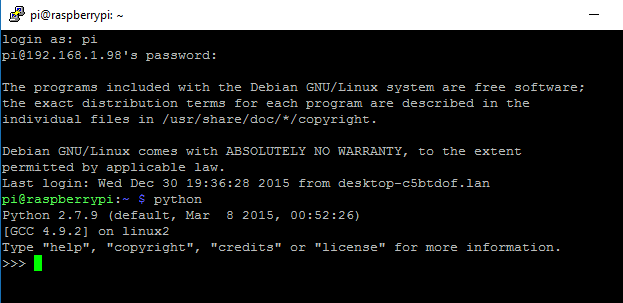
To run programs directly from the prompt, simply type their names, as shown in the following command:
pi@raspberry:~ $ python
This opens the Python interpreter that we are going to explore in the next Module.
To remove software from your RPi, you resort once more to the apt package manager. Here’s an example:
pi@raspberry:~ $ sudo apt-get remove <desired application name>
This command, however, leaves behind files that are somehow related to the software, such as configuration files and logs. If you don’t intend to use those files in any way, you can remove everything by using purge:
pi@raspberry:~ $ sudo apt-get purge <desired application name>
Do not remove any package that you didn’t install yourself unless you’re certain that you know what it’s for. It may be a necessary package that comes with the Linux OS, and removing it may lead to a system crash.
To change the Raspberry Pi configurations, you can use a tool written by Alex Bradbury. To open the configuration tool, simply run the following from the command line:
pi@raspberry:~ $ sudo raspi-config
The sudo is required because you will be changing files that you do not own as the pi user.
You should see a blue screen with options in a grey box in the center:
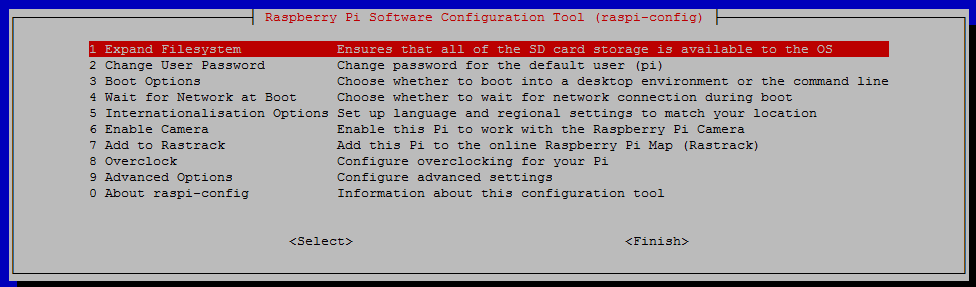
raspi-config aims to provide the functionality to make the most common configuration changes. Keep in mind that some options require a reboot to take effect. If you changed any of those, raspi-config will ask if you wish to reboot now when you select the<Finish> button.
It has the following options available:
Most configurations are pretty self-explanatory, and for this course, you only need to change one setting (as shown in the next section).
I recommend expanding your file system.
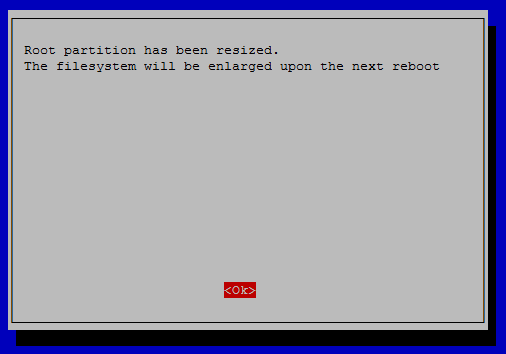
Choosing option 1 from the raspi-config menu will expand your installation to fill the rest of the microSD card, giving you more space to use for files.
Note: You will need to reboot the Raspberry Pi to make this available. Note there is no confirmation; selecting the option begins the partition expansion immediately (as shown in the Figure below).
Right now, you don’t need to change anything else.
There are better ways to shut down and reboot your Raspberry Pi than simply unplugging it. Unplugging your RPi is the equivalent of shutting down your computer by pressing the power button or even removing its power source, which can lead to file corruption.
To shut down your Raspberry Pi, simply type this command on the command line:
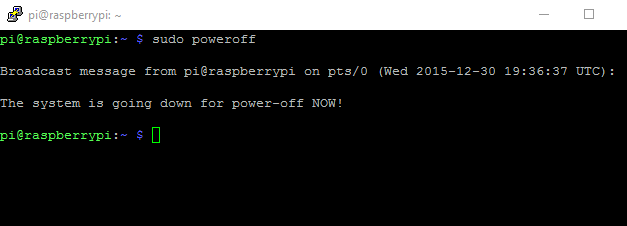
pi@raspberry:~ $ sudo poweroff
You see the following information after you use the shutdown command:
To reboot, type this:
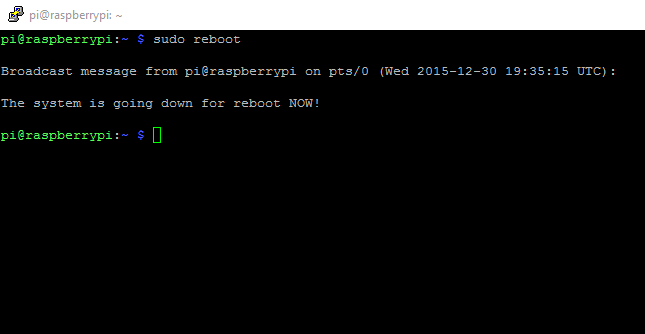
pi@raspberry:~ $ sudo reboot
This is the result:
You need to login again through SSH after rebooting.
I encourage you to bookmark this blog post, because you don’t have to know all these commands by heart.
I hope you like this guide. Share it with a friend who will find it useful!
Thanks for reading,








