Book Categories:


Wait, don't go!
Become a Member Today and Unlock Access to All eBooks!
Thousands of eBooks at your fingertips. Read, learn, and grow anytime, anywhere.

In this post, we’re going to show you how you can do video streaming with a Raspberry Pi and a Raspberry Pi Camera – how to stream live video into a web page that you can access from any device that has a browser and is connected to the same network the Pi is on. This is useful to apply to a home surveillance camera, for example.
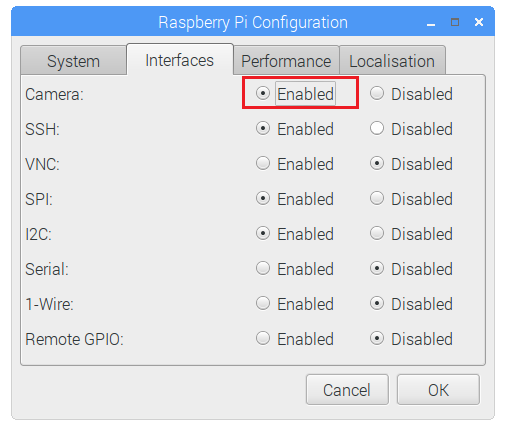
If you’re using the Raspberry Pi Camera Module, you need to enable the camera software in your Raspberry Pi to use it. In the Desktop environment, go to the Raspberry Pi Configuration window under the Preferences menu, open the Interfaces tab, and enable the Camera as shown inthe figure below.
Or, in the Terminal window, type the following command:
pi@raspberry:~ $ sudo raspi-config
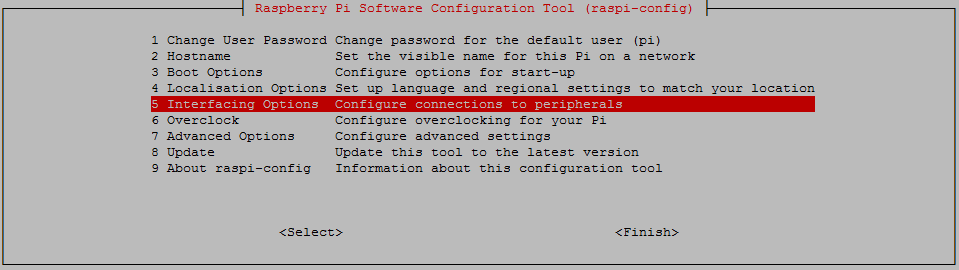
You should see the Raspberry Pi software configuration tool. Select the Interfacing Options:

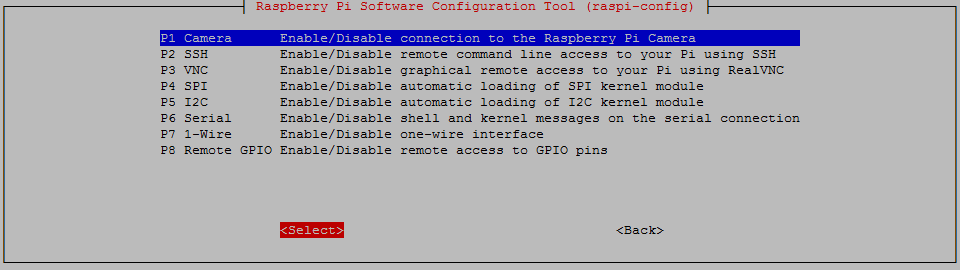
Enable the camera and reboot your Pi:
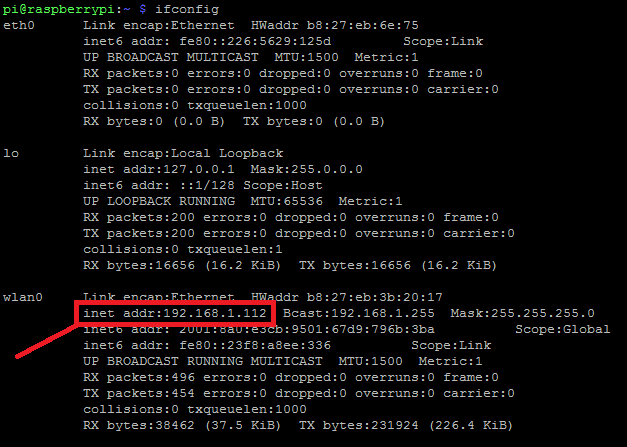
To access your video streaming web server, you need to know your Raspberry Pi IP address. For that, use the following command:
pi@raspberry:~ $ ifconfig
You’ll be given a bunch of information, including your Raspberry Pi IP address. In my case, the RPi IP address is 192.168.1.112.
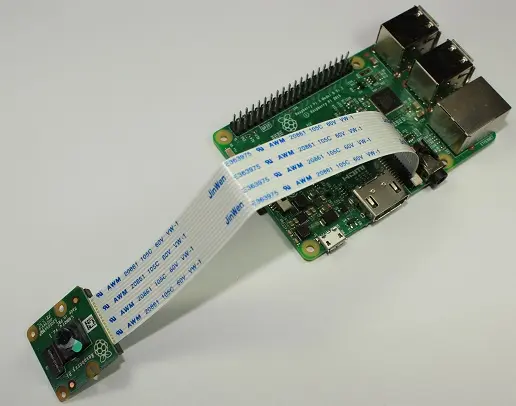
Connecting the Raspberry Pi Camera Module is easy. With the Pi shutdown, connect the camera to the Pi CSI port as shown in the following figure. Make sure the camera is connected in the right orientation with the ribbon blue letters facing up, as shown in the next figure.
The script for video streaming is shown below. You can find this script at the official PiCamera package documentation.
Create a new file called rpi_camera_surveillance_system.py:
pi@raspberrypi:~ $ nano rpi_camera_surveillance_system.py
Copy the following code to your newly created file:
# Web streaming example
# Source code from the official PiCamera package
# http://picamera.readthedocs.io/en/latest/recipes2.html#web-streaming

import io
import picamera
import logging
import socketserver
from threading import Condition
from http import server

PAGE="""\
<html>
<head>
<title>Raspberry Pi - Surveillance Camera</title>
</head>
<body>
<center><h1>Raspberry Pi - Surveillance Camera</h1></center>
<center><img src="stream.mjpg" width="640" height="480"></center>
</body>
</html>
"""

class StreamingOutput(object):
    def __init__(self):
        self.frame = None
        self.buffer = io.BytesIO()
        self.condition = Condition()

    def write(self, buf):
        if buf.startswith(b'\xff\xd8'):
            # New frame, copy the existing buffer's content and notify all
            # clients it's available
            self.buffer.truncate()
            with self.condition:
                self.frame = self.buffer.getvalue()
                self.condition.notify_all()
            self.buffer.seek(0)
        return self.buffer.write(buf)

class StreamingHandler(server.BaseHTTPRequestHandler):
    def do_GET(self):
        if self.path == '/':
            self.send_response(301)
            self.send_header('Location', '/index.html')
            self.end_headers()
        elif self.path == '/index.html':
            content = PAGE.encode('utf-8')
            self.send_response(200)
            self.send_header('Content-Type', 'text/html')
            self.send_header('Content-Length', len(content))
            self.end_headers()
            self.wfile.write(content)
        elif self.path == '/stream.mjpg':
            self.send_response(200)
            self.send_header('Age', 0)
            self.send_header('Cache-Control', 'no-cache, private')
            self.send_header('Pragma', 'no-cache')
            self.send_header('Content-Type', 'multipart/x-mixed-replace; boundary=FRAME')
            self.end_headers()
            try:
                while True:
                    with output.condition:
                        output.condition.wait()
                        frame = output.frame
                    self.wfile.write(b'--FRAME\r\n')
                    self.send_header('Content-Type', 'image/jpeg')
                    self.send_header('Content-Length', len(frame))
                    self.end_headers()
                    self.wfile.write(frame)
                    self.wfile.write(b'\r\n')
            except Exception as e:
                logging.warning(
                    'Removed streaming client %s: %s',
                    self.client_address, str(e))
        else:
            self.send_error(404)
            self.end_headers()

class StreamingServer(socketserver.ThreadingMixIn, server.HTTPServer):
    allow_reuse_address = True
    daemon_threads = True

with picamera.PiCamera(resolution='640x480', framerate=24) as camera:
    output = StreamingOutput()
    #Uncomment the next line to change your Pi's Camera rotation (in degrees)
    #camera.rotation = 90
    camera.start_recording(output, format='mjpeg')
    try:
        address = ('', 8000)
        server = StreamingServer(address, StreamingHandler)
        server.serve_forever()
    finally:
        camera.stop_recording()
To save your file, press Ctrl+X, type Y, and Enter.
After writing the script, you can run it using Python 3. Run the next command:
pi@raspberrypi:~ $ python3 rpi_camera_surveillance_system.py
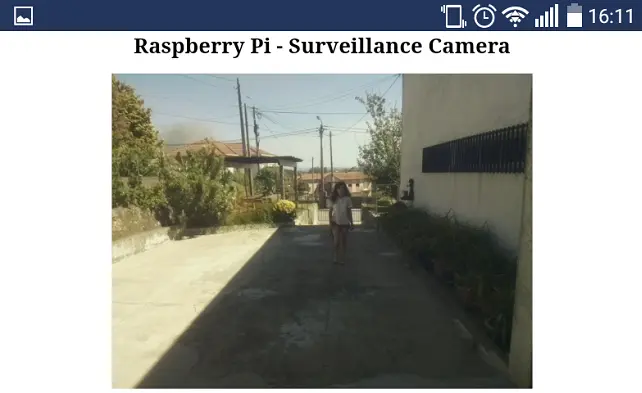
Once the script is running, you can access your video streaming web server at: http://<Your_Pi_IP_Address>:8000. Replace with your own Raspberry Pi IP address, in my case http://192.168.1.112:8000.
You can access the video streaming through any device that has a browser and is connected to the same network as your Pi.
You can use your Pi to monitor your home as a surveillance camera:
I hope this project was useful! You could easily upgrade this home surveillance device to record video or notify you when motion is detected.
We also have a project on how to build a complete CCTV system with the Raspberry Pi using MotionEyeOS. Feel free to take a look.
Do you have any questions? Leave a comment down below!








