Book Categories:


Wait, don't go!
Become a Member Today and Unlock Access to All eBooks!
Thousands of eBooks at your fingertips. Read, learn, and grow anytime, anywhere.
Do you want to turn your Raspberry Pi into a surveillance camera system? The best way to do it is using MotionEyeOS. In this post, we’ll show you how to get started with MotionEyeOS on your Raspberry Pi.
MotionEyeOS is a Linux distribution that turns your single-board computer into a video surveillance system. The MotionEyeOS supports the following devices:
MotionEyeOS is the perfect solution for building your own surveillance system, as it is simple to install and features a web-based, user-friendly interface that is responsive in virtually any browser.
It supports most USB cameras, Raspberry Pi camera modules, and IP cameras. Additionally, it brings other useful features when it comes to a surveillance system:

For this project, we’re using the following parts:
To install MotionEyeOS on your Raspberry Pi 3, follow the next steps.
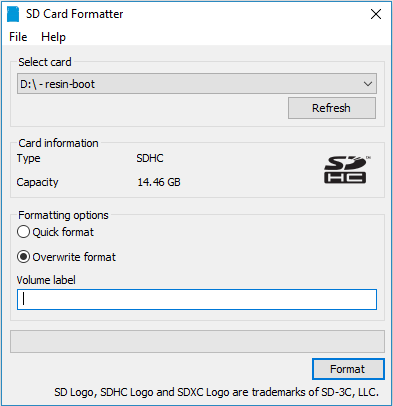
You’ll install MotionEyeOS on a microSD card and then insert the microSD card into your Raspberry Pi board. But first, you need to format your microSD card – there are several ways to do this, but we recommend following the next procedure:
Choose the right image for your device: MotionEyeOS releases page. If you’re using the Raspberry Pi 3, choose motioneyeos-raspberrypi3-xxxxxxxx.img.gz.
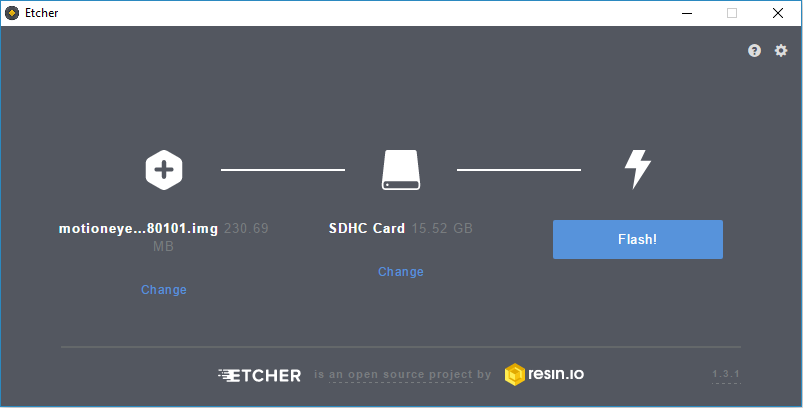
Next, extract the image from the .zip folder. Then, you can use Win32DiskImager or Etcher to write the image onto the SD card.
We’re going to use Etcher. If you don’t have Etcher installed, you can click here and install it on your computer.
With the microSD card formatted and connected to your computer, open Etcher. Select the image you’ve gotten previously, select your microSD card, and click Flash!
When the flash is completed, your microSD card is ready!
Follow the next steps to boot MotionEyeOS for the first time on your Raspberry Pi.
1. Insert the microSD card in the Raspberry Pi.
2. Connect an Ethernet cable – this is needed on the first boot.
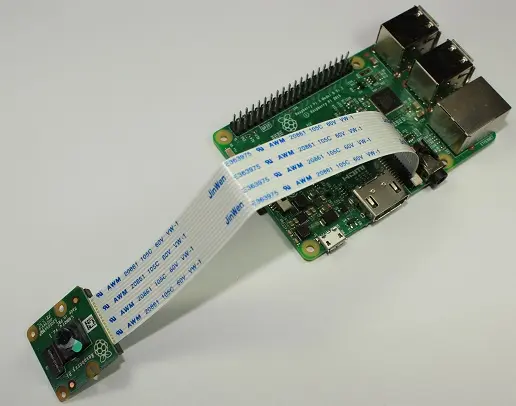
3. Connect a camera. If you’re using the Raspberry Pi camera V2 module, make sure you’ve connected the camera in the right orientation as shown in the following image;
4. Apply power to your Pi, and wait for about 2 minutes for the system to be ready.
Now, to access your Raspberry Pi, you need to find your Pi’s IP Address
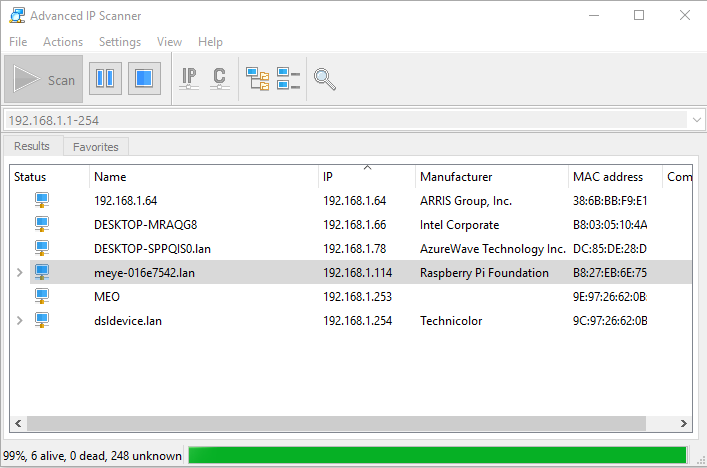
To find your Raspberry Pi IP address, you can use Angry IP Scanner. The IP you’re looking for is the one with “meye” in the name, as shown in the following figure.
Open your browser and type the Raspberry Pi IP address. You’ll see the MotionEye login page.
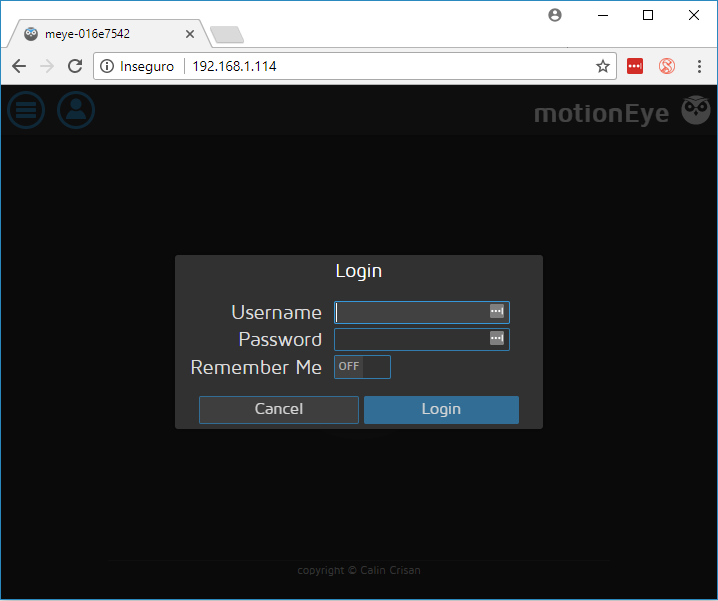
At the first boot, use the following credentials:
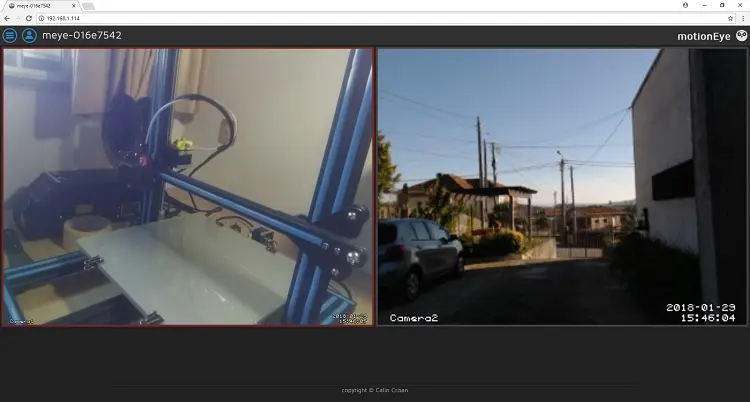
If you have a camera connected to your Pi, it should be detected automatically, and you should see a live image from the camera. We’ve connected two cameras, a USB camera, and the Raspberry Pi Camera V2 module, and it automatically shows a live image from both.
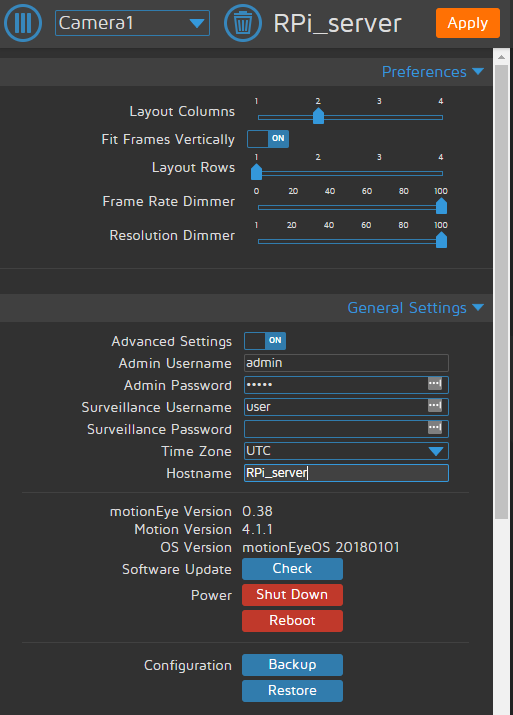
You can configure pretty much everything in your web user interface. We recommend taking a look at the following configurations when configuring MotionEyeOS for the first time.
Click the orange button at the top right, “Apply” to apply the changes – this will require a reboot.
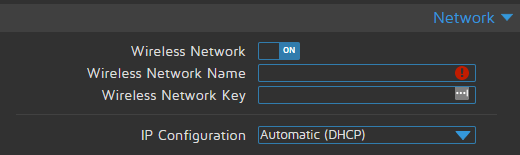
You can also enable Wireless Network in the Network menu. You need to enter your network credentials as shown in the following figure.
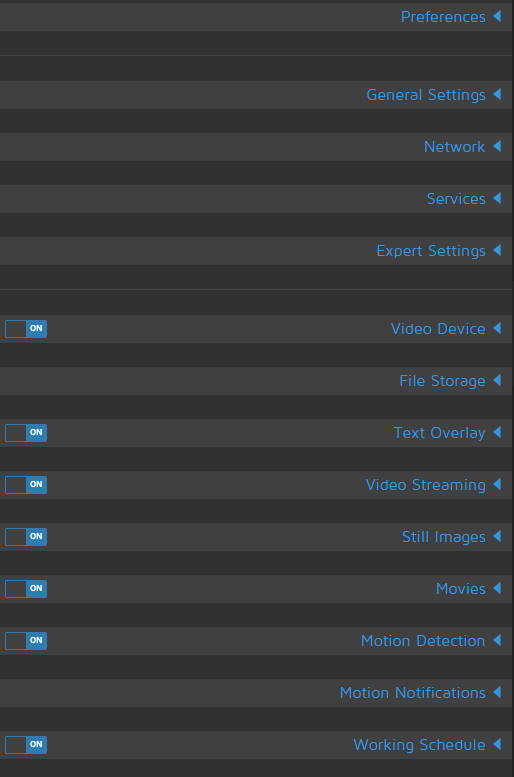
The software is intuitive to use. Take a look at the menus and see what they can do.
This was just an introduction on how to get started with MotionEyeOS on the Raspberry Pi 3. In this example, we’re using a single device (the Raspberry Pi board) with two cameras, but it can be more useful using a Raspberry Pi 3 as a Hub, and then use several cameras in different locations, each of them connected to a Raspberry Pi Zero W. Learn how to build a CCTV Raspberry Pi Based System with Storage using MotionEyeOS.
We hope you’ve found this post useful. If you want to build your own surveillance system, then MotionEyeOS is the way to go.
You may also like the following projects:
Thanks for reading.








