Book Categories:


Wait, don't go!
Become a Member Today and Unlock Access to All eBooks!
Thousands of eBooks at your fingertips. Read, learn, and grow anytime, anywhere.
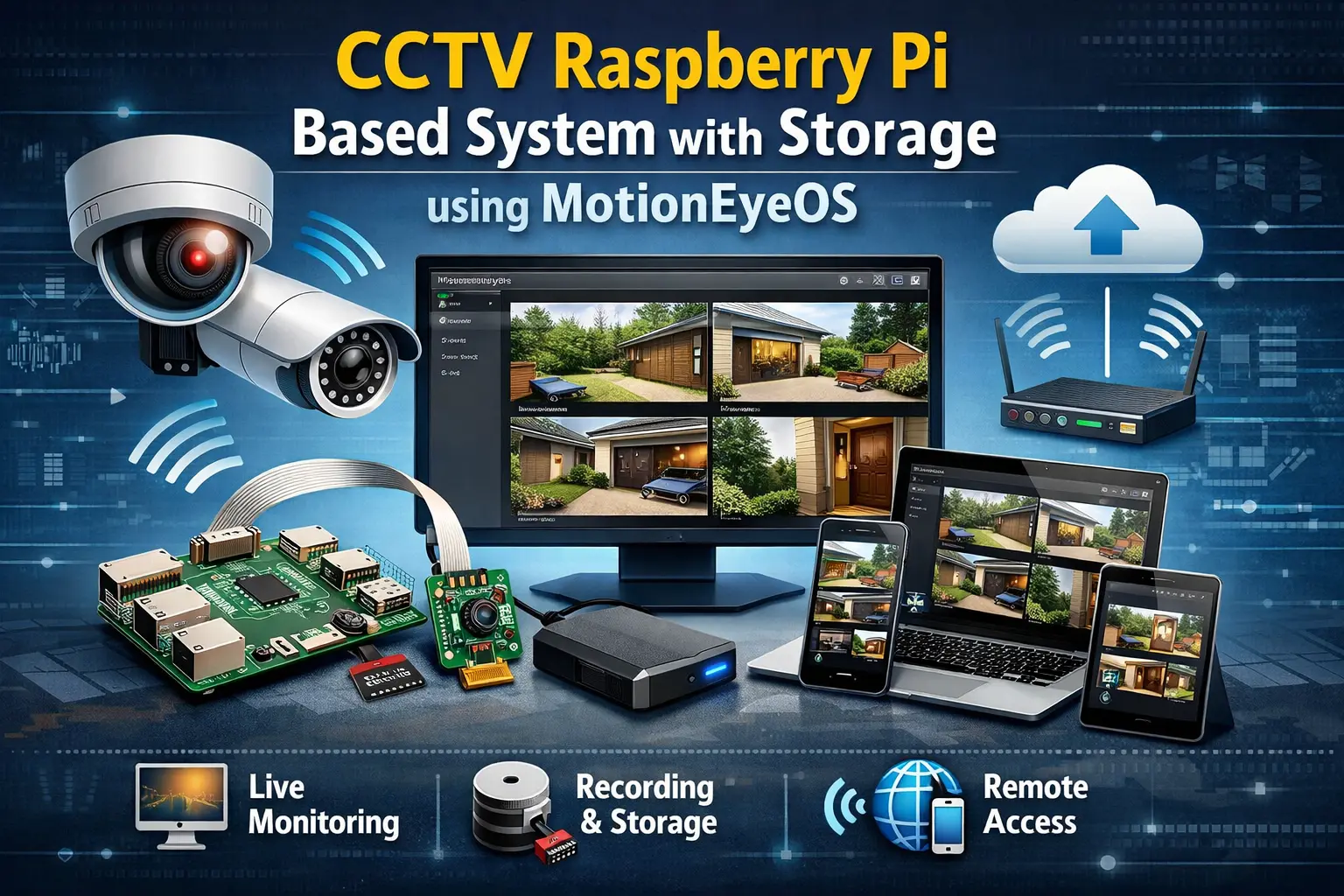
In this project, Ahmed is going to show you how to build a complete Raspberry Pi based home surveillance system in which you can manage all your cameras from one single place using MotionEyeOS. The system built also allows you to save your frames from all your cameras in a 1TB SATA drive.
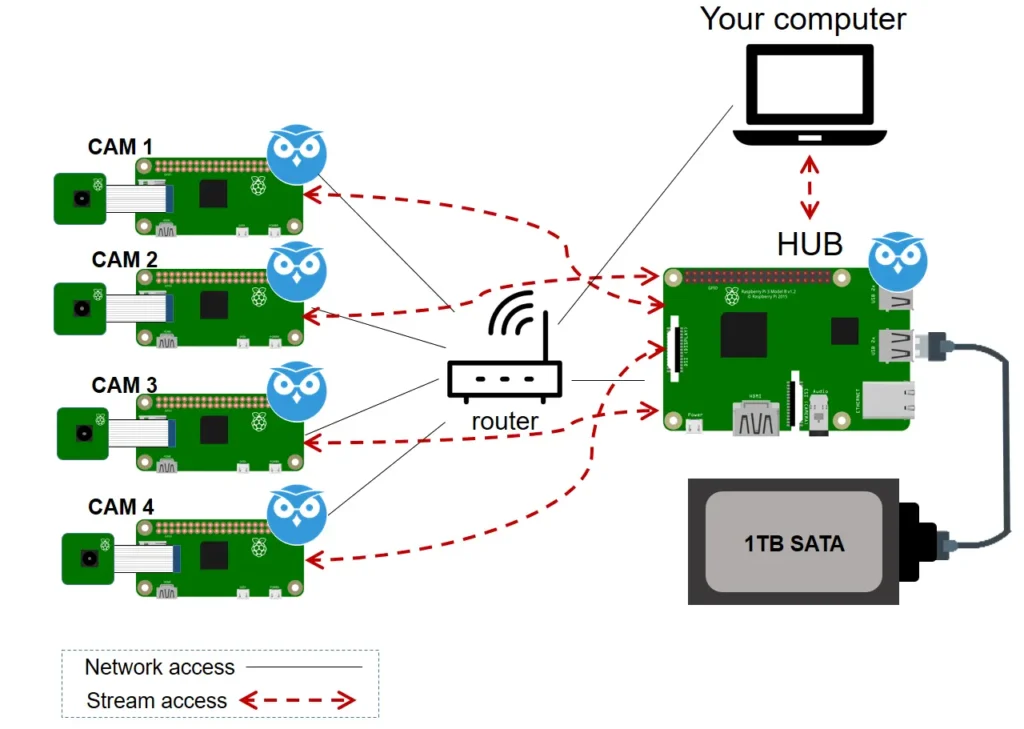
The surveillance system built includes: one Raspberry Pi acting as a HUB with 1TB SATA, and 4 cameras (each one connected to a Raspberry Pi Zero W) that can be monitored through the HUB.
All devices are connected to your local network, and you can access all the cameras through the hub using a browser on your computer (or other device on the local network). The following figure shows a high-level overview of the project.
Here are all the parts needed for this project.
Hub:
Cameras:

The Raspberry Pi Hub setup consists of a Raspberry Pi 2 Model B (if you have a Raspberry Pi 3, use that board instead) with a Sandisk Ultra 16GB class 10. There is a 1TB SATA drive connected to the Pi with a SATA-USB cable.
The Raspberry Pi is being powered with a 12VDC 1500mA wall wart connected to a 2A DC-DC converter set to around 5.2V output.
Note: I have been doing some experimentation with powering RPi 2 and 3 and found that using a 12V 1500mA wallwart adapter and a 3 or 5A DC-DC converter with short leads seems more capable and often cheaper than a big 3A wallwart adapter, and gives you a 12V supply for other associated hardware.
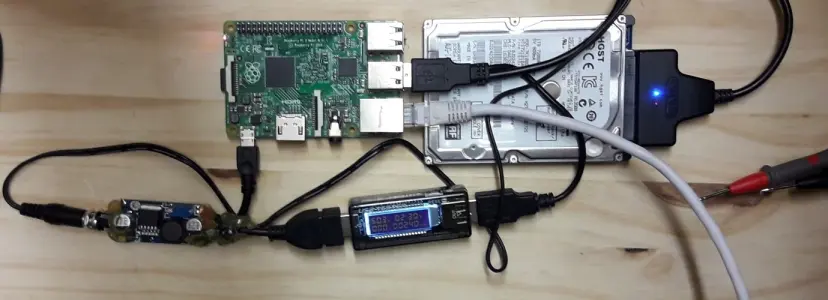
Note: I have found that my SATA drive is capable of being powered by the RPi 2 USB without a powered USB hub. You may not be as lucky. A friend of mine has suggested putting a beefy cap in parallel with the RPi power input
The setup for the cameras consists of 4 Raspberry Pi Zero W with a Sandisk Ultra 16GB class 10. Each Raspberry Pi Zero W board is connected to a camera.
The Raspberry Pi boards are being powered with a 12V DC 1500mA wall wart connected to a 5A DC-DC converter set to around 5.2V output (this is a temporary setup for testing; after testing that everything is working fine, each Raspberry Pi Zero W should have a separate power supply).
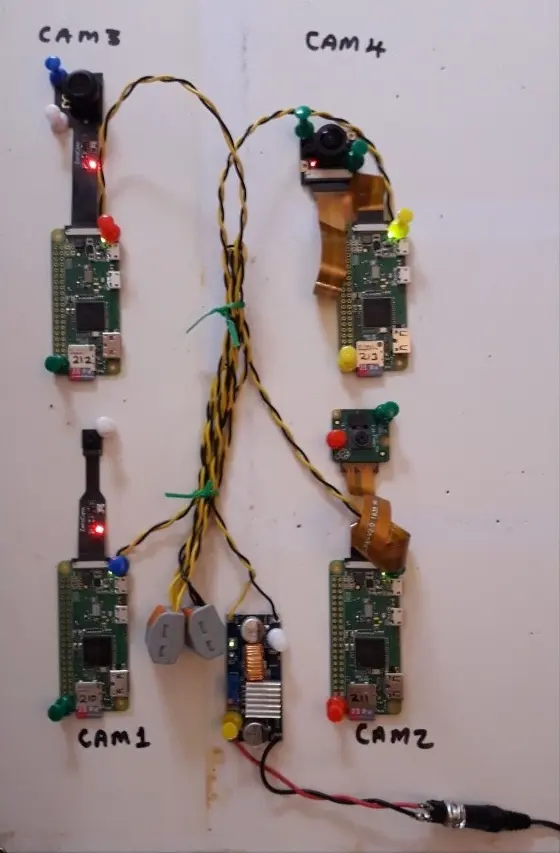
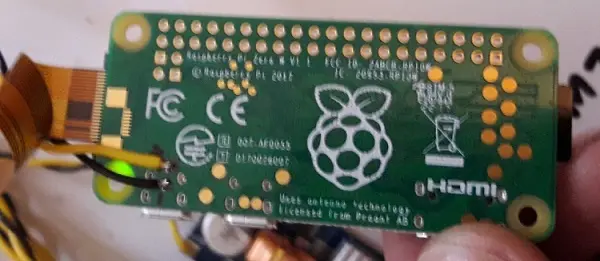
In this setup, the power leads yellow/black are soldered directly to the back of the Raspberry Pi Zero board.
You need to install MotionEyeOS on your Raspberry Pi, preferably a Raspberry Pi 2 or Raspberry Pi 3. This board will act as the hub.
Follow the next steps to install MotionEyeOS on the microSD card for your Pi.
Your microSD card is now ready. Follow these next steps to boot MotionEyeOS on your RPi 2 or 3:
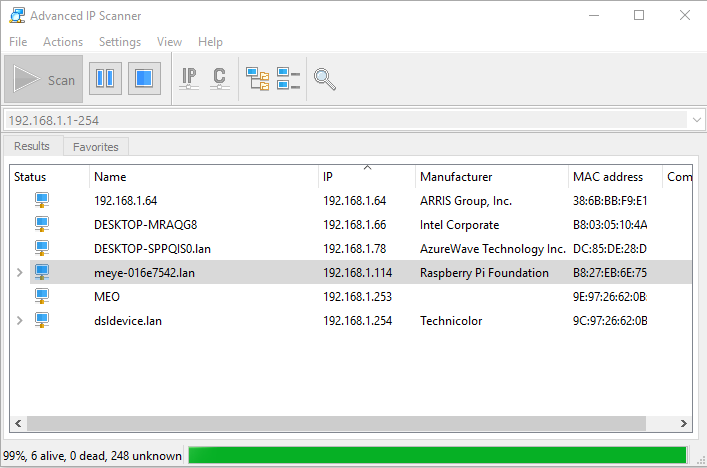
To access MotionEyeOS from your browser, you need to find the Raspberry Pi IP address. To find your Raspberry Pi IP address, you can use Fing, AngryIPScanner or any other similar software. The IP you’re looking for is the one with “meye” in the name, as shown in the following figure.
Alternatively, you can also look at your router's DHCP table, or you can connect an HDMI monitor before startup.
You need to do this procedure for each of your Raspberry Pi Zero W boards.
Follow the next steps to install MotionEyeOS on the microSD card for your Pi.
Important note: when burning the ISO to the SD card for the Raspberry Pi Zero W boards, do not eject the card before following the next procedure to set your WiFi credentials. If you do not do this now, the Pi Zero will not log onto your Wi-Fi network and will constantly reboot, annoyingly requiring you to re-image the SD card.
Follow the next procedure to set your network credentials for each of your Raspberry Pi Zero W boards.
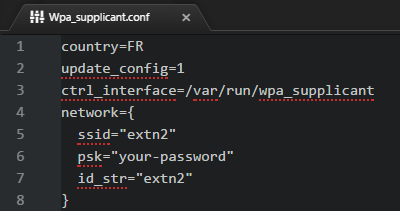
Thinking ahead, if you have multiple Access Points (AP) around your house and you want to move your Raspberry Pi Zero Cameras to one of those locations, it would be a good idea to include the SSID and Password for those APs at this point.
The main reason to do this now is that I cannot find a way to edit the Wpa_supplicant.conf file after the Raspberry Pi Zero Cameras have configured themselves, so it has to be done now. I have tested this, and it does work, although the change of AP credentials is not reflected in the Network section of the MotionEyeOS GUI. The point is that it does work.
Here is my example Wpa_supplicant.conf file for reference:
country=FR
update_config=1
ctrl_interface=/var/run/wpa_supplicant

network={
 ssid="extn2"
 psk="your-password"
 id_str="extn2"
}

network={
 ssid="external"
 psk="your-password"
 id_str="external"
}

network={
 ssid="SFR_DDF0"
 psk="your-password"
 id_str="SFR_Rtr"
}

network={
 ssid="new_loft"
 psk="your-password"
 id_str="new_loft"
}
Change the country code to your country code, and insert the right SSID and password for your multiple access points.
After having the microSD card properly prepared, follow the next steps to boot MotionEye on the Pi Zero for the first time:
1. Eject the SD card from your PC and insert it into your Raspberry Pi Zero.
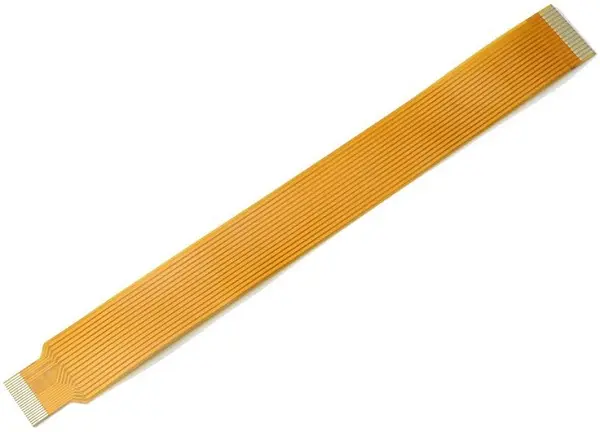
2. Attach the camera. When using a Raspberry Pi camera with the Pi Zero, you need to use an adapter cable as shown in the following figure.
3. Apply power to the Raspberry Pi Zero board.
4. Wait a couple of minutes while it configures itself.
Now, look for your Raspberry Pi Zero W IP address, as you did for the Raspberry Pi Hub. The IP you’re looking for is the one with “meye” in the name.
Alternatively, you can also look at your router's DHCP table, or you can connect an HDMI monitor before startup using a micro HDMI adapter.
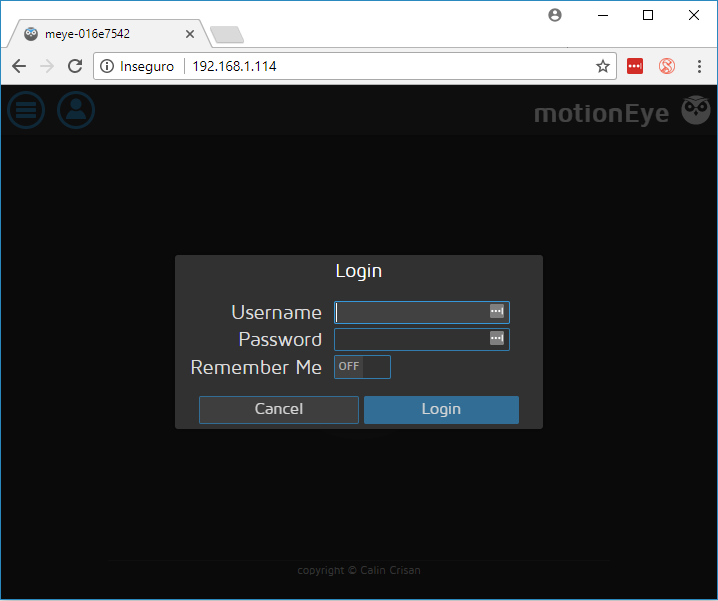
To access each of your Raspberry Pi boards, open your browser and type the Raspberry Pi IP address. You’ll be presented with the MotionEye Login Page. The username is admin, and there is no password, so leave the password field blank.
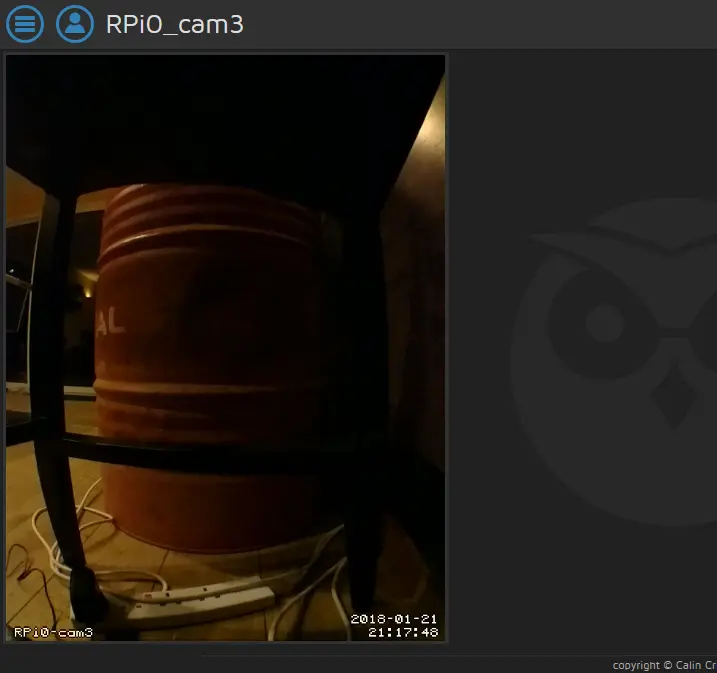
You should see a live image from the camera at this point. If not, check that you’ve properly connected the camera ribbon.
You need to set the following configurations in all your boards (the Raspberry Pi Zero W and the Raspberry Pi Hub).
Follow the next steps for all your Raspberry Pi boards.
1. Use the menu icon at the top left to expand all menus.

2. For security reasons, in the “General Settings”, change the password for the admin user.
3. Turn ON “Advanced Settings”.
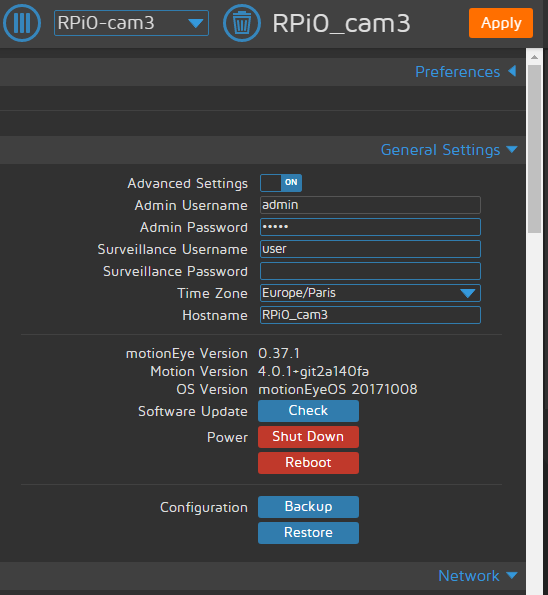
4. Fix the IP address of your RPi boards to something outside the range of your DHCP server. Say 200 and above, for example.
5. Set the Time Zone and Hostname.
6. In the case of the Raspberry Pi Zero, the wireless network and password were automatically picked up from the Wpa_supplicant.conf file.
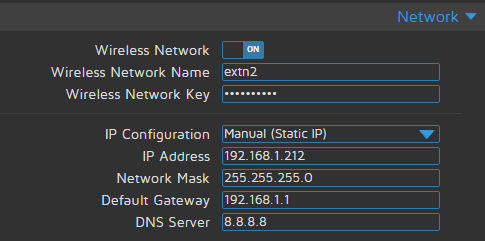
7. Apply the settings, which will require a reboot, and you will have to point your browser at the new IP you have just chosen.
8. Press “Check for a new software update”, and it will download, install, and reboot if there is a software update. This will take approximately 5 minutes.
Note: If at any time you have trouble logging into your RPi, try clearing your cache or using your browser in ‘Incognito mode’.
Follow the next steps for configuring each of your Raspberry Pi Zero W boards in MotionEye.
1. Give the camera a name.
2. Change the camera resolution to 800×600.
3. Rotate camera image if required.
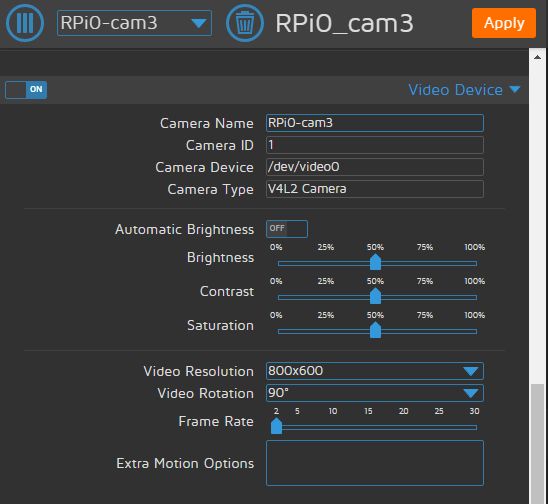
4. Ensure the text overlay is on.
5. Video Streaming is off.
6. Still Images is on.
7. Set Capture Mode to manual.
8. Under motion settings, set motion gap to 2 and minimum motion frames to 5.
The above will reduce the amount of data/frames initially whilst you configure and test the system.
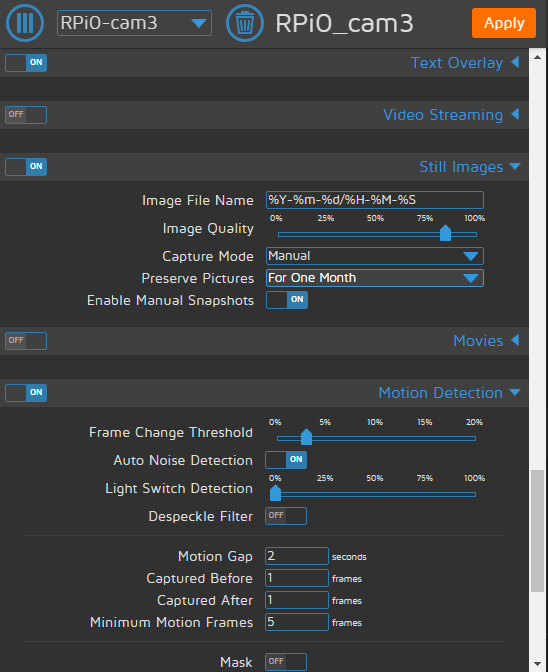
Do not change any of the other settings for the time being. If you need to know the default Frame change threshold, it was 3.5%.
Repeat this process for all your Raspberry Pi Zero W boards.
Access your Raspberry Pi Hub, and follow the next steps for configuration
1. Go to “Services” and turn all on. Apply the settings – this will reboot your Raspberry Pi.
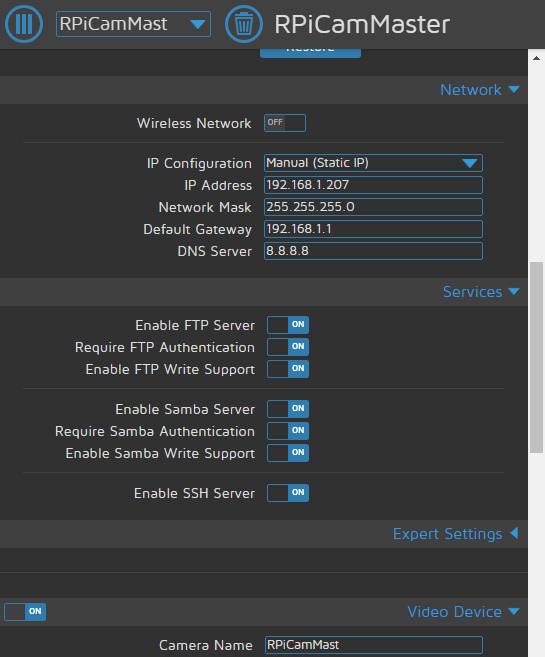
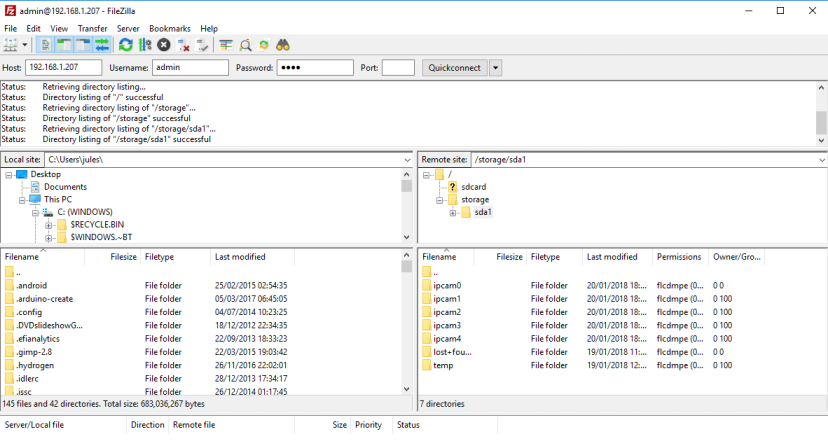
2. Use FileZilla or an equivalent from your PC to set up a directory structure on the SATA drive. Once logged in with FileZilla, you should see something like the following figure.
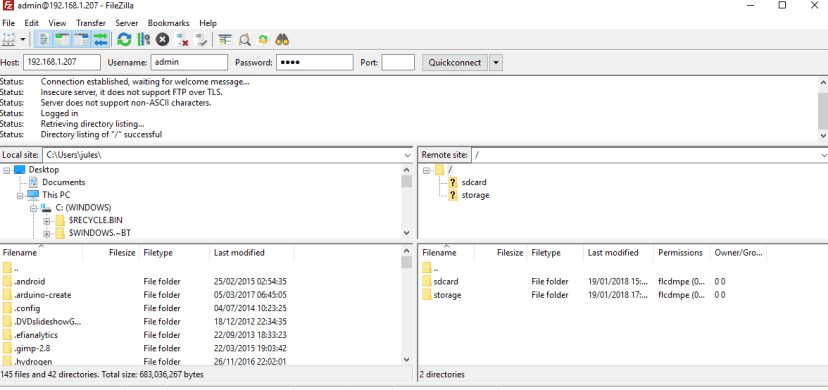
3. The MotionEyeOS seems to automatically create 2 shares: sdcard and storage. Double-click “storage” and create a directory structure to suit your camera needs. The following figure shows how I configured my structure.
4. Go back to your web browser connected to your Raspberry Pi Hub.
5. Go to “File Storage” and choose the “Mass Storage” device. See the figure below for my configuration. Yours may differ.
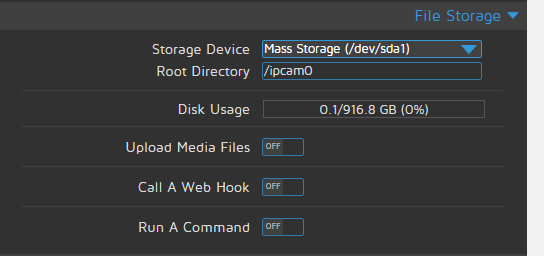
This configures the SATA drive for storage of the local camera, whether you use it subsequently or not. This section may seem pointless, but without a camera connected initially, none of the local file storage options appear.
Follow the next steps to configure file storage for each of your Raspberry Pi Zero W boards.
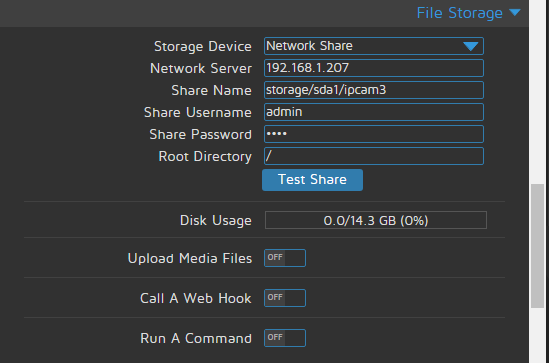
You will notice I have chosen network share in the drop-down menu and entered the IP of the Raspberry Pi Hub, which has the SATA drive attached.
The share name is vital and in that exact format. The last part of the share name is the specific file storage directory you set up with FileZilla above.
Enter username and password as normal, and the root directory should be just /.
Use the test button to confirm the settings. This took me many hours to get right, but the above configuration worked fine for me eventually.
Note: I think there is a bug in the system regarding the Disk usage indicator, as this is incorrect, unless it just represents local storage.
That is all the complicated configuration done!
You can now go to each camera and click on the live image. It will then display an option to take a manual picture, browse saved pictures, etc.
Once you are happy with the way the RPi Zero cameras are taking pictures, you can turn motion detection on and see the frames start to flood in. You can configure motion notification and much more.
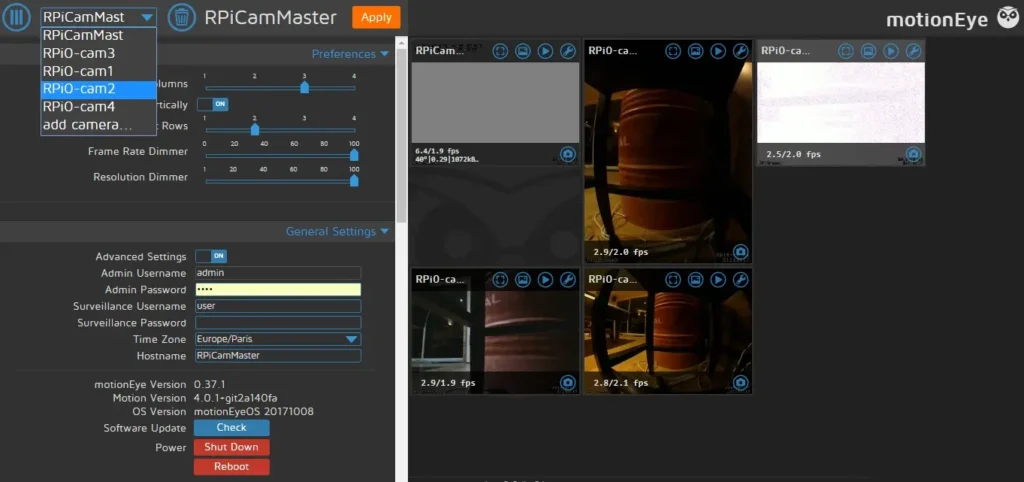
Finally, you can log into the Raspberry Pi Hub and add the remote Raspberry Pi Zero cameras to allow viewing and administration from one point.
http://192.168.1.212:80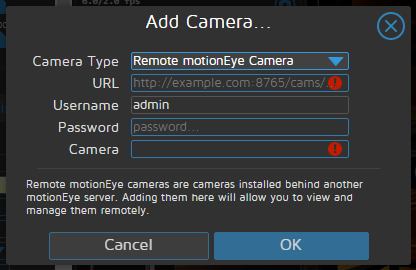
The remote camera can now be selected from the top drop-down menu and viewed or administered from the Hub. Do this procedure for all your Raspberry Pi Zero W cameras.
Once you’ve done that, all cameras can be monitored through the Raspberry Pi Hub.
After building your Raspberry Pi based CCTV system using MotionEyeOS, you need to mount your cameras in an enclosure of some sort and power it with something – it is virtually guaranteed you will not have a plug socket near where you want to install your camera. In this project, I powered my cameras from my existing PIR Floodlights.
With a little research, I found that the Raspberry Pi Zero with a ZeroCam or a ZeroCam Noir or a ZeroCam Fisheye draws a maximum of 280mA and an average of 215mA. So, I opted to use some 99p AC-DC power supplies from eBay. Rated at 3.5W.
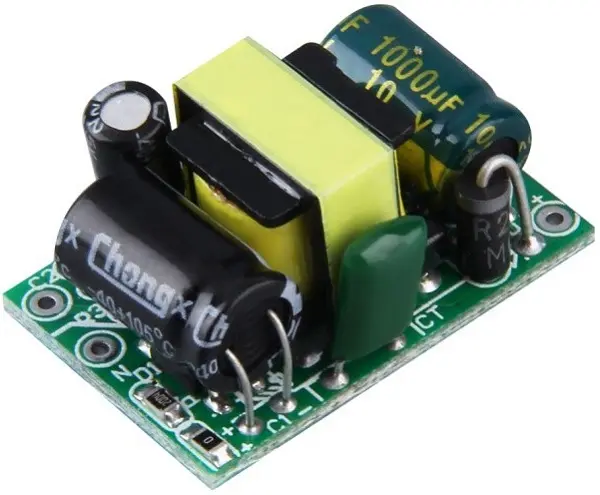
Specifications:
So connecting this up with short DC leads and plugging it into a mains power monitor, I got the following results:
So, to run the camera for a year will cost:
13.14kWh x 0.15 = 1.97€. (My electricity is 0.15€ per kWh) –> Won’t break the bank!
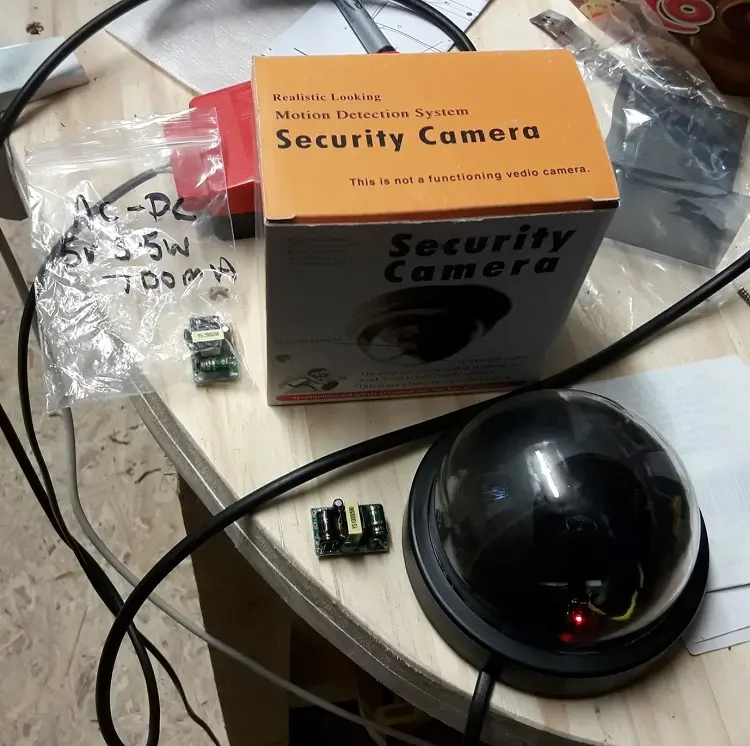
I had some dummy security enclosures and, opening one up, and with minimal modifications, I managed to fit the Raspberry Pi Zero W with the camera and power supply inside with ease. It doesn’t seem to affect the picture that much. The dummy camera enclosure from Amazon. And it looks very professional!
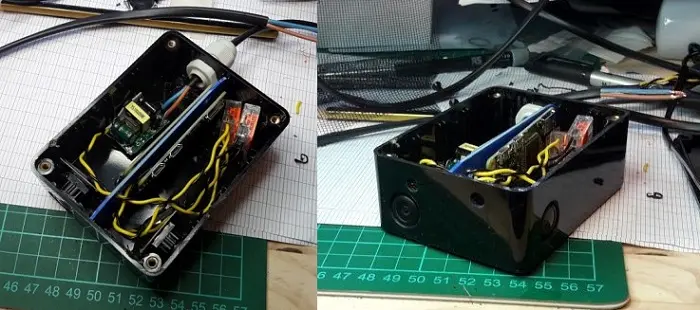
Another approach is placing 2 cameras in one enclosure. So, I used a standard project box (75x100x40mm), one of the AC-DC power supplies shown above, and some hot glue and insect netting to cover the air holes, as shown in the figure below.
There are many choices of cameras for the Raspberry Pi and Pi Zero, so Ahmed ran some tests to compare the Raspberry Pi cameras in his selection. You can learn more about that in the following post: What’s the Best Raspberry Pi Camera for your project?
In this post, you’ll show you how you can build your own surveillance system using MotionEyeOS. The surveillance system built allows you to monitor 4 different cameras, each one connected to a Raspberry Pi Zero, that can be monitored through one Raspberry Pi Hub. This system allows you to monitor all your cameras, as well as save frames on a storage device.
We hope you’ve found this project useful and that you can modify it to fulfil your needs.
If you liked this project, you may also like:








