Book Categories:


Wait, don't go!
Become a Member Today and Unlock Access to All eBooks!
Thousands of eBooks at your fingertips. Read, learn, and grow anytime, anywhere.
Become a Member Today and Unlock Access to All eBooks!
Thousands of eBooks at your fingertips. Read, learn, and grow anytime, anywhere.

In this project, you’re going to learn how to build a car recognition system using a Raspberry Pi and Node-RED. For this project, we’ll be using a software called OpenALPR (Automatic License Plate Recognition) that has an API you can use to identify car plates and car models based on an image.
rts.
The following image shows how the detection process will work:

In this example, we use a PIR motion sensor to detect when the car arrives home. Other sensors may be more suitable to detect a car, for example:
When the sensor detects motion, the Raspberry Pi camera takes a photo. After that, the Pi sends a request to OpenALPR with the car photo to be identified. Then, the OpenALPR API returns the car details like: plate number, model, color, and the confidence of the results.
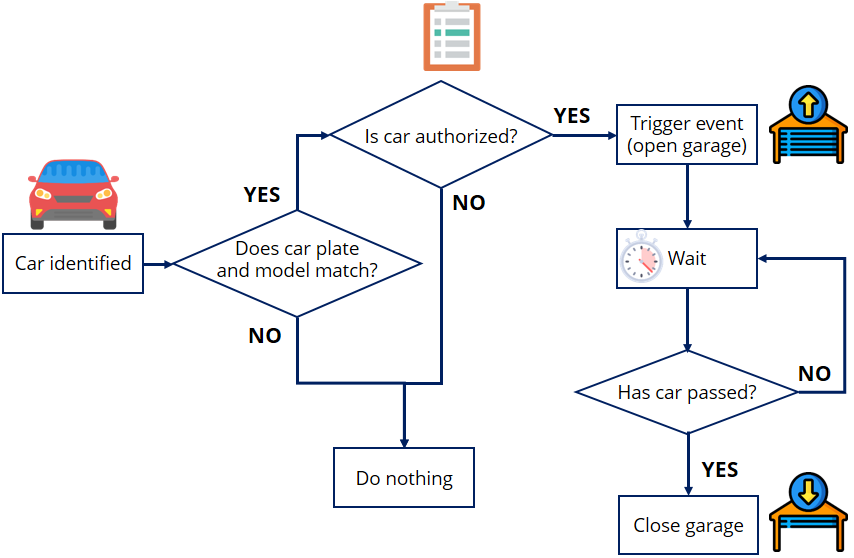
After identifying a car, we’ll do some verifications, and if we find an authorized car, we’ll trigger an event (that can be opening the garage, for example). The following image contains a flowchart showing the process.
Top 6
Raspberry Pi eBooks
From Zero to Professional

Here’s what happens: after the car has been identified by OpenALPR, we’ll check if the license plate and the car model match. If they match, we’ll check if the car is in the list of authorized vehicles. If it is, we’ll trigger an event. For example: open the garage. After that, we wait a determined period of time until the car enters the garage. Then, you need to add several verifications to check if the car has already entered the garage. If yes, you can close the garage.
For this project, you need the following parts:
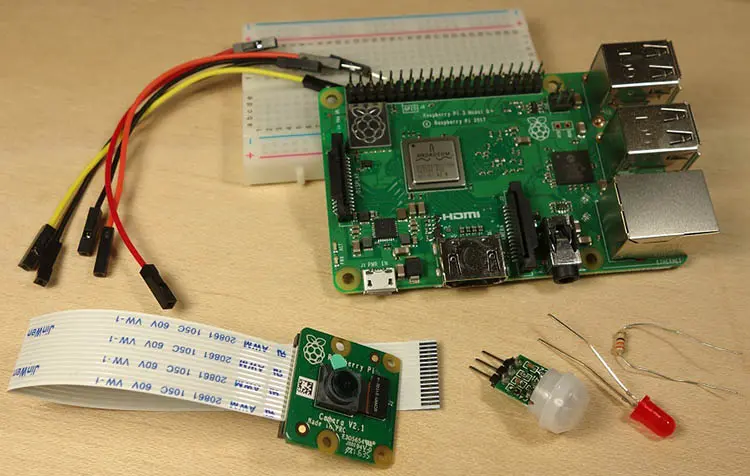
Note: At the moment, we don’t have an automatic garage, so we’ll use an LED to mimic the event triggering (we know it is not the same thing, but you get the idea).
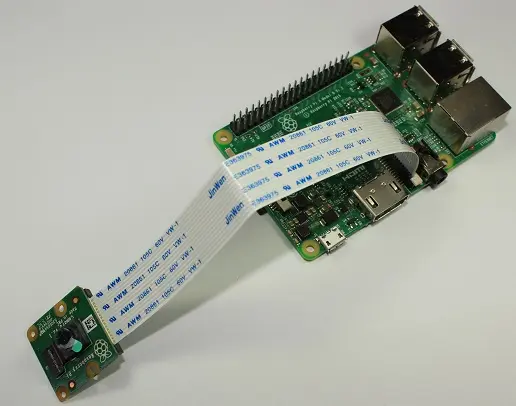
With the Pi shutdown, connect the camera to the Pi CSI port as shown in the following figure. Make sure the camera is connected in the right orientation with the ribbon blue letters facing up (you need to enable the camera in your Raspbian OS).
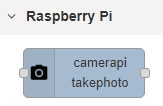
You should also have Node-RED installed in your Pi and the node-red-contrib-camerapi node installed:
Assemble the circuit to test this project. Follow the next schematic diagram:
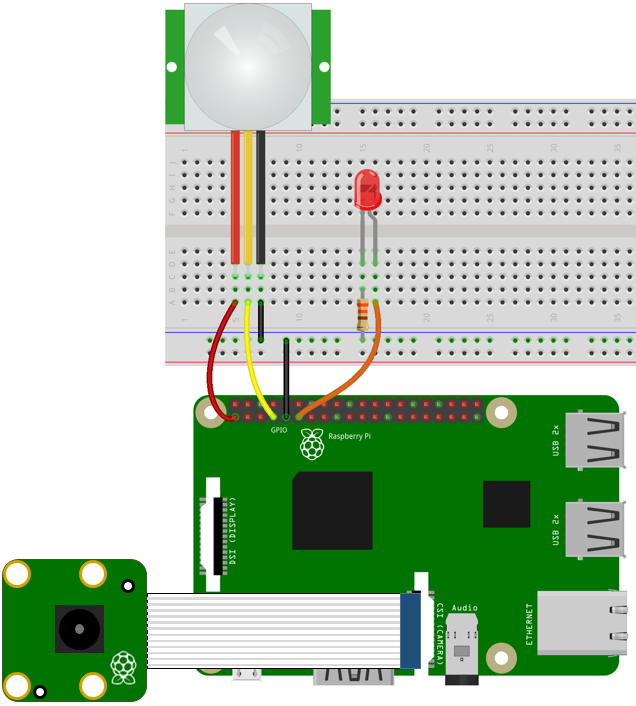
After having your Raspberry Pi prepared and Node-RED software configured, you can continue with this project.
OpenALPR is an open source Automatic License Plate Recognition library written in C++ with bindings in C#, Java, Node.js, Go, and Python. They also have the OpenALPR Cloud API, which is a web service running in the cloud that analyzes images of vehicles and responds with license plate, model, color, and much more. OpenALPR Cloud API has a free service that allows up to 2000 free recognitions per month.
Note: instead of using their Cloud API, which is limited to only 2000 recognitions per month, you can install their Open Source software and use their Python integration to write Python scripts to analyse unlimited images. That way, you don’t need to use their cloud service, and you aren’t restricted to 2000 requests per month.
OpenALPR contains specialized training data for many plate styles. Currently, OpenALPR supports the following countries:

Note: Europe is not a country, but we assume that it supports all countries in Europe. If your country is not listed, you may still experience high accuracy rates by using training data for a country that has plates that look similar to yours.
To get started with OpenALPR Cloud API, you can create a free account. After completing your account creation, you should have access to the following page:
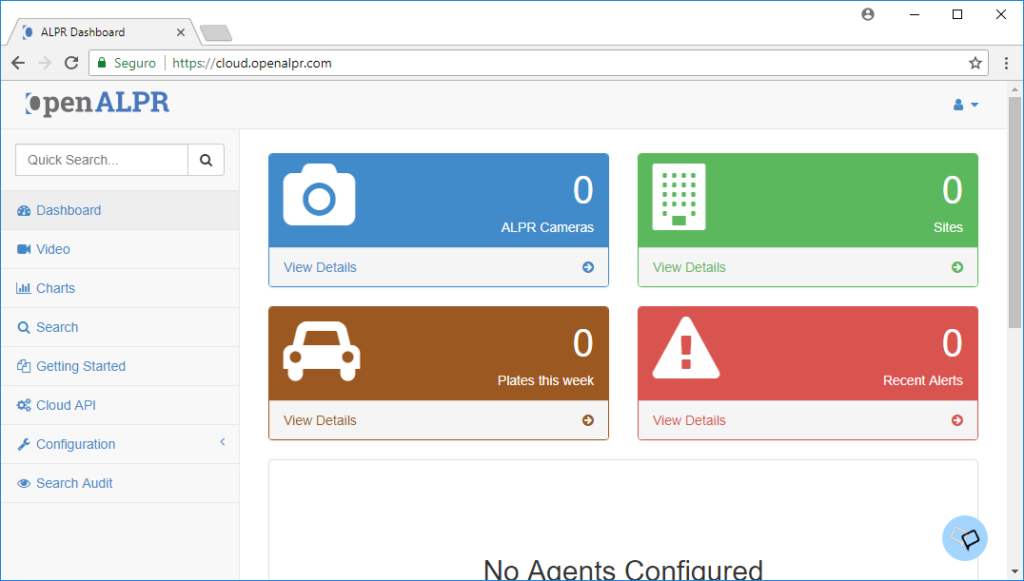
Open the Cloud API tab to access your Secret Key. You need it to make requests to the API.
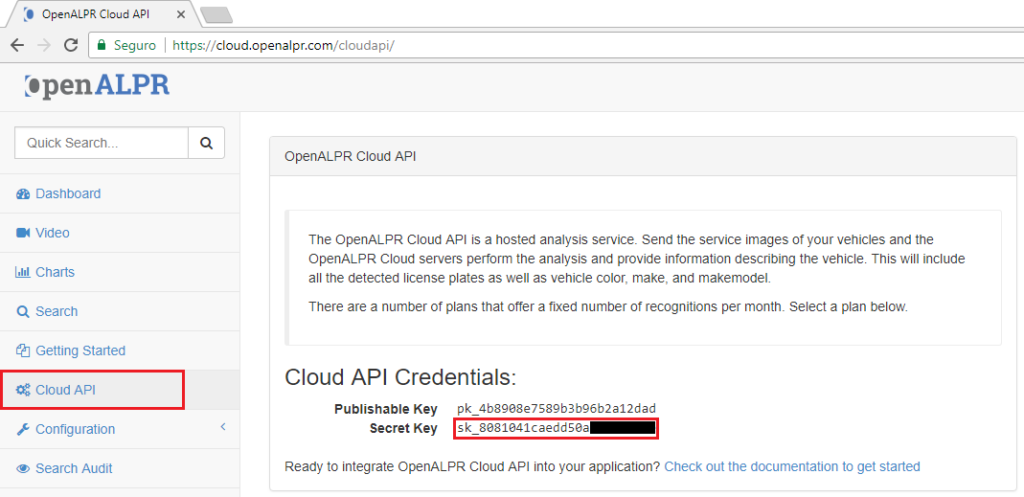
In my case, the secret key is: sk_8081041caedd50a———
Save your secret key in a safe place, because you’ll need it in just a moment.
First, you should start by identifying your car using the Pi Camera and the OpenALPR service. So, start with the provided sample flow that takes a photo and makes a request to the OpeALPR Cloud API to identify your car. To import the Node-RED flow provided, go to the GitHub repository or click the figure below to see the raw file, and copy the code provided.

Next, in the Node-RED window, at the top right corner, select the menu, and go to Import > Clipboard.
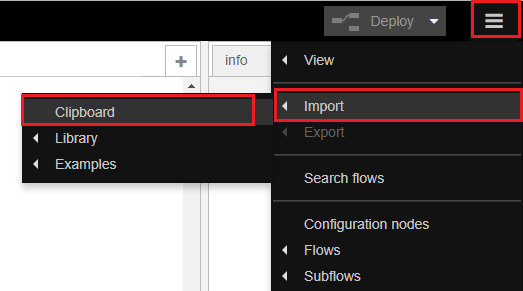
Then, paste the code provided and click Import. The next nodes should show up in your flow:

After importing the flow, you need to make some changes to make it work for you. Open the Take Photo node:

Edit the node to have the same settings as shown in the next figure:
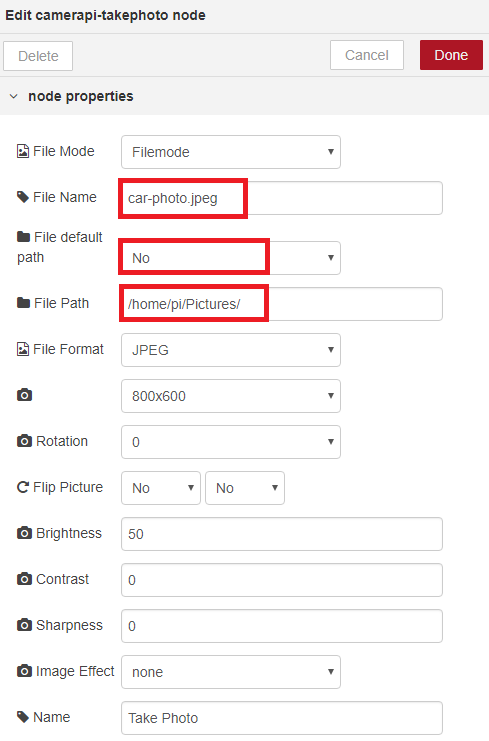
Important: Sometimes the previous node might overwrite the default setting. Make sure you double-check that it has the right settings. Then, click the deploy button.
Double-click the cURL POST node:

Then, change the Command field to include your Secret Key and country code:
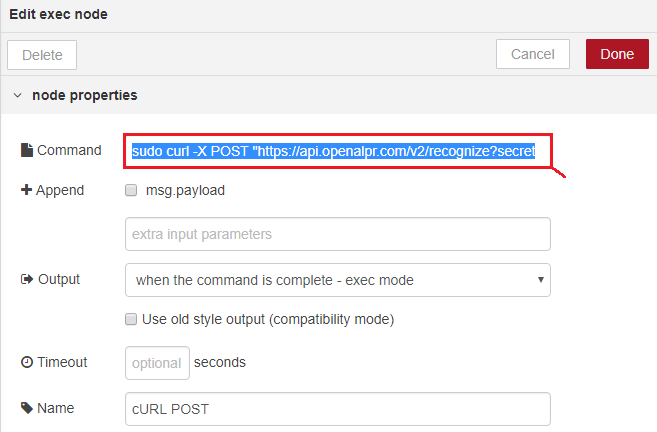
By default, it should have this command:
sudo curl -X POST "https://api.openalpr.com/v2/recognize?secret_key=YOUR_SECRET_KEY&recognize_vehicle=1&country=YOUR_COUNTRY_CODE&return_image=0&topn=10" -F image=@/home/pi/Pictures/car-photo.jpeg
Add your secret key that you’ve retrieved earlier and your country code:
sudo curl -X POST "https://api.openalpr.com/v2/recognize?secret_key=sk_8081041caedd50a---------&recognize_vehicle=1&country=eu&return_image=0&topn=10" -F image=@/home/pi/Pictures/car-photo.jpeg
Note: EU is not a country, but if you live in any country in Europe, you use the EU country code.
Copy and paste your exact command in the Command field of the cURL POST node and press the Deploy button in your Node-RED software for all the changes to take effect:

After deploying the flow, let’s test the car identification process. Move your car to a place where you can take a photo with your Raspberry Pi:
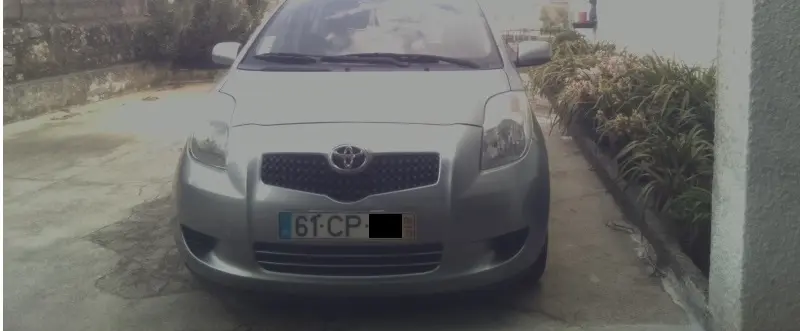
Point the camera at the car and tap the square next to the timestamp node to trigger the flow.

That should take a photo with your Pi Camera, save it at /home/pi/Pictures/car-photo.jpeg and make a request to the cloud API to identify your car plate and model. It should print the JSON response in the Debug window.
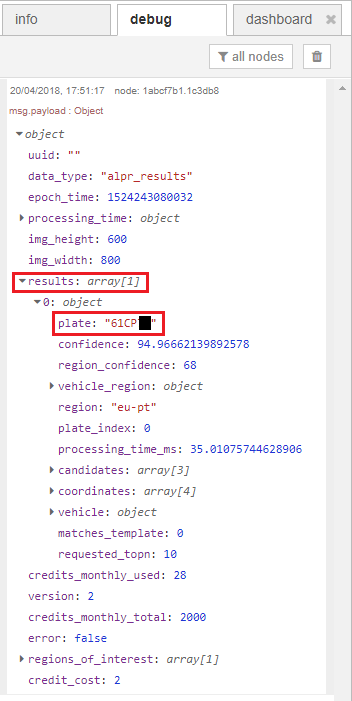
Open the debug window, and you should see an object with all the details about the JSON response. The results array should have at least one result (array[1]), otherwise, it might be analyzing a photo without a car, or it couldn’t identify the car (make sure the Pi Camera is pointed at the car while you take the photo).
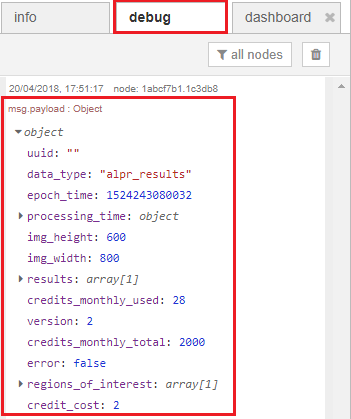
Click the arrow next to the results: array[1] to expand the object. You should see a plate object with your car plate. Save the car plate in the format retrieved by the API. In my case, it’s “61CP–“. You’ll need it later to identify your car:
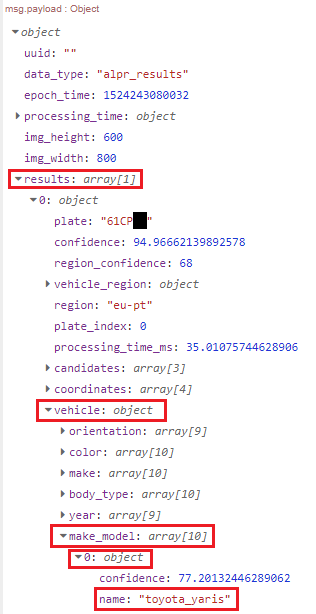
Expand the vehicle object > make_model > 0: object, and you should see the name of your car and how the API identified the car model. In our case, it identified the car as a Toyota Yaris with 77,2% confidence. We should save the exact string “toyota_yaris” retrieved by the API, because we need it for the next flow. Save your car model in the format retrieved by the API.
In case your response returned invalid results, make sure you double-check the following details:
In this part, we’ll add the car detection and event triggering to our flow. When motion is detected, the Pi camera takes a photo with the Pi Camera and requests OpenALPR. Then, based on the response, it will trigger an event (in this case, we’ll set an output to light up an LED).
To import the Node-RED flow provided, go to the GitHub repository or click the figure below to see the raw file, and copy the code provided.

Next, in the Node-RED window, at the top right corner, select the menu, and go to Import > Clipboard.
Then, paste the code provided and click Import. The next nodes should load in your flow:
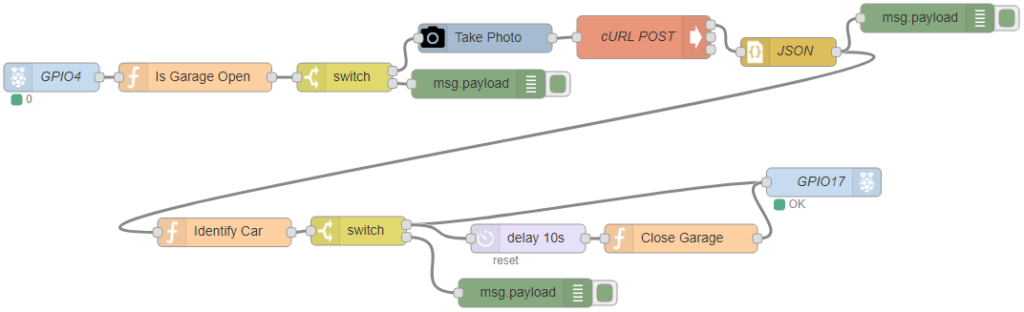
After importing the flow, you need to make some changes to make it work for you. Open the Take Photo node:
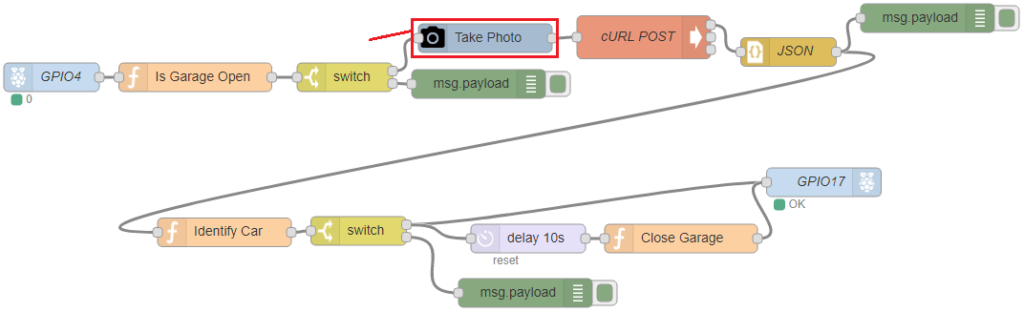
Edit the node to have the same settings as shown in the next figure:
Double-click the cURL POST node:
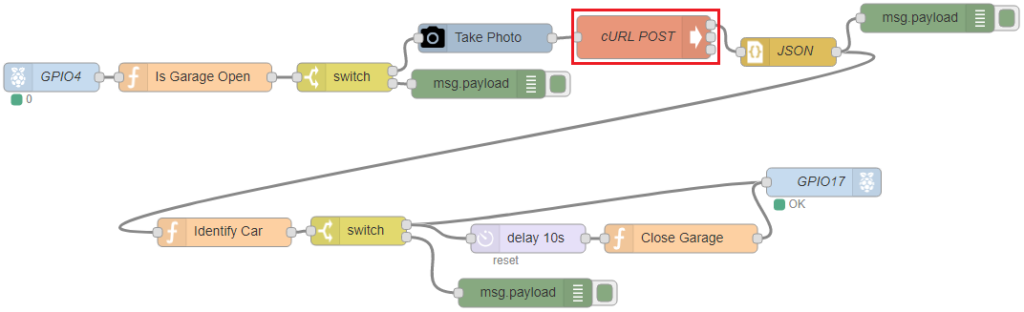
Then, change the Command field to include your Secret Key and country code:
By default, it should have this command:
sudo curl -X POST "https://api.openalpr.com/v2/recognize?secret_key=YOUR_SECRET_KEY&recognize_vehicle=1&country=YOUR_COUNTRY_CODE&return_image=0&topn=10" -F image=@/home/pi/Pictures/car-photo.jpeg
Add your secret key that you’ve retrieved earlier and your country code:
sudo curl -X POST "https://api.openalpr.com/v2/recognize?secret_key=sk_8081041caedd50a---------&recognize_vehicle=1&country=eu&return_image=0&topn=10" -F image=@/home/pi/Pic
Open the function node Identify Car to add your car’s license plate and model.
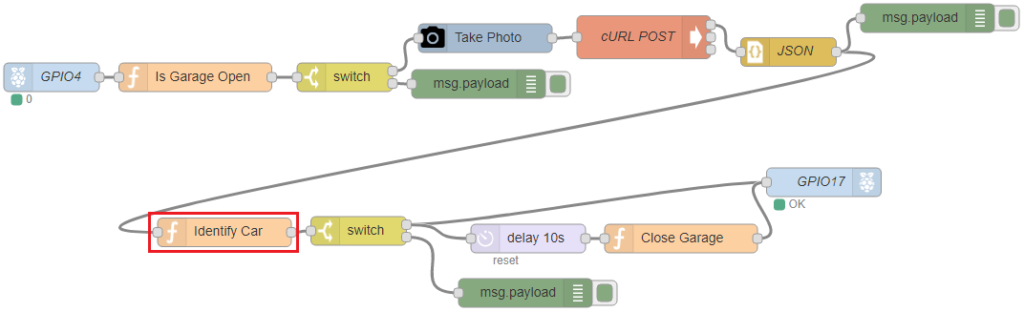
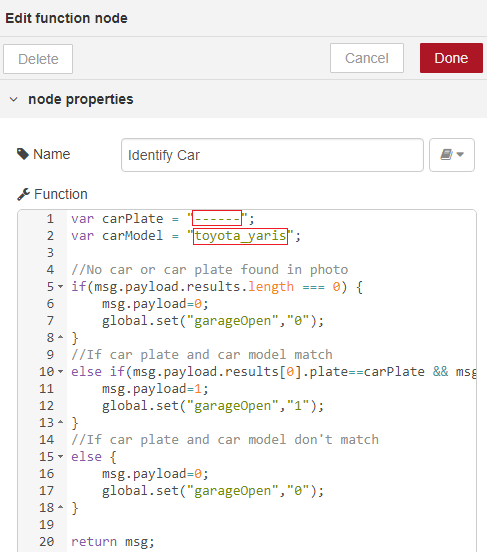
You need to replace the carPlate and carModel variables with your own car plate and model name (in the exact same format as retrieved earlier). In our case, we get:
var carPlate = "61CP--";
var carModel = "toyota_yaris";
The following figure shows the place where you should add your car plate and model on the function node:
Note: if you want to add another car plate, you need to edit the “Identify Car” function. Declare another carPlate2 and carModel2:
var carPlate2 = " ";
var carModel2= " ";
Then, after the else if statement, add the following:
else if(msg.payload.results[0].plate==carPlate2 && msg.payload.results[0].vehicle.make_model[0].name==carModel2){
  msg.payload=1;
  global.set("garageOpen","1");
}
That should allow you to verify two cars (you can add more).
Once you’ve added your car details, press Done and click the Deploy button:
Now, when the car arrives, the PIR sensor detects motion, the Pi Camera takes a photo, and the car is identified using the OpenALPR API.
Your Node-RED should identify your car plate and car model. Then, it will trigger an event: it turns GPIO 17 on for a few seconds and then it turns off. This simulates the open/close garage door command.
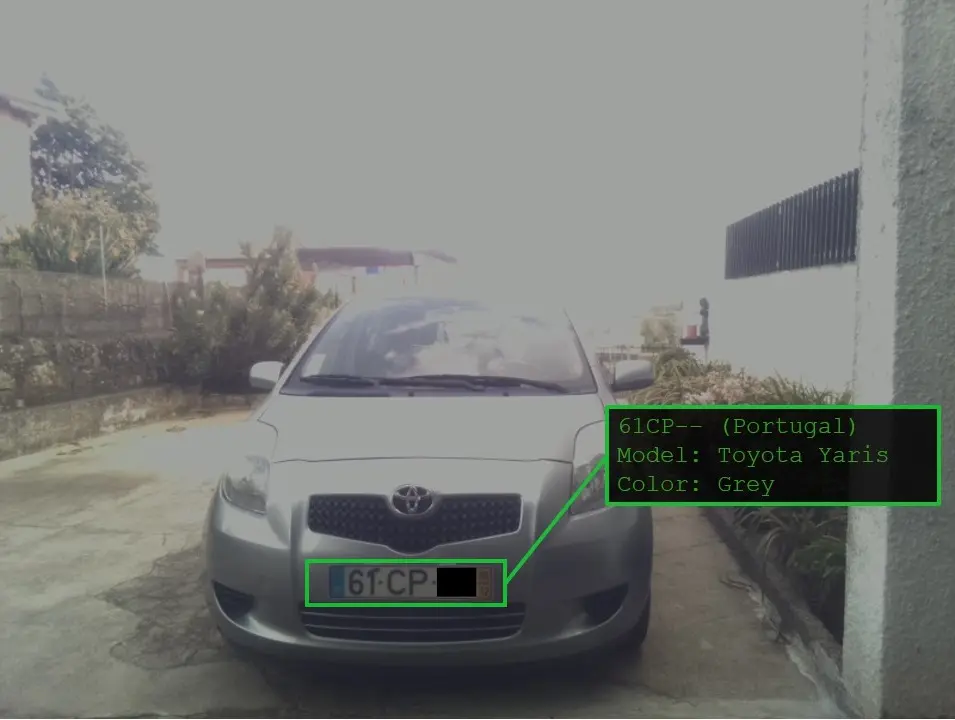
In this project, we’ve shown you how to identify car plates using OpenALPR. We also show you how you can trigger an event based on a specific car plate. This way, you can automatically open your garage when you arrive with your car. You can modify this project to make it work for you and use it in your own home automation system.
In the example we’ve shown, we’ve used a PIR motion sensor to detect the car arriving. Other sensors might be better for this case, like: ultrasonic sensor, active infrared sensor, or hall effect sensor, for example.
When we trigger the event, we wait 10 seconds until “closing the garage”. You need to add several verification processes (that we did not include in the flow) to check if the car has entered the garage or not.
We hope you’ve found this project interesting. If you like this project, you may also like:
Thanks for reading.
🚀 Discover the world of electronics and innovation!
✨ Create, program, and experiment with all your creative ideas with ease.
🔥 Don't wait! Browse SpotPear products now and start your amazing project!








