Book Categories:


Wait, don't go!
Become a Member Today and Unlock Access to All eBooks!
Thousands of eBooks at your fingertips. Read, learn, and grow anytime, anywhere.
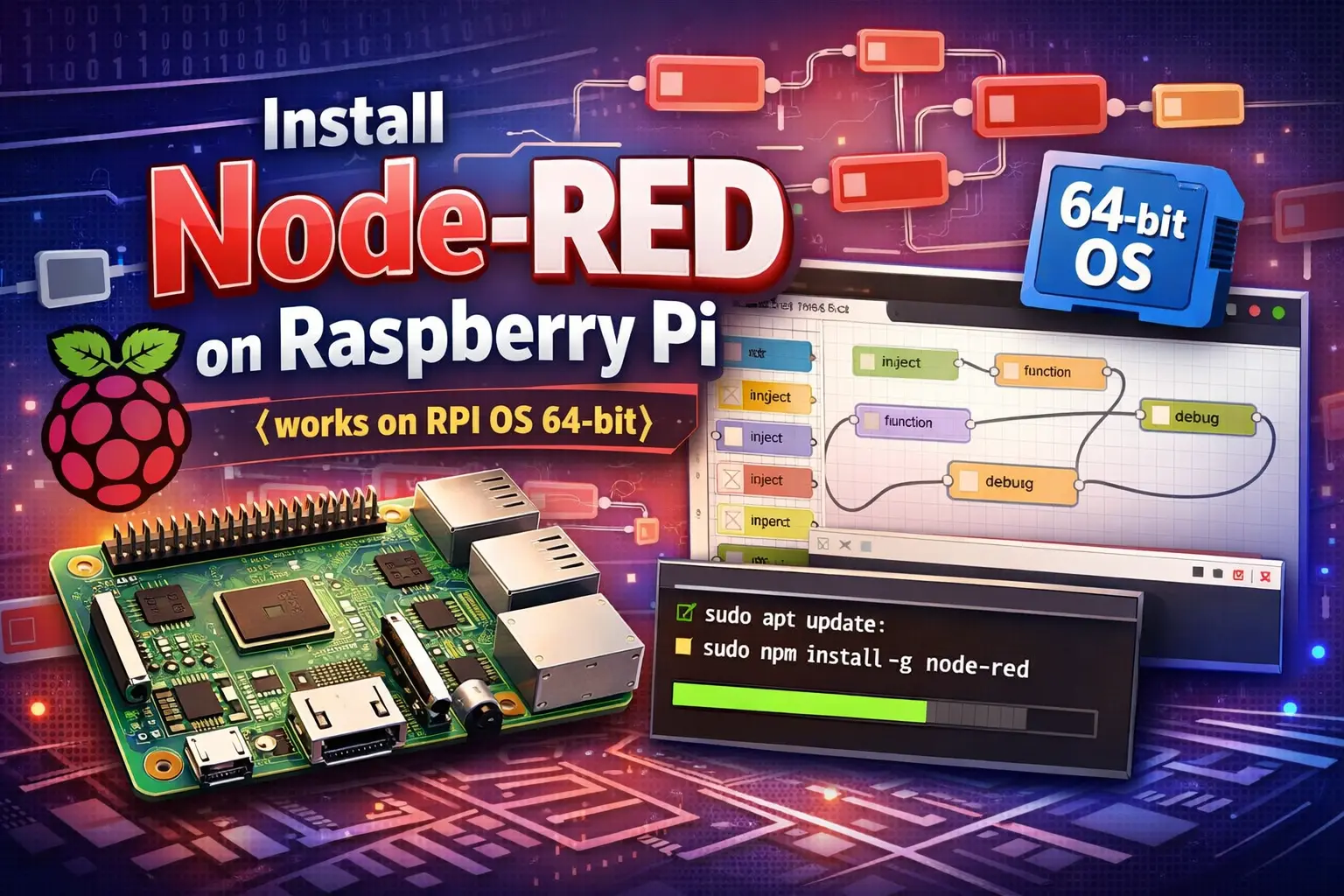
This is a quick guide showing how to install Node-RED on a Raspberry Pi. We tested this installation on Raspberry Pi OS (32-bit) and Raspberry Pi OS (64-bit).
Before proceeding:
Having an SSH connection established with your Raspberry Pi, enter the following to install Node-RED:
bash <(curl -sL https://raw.githubusercontent.com/node-red/linux-installers/master/deb/update-nodejs-and-nodered)Node-RED is installed by default on the Raspberry Pi OS (32-bit). However, it is recommended to run the previous command to install the required packages and update it to the most recent version. You’ll get a message informing you about this. Press Y and press Enter to accept.
Node-RED is not installed by default on Raspberry Pi OS (64-bit).
Then, you’ll be asked: “Would you like to install Pi-specific nodes?” Press Y and Enter.

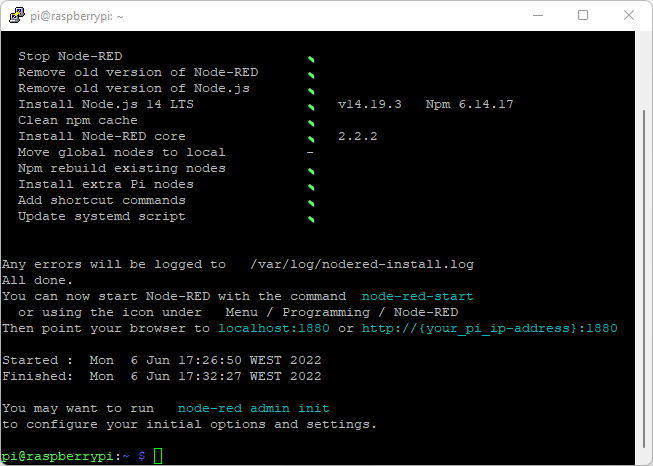
It will take a few minutes to install Node-RED. In the end, you should get a similar message in the Terminal window:
After installing, it is recommended to configure initial options and settings. Run the following command:
node-red admin init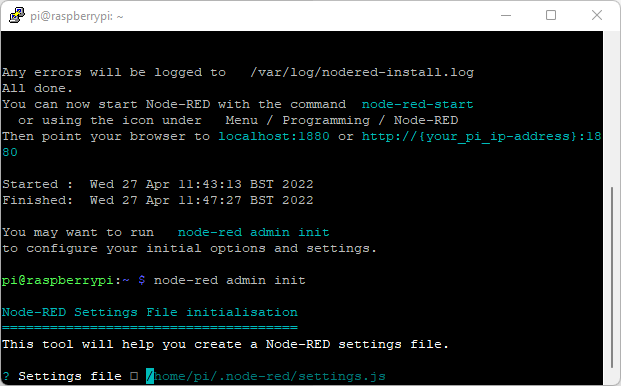
/home/pi/.node-red/settings.jsflows.json.Node-RED configuration was successful. All settings are saved in settings.js.
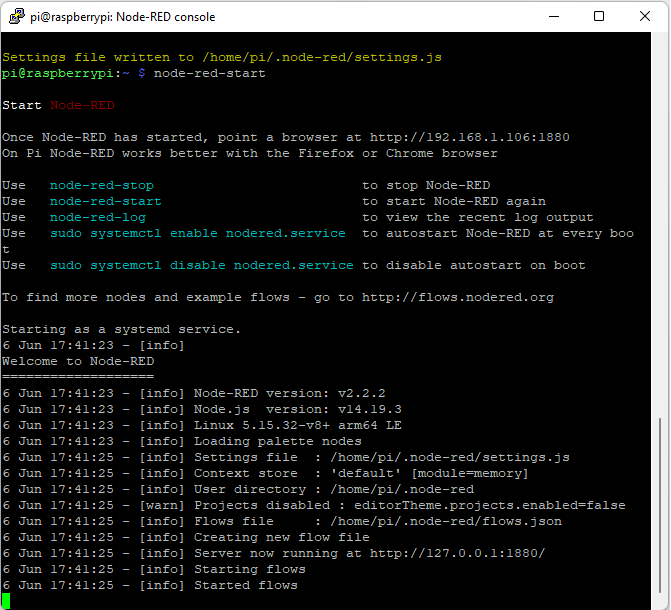
Run the following command to start Node-RED:
node-red-startYou should get a similar message on the Terminal:
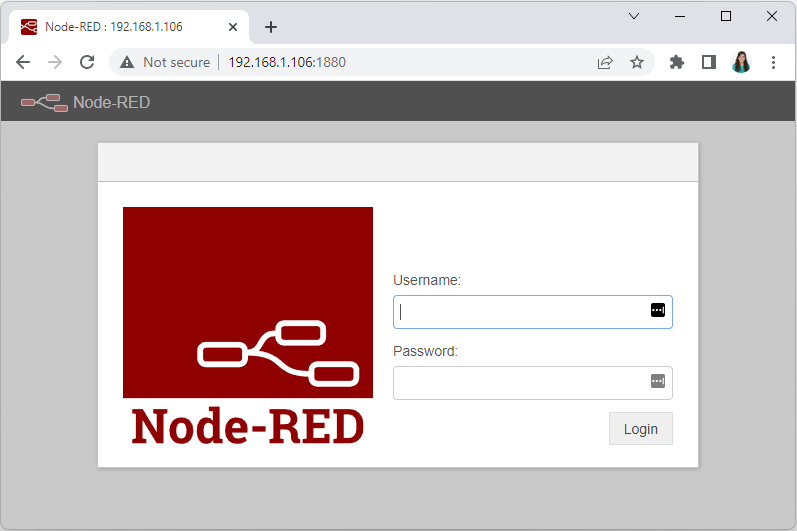
Node-RED runs on port 1880. To access Node-RED open a browser and type the Raspberry Pi IP address followed by :1880. For example:
192.164.1.106:1880You’ll get access to the Node-RED login page. Login with the username and password you’ve set previously.
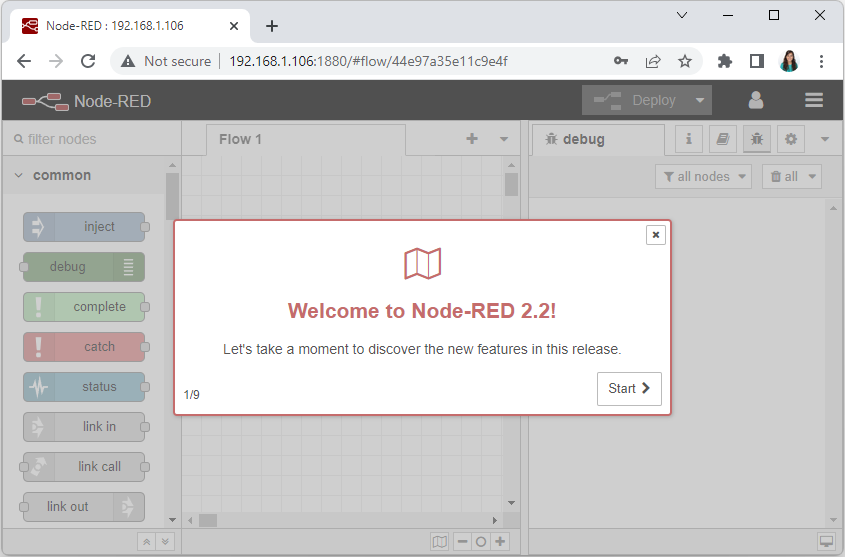
Now, you have access to Node-RED. You can start building your flows.
To automatically run Node-RED when the Pi boots up, you need to enter the following command. This means that as long as your Raspberry Pi is powered up, Node-RED will be running.
sudo systemctl enable nodered.serviceNow, restart your Pi so the autostart takes effect. The next time the Raspberry Pi restarts, Node-RED will already be running.
sudo rebootIf, later on, you want to disable autostart on boot, you can run:
sudo systemctl disable nodered.serviceFor more information about the installation process, check the official documentation.
Congratulations! You successfully installed Node-RED on your Raspberry Pi. Now, you can start building your Home Automation System. Using MQTT with Node-RED is a great option to gather data from several sensor nodes and send commands to actuators. You can also resend your sensor data to InfluxDB and have a history of your data saved in a database.
You may also like reading:
Thanks for reading!








